> ## Documentation Index
> Fetch the complete documentation index at: https://docs.domino.ai/llms.txt
> Use this file to discover all available pages before exploring further.
# Customize Grafana alerts
Similarly to customizing dashboards, the standard alerts provided by Domino are immutable. In order to customize an alert, you need to create a copy of the alert and make your changes to the copy. You can add your own new custom alerts and edit them without restriction. Customized alerts will not be overwritten or lost during upgrades of the Domino platform, as long as the Grafana persistent volume `grafana-grafana-0` is not deleted.
Full documentation on all aspects of alerting with Grafana can be found in the [Grafana documentation](https://grafana.com/docs/grafana/latest/alerting/).
To modify an existing alert, log in to Grafana and follow these steps:
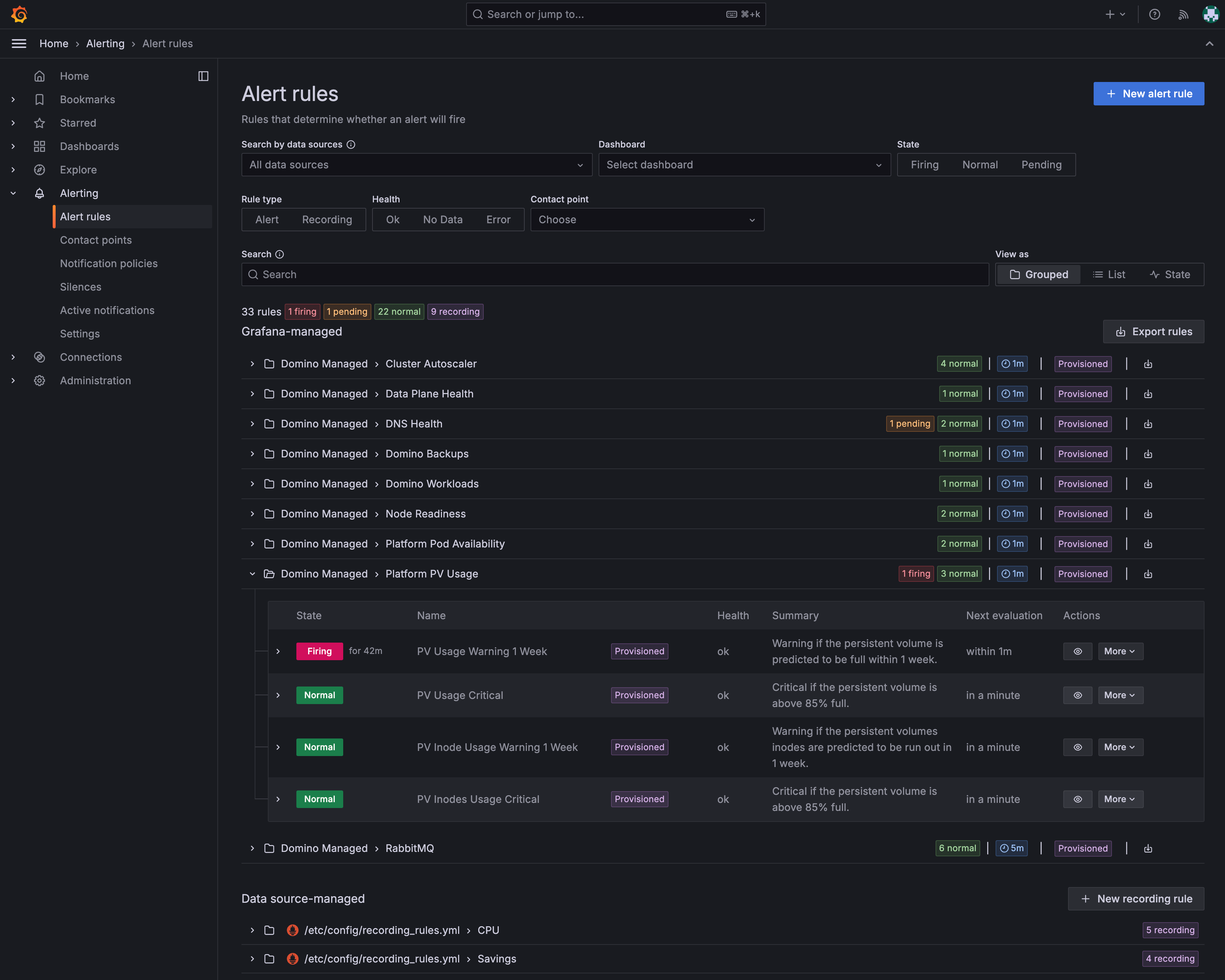
1. On the left navigation pane, navigate to the alert you want to customize and click **Alerting**, then click on the [evaluation group](https://grafana.com/docs/grafana/latest/alerting/fundamentals/alert-rule-evaluation/#evaluation-group) name containing the alert you wish to edit.
The Domino provisioned alerts will show the **Provisioned** graphic next to them.
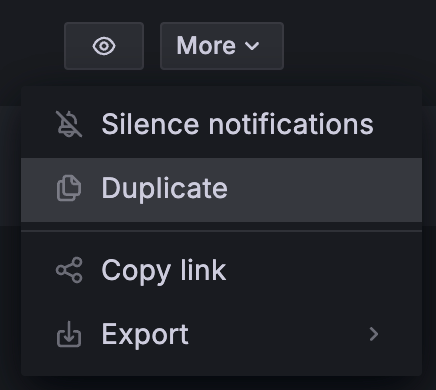
 2. Click on the **More** button to the right of the row containing the alert you want to customize and then select **Duplicate**.
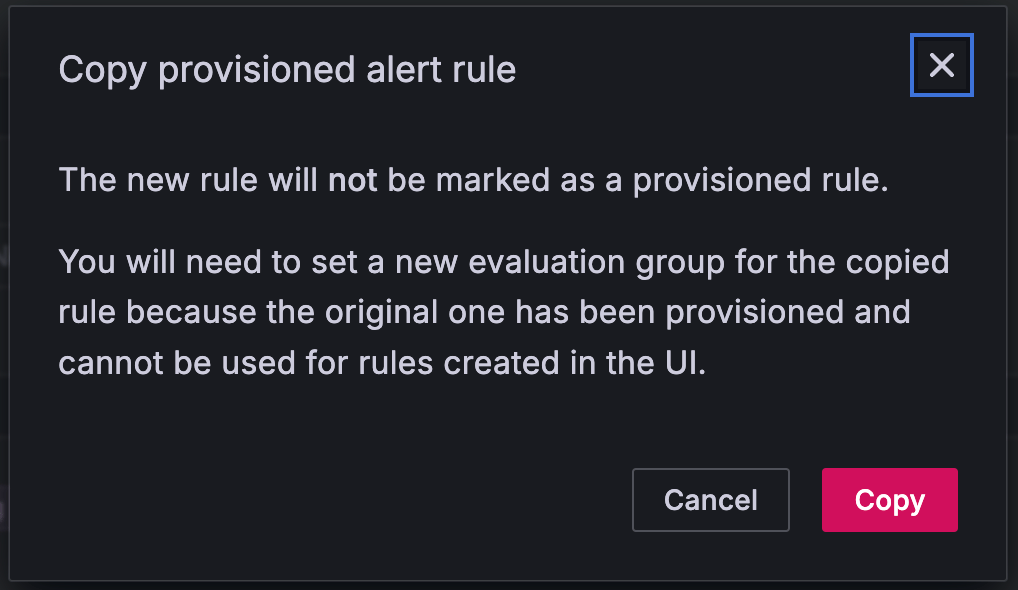
 3. You will be shown the **Copy provisioned alert rule** dialogue box with an explanation that the copied alert will not be marked as provisioned and that it will require a new evaluation group because the original evaluation group is also provisioned and therefore immutable.
Click **Copy** to continue.
3. You will be shown the **Copy provisioned alert rule** dialogue box with an explanation that the copied alert will not be marked as provisioned and that it will require a new evaluation group because the original evaluation group is also provisioned and therefore immutable.
Click **Copy** to continue.
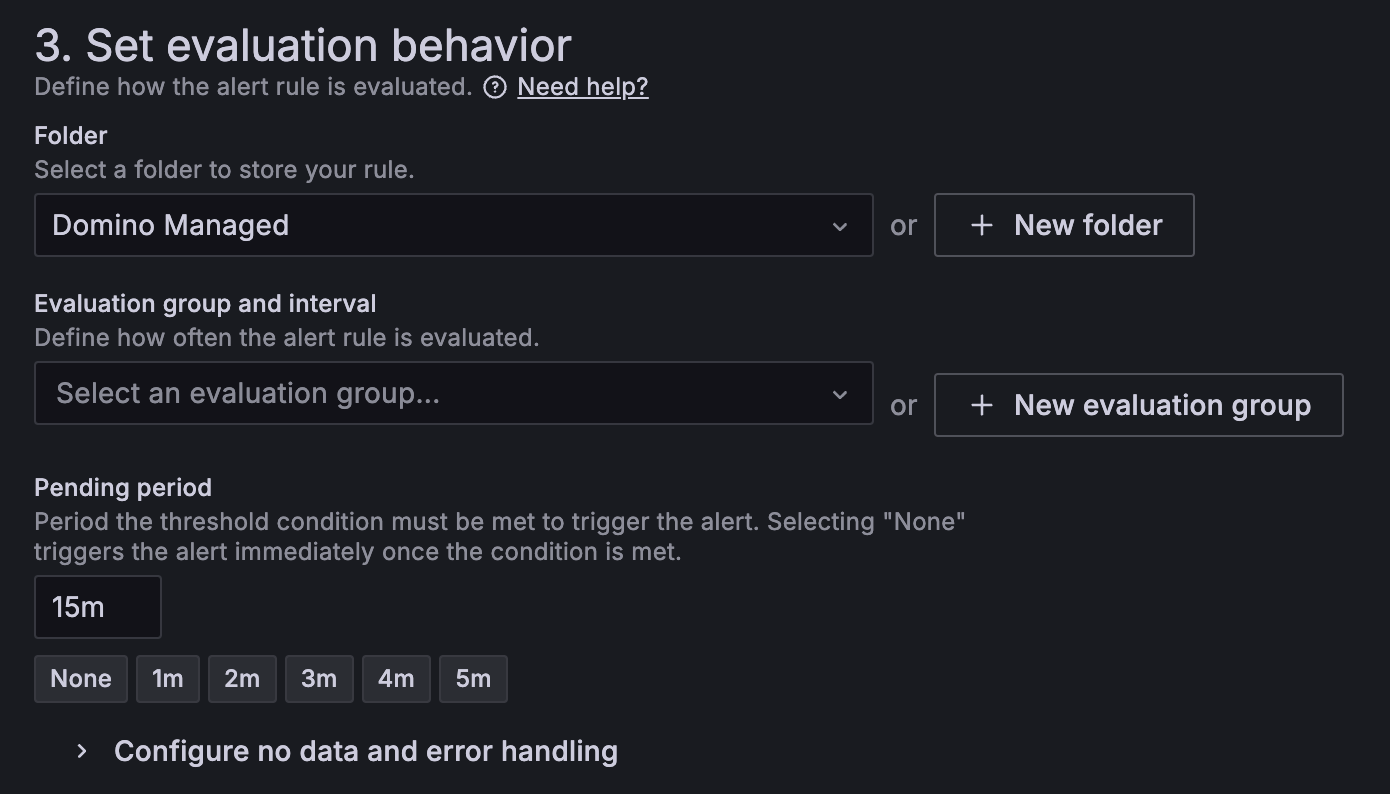
 4. Next you will see the **New alert rule** page. Here you can make changes to the alert rule as required. See [Alert Rules](https://grafana.com/docs/grafana/latest/alerting/fundamentals/alert-rules/) in the Grafana documentation for more information.
The key thing to edit here is in the **Set evaluation behavior** section where you need to either create a new evaluation group using the **New evaluation group** button (see the [Grafana documentation](https://grafana.com/docs/grafana/latest/alerting/fundamentals/alert-rule-evaluation/) for more details), or select an existing non-provisioned one using the **Select an evaluation group…** dropdown.
Click **Save rule and exit** at the top right of the page after you have made your changes.
4. Next you will see the **New alert rule** page. Here you can make changes to the alert rule as required. See [Alert Rules](https://grafana.com/docs/grafana/latest/alerting/fundamentals/alert-rules/) in the Grafana documentation for more information.
The key thing to edit here is in the **Set evaluation behavior** section where you need to either create a new evaluation group using the **New evaluation group** button (see the [Grafana documentation](https://grafana.com/docs/grafana/latest/alerting/fundamentals/alert-rule-evaluation/) for more details), or select an existing non-provisioned one using the **Select an evaluation group…** dropdown.
Click **Save rule and exit** at the top right of the page after you have made your changes.
 Your rule will now be saved and active. You can edit it at any time by navigating to the alert in your new evaluation group and clicking on the **Edit** button.