> ## Documentation Index
> Fetch the complete documentation index at: https://docs.domino.ai/llms.txt
> Use this file to discover all available pages before exploring further.
# Use Posit Package Manager in a workspace
If you work in a Domino workspace with RStudio or VS Code, you can use the Posit Package Manager (PPM) integration to manage R packages. This is especially useful in GxP-regulated Life Sciences workflows, where reproducibility and validation are critical.
This integration helps you:
* Search for packages across PPM snapshots
* See which snapshot is configured in your `renv.lock` file
* Install packages with a single command
* Maintain reproducibility for GxP-regulated workflows
## How it works
Search for packages with or without version numbers. The integration shows which snapshots contain them and highlights your current snapshot.
Select a snapshot and copy a formatted command for R or bash. This command can install packages, update your environment, and write changes to `renv.lock`. Your admin can customize the command logic to meet GxP compliance requirements.
Paste and run the command in your workspace.
## Prerequisites
Before you use PPM integration, verify these requirements:
* A network-accessible PPM server
* Your admin has [configured a PPM server](/6.3/admin/platform-configuration/configure-projects/configure-ppm-server) in Domino
* Your admin has configured the environment to include an `update.R script` which handles:
* Package installation
* `renv` updates
* Snapshotting the `renv.lock` file
* GxP compliance logic
## Step 1: Search for validated R packages in PPM
Use the PPM integration to find packages. Search by package name to see which snapshots include them.
1. [Launch a workspace](/6.3/platform-capabilities/core-concepts/workspaces/launch-a-workspace) using RStudio or VS Code.
2. In the left sidebar, select **Posit Package Manager**.
3. In the PPM panel, enter a comma-separated list of R packages.
You can optionally include version constraints using `==`, `>=`, `<=`, `<`, or `>`. The panel shows snapshots that contain all the packages and meet version constraints.
4. Review the snapshot currently defined in your `renv.lock` file at the top of the panel.
## Step 2: Install packages and update your environment
After you select a snapshot, install packages and update your environment with a single command.
1. Click the **copy** button next to your selected snapshot.
2. Choose either **R** or **Bash** based on where you want to run the command (in the R console or in the terminal).
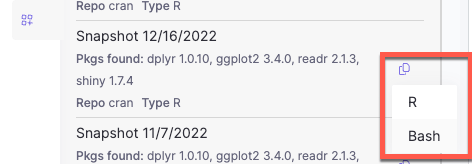 3. Paste and run the command in your workspace. For example, if you pick `R`, it looks something like this:
```r theme={null}
source("/home/ubuntu/update.R");
manage_renv_environment(
cran_url = "http://rstudio-service.rstudio.svc.cluster.local:80/cran/2025-04-10",
packages = c("dplyr", "ggplot2")
)
```
This command runs a script configured by your admin. The script can install packages, update the environment, run `renv::snapshot()`, or execute GxP compliance logic.
4. Select the **refresh** icon at the top of the PPM panel.
3. Paste and run the command in your workspace. For example, if you pick `R`, it looks something like this:
```r theme={null}
source("/home/ubuntu/update.R");
manage_renv_environment(
cran_url = "http://rstudio-service.rstudio.svc.cluster.local:80/cran/2025-04-10",
packages = c("dplyr", "ggplot2")
)
```
This command runs a script configured by your admin. The script can install packages, update the environment, run `renv::snapshot()`, or execute GxP compliance logic.
4. Select the **refresh** icon at the top of the PPM panel.
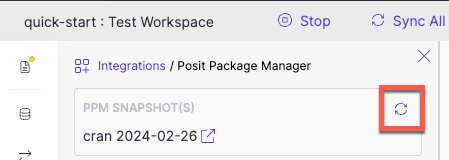 5. Your selected snapshot now appears under **PPM Snapshot(s)**.
### Notes
* If you launched the workspace with an existing `renv.lock` file, the panel shows the snapshot defined in that file.
* If the integration doesn’t work, verify prerequisites with your admin.
* If you use bash, reload your terminal for the snapshot to appear in your environment.
## Next steps
* Learn about [launching workspaces](/6.3/platform-capabilities/core-concepts/workspaces/launch-a-workspace) in Domino.
* [View workspace details](/6.3/platform-capabilities/core-concepts/workspaces/view-workspace-details) about user actions, view current and historical workspace resource usage, and view sessions and commits that were made in a workspace.
5. Your selected snapshot now appears under **PPM Snapshot(s)**.
### Notes
* If you launched the workspace with an existing `renv.lock` file, the panel shows the snapshot defined in that file.
* If the integration doesn’t work, verify prerequisites with your admin.
* If you use bash, reload your terminal for the snapshot to appear in your environment.
## Next steps
* Learn about [launching workspaces](/6.3/platform-capabilities/core-concepts/workspaces/launch-a-workspace) in Domino.
* [View workspace details](/6.3/platform-capabilities/core-concepts/workspaces/view-workspace-details) about user actions, view current and historical workspace resource usage, and view sessions and commits that were made in a workspace.