> ## Documentation Index
> Fetch the complete documentation index at: https://docs.domino.ai/llms.txt
> Use this file to discover all available pages before exploring further.
# Use PySpark in Jupyter Workspaces
You can configure a [Domino workspace](/6.3/platform-capabilities/core-concepts/workspaces/launch-a-workspace) to launch a Jupyter notebook with a connection to [your Spark cluster](/6.3/platform-capabilities/features/compute-clusters-hpc/spark/hadoop-and-spark).
This allows you to operate the cluster interactively from Jupyter with [PySpark](https://archive.apache.org/dist/spark/docs/0.9.0/python-programming-guide.html).
The instructions for configuring a PySpark workspace are below. To use them, you must have a Domino environment that meets the following prerequisites:
* The environment must use one of the [Domino Standard Environments](/6.3/platform-capabilities/core-concepts/compute-environments/manage-compute-environments/2-domino-standard-environments) as its base image.
* The necessary binaries and configurations for connecting to your Spark cluster must be installed in the environment. See [the provider-specific guides](/6.3/platform-capabilities/features/compute-clusters-hpc/spark/hadoop-and-spark) for setting up the environment.
PySpark 2 does not support Python 3.8 or higher. Build PySpark 2 compute environments from images with Python versions before 3.8 or use PySpark 3.
## Add a PySpark Workspace option to your Environment
1. From the Domino main menu, click **Environments**.
2. Click the name of an environment that meets the prerequisites listed previously. It must use a Domino standard base image and already have the necessary binaries and configuration files installed for connecting to your spark cluster.
3. On the environment overview page, click **Edit Definition**.
4. In the **Pluggable Workspace Tools** field, paste the following YAML configuration.
```yaml theme={null}
pyspark:
title: "PySpark"
start: [ "/var/opt/workspaces/pyspark/start" ]
iconUrl: "https://raw.githubusercontent.com/dominodatalab/workspace-configs/develop/workspace-logos/PySpark.png"
httpProxy:
port: 8888
internalPath: "/{{ownerUsername}}/{{projectName}}/{{sessionPathComponent}}/{{runId}}/{{ rewrite: false
requireSubdomains: false
supportedFileExtensions: [ ".ipynb" ]
```
When finished, the field should look like this:
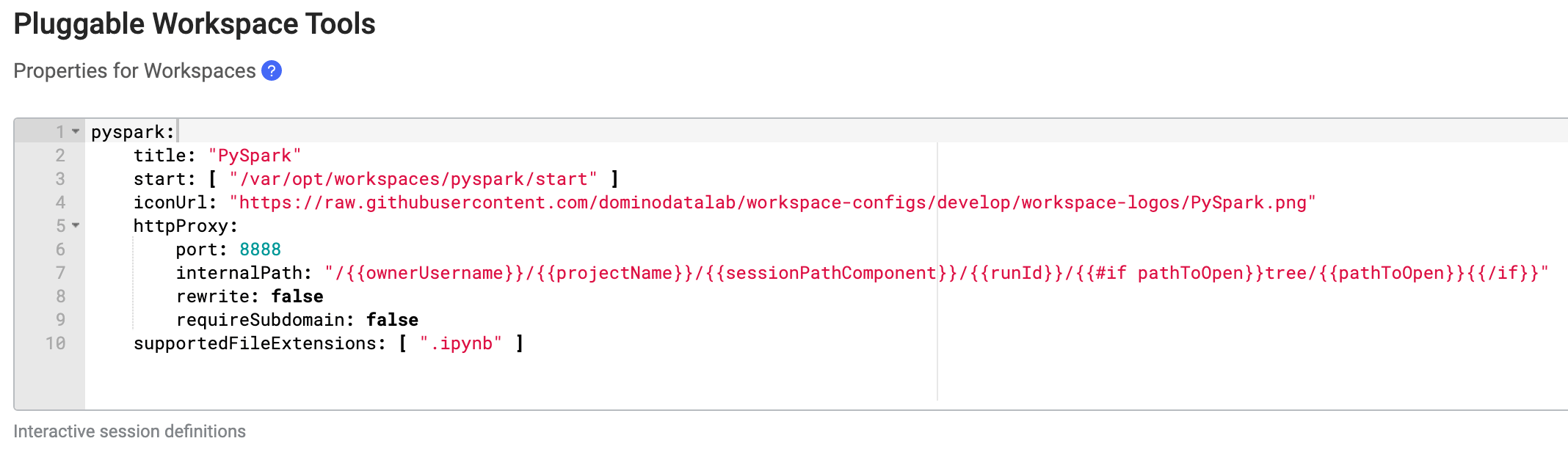 5. Click **Build** to apply the changes and build a new version of the environment. Upon a successful build, the environment is ready for use.
If you are using an older version of a [Domino Standard Environment](/6.3/platform-capabilities/core-concepts/compute-environments/manage-compute-environments/2-domino-standard-environments) you might require a different **Pluggable Workspace Tool** definition for PySpark. The safest way to do this is to copy the Jupyter pluggable workspace definition for your base image (see the `` README` `` for your base image at the [Domino Analytics Distribution](https://github.com/dominodatalab/Domino_Base_Images/tree/master/Domino_Analytics_Distribution) git repo), but replace Jupyter in the **title** and **start** fields with PySpark. You can use the same **iconUrl** specified above to get the correct PySpark icon.
## Launching PySpark Workspaces
1. Open the project you want to use a PySpark workspace in.
2. Open the project settings, then follow the [provider-specific instructions from the Hadoop and Spark overview ](/6.3/platform-capabilities/features/compute-clusters-hpc/spark/hadoop-and-spark) on **setting up a project to work with an existing Spark connection environment**. This will involve enabling YARN integration in the project settings.
3. On the **Hardware & Environment** tab of the project settings, choose the environment you added a PySpark configuration to in the previous section.
4. After the previous settings are applied, you can launch a PySpark workspace from the workspaces dashboard.
5. Click **Build** to apply the changes and build a new version of the environment. Upon a successful build, the environment is ready for use.
If you are using an older version of a [Domino Standard Environment](/6.3/platform-capabilities/core-concepts/compute-environments/manage-compute-environments/2-domino-standard-environments) you might require a different **Pluggable Workspace Tool** definition for PySpark. The safest way to do this is to copy the Jupyter pluggable workspace definition for your base image (see the `` README` `` for your base image at the [Domino Analytics Distribution](https://github.com/dominodatalab/Domino_Base_Images/tree/master/Domino_Analytics_Distribution) git repo), but replace Jupyter in the **title** and **start** fields with PySpark. You can use the same **iconUrl** specified above to get the correct PySpark icon.
## Launching PySpark Workspaces
1. Open the project you want to use a PySpark workspace in.
2. Open the project settings, then follow the [provider-specific instructions from the Hadoop and Spark overview ](/6.3/platform-capabilities/features/compute-clusters-hpc/spark/hadoop-and-spark) on **setting up a project to work with an existing Spark connection environment**. This will involve enabling YARN integration in the project settings.
3. On the **Hardware & Environment** tab of the project settings, choose the environment you added a PySpark configuration to in the previous section.
4. After the previous settings are applied, you can launch a PySpark workspace from the workspaces dashboard.