> ## Documentation Index
> Fetch the complete documentation index at: https://docs.domino.ai/llms.txt
> Use this file to discover all available pages before exploring further.
# Manage External Data Volumes
> An External Data Volume mounts a remote file system into Domino executions, backed by a labeled Kubernetes Persistent Volume Claim in the compute namespace.
An External Data Volume (EDV) mounts a remote file system into Domino executions, so practitioners read and write files on storage that Domino does not own. Registered EDVs appear in a table listing the name, type, description, and volume access of each one, plus a Projects column showing which Projects have added it.
[Remote Data Planes](/cloud/platform-capabilities/core-concepts/data-plane) are needed to use EDVs in Domino Cloud.
## How EDVs work
Domino runs on Kubernetes, so every EDV is backed by a Kubernetes [Persistent Volume](https://kubernetes.io/docs/concepts/storage/persistent-volumes/) (PV) bound to a Persistent Volume Claim (PVC). Three things make a PVC eligible:
* It carries the label key `dominodatalab.com/external-data-volume`.
* The value of that label is the storage type: `NFS`, `SMB`, `EFS`, or `Generic`.
* It exists in the Domino compute namespace.
Every properly labeled PVC becomes a candidate you can register on the Domino External Data Volumes page. Creating the PVC exposes it to Domino; registering it makes it usable in Projects.
## Set up the Kubernetes PV and PVC
A Kubernetes administrator must set up the Kubernetes [persistent volumes](https://kubernetes.io/docs/concepts/storage/persistent-volumes/) (PVs) and Persistent Volume Claims (PVCs). Adjust the Domino compute namespace and the PVC names in the examples before you use them.
A static provisioning example for a Network File System (NFS) share. Provision the PV that refers to the NFS share by any mechanism appropriate for your environment.
```yaml theme={null}
apiVersion: v1
kind: PersistentVolumeClaim
metadata:
name: pvc-nfs
namespace: YOUR-DOMINO-COMPUTE-NAMESPACE #change for your deployment
labels:
"dominodatalab.com/external-data-volume": "NFS"
spec:
storageClassName: ""
accessModes:
- ReadWriteMany
resources:
requests:
storage: 30Gi
volumeName: pv-nfs
---
apiVersion: v1
kind: PersistentVolume
metadata:
name: pv-nfs
spec:
storageClassName: ""
accessModes:
- ReadWriteMany
capacity:
storage: 30Gi
# Optionally explicitly specify a reference to the PVC that will be using this PV
# Name and namespace must match the PVC created
claimRef:
apiVersion: v1
kind: PersistentVolumeClaim
name: pvc-nfs
namespace: YOUR-DOMINO-COMPUTE-NAMESPACE #change for your deployment
persistentVolumeReclaimPolicy: Retain
nfs:
path: /mnt/export
server: 10.0.0.26
```
A static provisioning example for Amazon Elastic File System (EFS). Only the configuration options that the EFS Container Storage Interface (CSI) driver supports are available. For details, see the [EFS CSI documentation](https://github.com/kubernetes-sigs/aws-efs-csi-driver#example-links).
```yaml theme={null}
apiVersion: v1
kind: PersistentVolume
metadata:
name: pv-efs
spec:
storageClassName: ""
accessModes:
- ReadWriteMany
capacity:
storage: 30Gi
# Optionally explicitly specify a reference to the PVC that will be using this PV
# Name and namespace must match the PVC created
claimRef:
apiVersion: v1
kind: PersistentVolumeClaim
name: pvc-efs
namespace: YOUR-DOMINO-COMPUTE-NAMESPACE #change for your deployment
persistentVolumeReclaimPolicy: Retain
csi:
driver: efs.csi.aws.com
volumeHandle: :/ #the path within the file system is optional
---
apiVersion: v1
kind: PersistentVolumeClaim
metadata:
name: pvc-efs
namespace: YOUR-DOMINO-COMPUTE-NAMESPACE
labels:
"dominodatalab.com/external-data-volume": "EFS"
spec:
storageClassName: ""
accessModes:
- ReadWriteMany
resources:
requests:
storage: 30Gi
volumeName: pv-efs
```
The Server Message Block (SMB) driver is disabled by default. To use an EDV backed by an SMB persistent volume, add the following to your installer configuration and then run the installer.
```yaml theme={null}
release_overrides:
csi-driver-smb:
installed: true
```
A static provisioning example for SMB. Only the configuration options that the SMB CSI driver supports are available. For details, see the [SMB CSI documentation](https://github.com/kubernetes-csi/csi-driver-smb/blob/master/docs/driver-parameters.md).
```yaml theme={null}
apiVersion: v1
kind: PersistentVolumeClaim
metadata:
name: pvc-smb
namespace: YOUR-DOMINO-COMPUTE-NAMESPACE
labels:
"dominodatalab.com/external-data-volume": "SMB"
spec:
storageClassName: ""
accessModes:
- ReadWriteMany
resources:
requests:
storage: 30Gi
---
apiVersion: v1
kind: PersistentVolume
metadata:
name: pv-smb
spec:
storageClassName: ""
accessModes:
- ReadWriteMany
capacity:
storage: 100Gi
claimRef:
apiVersion: v1
kind: PersistentVolumeClaim
name: pvc-smb
namespace: YOUR-DOMINO-COMPUTE-NAMESPACE #change for your deployment
persistentVolumeReclaimPolicy: Retain
csi:
driver: smb.csi.k8s.io
nodeStageSecretRef:
name: SMB-SECRET-NAME
namespace: NAMESPACE-OF-SMB-SECRET
volumeAttributes:
source: //10.0.0.11/Share #SMB server address and path
volumeHandle: volume-handle-unique # must be unique id for the cluster
mountOptions:
- dir_mode=0777
- file_mode=0777
- vers=3.0
```
The `Generic` type attaches storage that you deploy and maintain in your own environment. Configure the PV according to the documentation for the system you are using; the example below shows the labeling and namespace that Domino requires.
```yaml theme={null}
apiVersion: v1
kind: PersistentVolumeClaim
metadata:
name: generic-EDV
namespace: YOUR-DOMINO-COMPUTE-NAMESPACE #change for your deployment
labels:
"dominodatalab.com/external-data-volume": "Generic"
spec:
storageClassName: ""
accessModes:
- ReadWriteMany
resources:
requests:
storage: 30Gi
volumeName: generic-EDV
---
apiVersion: v1
kind: PersistentVolume
metadata:
name: generic-EDV
spec:
storageClassName: ""
accessModes:
- ReadWriteMany
capacity:
storage: 30Gi
# Optionally explicitly specify a reference to the generic EDV that will be using this generic EDV
# Name and namespace must match the generic EDV created
claimRef:
apiVersion: v1
kind: PersistentVolumeClaim
name: generic-EDV
namespace: YOUR-DOMINO-COMPUTE-NAMESPACE #change for your deployment
persistentVolumeReclaimPolicy: Retain
nfs:
path: /mnt/export
server: 10.0.0.26
```
## Register External Data Volumes
In a hybrid deployment, one EDV can serve a shared file system reachable from several [Data Planes](/cloud/admin/platform-configuration/manage-data-planes). Domino matches EDVs to PVCs by the name of both the PVC and the underlying PV, and detects the additional Data Planes automatically during registration. If a PVC appears in a Data Plane you do not intend to use with the EDV, rename that PVC or PV so it no longer matches.
From the Admin application, go to **Manage resources** > **External Data Volumes**, then click **Register External Volume**.
On the **Volume** step, select the storage type: NFS, Windows Share (SMB), EFS, or Generic. From **Available Volumes**, select the backing Kubernetes PVC. In a hybrid deployment, Domino then lists the [Data Planes](/cloud/admin/platform-configuration/manage-data-planes) where the EDV can be used.
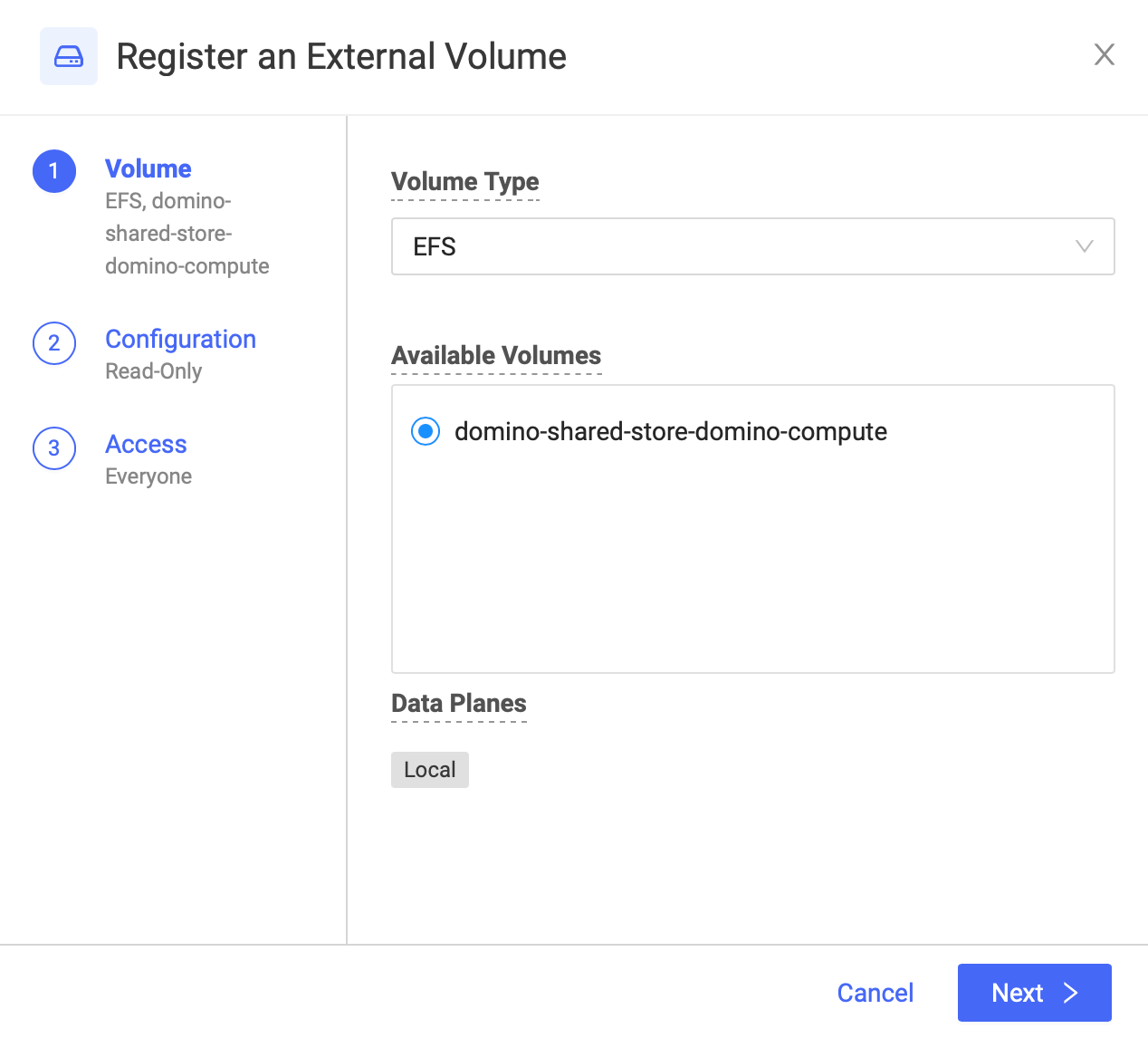 Click **Next**.
On the **Configuration** step:
| Field | What to enter |
| :---------------------- | :----------------------------------------------------------------------------------------------------------------------- |
| **Name** | Defaults to the PVC name. Name the EDV so users recognize it from its use case or your organization's naming convention. |
| **Relative Mount Path** | Defaults to the PVC name. Must be unique across all registered EDVs. A few words are reserved. |
| **Mount as read-only** | Select to make the EDV read-only, or clear it to make the EDV read-write. |
| **Description** | Free text shown to users browsing EDVs. |
Read-write access is enforced at the Domino layer only. More restrictive access controls at the Kubernetes or NFS layer overrule this setting: if the PVC access mode is read-only, the underlying read-only permission wins regardless of what you select here.
Click **Next**.
On the **Configuration** step:
| Field | What to enter |
| :---------------------- | :----------------------------------------------------------------------------------------------------------------------- |
| **Name** | Defaults to the PVC name. Name the EDV so users recognize it from its use case or your organization's naming convention. |
| **Relative Mount Path** | Defaults to the PVC name. Must be unique across all registered EDVs. A few words are reserved. |
| **Mount as read-only** | Select to make the EDV read-only, or clear it to make the EDV read-write. |
| **Description** | Free text shown to users browsing EDVs. |
Read-write access is enforced at the Domino layer only. More restrictive access controls at the Kubernetes or NFS layer overrule this setting: if the PVC access mode is read-only, the underlying read-only permission wins regardless of what you select here.
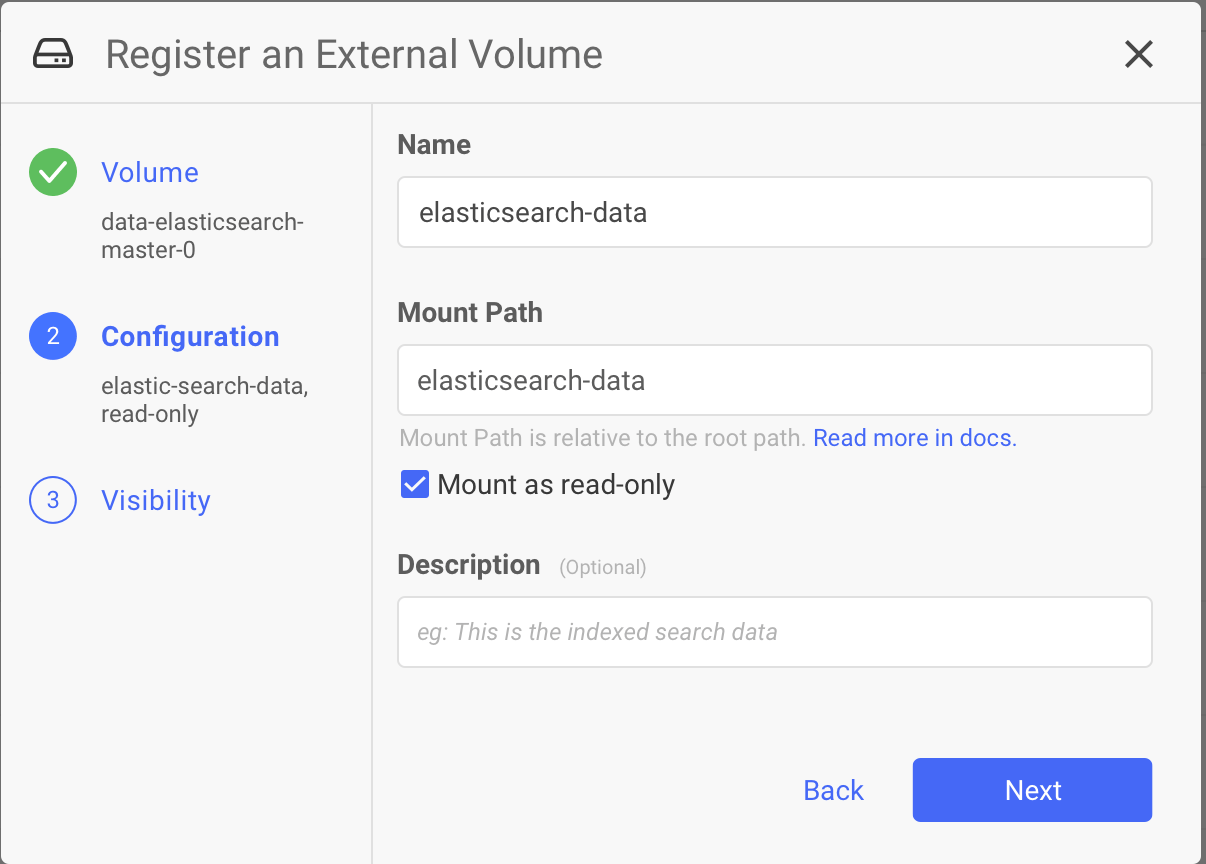 Click **Next**.
On the **Access** step, select the **Volume Access**: **Everyone** to allow all logged-in users, or **Specific users or organizations** to limit access. Click **Register**.
Click **Next**.
On the **Access** step, select the **Volume Access**: **Everyone** to allow all logged-in users, or **Specific users or organizations** to limit access. Click **Register**.
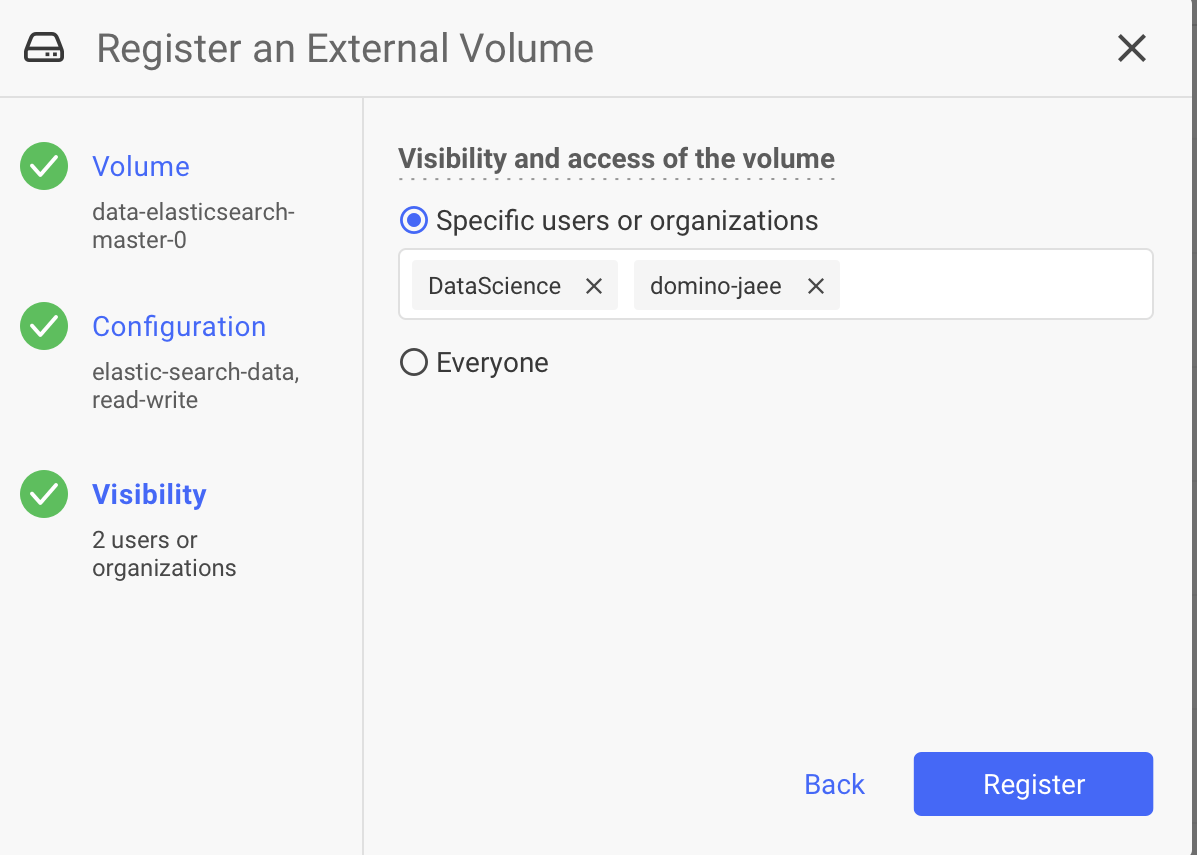 Regardless of this setting, you (CloudAdmin) can always access any External Data Volume.
## Associate Data Planes with an EDV
In a hybrid deployment, each EDV is associated with specific [Data Planes](/cloud/admin/platform-configuration/manage-data-planes). For security reasons, that set never changes on its own. Change it by modifying the PVCs in the relevant Data Plane, then editing the EDV.
### Add a Data Plane to an EDV
1. Create the PV and PVC in the new Data Plane, with names matching the PVC already used for the EDV.
2. Click the three-dot menu at the right of the EDV row, then click **Edit**.
The new Data Plane appears at the bottom of the modal, highlighted in green to show that it is being added. If you do not see it, confirm the name of the PV and the name and label of the PVC.
3. Click **Update**.
### Remove a Data Plane from an EDV
1. Remove the PVC and PV from that Data Plane.
2. Click the three-dot menu at the right of the EDV row, then click **Edit**.
The Data Plane appears highlighted in red to show that it is marked for removal.
3. Click **Update**.
## View, edit, and unregister EDVs
All three start from **Manage resources** > **External Data Volumes** in the Admin application.
| To | Do this |
| :------------------------ | :------------------------------------------------------------------------------------------------------------------- |
| See the details of an EDV | Click the **Name** of the EDV. In a hybrid deployment, the list also shows the Data Planes associated with each EDV. |
| Change an EDV | Click the three-dot menu at the end of the EDV row, then click **Edit**. |
| Unregister an EDV | Click the three-dot menu at the end of the EDV row, click **Unregister**, then click **Yes** to confirm. |
## Control EDV visibility
Collaborators on one Project do not necessarily share access to the same EDVs. A user without volume access can never mount that EDV in an execution, but you can choose how much they see of it, trading discoverability against secrecy.
| Censorship level | What a user without access sees | Choose it for |
| :---------------------------- | :-------------------------------------------------------------------------------------- | :---------------------------------------------------------------- |
| Full censorship | Only that some inaccessible EDV exists. Neither the count nor any metadata is revealed. | The highest level of security. |
| Inactive censorship (default) | The inaccessible EDVs themselves, including metadata such as name and description. | Discoverability, so users can escalate to you and request access. |
To set the level of censorship, please reach out to Domino Support.
See [Mount an external volume](/cloud/platform-capabilities/core-concepts/data/external-volumes/use-a-mounted-volume) for what your users see.
## Related
* [External Data Volumes](/cloud/platform-capabilities/core-concepts/data/external-volumes) covers what practitioners do with an EDV once you register it.
* [Data Sources](/cloud/admin/data-administration/external-data) connect to external databases and object stores by query rather than by mount.
* [Domino Volumes for NetApp ONTAP](/cloud/admin/data-administration/netapp-volumes) are Domino-managed NetApp-backed storage, distinct from EDVs.
## Related topics
- [External Data Volumes (EDVs)](/cloud/platform-capabilities/core-concepts/data/external-volumes/index.md)
- [Glossary](/cloud/reference/glossary.md)
- [Manage data](/cloud/admin/data-administration/index.md)
- [Manage NetApp Volumes](/cloud/admin/data-administration/netapp-volumes/index.md)
Regardless of this setting, you (CloudAdmin) can always access any External Data Volume.
## Associate Data Planes with an EDV
In a hybrid deployment, each EDV is associated with specific [Data Planes](/cloud/admin/platform-configuration/manage-data-planes). For security reasons, that set never changes on its own. Change it by modifying the PVCs in the relevant Data Plane, then editing the EDV.
### Add a Data Plane to an EDV
1. Create the PV and PVC in the new Data Plane, with names matching the PVC already used for the EDV.
2. Click the three-dot menu at the right of the EDV row, then click **Edit**.
The new Data Plane appears at the bottom of the modal, highlighted in green to show that it is being added. If you do not see it, confirm the name of the PV and the name and label of the PVC.
3. Click **Update**.
### Remove a Data Plane from an EDV
1. Remove the PVC and PV from that Data Plane.
2. Click the three-dot menu at the right of the EDV row, then click **Edit**.
The Data Plane appears highlighted in red to show that it is marked for removal.
3. Click **Update**.
## View, edit, and unregister EDVs
All three start from **Manage resources** > **External Data Volumes** in the Admin application.
| To | Do this |
| :------------------------ | :------------------------------------------------------------------------------------------------------------------- |
| See the details of an EDV | Click the **Name** of the EDV. In a hybrid deployment, the list also shows the Data Planes associated with each EDV. |
| Change an EDV | Click the three-dot menu at the end of the EDV row, then click **Edit**. |
| Unregister an EDV | Click the three-dot menu at the end of the EDV row, click **Unregister**, then click **Yes** to confirm. |
## Control EDV visibility
Collaborators on one Project do not necessarily share access to the same EDVs. A user without volume access can never mount that EDV in an execution, but you can choose how much they see of it, trading discoverability against secrecy.
| Censorship level | What a user without access sees | Choose it for |
| :---------------------------- | :-------------------------------------------------------------------------------------- | :---------------------------------------------------------------- |
| Full censorship | Only that some inaccessible EDV exists. Neither the count nor any metadata is revealed. | The highest level of security. |
| Inactive censorship (default) | The inaccessible EDVs themselves, including metadata such as name and description. | Discoverability, so users can escalate to you and request access. |
To set the level of censorship, please reach out to Domino Support.
See [Mount an external volume](/cloud/platform-capabilities/core-concepts/data/external-volumes/use-a-mounted-volume) for what your users see.
## Related
* [External Data Volumes](/cloud/platform-capabilities/core-concepts/data/external-volumes) covers what practitioners do with an EDV once you register it.
* [Data Sources](/cloud/admin/data-administration/external-data) connect to external databases and object stores by query rather than by mount.
* [Domino Volumes for NetApp ONTAP](/cloud/admin/data-administration/netapp-volumes) are Domino-managed NetApp-backed storage, distinct from EDVs.
## Related topics
- [External Data Volumes (EDVs)](/cloud/platform-capabilities/core-concepts/data/external-volumes/index.md)
- [Glossary](/cloud/reference/glossary.md)
- [Manage data](/cloud/admin/data-administration/index.md)
- [Manage NetApp Volumes](/cloud/admin/data-administration/netapp-volumes/index.md)