> ## Documentation Index
> Fetch the complete documentation index at: https://docs.domino.ai/llms.txt
> Use this file to discover all available pages before exploring further.
# Personal access tokens
Personal Access Tokens (PATs) are user-managed credentials that allow Domino users to authenticate against the Domino API. Users create their own tokens, each with a name, an optional description, and a custom expiration time.
PATs differ from [Domino Service Accounts](/cloud/admin/identity-and-access/manage-users/service-accounts) in that they are personal and tied to an individual user’s identity and roles. They are intended for interactive use, personal scripts, and jobs that a user runs on their own behalf, rather than for shared automation pipelines.
As an administrator, you can view and revoke any user’s tokens, perform bulk operations across users, and review token activity across the platform. Administrators cannot generate PATs on behalf of other users — each user must create their own tokens from their account settings or via the API.
Administrators can only access PAT metadata — such as the token name, owner, status, and expiration date. The JWT token value itself is never accessible after creation, even to administrators. This is by design: a PAT can only be retrieved by the user who created it, at the moment of creation. Administrators can revoke or delete a token, but cannot read or use it.
## Access the Personal Access Tokens admin panel
You can access the PAT administration panel in two ways:
* Navigate directly to `/admin/personalaccesstokens`.
* From the top navigation bar, go to **Manage resources** > **Personal Access Tokens**.
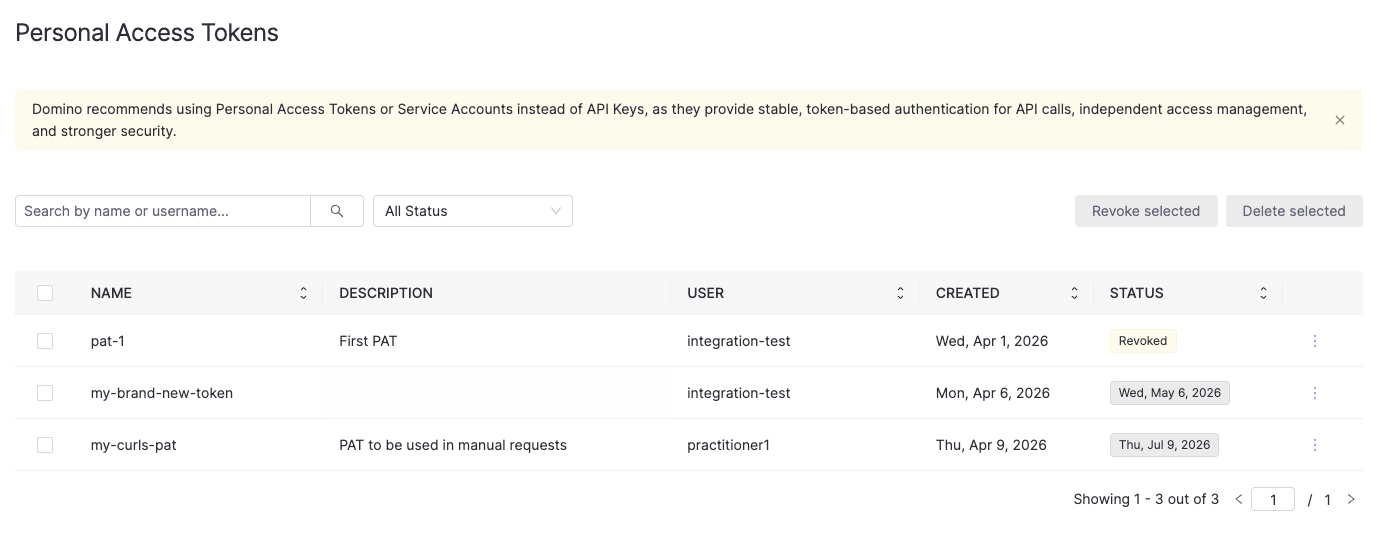 The panel displays all PATs across every user in the platform. Each row shows the token name, description, owner username, creation date, last used date, and current status.
The **STATUS** column shows either a status badge (**Revoked**, **Expired**) or the token’s expiration date for active tokens.
You can narrow down the list using:
* The **Search by name or username** field — filters by partial token name or username.
* The **All Status** dropdown — filters by `Active`, `Expiring Soon`, `Expired`, or `Revoked`.
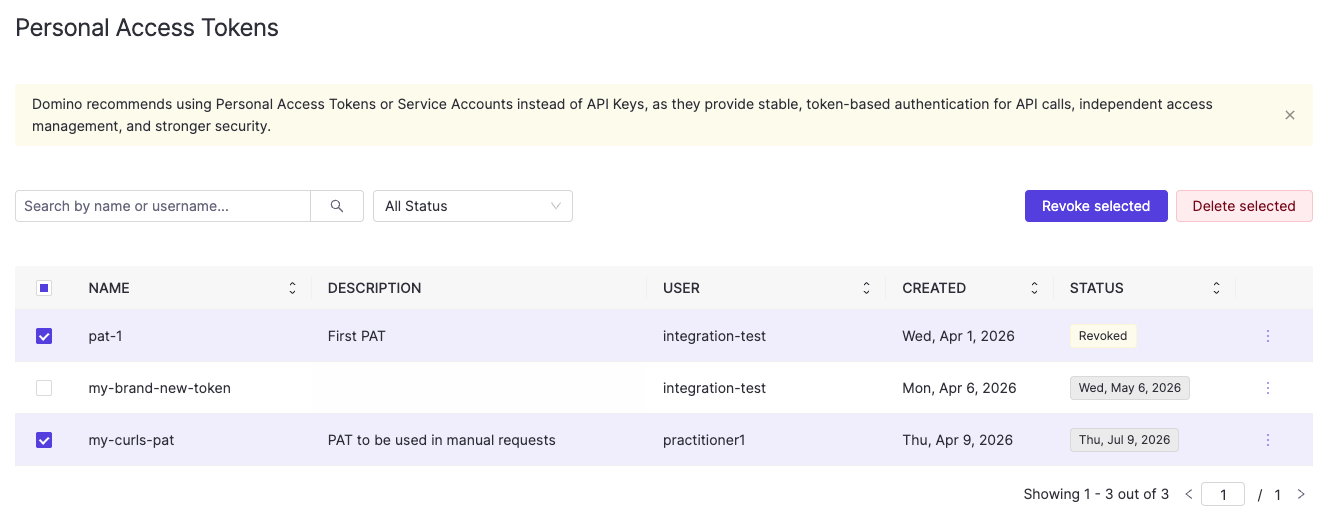
Each row has a checkbox on the left for bulk selection. When one or more tokens are selected, **Revoke selected** and **Delete selected** buttons appear in the top right of the table.
## View all Personal Access Tokens via the API
The admin panel provides a UI view of all tokens, but you can also retrieve them programmatically.
**Example endpoint information**:
```json theme={null}
GET /api/pat/v1/users/tokens
```
**Example `curl` request (calling inside Domino)**:
```shell theme={null}
curl -H "Authorization: Bearer $DOMINO_ACCESS_TOKEN" \
"$DOMINO_API_PROXY/api/pat/v1/users/tokens"
```
**Example response**:
```json theme={null}
{
"tokens": [
{
"patId": "64b1c2d3e4f5a6b7c8d9e0f1",
"userId": "5f3a7b2c1d4e6f8a9b0c1d2e",
"username": "alice",
"name": "my-domino-token",
"description": "My personal Domino API token",
"isValid": true,
"createdAt": "2024-04-01T10:00:00Z",
"expiresAt": "2024-04-08T10:00:00Z"
}
],
"pagination": {
"offset": 0,
"limit": 10,
"total": 1
}
}
```
You can filter and sort results using the following query parameters:
| Parameter | Default | Description |
| ----------- | ----------- | -------------------------------------------------------------------------- |
| `name` | — | Filter by partial token name or username match. |
| `status` | — | Filter by token status: `active`, `expiringSoon`, `expired`, or `revoked`. |
| `sortBy` | `createdAt` | Sort by: `name`, `username`, `createdAt`, `expiresAt`, or `status`. |
| `sortOrder` | `asc` | Sort direction: `asc` or `desc`. |
| `offset` | `0` | Pagination offset. |
| `limit` | `10` | Number of results per page. |
### View tokens for a specific user
**Example endpoint information**:
```json theme={null}
GET /api/pat/v1/users/{userId}/tokens
```
**Example `curl` request (calling inside Domino)**:
```shell theme={null}
curl -H "Authorization: Bearer $DOMINO_ACCESS_TOKEN" \
"$DOMINO_API_PROXY/api/pat/v1/users/$USER_ID/tokens"
```
Supports the same query parameters as the system-wide listing above.
## Automatic token behavior
Some administrative actions on a user account automatically affect their PATs:
* When a user is **deactivated**, all their PATs are automatically deleted.
* When a user’s **roles are modified**, all their PATs are automatically revoked. The user will need to create new tokens to authenticate with their updated permissions.
In both cases, no manual action is required from the administrator. The sections below cover situations where you need to revoke or delete tokens independently of these lifecycle events.
## Revoke a user’s token
Revoking a token immediately invalidates it while keeping its metadata visible. Both the user and administrators will still see the token listed with a revoked status, so they are aware it was invalidated and can choose to delete it later.
### Revoke a single token
In the PAT admin panel, click the three-dot menu at the end of the token row and select **Revoke**.
Alternatively, use the API:
**Example endpoint information**:
```json theme={null}
POST /api/pat/v1/users/{userId}/tokens/{patId}/invalidate
```
**Example `curl` request (calling inside Domino)**:
```shell theme={null}
curl -X POST \
-H "Authorization: Bearer $DOMINO_ACCESS_TOKEN" \
$DOMINO_API_PROXY/api/pat/v1/users/$USER_ID/tokens/$PAT_ID/invalidate
```
### Revoke all tokens for a user
Use this when you need to immediately invalidate all of a user’s tokens, for example when responding to a suspected credential compromise.
**Example endpoint information**:
```json theme={null}
POST /api/pat/v1/users/{userId}/tokens/invalidate
```
**Example `curl` request (calling inside Domino)**:
```shell theme={null}
curl -X POST \
-H "Authorization: Bearer $DOMINO_ACCESS_TOKEN" \
$DOMINO_API_PROXY/api/pat/v1/users/$USER_ID/tokens/invalidate
```
### Revoke multiple tokens in bulk
In the PAT admin panel, select the checkboxes next to the tokens you want to revoke and click **Revoke selected**.
The panel displays all PATs across every user in the platform. Each row shows the token name, description, owner username, creation date, last used date, and current status.
The **STATUS** column shows either a status badge (**Revoked**, **Expired**) or the token’s expiration date for active tokens.
You can narrow down the list using:
* The **Search by name or username** field — filters by partial token name or username.
* The **All Status** dropdown — filters by `Active`, `Expiring Soon`, `Expired`, or `Revoked`.
Each row has a checkbox on the left for bulk selection. When one or more tokens are selected, **Revoke selected** and **Delete selected** buttons appear in the top right of the table.
## View all Personal Access Tokens via the API
The admin panel provides a UI view of all tokens, but you can also retrieve them programmatically.
**Example endpoint information**:
```json theme={null}
GET /api/pat/v1/users/tokens
```
**Example `curl` request (calling inside Domino)**:
```shell theme={null}
curl -H "Authorization: Bearer $DOMINO_ACCESS_TOKEN" \
"$DOMINO_API_PROXY/api/pat/v1/users/tokens"
```
**Example response**:
```json theme={null}
{
"tokens": [
{
"patId": "64b1c2d3e4f5a6b7c8d9e0f1",
"userId": "5f3a7b2c1d4e6f8a9b0c1d2e",
"username": "alice",
"name": "my-domino-token",
"description": "My personal Domino API token",
"isValid": true,
"createdAt": "2024-04-01T10:00:00Z",
"expiresAt": "2024-04-08T10:00:00Z"
}
],
"pagination": {
"offset": 0,
"limit": 10,
"total": 1
}
}
```
You can filter and sort results using the following query parameters:
| Parameter | Default | Description |
| ----------- | ----------- | -------------------------------------------------------------------------- |
| `name` | — | Filter by partial token name or username match. |
| `status` | — | Filter by token status: `active`, `expiringSoon`, `expired`, or `revoked`. |
| `sortBy` | `createdAt` | Sort by: `name`, `username`, `createdAt`, `expiresAt`, or `status`. |
| `sortOrder` | `asc` | Sort direction: `asc` or `desc`. |
| `offset` | `0` | Pagination offset. |
| `limit` | `10` | Number of results per page. |
### View tokens for a specific user
**Example endpoint information**:
```json theme={null}
GET /api/pat/v1/users/{userId}/tokens
```
**Example `curl` request (calling inside Domino)**:
```shell theme={null}
curl -H "Authorization: Bearer $DOMINO_ACCESS_TOKEN" \
"$DOMINO_API_PROXY/api/pat/v1/users/$USER_ID/tokens"
```
Supports the same query parameters as the system-wide listing above.
## Automatic token behavior
Some administrative actions on a user account automatically affect their PATs:
* When a user is **deactivated**, all their PATs are automatically deleted.
* When a user’s **roles are modified**, all their PATs are automatically revoked. The user will need to create new tokens to authenticate with their updated permissions.
In both cases, no manual action is required from the administrator. The sections below cover situations where you need to revoke or delete tokens independently of these lifecycle events.
## Revoke a user’s token
Revoking a token immediately invalidates it while keeping its metadata visible. Both the user and administrators will still see the token listed with a revoked status, so they are aware it was invalidated and can choose to delete it later.
### Revoke a single token
In the PAT admin panel, click the three-dot menu at the end of the token row and select **Revoke**.
Alternatively, use the API:
**Example endpoint information**:
```json theme={null}
POST /api/pat/v1/users/{userId}/tokens/{patId}/invalidate
```
**Example `curl` request (calling inside Domino)**:
```shell theme={null}
curl -X POST \
-H "Authorization: Bearer $DOMINO_ACCESS_TOKEN" \
$DOMINO_API_PROXY/api/pat/v1/users/$USER_ID/tokens/$PAT_ID/invalidate
```
### Revoke all tokens for a user
Use this when you need to immediately invalidate all of a user’s tokens, for example when responding to a suspected credential compromise.
**Example endpoint information**:
```json theme={null}
POST /api/pat/v1/users/{userId}/tokens/invalidate
```
**Example `curl` request (calling inside Domino)**:
```shell theme={null}
curl -X POST \
-H "Authorization: Bearer $DOMINO_ACCESS_TOKEN" \
$DOMINO_API_PROXY/api/pat/v1/users/$USER_ID/tokens/invalidate
```
### Revoke multiple tokens in bulk
In the PAT admin panel, select the checkboxes next to the tokens you want to revoke and click **Revoke selected**.
 Alternatively, use the API:
**Example endpoint information**:
```json theme={null}
POST /api/pat/v1/users/tokens/invalidate/bulk
{
"patIds": ["64b1c2d3e4f5a6b7c8d9e0f1", "74c2d3e4f5a6b7c8d9e0f1a2"]
}
```
**Example `curl` request (calling inside Domino)**:
```shell theme={null}
curl -X POST \
-H "Authorization: Bearer $DOMINO_ACCESS_TOKEN" \
-H "Content-Type: application/json" \
-d '{"patIds": ["64b1c2d3e4f5a6b7c8d9e0f1", "74c2d3e4f5a6b7c8d9e0f1a2"]}' \
$DOMINO_API_PROXY/api/pat/v1/users/tokens/invalidate/bulk
```
### Key points
* Revoking a token immediately blocks its use.
* Revoked token metadata remains visible to both the user and administrators until explicitly deleted.
## Delete a user’s token
Deleting a token permanently removes it and all its metadata. Once deleted, neither the user nor administrators will be able to see it. Rather revoke the token if you want the token to remain visible after it has been invalidated.
### Delete a single token
In the PAT admin panel, click the three-dot menu at the end of the token row and select **Delete**.
Alternatively, use the API:
**Example endpoint information**:
```json theme={null}
DELETE /api/pat/v1/users/{userId}/tokens/{patId}
```
**Example `curl` request (calling inside Domino)**:
```shell theme={null}
curl -X DELETE \
-H "Authorization: Bearer $DOMINO_ACCESS_TOKEN" \
$DOMINO_API_PROXY/api/pat/v1/users/$USER_ID/tokens/$PAT_ID
```
### Delete all tokens for a user
**Example endpoint information**:
```json theme={null}
DELETE /api/pat/v1/users/{userId}/tokens
```
**Example `curl` request (calling inside Domino)**:
```shell theme={null}
curl -X DELETE \
-H "Authorization: Bearer $DOMINO_ACCESS_TOKEN" \
$DOMINO_API_PROXY/api/pat/v1/users/$USER_ID/tokens
```
### Delete multiple tokens in bulk
In the PAT admin panel, select the checkboxes next to the tokens you want to delete and click **Delete selected**.
Alternatively, use the API:
**Example endpoint information**:
```json theme={null}
POST /api/pat/v1/users/tokens/delete/bulk
{
"patIds": ["64b1c2d3e4f5a6b7c8d9e0f1", "74c2d3e4f5a6b7c8d9e0f1a2"]
}
```
**Example `curl` request (calling inside Domino)**:
```shell theme={null}
curl -X POST \
-H "Authorization: Bearer $DOMINO_ACCESS_TOKEN" \
-H "Content-Type: application/json" \
-d '{"patIds": ["64b1c2d3e4f5a6b7c8d9e0f1", "74c2d3e4f5a6b7c8d9e0f1a2"]}' \
$DOMINO_API_PROXY/api/pat/v1/users/tokens/delete/bulk
```
## Next steps
* See [Domino API authentication](/cloud/reference/api/domino-api-authentication) for how users create and manage their own PATs.
* Explore the [Domino REST API reference](/cloud/reference/api/domino-open-api) for additional API details.
Alternatively, use the API:
**Example endpoint information**:
```json theme={null}
POST /api/pat/v1/users/tokens/invalidate/bulk
{
"patIds": ["64b1c2d3e4f5a6b7c8d9e0f1", "74c2d3e4f5a6b7c8d9e0f1a2"]
}
```
**Example `curl` request (calling inside Domino)**:
```shell theme={null}
curl -X POST \
-H "Authorization: Bearer $DOMINO_ACCESS_TOKEN" \
-H "Content-Type: application/json" \
-d '{"patIds": ["64b1c2d3e4f5a6b7c8d9e0f1", "74c2d3e4f5a6b7c8d9e0f1a2"]}' \
$DOMINO_API_PROXY/api/pat/v1/users/tokens/invalidate/bulk
```
### Key points
* Revoking a token immediately blocks its use.
* Revoked token metadata remains visible to both the user and administrators until explicitly deleted.
## Delete a user’s token
Deleting a token permanently removes it and all its metadata. Once deleted, neither the user nor administrators will be able to see it. Rather revoke the token if you want the token to remain visible after it has been invalidated.
### Delete a single token
In the PAT admin panel, click the three-dot menu at the end of the token row and select **Delete**.
Alternatively, use the API:
**Example endpoint information**:
```json theme={null}
DELETE /api/pat/v1/users/{userId}/tokens/{patId}
```
**Example `curl` request (calling inside Domino)**:
```shell theme={null}
curl -X DELETE \
-H "Authorization: Bearer $DOMINO_ACCESS_TOKEN" \
$DOMINO_API_PROXY/api/pat/v1/users/$USER_ID/tokens/$PAT_ID
```
### Delete all tokens for a user
**Example endpoint information**:
```json theme={null}
DELETE /api/pat/v1/users/{userId}/tokens
```
**Example `curl` request (calling inside Domino)**:
```shell theme={null}
curl -X DELETE \
-H "Authorization: Bearer $DOMINO_ACCESS_TOKEN" \
$DOMINO_API_PROXY/api/pat/v1/users/$USER_ID/tokens
```
### Delete multiple tokens in bulk
In the PAT admin panel, select the checkboxes next to the tokens you want to delete and click **Delete selected**.
Alternatively, use the API:
**Example endpoint information**:
```json theme={null}
POST /api/pat/v1/users/tokens/delete/bulk
{
"patIds": ["64b1c2d3e4f5a6b7c8d9e0f1", "74c2d3e4f5a6b7c8d9e0f1a2"]
}
```
**Example `curl` request (calling inside Domino)**:
```shell theme={null}
curl -X POST \
-H "Authorization: Bearer $DOMINO_ACCESS_TOKEN" \
-H "Content-Type: application/json" \
-d '{"patIds": ["64b1c2d3e4f5a6b7c8d9e0f1", "74c2d3e4f5a6b7c8d9e0f1a2"]}' \
$DOMINO_API_PROXY/api/pat/v1/users/tokens/delete/bulk
```
## Next steps
* See [Domino API authentication](/cloud/reference/api/domino-api-authentication) for how users create and manage their own PATs.
* Explore the [Domino REST API reference](/cloud/reference/api/domino-open-api) for additional API details.