> ## Documentation Index
> Fetch the complete documentation index at: https://docs.domino.ai/llms.txt
> Use this file to discover all available pages before exploring further.
# Require e-signature for critical actions
Admins can require an e-signature by enabling the configuration record `com.cerebro.domino.eSignatureWorkflowEnabled`. E-signatures can be viewed in the Unified Audit Trail.
## How Reason for Change (RFC) works
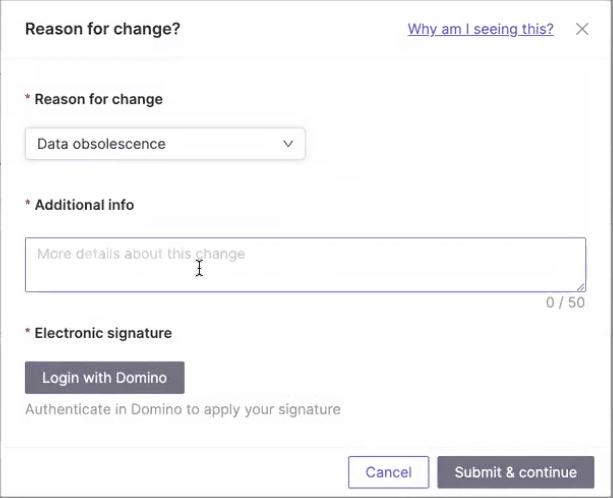
When enabled, critical actions trigger an **RFC modal**:
* User provides a reason for change (select from dropdown or enter additional context).
* User re-authenticates (password or SSO).
* Action is submitted, and details are logged in the audit trail with:
* Action performed
* Reason for change
* Electronic signature and timestamp
 ## Critical actions that require an e-signature
If `Global` or `PerProject` is enabled, the following actions will require an e-signature:
* Uploading, renaming, or deleting dataset files.
* Creating dataset snapshots.
* Editing dataset permissions.
* Downloading files from datasets or artifacts.
* Admin actions such as dataset deletion.
## Configure e-signature requirements
Administrators can control e-signature requirements using configuration record keys:
* `com.cerebro.domino.requireESignatureWorkflow`
* `Disabled/None`: No RFC enforcement (default).
* `Global`: Required for all projects and admin actions.
* `PerProject`: Project owners/admins may enable RFC enforcement on a per-project basis.
* `com.cerebro.domino.eSignatureActionOptions`
* Allows admins to define custom dropdown values for "Reason for Change".
* Example: `"Regulatory Submission, Data Correction, Test Activity"`
Only **system admins and project owners** can enable this functionality at the project level. This configuration change will also be captured in the audit trail.
## View e-signatures
E-signature events can be viewed in the [Unified Audit Trail](/cloud/platform-capabilities/features/governance/audit-trail). In the Audit Trail logs, admins can add columns to see the reason for the changes, the user who e-signed, and any additional information entered by the user.
## Next steps
* The [Audit Trail Data Glossary](/cloud/platform-capabilities/features/governance/audit-trail/audit-trail-glossary) has a complete list of events being tracked. You can use these in the event filter to search for events.
* [Data Source audit logs](/cloud/admin/operations/audit-logs/monitor-data-source-logs) create an audit trail for Data Source activity and records the WHO, WHERE, WHEN, and WHAT for user activity.
## Critical actions that require an e-signature
If `Global` or `PerProject` is enabled, the following actions will require an e-signature:
* Uploading, renaming, or deleting dataset files.
* Creating dataset snapshots.
* Editing dataset permissions.
* Downloading files from datasets or artifacts.
* Admin actions such as dataset deletion.
## Configure e-signature requirements
Administrators can control e-signature requirements using configuration record keys:
* `com.cerebro.domino.requireESignatureWorkflow`
* `Disabled/None`: No RFC enforcement (default).
* `Global`: Required for all projects and admin actions.
* `PerProject`: Project owners/admins may enable RFC enforcement on a per-project basis.
* `com.cerebro.domino.eSignatureActionOptions`
* Allows admins to define custom dropdown values for "Reason for Change".
* Example: `"Regulatory Submission, Data Correction, Test Activity"`
Only **system admins and project owners** can enable this functionality at the project level. This configuration change will also be captured in the audit trail.
## View e-signatures
E-signature events can be viewed in the [Unified Audit Trail](/cloud/platform-capabilities/features/governance/audit-trail). In the Audit Trail logs, admins can add columns to see the reason for the changes, the user who e-signed, and any additional information entered by the user.
## Next steps
* The [Audit Trail Data Glossary](/cloud/platform-capabilities/features/governance/audit-trail/audit-trail-glossary) has a complete list of events being tracked. You can use these in the event filter to search for events.
* [Data Source audit logs](/cloud/admin/operations/audit-logs/monitor-data-source-logs) create an audit trail for Data Source activity and records the WHO, WHERE, WHEN, and WHAT for user activity.