> ## Documentation Index
> Fetch the complete documentation index at: https://docs.domino.ai/llms.txt
> Use this file to discover all available pages before exploring further.
# Fetch and save your data in MATLAB
You can upload local data into Domino or access large datasets stored in a database or data service.
## Work with data in Domino:
1. You can copy your data into Domino. If you are working with data on your local machine or in a shared server, you might want to [upload your data into Domino](/cloud/platform-capabilities/core-concepts/projects/manage-dfs-projects/manage-project-files/upload-files-to-domino).
2. You can query your data from Domino. If you have a large dataset stored in a database or data service, you might have to query the database or the API for the data service.
## Step 1: Copy data to Domino project
In this step, you’ll use the terminal to copy your data into the project. The starting file path in your workspace is `/mnt`. By default, this is considered the root of your Domino project. If you add or modify files in `/mnt`, you can save them back to your project when you stop or sync the workspace.
1. Copy and paste the following command to fetch data from the U.S. NOAA Climatology service.
```matlab theme={null}
!curl -o tegel.csv https://www.ncei.noaa.gov/data/global-historical-climatology-network-daily/access/GME00121150.csv
```
2. Go to the **Current Folder** to see the downloaded file.
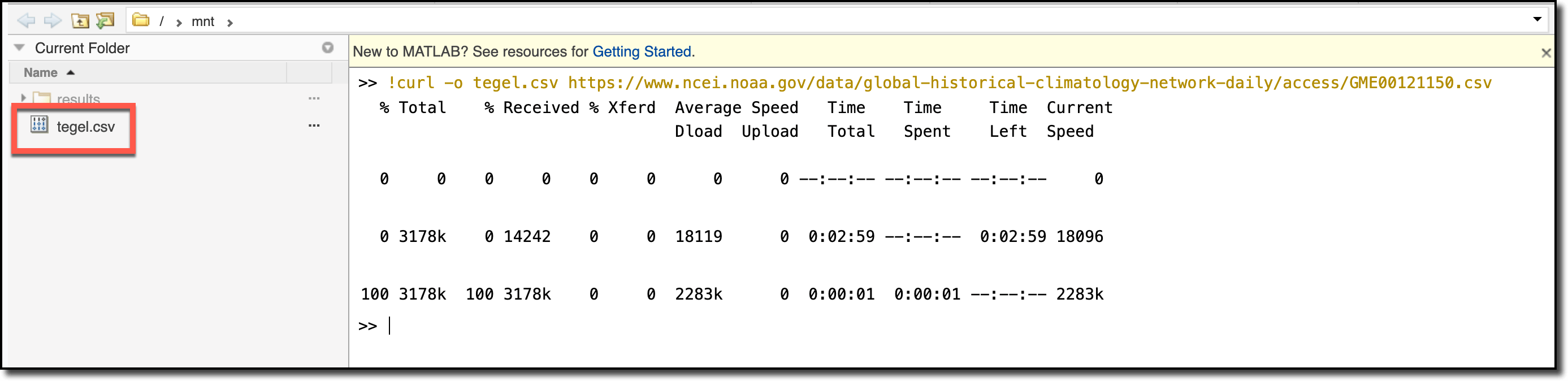 The temperature data is in tenths of Celsius degrees. Learn more here: [README File for Daily Global Historical Climatology Network](https://www1.ncdc.noaa.gov/pub/data/ghcn/daily/readme.txt).
## Step 2: Save data to Domino project
1. In the navigation bar, click the **File Changes** icon.
The temperature data is in tenths of Celsius degrees. Learn more here: [README File for Daily Global Historical Climatology Network](https://www1.ncdc.noaa.gov/pub/data/ghcn/daily/readme.txt).
## Step 2: Save data to Domino project
1. In the navigation bar, click the **File Changes** icon.
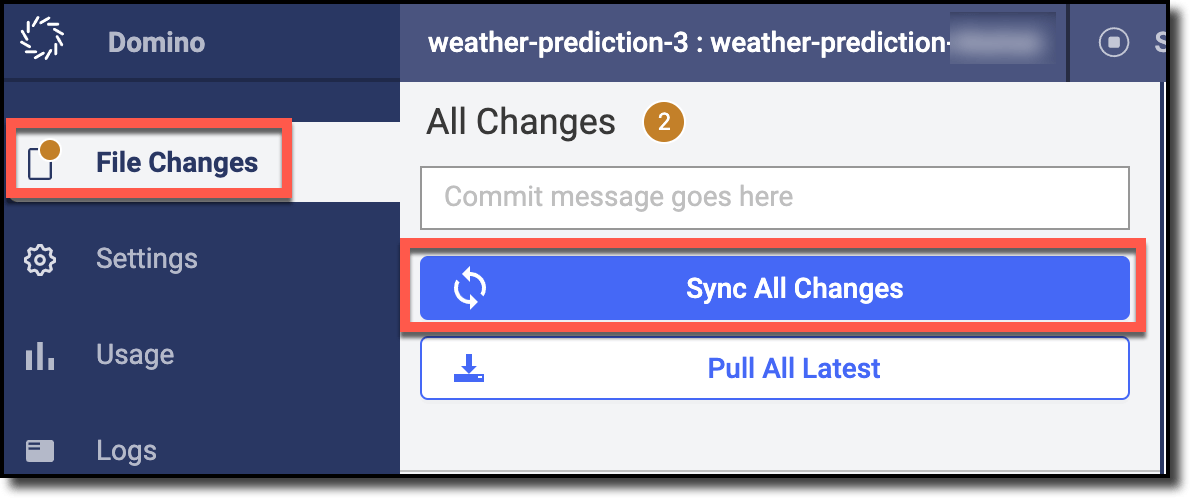 2. Click **Sync All Changes**.
## Step 3: Review your changes
1. Click **Domino**.
2. Click **Sync All Changes**.
## Step 3: Review your changes
1. Click **Domino**.
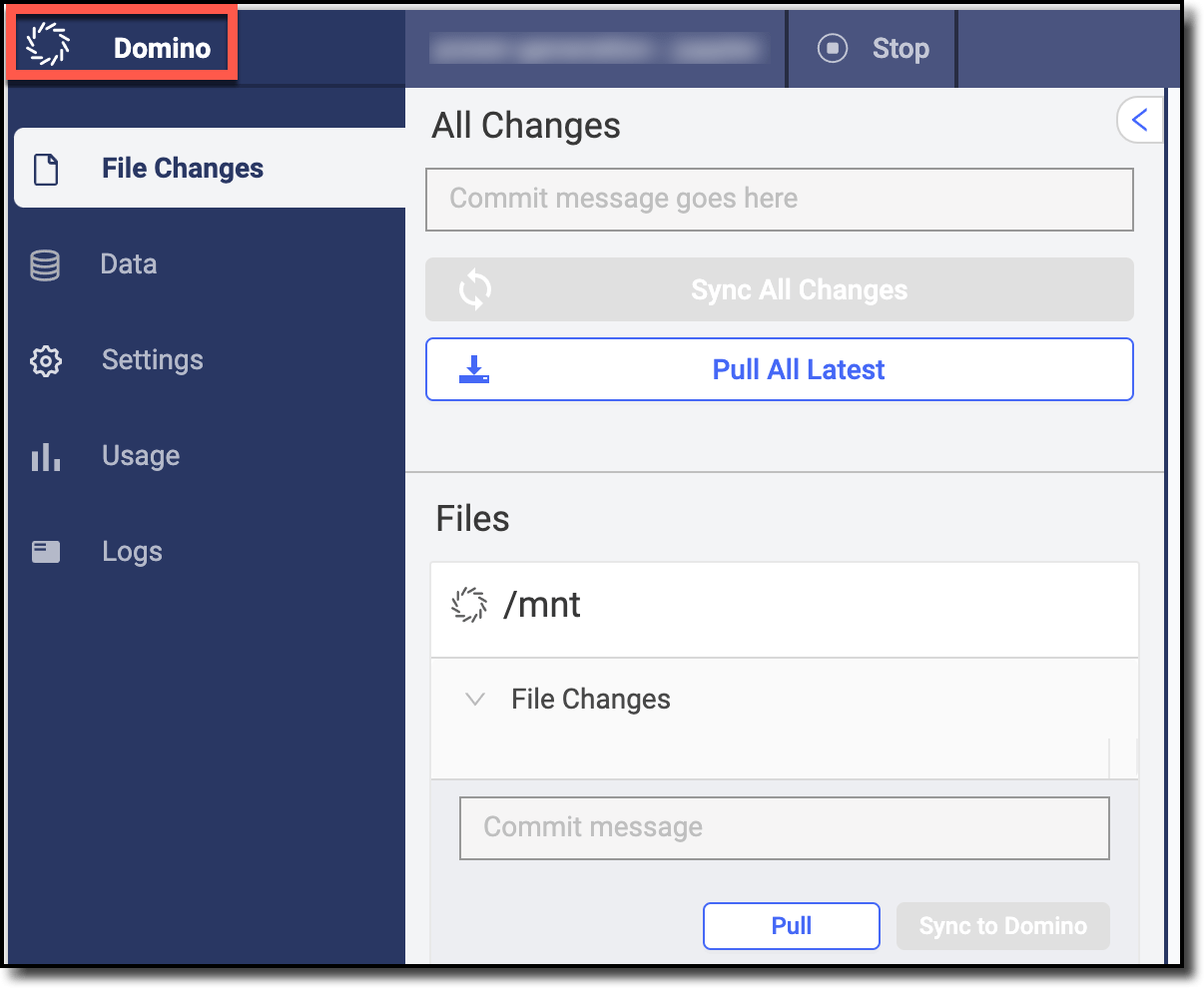 2. In the navigation bar, click **Code** to see the file that you downloaded in the previous steps. Notice that a new revision has been saved.
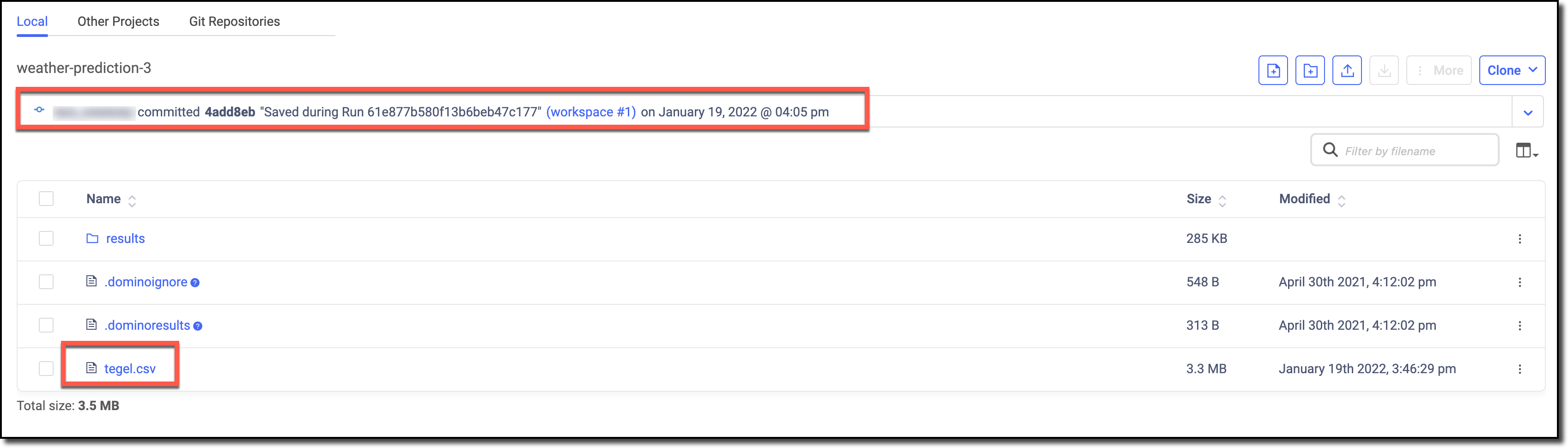 See the documentation for other methods to copy data into Domino ([curl](https://curl.se/) or [Wget](https://www.gnu.org/software/wget/)) and [query data from Domino](/cloud/platform-capabilities/core-concepts/data/data-source-connectors).