> ## Documentation Index
> Fetch the complete documentation index at: https://docs.domino.ai/llms.txt
> Use this file to discover all available pages before exploring further.
# Working with Datasets in MATLAB
If your Domino project uses a large number of files (for example, more than 10,000), or a single file larger than 8GB, consider using a [Domino dataset](/cloud/platform-capabilities/core-concepts/data/datasets/local-data).
The following summarizes the lifecycle of a dataset:
* Datasets are defined in a **.yaml** file, along with input folders and output folders.
* A newly defined dataset is stored in the input folder specified in the **.yaml** file. By default, the dataset in the input folder is read-only, while files in the output folder are writable.
* If you do not write anything to the output folder, the dataset remains unchanged.
* You must copy any files that you’d like to persist from the dataset in the input folder to the output folder.
* If you write to the output folder, the dataset files will be overwritten. However, datasets are saved as snapshots so you can roll back to a previous snapshot of the dataset if needed.
This topic describes how to use a dataset with the weather project.
## Step 1: Add a dataset to your Project
1. In the navigation pane, click **Data**.
2. Click **Create New Dataset**.
3. Type a **Name** (such as get-started-MATLAB-dataset) and description for your dataset, then click **Create Dataset**.
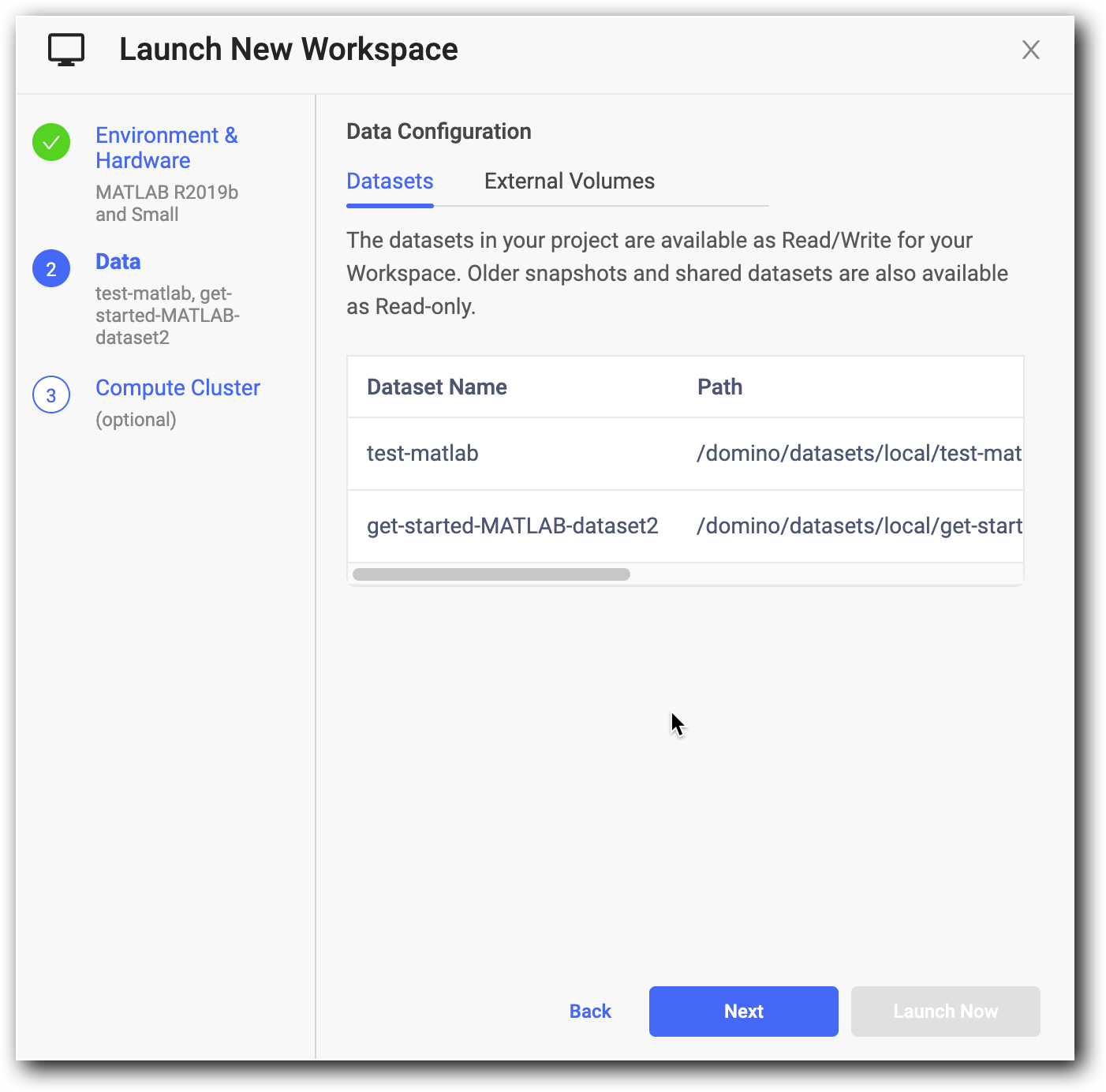 4. To take an initial snapshot to create the initial version of your dataset, in the navigation pane, click **Workspaces**. Click **Create New Workspace** and give it a name.
5. Select MATLAB as your workspace IDE. Click **Launch Now**. Your MATLAB workspace launches with a new folder used to store the data that is part of your dataset.
6. To locate the new folder, click the "/" in the file path of your MATLAB workspace. Next, go to the dataset folder that Domino created for you: `/domino/datasets/local/get-started-MATLAB-dataset`.
4. To take an initial snapshot to create the initial version of your dataset, in the navigation pane, click **Workspaces**. Click **Create New Workspace** and give it a name.
5. Select MATLAB as your workspace IDE. Click **Launch Now**. Your MATLAB workspace launches with a new folder used to store the data that is part of your dataset.
6. To locate the new folder, click the "/" in the file path of your MATLAB workspace. Next, go to the dataset folder that Domino created for you: `/domino/datasets/local/get-started-MATLAB-dataset`.
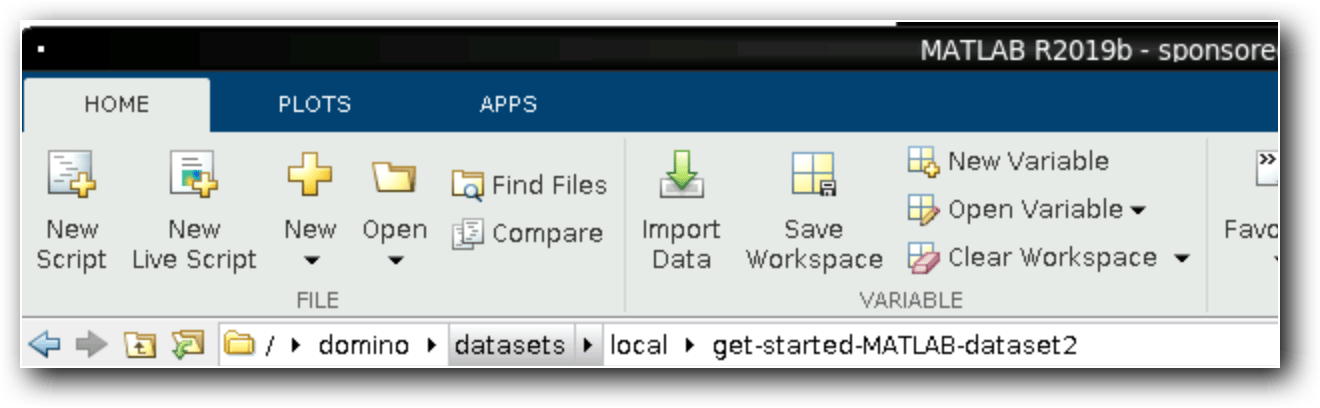 7. To populate the dataset, download weather station files from the same NOAA repository that you used earlier in the project. Use the back arrow to return to your work directory (**/mnt**), and create script named **downloadToDatasetDir.m**.
8. Copy and paste the following to create a function to download the NOAA data:
```matlab theme={null}
function downloadToDatasetDir()
% NOAA data URL
baseUrlString = "https://www.ncei.noaa.gov/data/global-historical-climatology-network-daily/access/";
% Prefix shared by weather stations in Argentina
baseWeatherStationId = 'AR0000000';
% the location to save the files – the dataset output directory
datasetFolder = "//domino/datasets/local/get-started-MATLAB-dataset/";
% There are 16 weather station files. We will iterate and download each one
for counter=1:16
if counter<10
weatherStationId = sprintf('%s%s%d', baseWeatherStationId, '0', counter);
else
weatherStationId = sprintf('%s%d', baseWeatherStationId, counter )
end
urlString = sprintf("%s%s%s", baseUrlString, weatherStationId, ".csv");
savedFileName = sprintf("%s%s%s", datasetFolder, weatherStationId, ".csv");
websave(savedFileName, urlString);
end
end
```
9. Save the file, then type **downloadToDatasetDir** to run it from the Command Window in your MATLAB workspace. Click the / in the navigation bar and go to **/domino/datasets/local/get-started-MATLAB-dataset** to see the output.
7. To populate the dataset, download weather station files from the same NOAA repository that you used earlier in the project. Use the back arrow to return to your work directory (**/mnt**), and create script named **downloadToDatasetDir.m**.
8. Copy and paste the following to create a function to download the NOAA data:
```matlab theme={null}
function downloadToDatasetDir()
% NOAA data URL
baseUrlString = "https://www.ncei.noaa.gov/data/global-historical-climatology-network-daily/access/";
% Prefix shared by weather stations in Argentina
baseWeatherStationId = 'AR0000000';
% the location to save the files – the dataset output directory
datasetFolder = "//domino/datasets/local/get-started-MATLAB-dataset/";
% There are 16 weather station files. We will iterate and download each one
for counter=1:16
if counter<10
weatherStationId = sprintf('%s%s%d', baseWeatherStationId, '0', counter);
else
weatherStationId = sprintf('%s%d', baseWeatherStationId, counter )
end
urlString = sprintf("%s%s%s", baseUrlString, weatherStationId, ".csv");
savedFileName = sprintf("%s%s%s", datasetFolder, weatherStationId, ".csv");
websave(savedFileName, urlString);
end
end
```
9. Save the file, then type **downloadToDatasetDir** to run it from the Command Window in your MATLAB workspace. Click the / in the navigation bar and go to **/domino/datasets/local/get-started-MATLAB-dataset** to see the output.
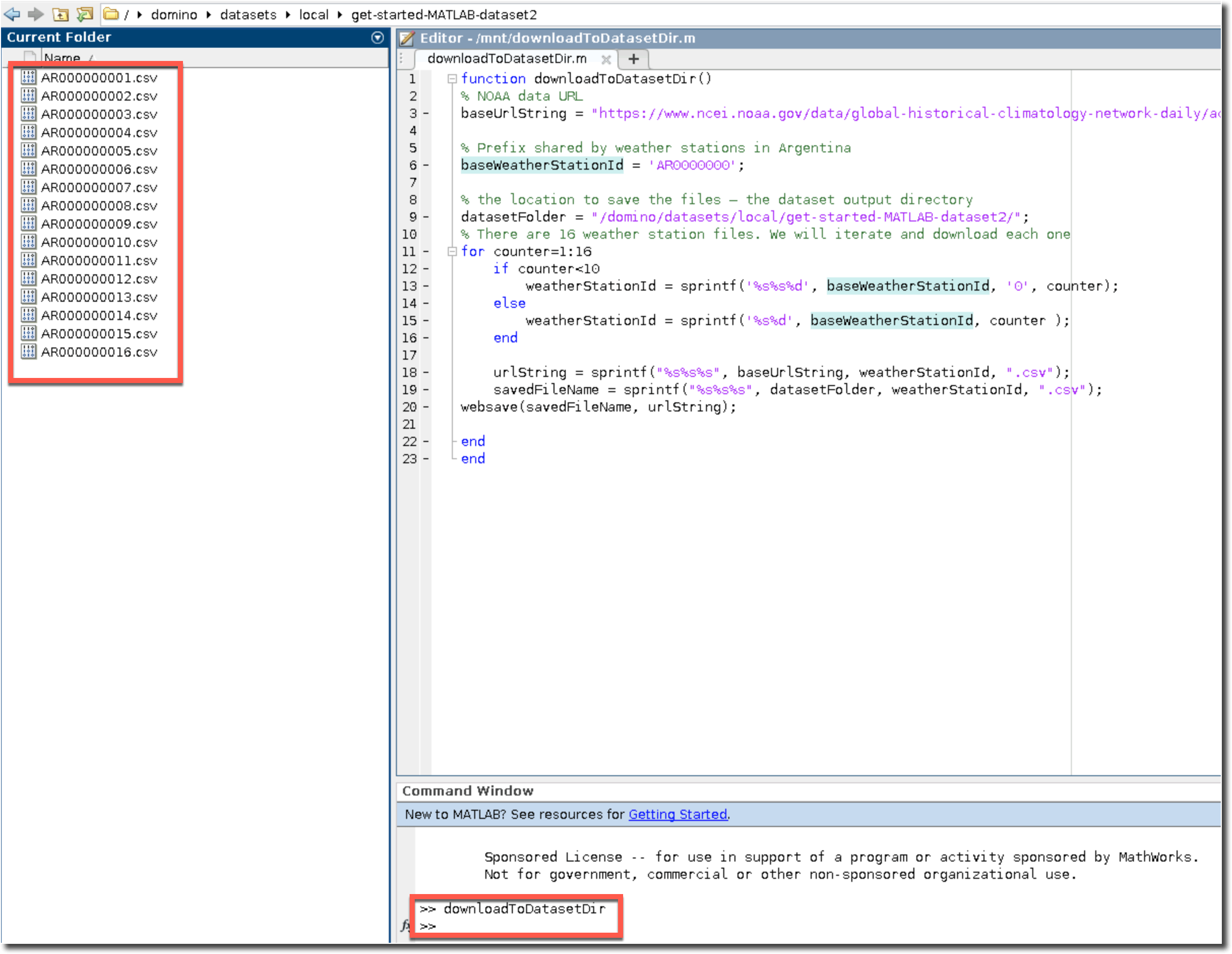 10. To save the files to Domino, in the navigation pane, click **Files Changes**. Click **Sync All Changes**.
11. In the navigation pane, click the Domino logo. Then, click **Data** and you can see that the dataset is listed.
10. To save the files to Domino, in the navigation pane, click **Files Changes**. Click **Sync All Changes**.
11. In the navigation pane, click the Domino logo. Then, click **Data** and you can see that the dataset is listed.
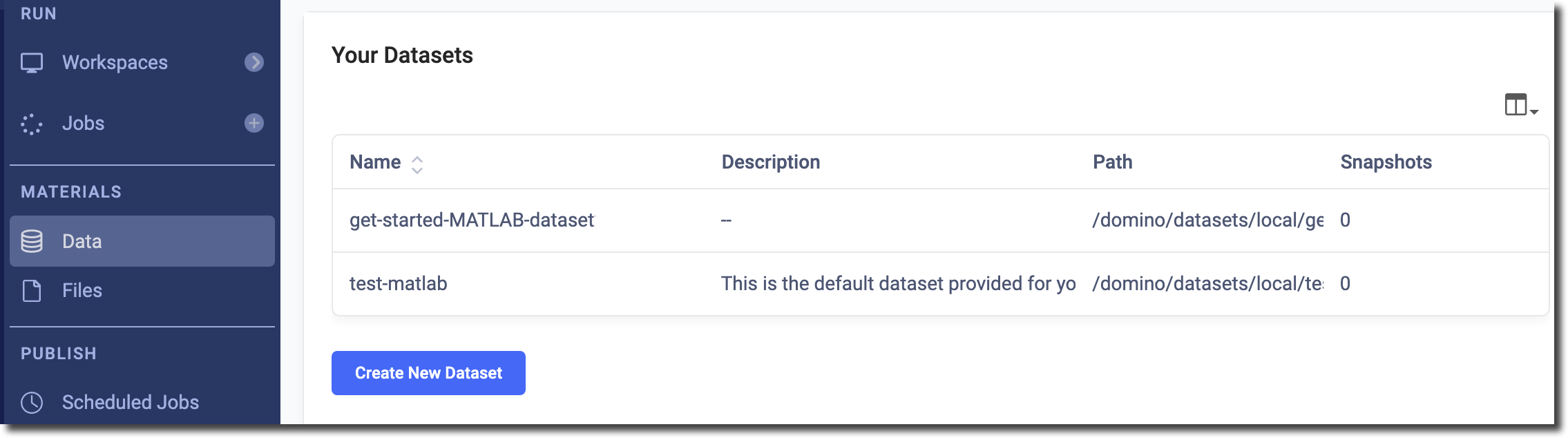 12. Click the dataset to open a list of the files that you downloaded.
## Step 2: Create a snapshot
When you are ready to version the contents of a dataset, you can create a Snapshot.
1. From the navigation pane, click **Data**.
2. Double-click the dataset for which you want to create a snapshot.
3. Click **Take Snapshot > Include all files**.
12. Click the dataset to open a list of the files that you downloaded.
## Step 2: Create a snapshot
When you are ready to version the contents of a dataset, you can create a Snapshot.
1. From the navigation pane, click **Data**.
2. Double-click the dataset for which you want to create a snapshot.
3. Click **Take Snapshot > Include all files**.
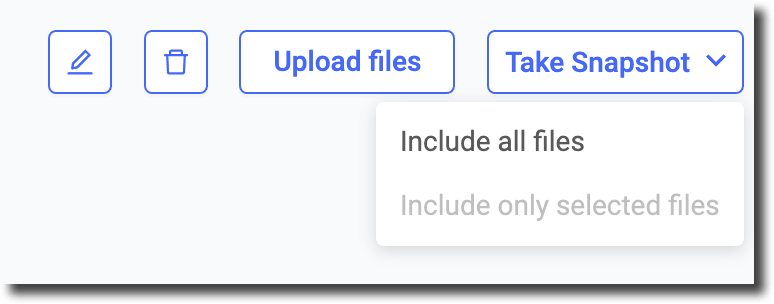 4. In the Confirm Dataset Snapshot? window, type a tag such as "weather." You can use this tag to mount the snapshot with a friendly name in subsequent executions. Click **Confirm**.
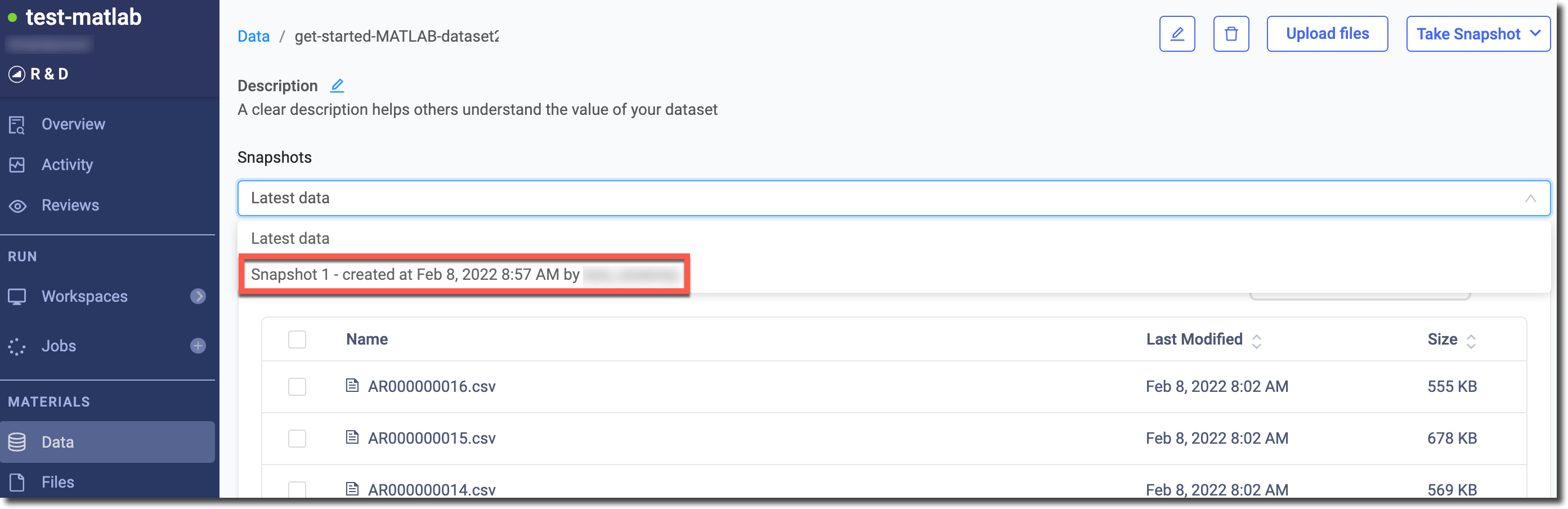
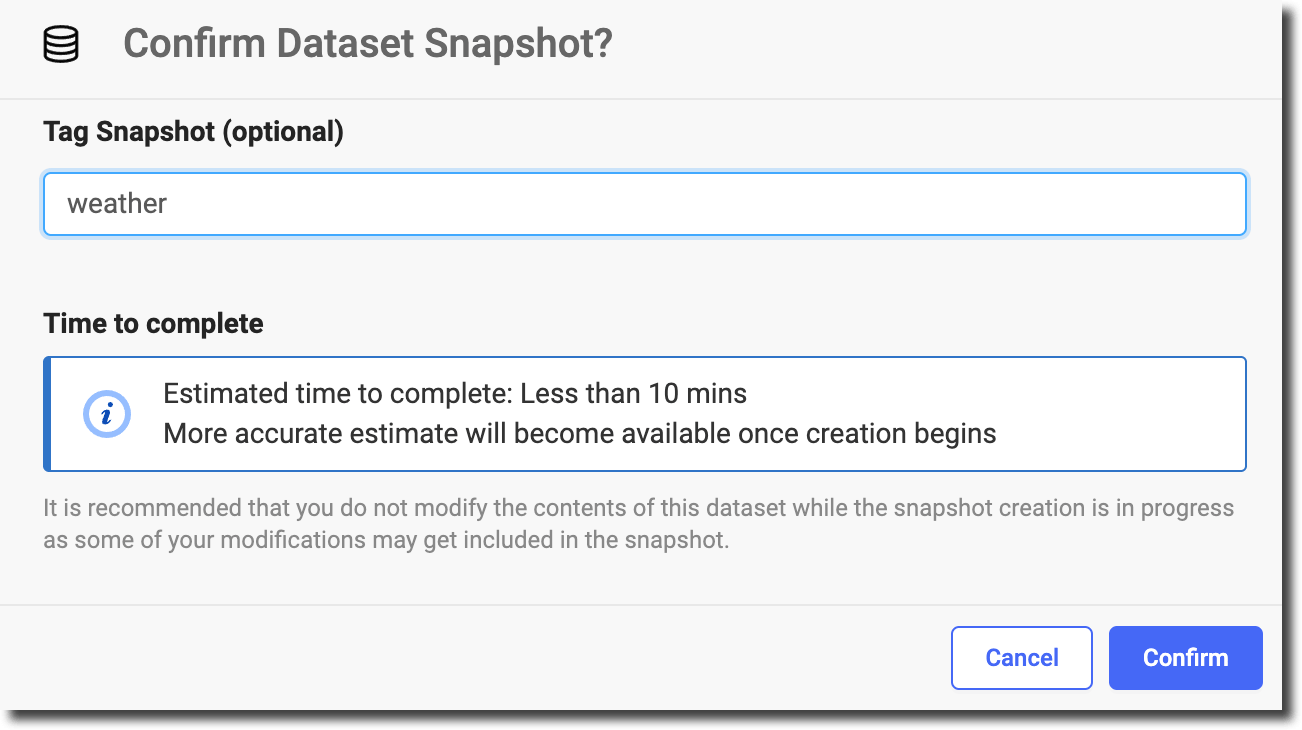 When the snapshot is done, you can see it from the Snapshots list.