> ## Documentation Index
> Fetch the complete documentation index at: https://docs.domino.ai/llms.txt
> Use this file to discover all available pages before exploring further.
# Package dependency files
Learn how to manage packages or libraries with a dependency file.
A common term for files like **requirements.txt** in Python and **install.R** in R is a "dependency file" or "package manifest file". These files are used to specify and manage the dependencies (i.e., external libraries or packages) that a Python or R project requires to run successfully. They list the specific packages and their versions that need to be installed for the Project to work as intended.
Depending on the programming language and package management system, the file formats and naming conventions may vary, but the purpose is the same: to define and document the dependencies for a Project.
No special formatting is required for Domino compatibility of a dependency file. If it works outside of Domino, it will work in Domino. There are a few specifics about the location of the file which are explained below.
## When to use a package dependency file
Package dependency files can be used in a variety of scenarios. The following are a few examples.
1. Share code using Git-based source code management tools
2. Make it easier for other developers to install the correct versions of the required libraries
3. Install all the required dependencies in a single command
4. Start each Domino Workspace or Job with specific versions, or the latest available versions, of Python, R, or Git repository packages
Package dependency files cause packages to install on every execution startup, slowing down the process. If you want your packages to remain permanently installed and reduce startup time, consider [preloading Environment packages](/cloud/platform-capabilities/core-concepts/compute-environments/add-packages-to-environments/preload-environment-packages).
## Python dependency file - requirements.txt
If it doesn’t already exist, create a file named `requirements.txt` in the root directory of your Project.
In a [Git-based Project](/cloud/platform-capabilities/core-concepts/projects/manage-git-projects), `requirements.txt` must be inside your Project’s Artifacts folder.
After `requirements.txt` is in place, Domino automatically installs the Python package every time you start a Workspace or Job within the Project.
### Add Python packages
The requirements file specifies which libraries and any version requirements for them. For example:
```bash theme={null}
pandas
lxml==3.2.3
numpy>=1.7.1
```
See [pip install requirements file format](https://pip.pypa.io/en/stable/cli/pip_install/#requirements-file-format) for the syntax of the requirements file.
### Generate a requirements.txt file from an existing Environment
If you’re using pip on your local machine, the easiest way to generate the `requirements.txt` file is to run the following command in the root of your Project folder (or in the Code folder if your Project is Git-based):
```bash theme={null}
~/domino/myProject $ pip freeze > requirements.txt
```
For performance reasons, prune the file so that it includes only the libraries needed for your analysis.
If you’re working in a Jupyter Notebook, you can also use `pip` to install dependencies interactively. In a notebook cell, you can run:
```bash theme={null}
! pip install --user
```
(The '!' tells the notebook to execute the cell as a shell command.)
### Install packages hosted from a Git repository
This is an advanced topic.
Pip can install Python packages from source by cloning a public Git repository over HTTPs. See [pip install](https://pip.pypa.io/en/stable/cli/pip_install/#git) for reference. To specify this, you must add something like the following line to your `requirements.txt` file:
```shell theme={null}
-e git+https://git.yourproject.org/you/Project.git#egg=YourProject
```
or
```shell theme={null}
package-name@git+https://github.com/repository-name.git
```
The most common host of Git projects is GitHub. If the package you want to install is publicly accessible, then the previous instructions will work. However, if you must install private repositories, Domino can securely integrate with GitHub to access those private repositories. See [Import Git Repositories](/cloud/platform-capabilities/core-concepts/projects/manage-dfs-projects/import-git-repositories) for information about securely storing your GitHub credentials.
Do not embed your GitHub credentials directly in the `requirements.txt` file. Instead, integrate Domino with GitHub securely by following the instructions in [Import Git Repositories](/cloud/platform-capabilities/core-concepts/projects/manage-dfs-projects/import-git-repositories).
## R dependency file - install.R
If it doesn’t already exist, create a file named `install.R` in the root directory of your Project. Add the following line to `install.R`:
```r theme={null}
devtools::install_local('/repos/')
```
For example, if you want to install `ggplot2` from a Git repository, your `install.R` should look like:
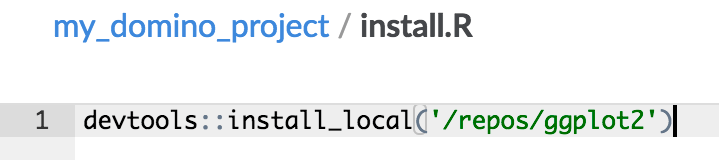 After this `install.R` is in place, enter a line at the beginning of your work within the Project to install the Project for your sessions.
```r theme={null}
source('install.R')
```
After this `install.R` is in place, enter a line at the beginning of your work within the Project to install the Project for your sessions.
```r theme={null}
source('install.R')
```