> ## Documentation Index
> Fetch the complete documentation index at: https://docs.domino.ai/llms.txt
> Use this file to discover all available pages before exploring further.
# Connect to BigQuery
Domino can connect to and query any common database, including Google BigQuery. The easiest way to connect to a [Google BigQuery](https://cloud.google.com/bigquery/) instance from Domino is to create a Domino Data Source as described below.
You must have network connectivity between BigQuery and your Domino deployment.
## Create a BigQuery Data Source
1. From the navigation pane, click **Data > Data Sources**.
2. Click **Create a Data Source**.
3. In the New Data Source window, from **Select Data Store**, select **Google BigQuery**.
4. Optional: Enter the unique identifier for your project in **GCP Project ID**.
5. Enter the **Data Source Name**.
6. Optional: Enter a **Description** to explain the purpose of the Data Source to others.
7. Click **Next**.
8. Copy your **Private Key (JSON format)**. See [creating a service account](https://cloud.google.com/docs/authentication/getting-started#creating_a_service_account) for instructions about creating a service account and downloading the JSON credentials file. You must copy the entire content of the file. The Domino secret store backed by HashiCorp Vault securely stores the credentials.
9. Click **Test Credentials**.
10. When your Data Source authenticates, click **Next**.
11. Enter the users and organizations who can view and use the Data Source in projects.
12. Click **Finish Setup**.
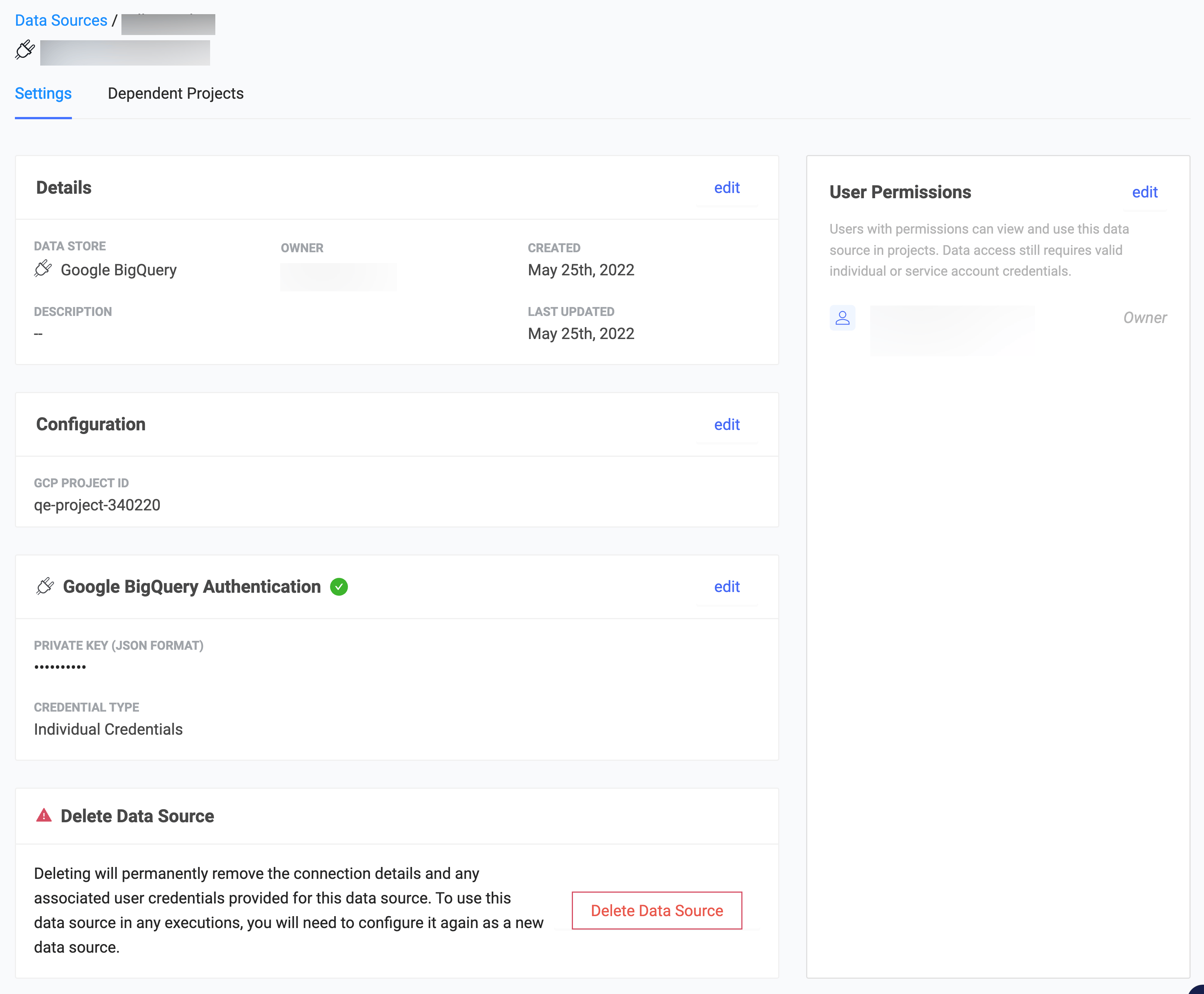 ## Alternate way to connect to a Google BigQuery Data Source
You can use the [BigQuery API](https://cloud.google.com/bigquery/docs/reference/libraries-overview) to query any Dataset and table to which you have access, whether it’s public or private, by authenticating with your Google Cloud private key.
This section describes an alternate method to connect to the Google BigQuery Data Source. Domino does not officially support this method.
1. Go to Google’s Service Accounts page. Select a previous project or create a new project.
## Alternate way to connect to a Google BigQuery Data Source
You can use the [BigQuery API](https://cloud.google.com/bigquery/docs/reference/libraries-overview) to query any Dataset and table to which you have access, whether it’s public or private, by authenticating with your Google Cloud private key.
This section describes an alternate method to connect to the Google BigQuery Data Source. Domino does not officially support this method.
1. Go to Google’s Service Accounts page. Select a previous project or create a new project.
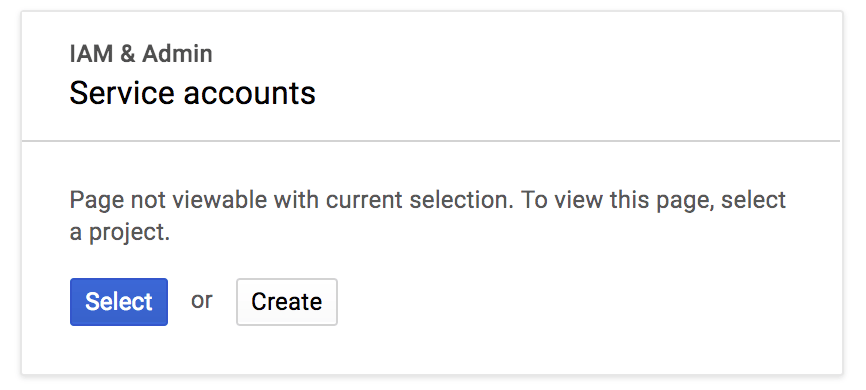 If you selected **Create**, the New Project page opens:
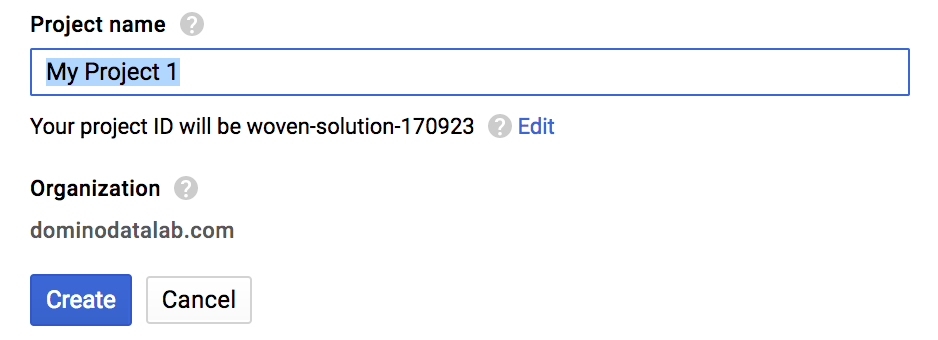 2. **Create a Service account** for your project.
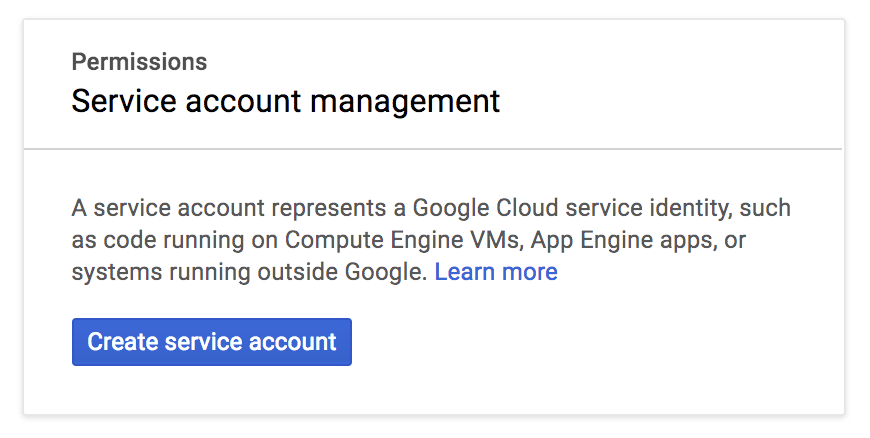 3. Define the access that the Service account must have to BigQuery. See [Google’s Access Control documentation](https://cloud.google.com/bigquery/docs/access-control) for more information.
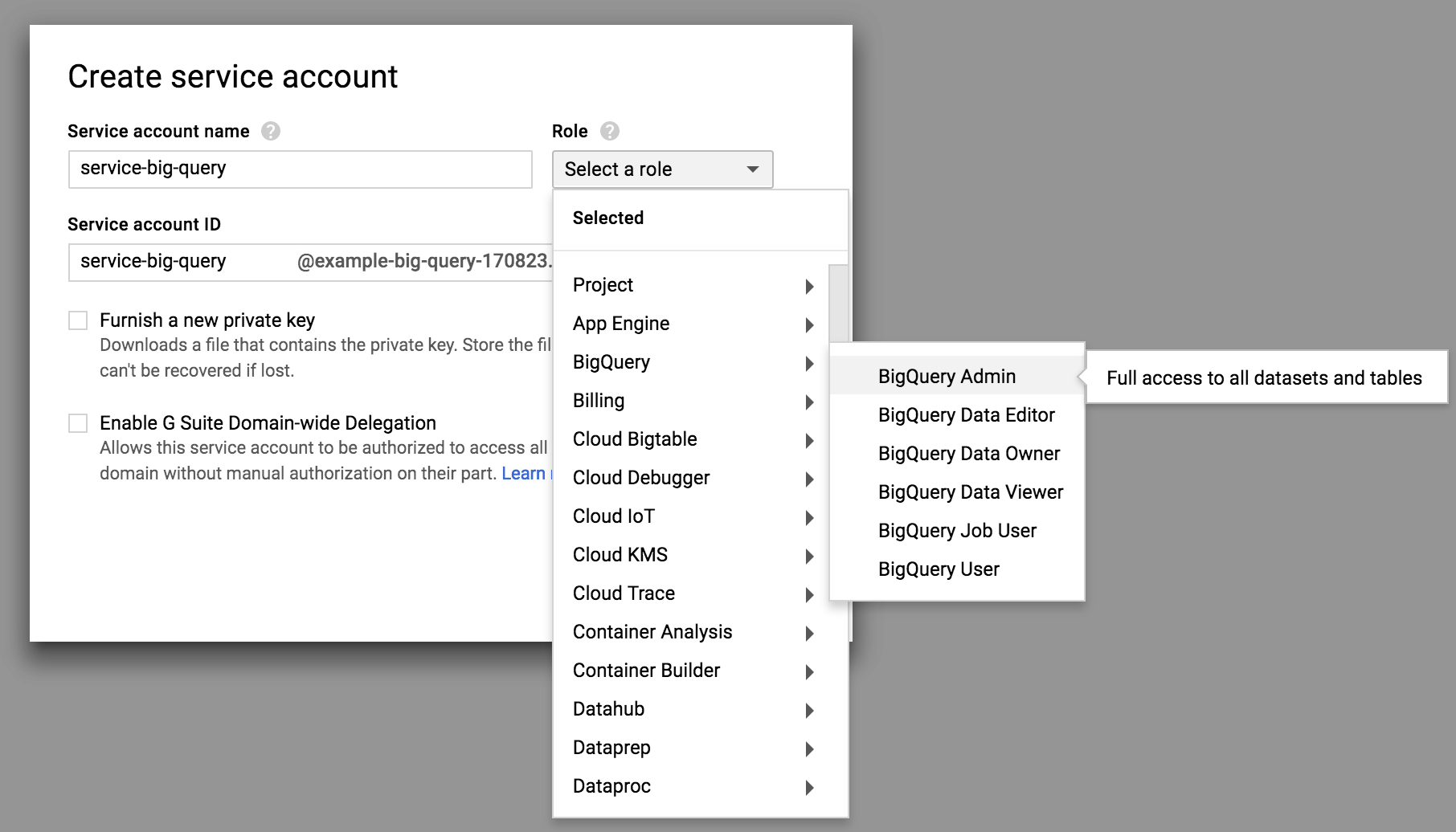 4. Confirm that your Service account has been created.
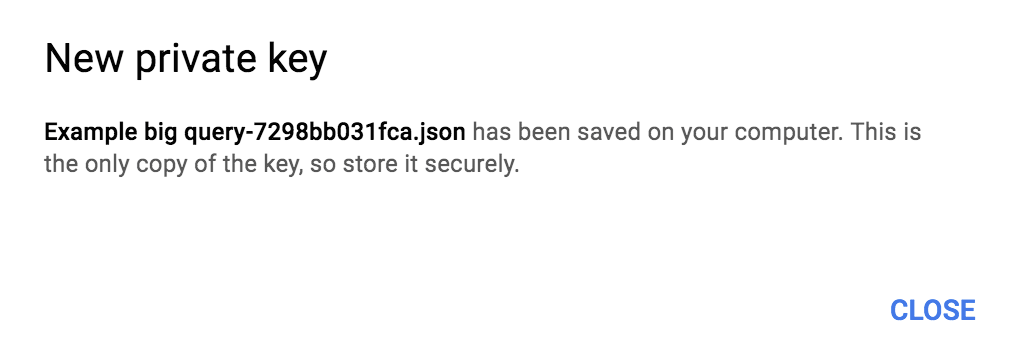
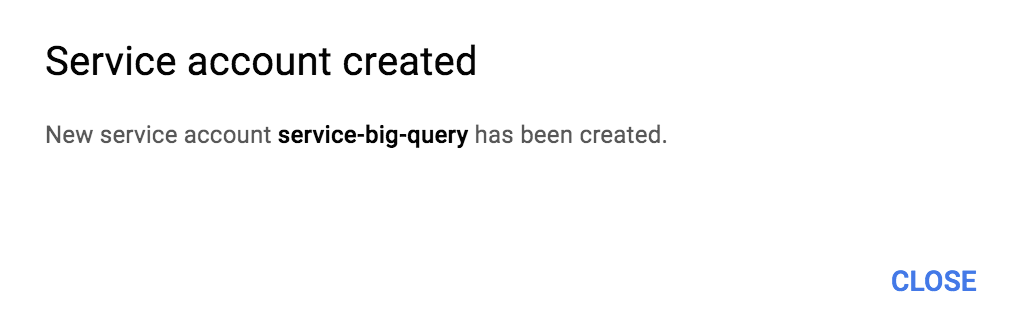 5. On the Service Accounts page, create a new key.
 6. Download the JSON key and keep it in a safe place. You will use this key later to programmatically authenticate to Google.
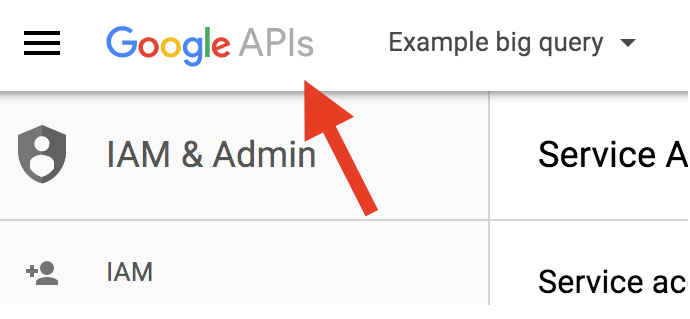
 7. To enable the BigQuery API, click the **Google APIs** logo.
 8. In the Library page, select the **Big Query API**.
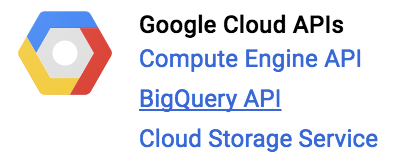 9. If it is not enabled, click **Enable**.
 ### Activate your credentials from Domino
Google Cloud uses the [Google Cloud SDK](https://cloud.google.com/sdk/) to activate your credentials. This is already installed in the Domino Default environment.
Execute the following bash command:
```shell theme={null}
/home/ubuntu/google-cloud-sdk/bin/gcloud auth activate-service-account --key-file
```
For example:
```shell theme={null}
/home/ubuntu/google-cloud-sdk/bin/gcloud auth activate-service-account big-query-example@example-big-query-170823.iam.gserviceaccount.com --key-file key.json
```
You can use a custom Domino compute environment and enter this command in Domino pre-setup script to activate the credentials before each run. Otherwise, you can execute them in workspace sessions. See [how to store your credentials securely](/cloud/platform-capabilities/core-concepts/projects/configure-projects/store-project-credentials).
### Authenticate and query using Python
You need the `gcloud` and `oauth2client==1.4.12` Python packages. Use the following package to install them in your custom Domino compute environment or in your workspace session.
```shell theme={null}
pip install --user gcloud oauth2client==1.4.12
```
Use the following code to authenticate your Google credentials and query a public BigQuery table:
```python theme={null}
from oauth2client.client import GoogleCredentials
from googleapiclient.discovery import build
# Grab the application's default credentials from the environment.
credentials = GoogleCredentials.get_application_default()
# Construct the service object for interacting with the BigQuery API.
bigquery_service = build('bigquery', 'v2', credentials=credentials)
query_request = bigquery_service.jobs()
query_data = {
'query': (
'SELECT TOP(corpus, 10) as title, '
'COUNT(*) as unique_words '
'FROM [publicdata:samples.shakespeare];')
}
query_response = query_request.query(
projectId='example-big-query-170823', # Substitute your ProjectId
body=query_data).execute()
print('Query Results:')
for row in query_response['rows']:
print(' '.join(field['v'] for field in row['f']))
```
## Next steps
* After connecting to your Data Source, learn how to [Use Data Sources](/cloud/platform-capabilities/core-concepts/data/data-source-connectors/use-data-sources).
* [Share this Data Source](/cloud/platform-capabilities/core-concepts/data/sharing-and-security/share-data-sources) with your collaborators.
### Activate your credentials from Domino
Google Cloud uses the [Google Cloud SDK](https://cloud.google.com/sdk/) to activate your credentials. This is already installed in the Domino Default environment.
Execute the following bash command:
```shell theme={null}
/home/ubuntu/google-cloud-sdk/bin/gcloud auth activate-service-account --key-file
```
For example:
```shell theme={null}
/home/ubuntu/google-cloud-sdk/bin/gcloud auth activate-service-account big-query-example@example-big-query-170823.iam.gserviceaccount.com --key-file key.json
```
You can use a custom Domino compute environment and enter this command in Domino pre-setup script to activate the credentials before each run. Otherwise, you can execute them in workspace sessions. See [how to store your credentials securely](/cloud/platform-capabilities/core-concepts/projects/configure-projects/store-project-credentials).
### Authenticate and query using Python
You need the `gcloud` and `oauth2client==1.4.12` Python packages. Use the following package to install them in your custom Domino compute environment or in your workspace session.
```shell theme={null}
pip install --user gcloud oauth2client==1.4.12
```
Use the following code to authenticate your Google credentials and query a public BigQuery table:
```python theme={null}
from oauth2client.client import GoogleCredentials
from googleapiclient.discovery import build
# Grab the application's default credentials from the environment.
credentials = GoogleCredentials.get_application_default()
# Construct the service object for interacting with the BigQuery API.
bigquery_service = build('bigquery', 'v2', credentials=credentials)
query_request = bigquery_service.jobs()
query_data = {
'query': (
'SELECT TOP(corpus, 10) as title, '
'COUNT(*) as unique_words '
'FROM [publicdata:samples.shakespeare];')
}
query_response = query_request.query(
projectId='example-big-query-170823', # Substitute your ProjectId
body=query_data).execute()
print('Query Results:')
for row in query_response['rows']:
print(' '.join(field['v'] for field in row['f']))
```
## Next steps
* After connecting to your Data Source, learn how to [Use Data Sources](/cloud/platform-capabilities/core-concepts/data/data-source-connectors/use-data-sources).
* [Share this Data Source](/cloud/platform-capabilities/core-concepts/data/sharing-and-security/share-data-sources) with your collaborators.