> ## Documentation Index
> Fetch the complete documentation index at: https://docs.domino.ai/llms.txt
> Use this file to discover all available pages before exploring further.
# Connect to Pinecone
Domino’s Pinecone vector database Data Source connector enables easy, secure access to vectorized content stored in [Pinecone](https://www.pinecone.io/).
## Create a Pinecone Data Source
You will need the following information about your Pinecone database:
* Optional: Pinecone environment name
* Optional: Pinecone project ID
* [Pinecone API key](https://docs.pinecone.io/docs/quickstart#2-get-your-api-key)
Pinecone environment name and Pinecone project ID are required if the data source is accessed through Python pinecone-client\<3.0.0.
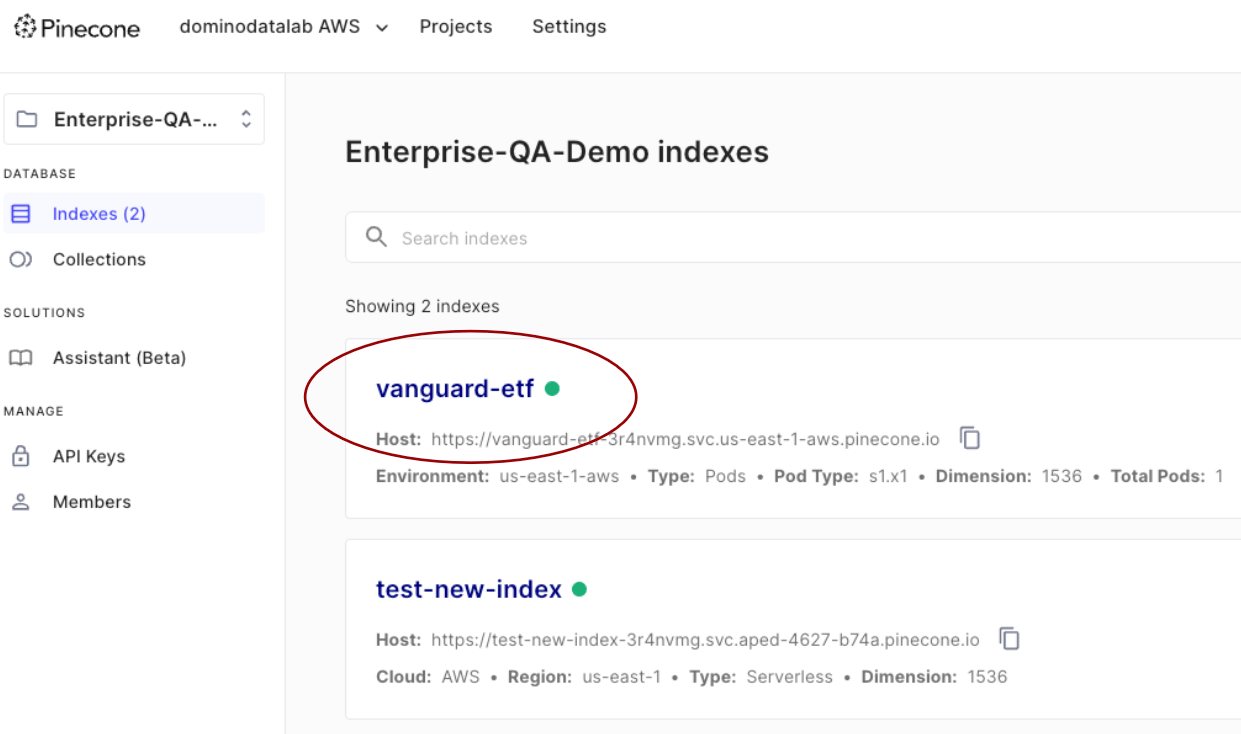
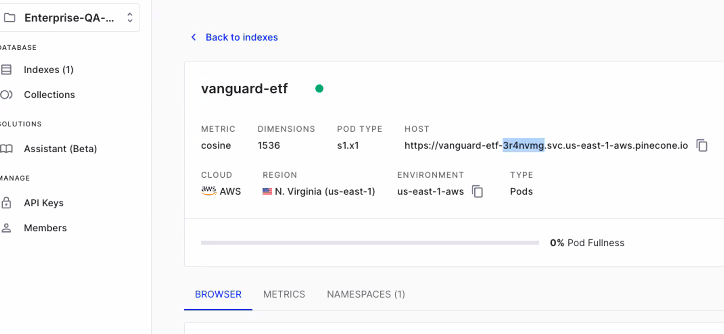
Follow these steps to find the Pinecone project ID:
1. Log into Pinecone and select the index you want to use:
 2. Your project ID is the seven-character string (`3r4nvmg` in this example):
 To create a Pinecone Data Source:
3. From the navigation pane, click **Data > Data Sources**.
4. Click **Create a Data Source**.
5. In the New Data Source window, from **Select Data Store**, select **Pinecone**.
6. Provide the **Pinecone environment name**, **Pinecone project ID**, and [Pinecone API Key](https://docs.pinecone.io/docs/quickstart#2-get-your-api-key) for your Pinecone database.
7. Create a **Data Source Name** and an optional **Description**.
Domino stores your Pinecone API Key, along with other secrets, in a [secure secret store backed by HashiCorp Vault](/cloud/platform-capabilities/core-concepts/projects/configure-projects/store-project-credentials), so you can have confidence that your secrets are safe. You can test the API key before finalizing your Data Source:
1. Click **Test Credentials**.
2. Confirm that the Data Source authenticates.
3. Select who can view and use the Data Source in Projects.
## Use the Pinecone Data Source
To use your Pinecone Data Source, you must install the prerequisite Python libraries in the compute Environment you want to run Pinecone commands in and configure the Pinecone client using a Domino-specific configuration.
### Install the Pinecone Python library and Domino Data SDK
To use the Pinecone Python library in Domino, you must install the following libraries in your compute Environment. Domino standard environments have these libraries installed by default. If you are using a customized environment, [Edit your compute Environment](/cloud/platform-capabilities/core-concepts/compute-environments/manage-compute-environments/5-edit-environment-definition) and add the following lines to the Dockerfile instructions:
You must replace the placeholder `{x.y.z}` with the compatible version of your Domino deployment. Refer to [all released packages](https://pypi.org/project/dominodatalab-data/#history).
```dockerfile theme={null}
USER root
RUN python -m pip install pinecone-client
RUN python -m pip install dominodatalab-data=={x.y.z}
USER ubuntu
```
### Configure the Pinecone Python client
To connect to your Pinecone service in a Domino execution, you must initialize your Pinecone connection using a Domino-specific Environment. To find the configuration code snippets:
1. [Add the Pinecone Data Source to your Project](/cloud/platform-capabilities/core-concepts/data/data-source-connectors/use-data-sources#add-an-existing-data-source-to-a-project).
2. In your Workspace, go to **Data** > **Data Sources** > **Code snippet** > **Python**.
3. Copy the code snippet, paste it into your code, and modify it as needed.
* The code snippet for pinecone-client\<3.0.0:
```python theme={null}
import os
import pinecone
from domino_data.vectordb import DominoPineconeConfiguration
datasource_name = "pinecone"
conf = DominoPineconeConfiguration(datasource=datasource_name)
# The pinecone API key should be provided when creating the Domino Data Source and persisted securely.
# This api_key variable is only used to satisfy the native Pinecone Python client initialization where
# api_key is a mandatory non-empty field.
api_key = os.environ.get("DOMINO_VECTOR_DB_METADATA", datasource_name)
pinecone.init(
api_key=api_key,
environment="domino",
openapi_config=conf)
print(pinecone.list_indexes())
# Replace the place holder {{index_name}} below with the index name.
index = pinecone.Index("{{index_name}}")
index.describe_index_stats()
```
* The code snippet for pinecone-client>=3.0.0:
```python theme={null}
from domino_data.vectordb import domino_pinecone3x_init_params, domino_pinecone3x_index_params
from pinecone import Pinecone
datasource_name = "pinecone"
pc = Pinecone(**domino_pinecone3x_init_params(datasource_name))
print(pc.list_indexes())
# Replace the place holder {{index_name}} below with the index name.
index_name = "{{index_name}}"
index = pc.Index(**domino_pinecone3x_index_params(datasource_name, index_name))
print(index.describe_index_stats())
# More Pinecone Python library-supported operations can be found at https://docs.pinecone.io/docs/python-client
# gRPC client is currently not supported.
```
Once your Pinecone connection is initialized in the Domino execution, you can use the [Pinecone Python client](https://docs.pinecone.io/docs/python-client) as usual.
## Next steps
* After connecting to your Data Source, learn how to [Use Data Sources](/cloud/platform-capabilities/core-concepts/data/data-source-connectors/use-data-sources).
* [Share this Data Source](/cloud/platform-capabilities/core-concepts/data/sharing-and-security/share-data-sources) with your collaborators.
To create a Pinecone Data Source:
3. From the navigation pane, click **Data > Data Sources**.
4. Click **Create a Data Source**.
5. In the New Data Source window, from **Select Data Store**, select **Pinecone**.
6. Provide the **Pinecone environment name**, **Pinecone project ID**, and [Pinecone API Key](https://docs.pinecone.io/docs/quickstart#2-get-your-api-key) for your Pinecone database.
7. Create a **Data Source Name** and an optional **Description**.
Domino stores your Pinecone API Key, along with other secrets, in a [secure secret store backed by HashiCorp Vault](/cloud/platform-capabilities/core-concepts/projects/configure-projects/store-project-credentials), so you can have confidence that your secrets are safe. You can test the API key before finalizing your Data Source:
1. Click **Test Credentials**.
2. Confirm that the Data Source authenticates.
3. Select who can view and use the Data Source in Projects.
## Use the Pinecone Data Source
To use your Pinecone Data Source, you must install the prerequisite Python libraries in the compute Environment you want to run Pinecone commands in and configure the Pinecone client using a Domino-specific configuration.
### Install the Pinecone Python library and Domino Data SDK
To use the Pinecone Python library in Domino, you must install the following libraries in your compute Environment. Domino standard environments have these libraries installed by default. If you are using a customized environment, [Edit your compute Environment](/cloud/platform-capabilities/core-concepts/compute-environments/manage-compute-environments/5-edit-environment-definition) and add the following lines to the Dockerfile instructions:
You must replace the placeholder `{x.y.z}` with the compatible version of your Domino deployment. Refer to [all released packages](https://pypi.org/project/dominodatalab-data/#history).
```dockerfile theme={null}
USER root
RUN python -m pip install pinecone-client
RUN python -m pip install dominodatalab-data=={x.y.z}
USER ubuntu
```
### Configure the Pinecone Python client
To connect to your Pinecone service in a Domino execution, you must initialize your Pinecone connection using a Domino-specific Environment. To find the configuration code snippets:
1. [Add the Pinecone Data Source to your Project](/cloud/platform-capabilities/core-concepts/data/data-source-connectors/use-data-sources#add-an-existing-data-source-to-a-project).
2. In your Workspace, go to **Data** > **Data Sources** > **Code snippet** > **Python**.
3. Copy the code snippet, paste it into your code, and modify it as needed.
* The code snippet for pinecone-client\<3.0.0:
```python theme={null}
import os
import pinecone
from domino_data.vectordb import DominoPineconeConfiguration
datasource_name = "pinecone"
conf = DominoPineconeConfiguration(datasource=datasource_name)
# The pinecone API key should be provided when creating the Domino Data Source and persisted securely.
# This api_key variable is only used to satisfy the native Pinecone Python client initialization where
# api_key is a mandatory non-empty field.
api_key = os.environ.get("DOMINO_VECTOR_DB_METADATA", datasource_name)
pinecone.init(
api_key=api_key,
environment="domino",
openapi_config=conf)
print(pinecone.list_indexes())
# Replace the place holder {{index_name}} below with the index name.
index = pinecone.Index("{{index_name}}")
index.describe_index_stats()
```
* The code snippet for pinecone-client>=3.0.0:
```python theme={null}
from domino_data.vectordb import domino_pinecone3x_init_params, domino_pinecone3x_index_params
from pinecone import Pinecone
datasource_name = "pinecone"
pc = Pinecone(**domino_pinecone3x_init_params(datasource_name))
print(pc.list_indexes())
# Replace the place holder {{index_name}} below with the index name.
index_name = "{{index_name}}"
index = pc.Index(**domino_pinecone3x_index_params(datasource_name, index_name))
print(index.describe_index_stats())
# More Pinecone Python library-supported operations can be found at https://docs.pinecone.io/docs/python-client
# gRPC client is currently not supported.
```
Once your Pinecone connection is initialized in the Domino execution, you can use the [Pinecone Python client](https://docs.pinecone.io/docs/python-client) as usual.
## Next steps
* After connecting to your Data Source, learn how to [Use Data Sources](/cloud/platform-capabilities/core-concepts/data/data-source-connectors/use-data-sources).
* [Share this Data Source](/cloud/platform-capabilities/core-concepts/data/sharing-and-security/share-data-sources) with your collaborators.