> ## Documentation Index
> Fetch the complete documentation index at: https://docs.domino.ai/llms.txt
> Use this file to discover all available pages before exploring further.
# Version data with Snapshots
Domino lets you create snapshots of both NetApp Volumes and Domino Datasets to support reproducibility, version control, and collaboration. A snapshot is a read-only, immutable record of your data at a specific point in time. You can tag snapshots, download them, or use them to create new versions. You can also add commit messages to NetApp Volumes only.
When you want to reproduce a training experiment, you can version a NetApp Volume or Domino Dataset so that you can return to a specific version used in the past.
To do this with Domino:
* Create a snapshot to create versions of a NetApp Volume or Domino Dataset.
* Use a naming convention and a folder hierarchy to organize data your way in the read/write portions of a NetApp Volume or Dataset.
## Snapshotting: NetApp Volumes vs. Domino Datasets
| Feature | NetApp Volumes | Domino Datasets |
| --------------------------- | -------------------------------------------------------------- | --------------------------------------------------------------------------------------- |
| **Snapshot speed** | Nearly instant, regardless of size (\~3 sec for 100+ GB) | Time scales with size (seconds to hours) |
| **Storage efficiency** | Snapshots initially consume no extra space (redirect-on-write) | Snapshots duplicate physical data at snapshot time |
| **Mounting in executions** | Mounted like datasets; supports tag-based mounting | Mounted like volumes; supports tag-based mounting |
| **Tag support** | Yes | Yes |
| **Commit messages** | Yes | No - not supported |
| **Writable after snapshot** | No - read-only; cannot clone snapshot into a new volume | Yes - can create a **new** Dataset from a snapshot; original snapshot remains read-only |
Use **NetApp Volumes** when you need fast, large-scale snapshotting or integration with external storage systems.
Use **Datasets** if you don't have NetApp Volumes set up, and you want to clone or branch datasets more flexibly within Domino.
## Create a snapshot
You can take a snapshot from the overview page of a NetApp Volume or Dataset in the Domino UI. A snapshot captures the current state of the data in a read-only, versioned format.
**Caution:** You should never modify files while a snapshot is in progress.
1. Go to the **NetApp Volumes** or **Datasets** tab in your project.
2. Select the NetApp Volume or Dataset you want to snapshot.
3. Click **Take Snapshot** and choose one of the following:
* **Include all files**: snapshots the entire contents.
* **Include only selected files** allows a partial snapshot.
4. Optionally, add a commit message (NetApp Volumes) or a tag name for the snapshot. You can add multiple tags for NetApp Volumes.
5. Click **Confirm** to begin.
Syntax:
```shell theme={null}
domino create-snapshot //
```
Domino NetApp Volume Apis
/snapshots/\{id} in the [Domino NetApp Volume APIs documentation](/cloud/reference/api/domino-volumes-api) has details on how to do this.
Endpoint:
```
/api/datasetrw/v1/datasets//snapshots
```
Body:
```json theme={null}
{
"relativeFilePaths": [
"string"
]
}
```
Example: Snapshot all files in the Dataset
Request:
```python theme={null}
import requests
import json
url = "test14995.test-api.tech/api/datasetrw/v1/datasets/649cb4dedeb75c31b6e7dafc/snapshots"
payload = json.dumps({
"relativeFilePaths": [
"/*"
]
})
headers = {
'X-Domino-Api-Key': 'a944d3612a76f6c44ad9c680c25234b3ef580ac6b5d2649fd3fc0a259eb62255',
'Content-Type': 'application/json'
}
response = requests.request("POST", url, headers=headers, data=payload)
print(response.text)
```
Response:
```json theme={null}
{
"snapshot": {
"id": "64935f78867ba25a6903c6c4",
"datasetId": "6488daa88548661d66844e23",
"creatorId": "64876299e4941004222e2b93",
"createdAt": "2023-06-21T20:37:12.95Z",
"status": "pending"
},
"metadata": {
"requestId": "adc8ecc5-9887-46ef-a38c-5569311bf4cd",
"notices": []
}
}
```
## Commit messages (NetApp Volumes only)
A commit message is a short, optional description attached to a snapshot. This description is also editable. It's useful for recording the purpose, contents, or context of the snapshot, especially when creating many versions over time.
Examples:
* "Cleaned version with NA values removed"
* "Post-labeling data for training v3.2"
* "Before joining with demographic.csv"
Commit messages help:
* Track what changed
* Clarify the purpose without editing the Dataset or Volume description
* Improve transparency in team workflows
## Add tags to a snapshot
Tags are human-readable labels that provide a stable, friendly path to a specific snapshot when you mount it in an execution. They let you reference a named snapshot in code or across projects, even if the tag later moves to a different snapshot.
* Tags can be created or removed by NetApp Volume or Dataset owners or editors.
* Tags can be reassigned to newer snapshots as needed.
* Only the **most recently added tag** is used for automatic mounting in executions.
To add or remove a tag:
1. Go to the **Snapshots** section for the Dataset or Volume.
2. Select the snapshot.
3. Click **+Tag Snapshot**, enter a name, and click **Add**.
4. To remove a tag, click the **X** next to the tag name.
## Snapshot mounting in executions
If a snapshot has a tag, Domino automatically mounts it in any execution that uses the NetApp Volume or Dataset. If a snapshot has multiple tags, only the most recently added one is mounted.
This mount path is in addition to the default mount, and it depends on the data and project types:
NetApp Volumes
* **Git-based projects** - `/mnt/netapp-volumes/snapshot-tags//`
* **Regular projects** - `/domino/netapp-volumes/snapshot-tags//`
Datasets
* **Git-based projects** - `/mnt/datasets/snapshot//`
* **Regular projects** - `/domino/datasets/snapshot//`
## Create a new Dataset from a snapshot
You can create as many snapshots as you need, but existing snapshots are read-only.
**Note:** You can't create a new NetApp Volume directly from a snapshot, but you can copy a volume for use in Project Templates, which includes its existing snapshots.
You can create a new Dataset from a snapshot, modify it, and take a new snapshot:
1. Go to the existing snapshot.
2. Click **Copy to New Dataset**.
3. Complete the fields as needed.
4. Click **Upload files** to add files to the Dataset.
5. Click **Take Snapshot** > **Include all files**.
Syntax:
```shell theme={null}
domino create-dataset-from-snapshot //
```
Endpoint:
```
/api/datasetrw/v1/datasets
```
Body:
```json theme={null}
{
"name": "test-dataset5",
"description": "A new dataset based on a snapshot",
"grants": [],
"snapshotId": "649cbe38fe7c5443a9cb1b62"
}
```
Example: Create a new Dataset from a snapshot
Example request:
```python theme={null}
import requests
import json
url = "test14995.test-api.tech/api/datasetrw/v1/datasets"
payload = json.dumps({
"name": "test-dataset5",
"description": "A new dataset based on a snapshot",
"grants": [],
"snapshotId": "649cbe38fa7c5443a7cb1b62"
})
headers = {
'X-Domino-Api-Key': 'a944d3612a76f6c44ad9c680c25234b2ef580ac6b5d2649fd3fc0a259cb62255',
'Content-Type': 'application/json'
}
response = requests.request("POST", url, headers=headers, data=payload)
print(response.text)
```
Example response:
```json theme={null}
{
"dataset": {
"id": "649cb689deb75c31b6e7dafe",
"name": "test-dataset5",
"description": "A new dataset based on a snapshot",
"projectId": "649cb2b0deb75c31b6e7daf6",
"createdAt": "2023-06-28T22:39:05.788Z",
"snapshotIds": [
"649cb689deb75c31b6e7dafd"
],
"tags": {}
},
"metadata": {
"requestId": "3d87b111-8052-4965-9044-0531ba49a93a",
"notices": []
}
}
```
## Download a snapshot
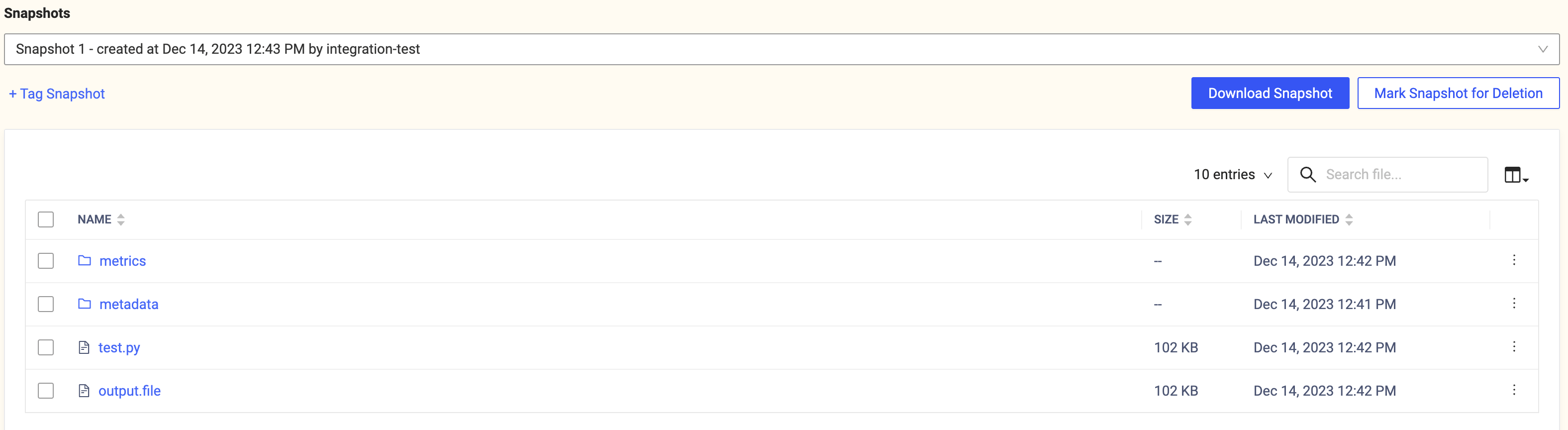
You can download a snapshot:
1. Open the overview page for the Dataset or Volume.
2. In the **Snapshots** list, select the snapshot to download.
3. Click **Download Snapshot** to begin downloading.
* If the selected snapshot contains a folder or multiple files, it will download as a `.zip` file (default) or `.tar` archive, depending on your system setting.
 ## Delete a snapshot
Deletion behavior depends on the volume type and configuration.
### Delete a NetApp Volume snapshot
Admins can directly delete snapshots for both NetApp Volumes and Datasets from the Admin UI. [Delete a NetApp Volume](/cloud/platform-capabilities/core-concepts/data/netapp-volumes/add-remove-netapp-volumes) has information about deleting NetApp Volumes.
### Delete a Dataset snapshot
Marked snapshots are no longer mounted in executions and will be flagged for admin removal. You can restore a snapshot if it is marked for deletion. They are not fully deleted until removed by a Domino admin.
1. Open the NetApp Volume or Dataset overview page.
2. Go to the **Snapshots** section.
3. Select the snapshot to delete.
4. Click **Mark Snapshot for Deletion**, then confirm.
## Next steps
* [Get the path to a snapshot](/cloud/platform-capabilities/core-concepts/data/datasets/use-datasets-and-snapshots)
* Learn about [Dataset best practices](/cloud/platform-capabilities/core-concepts/data/datasets/local-data)
## Delete a snapshot
Deletion behavior depends on the volume type and configuration.
### Delete a NetApp Volume snapshot
Admins can directly delete snapshots for both NetApp Volumes and Datasets from the Admin UI. [Delete a NetApp Volume](/cloud/platform-capabilities/core-concepts/data/netapp-volumes/add-remove-netapp-volumes) has information about deleting NetApp Volumes.
### Delete a Dataset snapshot
Marked snapshots are no longer mounted in executions and will be flagged for admin removal. You can restore a snapshot if it is marked for deletion. They are not fully deleted until removed by a Domino admin.
1. Open the NetApp Volume or Dataset overview page.
2. Go to the **Snapshots** section.
3. Select the snapshot to delete.
4. Click **Mark Snapshot for Deletion**, then confirm.
## Next steps
* [Get the path to a snapshot](/cloud/platform-capabilities/core-concepts/data/datasets/use-datasets-and-snapshots)
* Learn about [Dataset best practices](/cloud/platform-capabilities/core-concepts/data/datasets/local-data)