> ## Documentation Index
> Fetch the complete documentation index at: https://docs.domino.ai/llms.txt
> Use this file to discover all available pages before exploring further.
# Deploy models to SageMaker
Domino provides seamless model deployment to SageMaker. Leverage Domino’s flexible development experience to build your models before deploying them for production on SageMaker, while still maintaining centralized governance and tracking of all of your models. Administrators apply guardrails around cost, performance, and security, and the platform picks the resources needed to meet them.
New versions of your models are automatically published to the target environment, validated, and made available for production after they clear the necessary measures.
Your admin must set up an external deployment target before you can deploy models to SageMaker. See the [admin documentation](/cloud/admin/platform-configuration/manage-model-deployments/deployment-targets) for more details. Deploying models to SageMaker is only supported when the Domino control plane is running on an [AWS EKS cluster](https://aws.amazon.com/eks).
Domino also provides an intelligent system that can profile your models and expected scale of usage and recommend a hosting strategy. This helps enable:
* A smoother transition from development to production through automated packaging, transfer, and deployment of models to SageMaker.
* Unified governance and tracking for all models through a single interface, regardless of deployment environment.
* The advanced capabilities of SageMaker facilitate the scalable and cost-effective deployment of the latest models, including LLMs.
## Prerequisites
Before you deploy a model to SageMaker, make sure that you have an existing registered model. For details on how to register a model, see the [model registry](/cloud/platform-capabilities/core-concepts/products/models/register-and-govern) documentation.
Verify that your admin set up an external deployment target so you can deploy endpoints to SageMaker. See the [admin documentation](/cloud/admin/platform-configuration/manage-model-deployments/deployment-targets) for more details.
## Create the endpoint
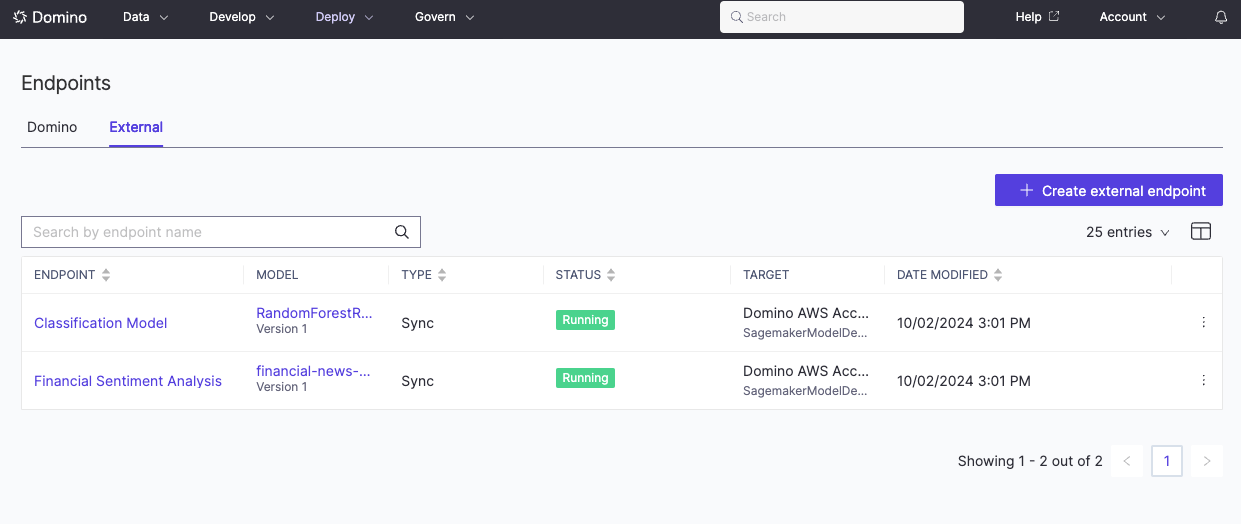
1. Navigate to the **Endpoints** page and click on the **External** pivot. Then click on **Create external endpoint**.
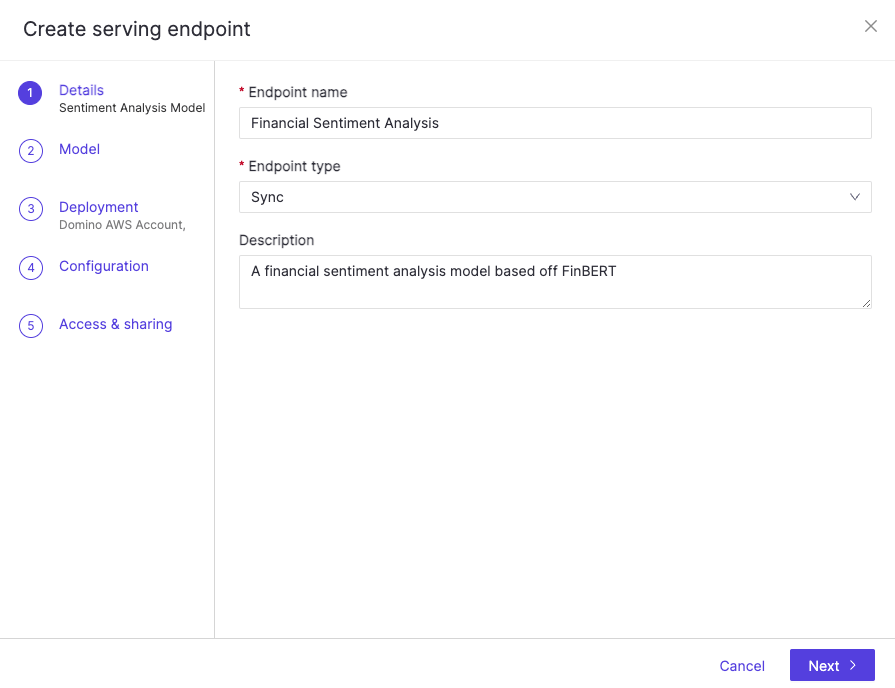
 2. Provide a **Name** for the endpoint, select the **Type** and optionally enter a **Description**.
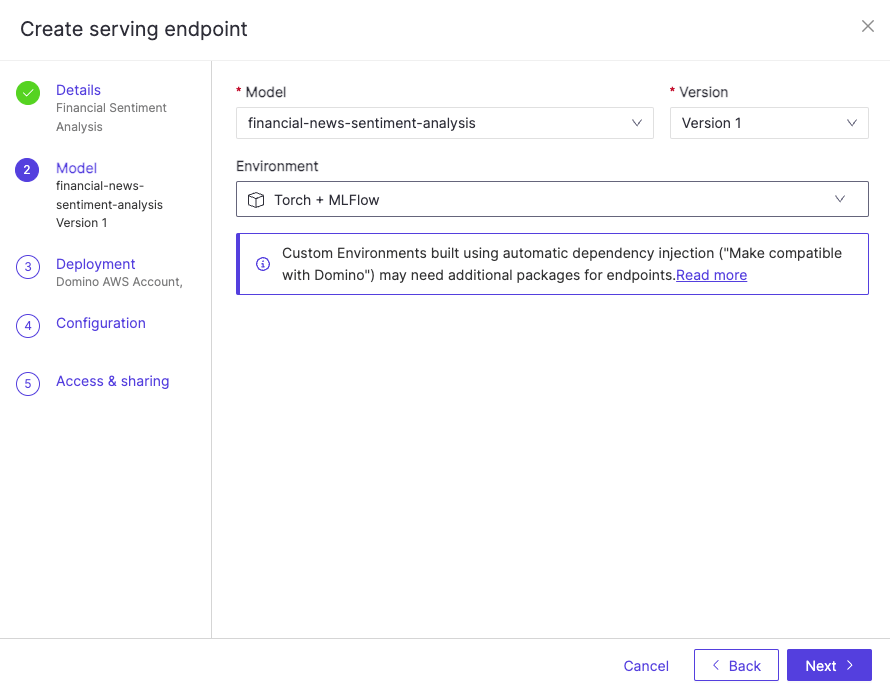
 3. Select the **Model** that you want to deploy, followed by the **Environment** that is required to run the model.
 4. Choose the **Deployment Target** and **Resources** that you want to use for the deployment.
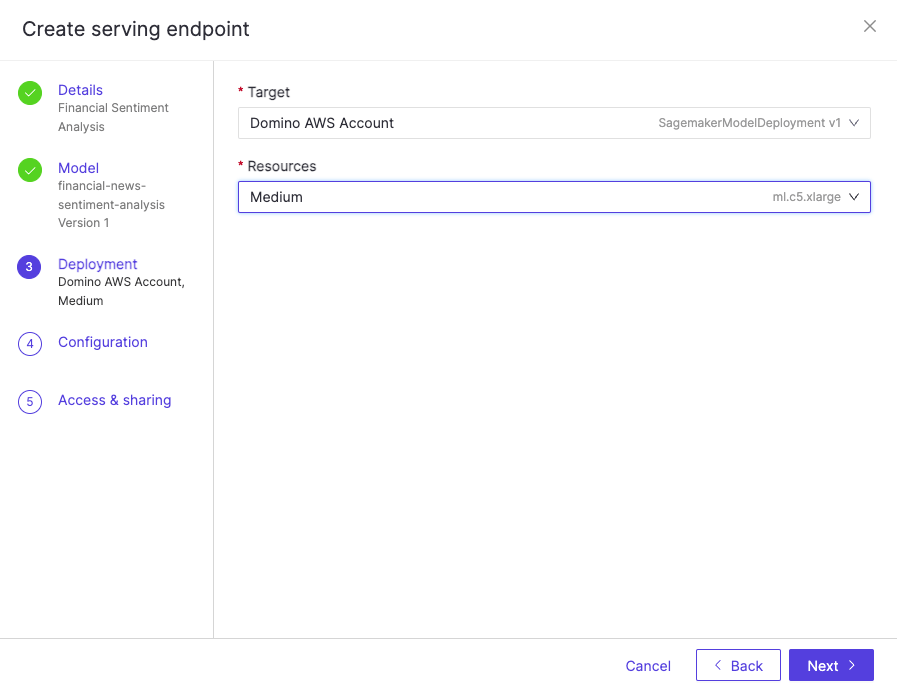 5. Select whether to enable **Streaming** and the **Minimum** / **Maximum** number of instances for your endpoint.
 Setting a higher maximum than minimum value will enable auto-scaling. If auto-scaling is enabled, it will trigger a scale-up when the **CPU utilization** exceeds the target threshold of **80% utilization**. To use a different scaling policy or add additional scaling policies, modify the **Scaling Policies** section.
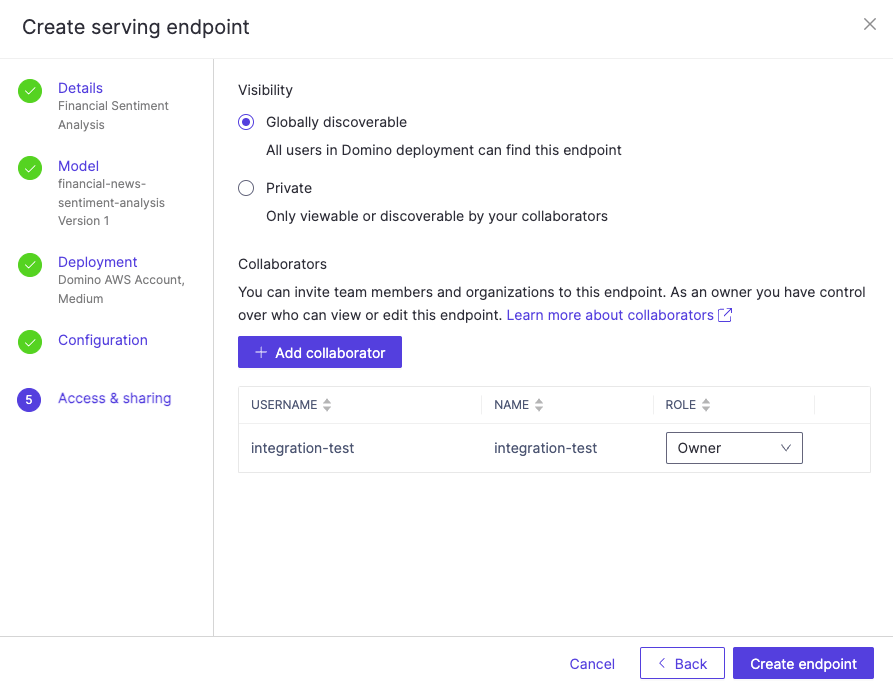
6. Set the **Visibility** of the endpoint and add additional **Collaborators** if you like.
Setting a higher maximum than minimum value will enable auto-scaling. If auto-scaling is enabled, it will trigger a scale-up when the **CPU utilization** exceeds the target threshold of **80% utilization**. To use a different scaling policy or add additional scaling policies, modify the **Scaling Policies** section.
6. Set the **Visibility** of the endpoint and add additional **Collaborators** if you like.
 ## View, test, and edit the endpoint
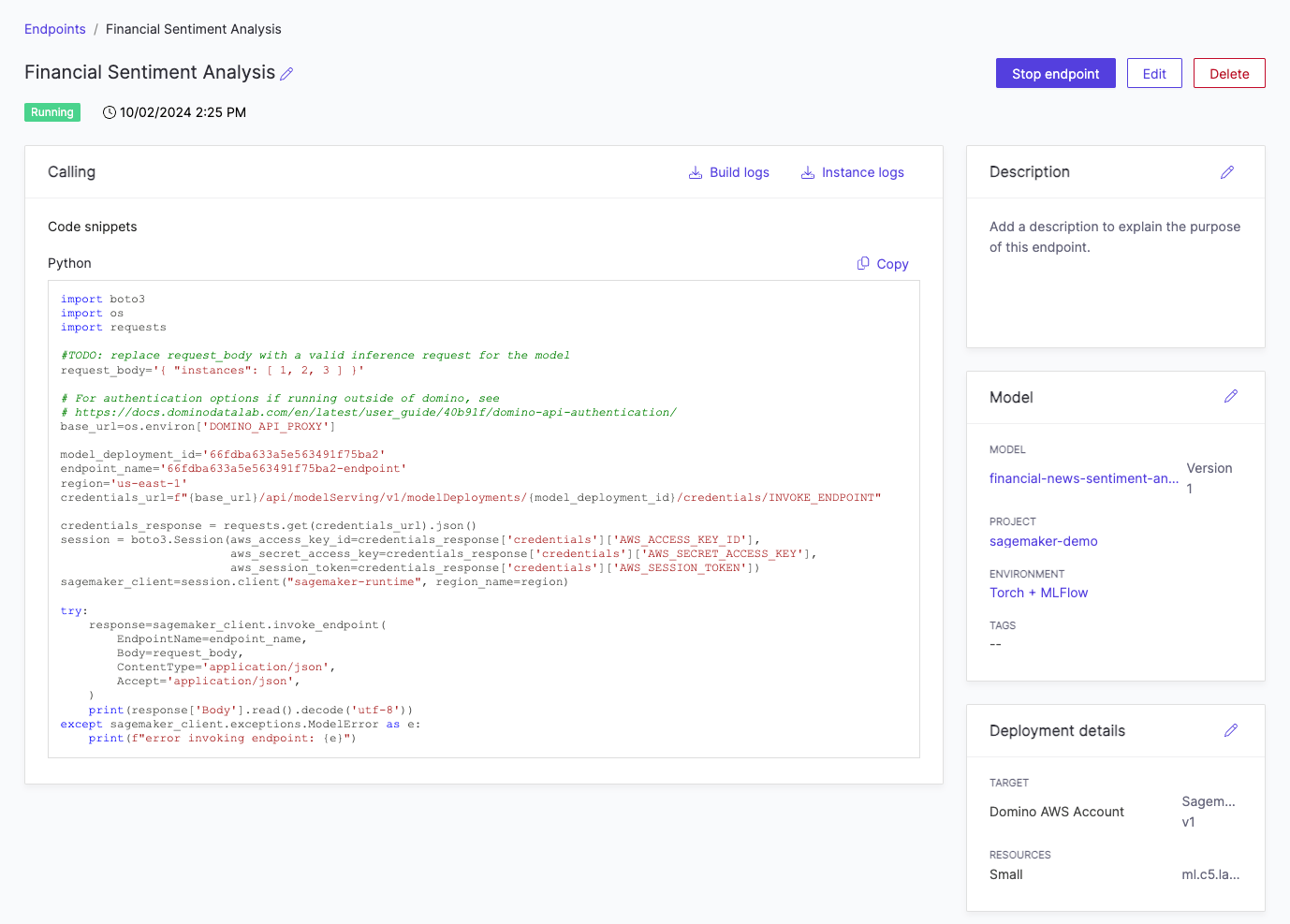
Once the endpoint has been created, you can click into it to view details for the endpoint. You can also **Edit** or **Delete** it.
From this view, you can get a code snippet for testing the endpoint. Paste this code snippet into a workspace and replace the request body with a valid inference request to test the deployment.
In the same view, you can also stop the endpoint. If you click **Stop endpoint**, the SageMaker endpoint will be deleted and a new one will be created when it is started up again.
## View, test, and edit the endpoint
Once the endpoint has been created, you can click into it to view details for the endpoint. You can also **Edit** or **Delete** it.
From this view, you can get a code snippet for testing the endpoint. Paste this code snippet into a workspace and replace the request body with a valid inference request to test the deployment.
In the same view, you can also stop the endpoint. If you click **Stop endpoint**, the SageMaker endpoint will be deleted and a new one will be created when it is started up again.