> ## Documentation Index
> Fetch the complete documentation index at: https://docs.domino.ai/llms.txt
> Use this file to discover all available pages before exploring further.
# Register and deploy LLMs
Domino lets you register large language models (LLMs) and deploy them as hosted endpoints with optimized inference. These endpoints provide OpenAI-compatible APIs that your agentic systems and applications can call directly.
You can register models from Hugging Face or from your [experiment runs](/cloud/platform-capabilities/features/development/track-monitor), then deploy them as endpoints. You’ll need **Project Collaborator** permissions to register models and create endpoints.
## Plan your endpoint deployment
Before creating an endpoint, consider these key factors to ensure optimal performance and cost-efficiency:
### Understand your model’s requirements
Check your model’s documentation for minimum memory and compute requirements. Choose appropriate resource sizes based on requirements and expected usage patterns.
### Size resources appropriately for expected usage
**Account for concurrent users**: if you expect high throughput or multiple simultaneous requests, minimal GPU sizes may cause slowdowns. Scale up the hardware tier or consider deploying multiple endpoints.
**Balance performance against cost**: start with a tier that meets your requirements and monitor performance before scaling up.
GPU is required because LLM inference is compute-intensive. Always select a GPU-enabled hardware tier for your endpoint. CPU-only tiers will not provide acceptable latency for model serving. Choose a tier with enough GPU memory (VRAM) to hold your model’s weights. For example, a 7B-parameter model typically needs at least 16 GB of VRAM.
## Step 1: Register a model
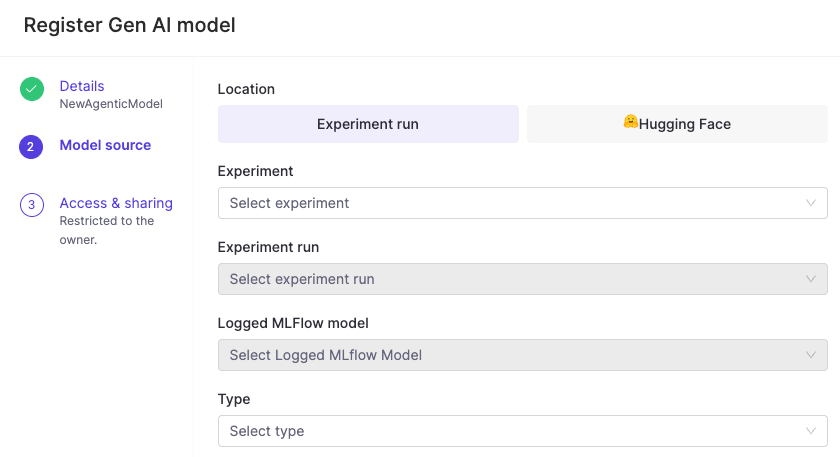
Register a model to make it available for deployment as an endpoint. Go to **Models** > **Register** to get started.
1. Choose your model source:
1. **Hugging Face** models that you have access to, or
2. **Experiment runs** that include a [logged MLflow model](/cloud/platform-capabilities/core-concepts/products/models/register-and-govern/model-registry).
2. Complete the required fields.
 ## Step 2: Create an endpoint
After registering a model, you can deploy it as an endpoint.
1. From your registered model’s **Endpoints** tab, click **Create endpoint**.
2. An endpoint form will appear:
## Step 2: Create an endpoint
After registering a model, you can deploy it as an endpoint.
1. From your registered model’s **Endpoints** tab, click **Create endpoint**.
2. An endpoint form will appear:
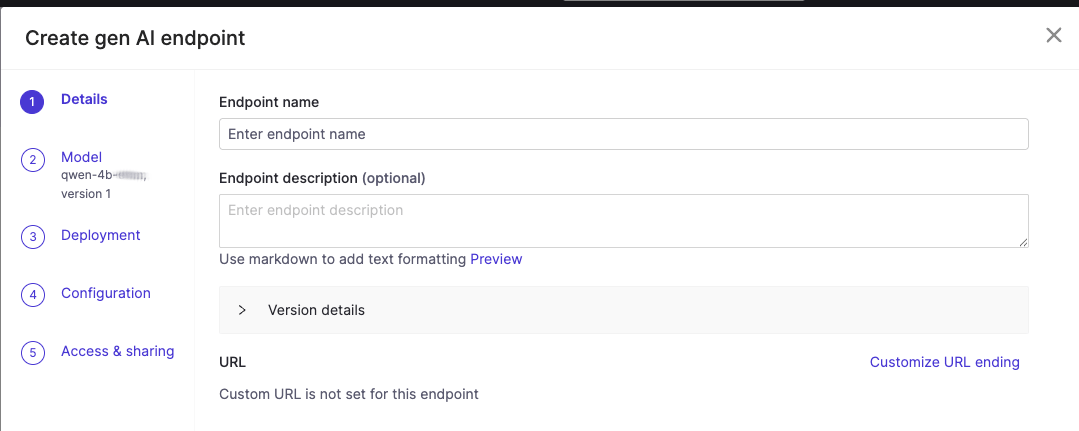 1. Complete the endpoint configuration details.
2. Choose a model source environment and resource size.
3. Under **Environment**, select **Domino vLLM Environment**. (This environment is pre-configured with the vLLM runtime, which provides optimized inference and an OpenAI-compatible API out of the box.)
4. Under **Hardware Tier**, select a GPU-enabled resource size. Match the GPU memory to your model’s requirements. Larger models need more VRAM. For example, use a tier with at least 24 GB GPU memory for 13B+ parameter models.
3. Configure access controls by adding users or organizations for access to this endpoint.
Some hosted models require the following settings under **Configuration** > **Advanced Tab** > **vLLM arguments** in order to work with some agent frameworks:
* `--enable-auto-tool-choice`
* `--tool-call-parser hermes`
4. Click **Create endpoint**. The endpoint deploys with the vLLM runtime, which provides optimized inference performance and OpenAI-compatible APIs.
## Step 3: Get your endpoint URL and call it from an agent
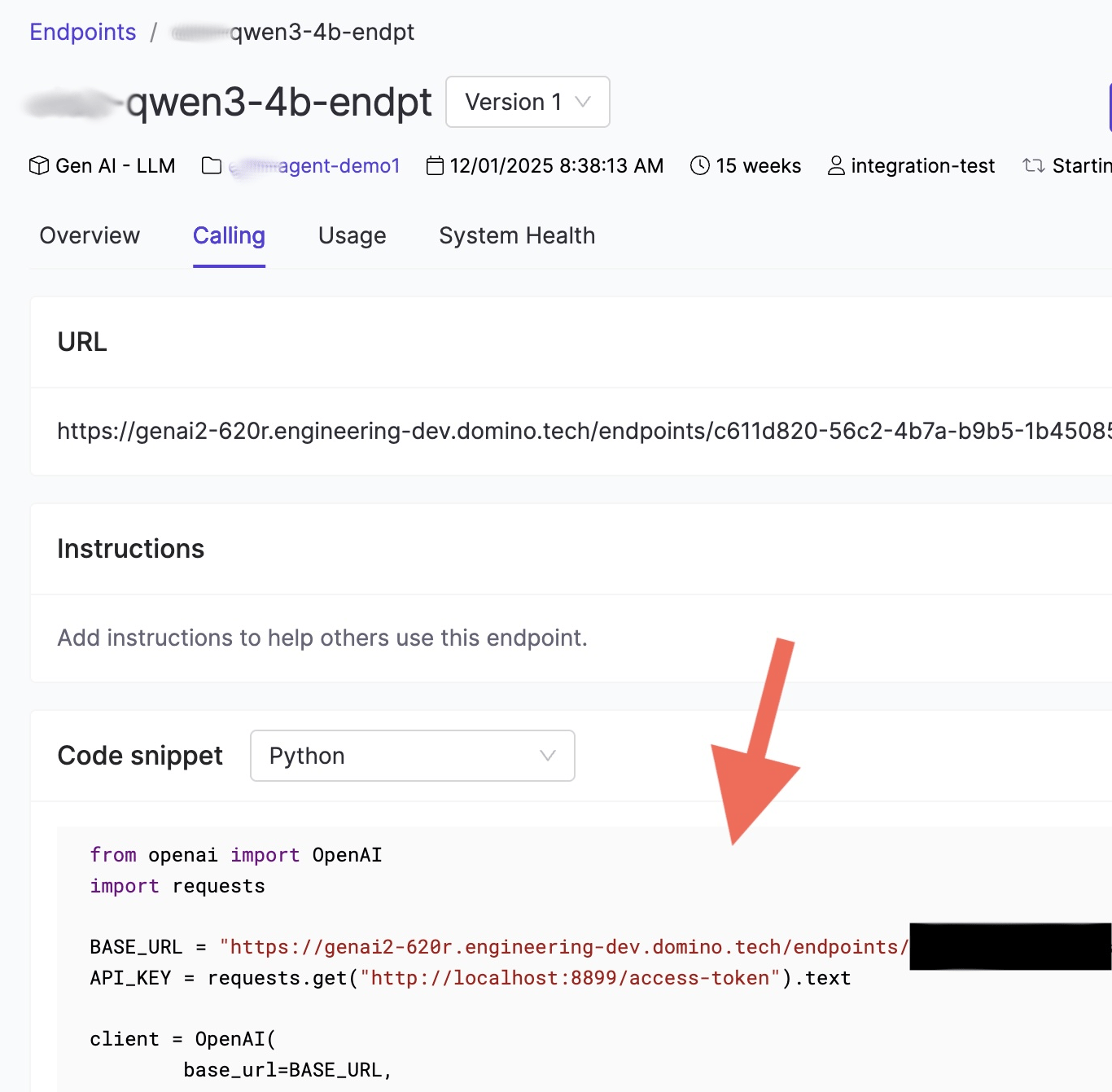
1. Once your endpoint is running, navigate to the **Calling** tab on the endpoint detail page.\
This tab provides:
* The endpoint URL, which is the `base_url` your agent code will use.
* A code snippet showing how to connect using the OpenAI Python SDK.
2. Copy the URL from the **Calling** tab. Inside a Domino workspace or Job, the API key is available automatically at `http://localhost:8899/access-token`.
3. Use these values to connect your agent to the Domino-hosted model.
1. Complete the endpoint configuration details.
2. Choose a model source environment and resource size.
3. Under **Environment**, select **Domino vLLM Environment**. (This environment is pre-configured with the vLLM runtime, which provides optimized inference and an OpenAI-compatible API out of the box.)
4. Under **Hardware Tier**, select a GPU-enabled resource size. Match the GPU memory to your model’s requirements. Larger models need more VRAM. For example, use a tier with at least 24 GB GPU memory for 13B+ parameter models.
3. Configure access controls by adding users or organizations for access to this endpoint.
Some hosted models require the following settings under **Configuration** > **Advanced Tab** > **vLLM arguments** in order to work with some agent frameworks:
* `--enable-auto-tool-choice`
* `--tool-call-parser hermes`
4. Click **Create endpoint**. The endpoint deploys with the vLLM runtime, which provides optimized inference performance and OpenAI-compatible APIs.
## Step 3: Get your endpoint URL and call it from an agent
1. Once your endpoint is running, navigate to the **Calling** tab on the endpoint detail page.\
This tab provides:
* The endpoint URL, which is the `base_url` your agent code will use.
* A code snippet showing how to connect using the OpenAI Python SDK.
2. Copy the URL from the **Calling** tab. Inside a Domino workspace or Job, the API key is available automatically at `http://localhost:8899/access-token`.
3. Use these values to connect your agent to the Domino-hosted model.
 ### Use the endpoint from a Pydantic AI agent
Domino endpoints are OpenAI-compatible, so you can use the OpenAIProvider from Pydantic AI with a custom base\_url pointing to your endpoint:
```python theme={null}
import os
import requests
from pydantic_ai import Agent
from pydantic_ai.models.openai import OpenAIChatModel
from pydantic_ai.providers.openai import OpenAIProvider
# Copy the URL from the Calling tab of your endpoint
ENDPOINT_URL = os.environ["DOMINO_LLM_ENDPOINT_URL"]
# Inside Domino, the access token is available at this local URL
API_KEY = requests.get("http://localhost:8899/access-token").text
model = OpenAIChatModel(
"your-model-name",
provider=OpenAIProvider(base_url=ENDPOINT_URL, api_key=API_KEY),
)
agent = Agent(model)
result = agent.run_sync("Summarize the latest quarterly report.")
print(result.output)
```
Rather than hard-coding the URL, store it as a [Domino environment variable](/cloud/platform-capabilities/features/genai/agent-development-lifecycle/set-up-LLM-access) such as `DOMINO_LLM_ENDPOINT_URL`. This lets you swap endpoints without changing code, which is useful when promoting from a development to a production endpoint.
### Use the endpoint with the OpenAI SDK directly
If you prefer calling the endpoint without a framework, use the standard OpenAI Python client:
```python theme={null}
import os
import requests
from openai import OpenAI
ENDPOINT_URL = os.environ["DOMINO_LLM_ENDPOINT_URL"]
API_KEY = requests.get("http://localhost:8899/access-token").text
client = OpenAI(base_url=ENDPOINT_URL, api_key=API_KEY)
response = client.chat.completions.create(
model="your-model-name",
messages=[{"role": "user", "content": "Hello"}]
)
print(response.choices[0].message.content)
```
OpenAI Responses API is also supported.
## Step 4: Monitor endpoint performance
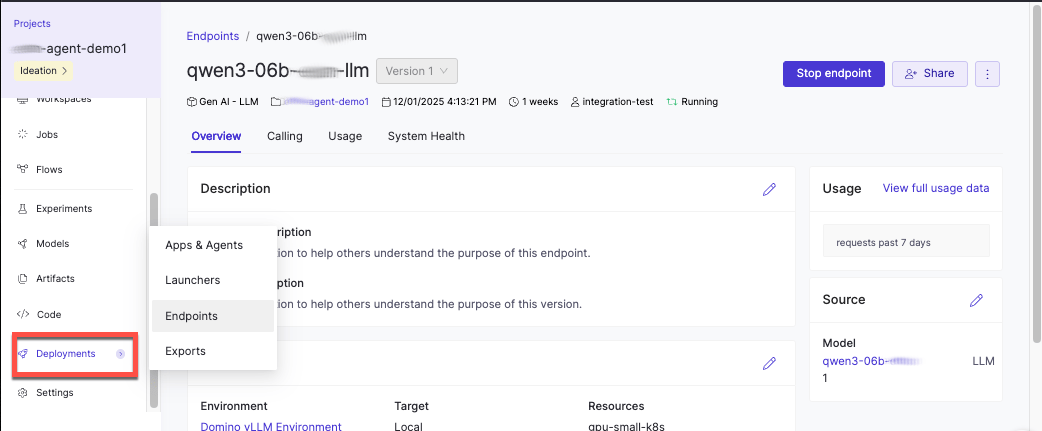
After deploying your endpoint, you can monitor its performance and usage from the endpoint detail page:
* **Overview**: Configuration details and deployment status
* **Performance**: Token usage and latency metrics over time
* **Usage**: Endpoint invocation frequency
### Use the endpoint from a Pydantic AI agent
Domino endpoints are OpenAI-compatible, so you can use the OpenAIProvider from Pydantic AI with a custom base\_url pointing to your endpoint:
```python theme={null}
import os
import requests
from pydantic_ai import Agent
from pydantic_ai.models.openai import OpenAIChatModel
from pydantic_ai.providers.openai import OpenAIProvider
# Copy the URL from the Calling tab of your endpoint
ENDPOINT_URL = os.environ["DOMINO_LLM_ENDPOINT_URL"]
# Inside Domino, the access token is available at this local URL
API_KEY = requests.get("http://localhost:8899/access-token").text
model = OpenAIChatModel(
"your-model-name",
provider=OpenAIProvider(base_url=ENDPOINT_URL, api_key=API_KEY),
)
agent = Agent(model)
result = agent.run_sync("Summarize the latest quarterly report.")
print(result.output)
```
Rather than hard-coding the URL, store it as a [Domino environment variable](/cloud/platform-capabilities/features/genai/agent-development-lifecycle/set-up-LLM-access) such as `DOMINO_LLM_ENDPOINT_URL`. This lets you swap endpoints without changing code, which is useful when promoting from a development to a production endpoint.
### Use the endpoint with the OpenAI SDK directly
If you prefer calling the endpoint without a framework, use the standard OpenAI Python client:
```python theme={null}
import os
import requests
from openai import OpenAI
ENDPOINT_URL = os.environ["DOMINO_LLM_ENDPOINT_URL"]
API_KEY = requests.get("http://localhost:8899/access-token").text
client = OpenAI(base_url=ENDPOINT_URL, api_key=API_KEY)
response = client.chat.completions.create(
model="your-model-name",
messages=[{"role": "user", "content": "Hello"}]
)
print(response.choices[0].message.content)
```
OpenAI Responses API is also supported.
## Step 4: Monitor endpoint performance
After deploying your endpoint, you can monitor its performance and usage from the endpoint detail page:
* **Overview**: Configuration details and deployment status
* **Performance**: Token usage and latency metrics over time
* **Usage**: Endpoint invocation frequency
 [Monitor model endpoint performance](/cloud/platform-capabilities/features/model-deployment/monitor-model-endpoints) has more detailed information about using monitoring capabilities during model development and after deployment to make sure your models perform efficiently and reliably in production environments.
## Troubleshoot common issues
| Problem | Solution |
| -------------------------------------------- | ------------------------------------------------------------------------------------------------------------------------------------------------------------------------------------------------- |
| Hugging Face model not appearing in the list | Verify you have access to the model. Some models require accepting license agreements on Hugging Face before they’re available in Domino. |
| Endpoint stuck in "Starting" status | Check that the model size is compatible with your selected hardware tier. Large models may need more GPU memory. Review endpoint logs for specific error messages. |
| Slow response times or timeouts | Monitor the **Performance** tab to identify latency patterns. If concurrent requests exceed your resource capacity, consider scaling to a larger hardware tier or deploying additional endpoints. |
| Users can’t access the endpoint | Verify users or their organizations were added to the endpoint’s access controls and that users have the required project permissions. |
## Next steps
* [Set up LLM access](/cloud/platform-capabilities/features/genai/agent-development-lifecycle/set-up-LLM-access): Configure external providers or choose between hosting approaches.
* [Develop agentic systems](/cloud/platform-capabilities/features/genai/agent-development-lifecycle/develop-agentic-systems): Instrument your agent code to capture traces during development and attach evaluations to assess quality.
* [Monitor agentic systems](/cloud/platform-capabilities/features/genai/agent-development-lifecycle/monitor-agentic-systems): Track production performance.
* [Track and monitor experiments](/cloud/platform-capabilities/features/development/track-monitor): View, compare, and export experiment results for both ML and agentic systems.
* [Deploy and monitor production agents](/cloud/platform-capabilities/features/genai/agent-development-lifecycle/deploy-agentic-systems): Launch your best configuration to production and continue monitoring performance with real user interactions.
[Monitor model endpoint performance](/cloud/platform-capabilities/features/model-deployment/monitor-model-endpoints) has more detailed information about using monitoring capabilities during model development and after deployment to make sure your models perform efficiently and reliably in production environments.
## Troubleshoot common issues
| Problem | Solution |
| -------------------------------------------- | ------------------------------------------------------------------------------------------------------------------------------------------------------------------------------------------------- |
| Hugging Face model not appearing in the list | Verify you have access to the model. Some models require accepting license agreements on Hugging Face before they’re available in Domino. |
| Endpoint stuck in "Starting" status | Check that the model size is compatible with your selected hardware tier. Large models may need more GPU memory. Review endpoint logs for specific error messages. |
| Slow response times or timeouts | Monitor the **Performance** tab to identify latency patterns. If concurrent requests exceed your resource capacity, consider scaling to a larger hardware tier or deploying additional endpoints. |
| Users can’t access the endpoint | Verify users or their organizations were added to the endpoint’s access controls and that users have the required project permissions. |
## Next steps
* [Set up LLM access](/cloud/platform-capabilities/features/genai/agent-development-lifecycle/set-up-LLM-access): Configure external providers or choose between hosting approaches.
* [Develop agentic systems](/cloud/platform-capabilities/features/genai/agent-development-lifecycle/develop-agentic-systems): Instrument your agent code to capture traces during development and attach evaluations to assess quality.
* [Monitor agentic systems](/cloud/platform-capabilities/features/genai/agent-development-lifecycle/monitor-agentic-systems): Track production performance.
* [Track and monitor experiments](/cloud/platform-capabilities/features/development/track-monitor): View, compare, and export experiment results for both ML and agentic systems.
* [Deploy and monitor production agents](/cloud/platform-capabilities/features/genai/agent-development-lifecycle/deploy-agentic-systems): Launch your best configuration to production and continue monitoring performance with real user interactions.