> ## Documentation Index
> Fetch the complete documentation index at: https://docs.domino.ai/llms.txt
> Use this file to discover all available pages before exploring further.
# Add comments
With Domino, document your decision rationale, analysis, suggestions, and next steps. Easily collaborate and coordinate using comments on these artifacts:
1. In your project, go to **Files** and click the desired file.
2. At the bottom of the page, enter your comment in the **Discussion** box.
3. Click the Send icon on the right to save the comment.
1. In your project, go to **Jobs** and click the desired job.
2. In the right pane, click the **Comments** tab and enter your comment.
3. Click the Send icon on the right to save the comment.
1. In your project, go to **Jobs** and click the desired job.
2. In the right pane, click the **Results** tab and enter your comment.
3. Click the Send icon on the right to save the comment.
1. In your project, go to **Jobs** and select two jobs to compare.
2. In the navigation tabs above the job list, click the **Compare** icon.
3. Scroll to the **Discussion** box and enter your comment.
4. Click **Comment** below the preview to save the comment.
1. In your project, go to **Activity**.
2. For entries about jobs and workspaces, click **Add Comment** to write comments for your colleagues.
Comments (by anyone) also appear as entries in the feed.
1. When you or your collaborators are ready to [merge](/cloud/platform-capabilities/core-concepts/projects/manage-dfs-projects/merge-projects) a [forked project](/cloud/platform-capabilities/core-concepts/projects/manage-dfs-projects/fork-projects), go to **Reviews** in your project to access the requests.
2. Click the desired merge request.
3. Click **Discussion**.
4. Enter your text, then click **Comment** to save.
* To plan for the future, use keywords in projects with public or organization visibility to help others find your work through [searches](/cloud/platform-capabilities/features/collaboration/domino-search).
* As a good practice, check the **Notify me when others add collaborators to projects I own** box under **Collaboration and Sharing** in your and your collaborators' **Account Settings**.
## Format your comments
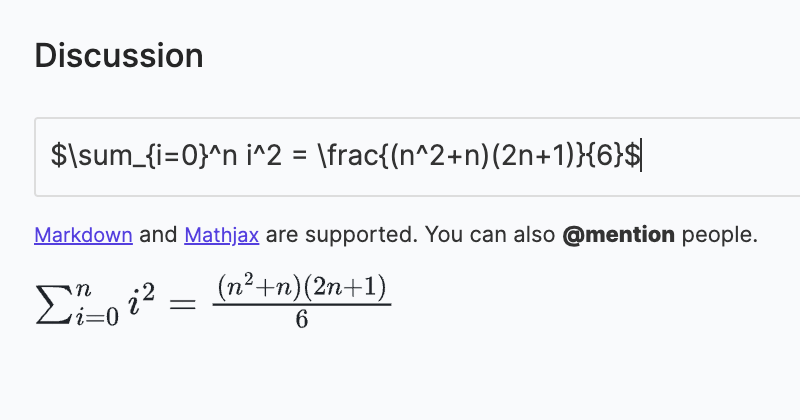
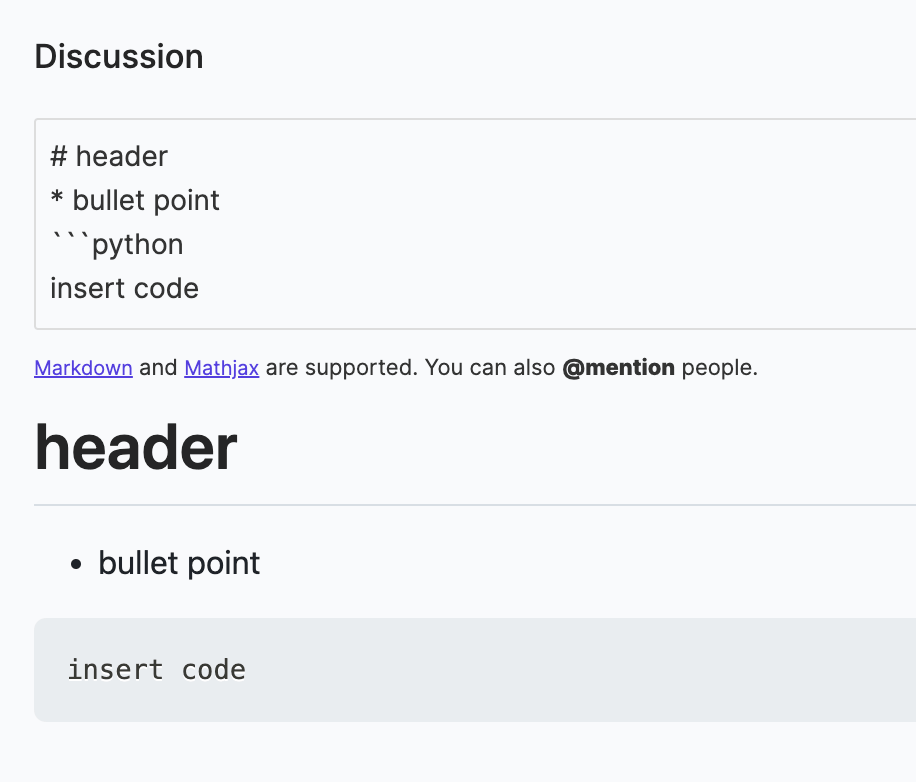
Domino also supports [MathJax](https://www.mathjax.org/) and [Markdown](https://daringfireball.net/projects/markdown/syntax) for richly formatted comments. Preview your message below the **Discussion** box.
### MathJax
MathJax uses LaTex notation to format mathematical symbols and equations in your comments. See the official [MathJax Documentation](http://docs.mathjax.org/en/latest/). For quick reference and examples of commonly used MathJax notation, Domino recommends [this tutorial](https://math.meta.stackexchange.com/questions/5020/mathjax-basic-tutorial-and-quick-reference) available on the [Mathematics meta stack exchange](https://math.meta.stackexchange.com/).
 ### Markdown
Markdown is a lightweight markup language used to format plaintext documents. The official Markdown [cheat sheet](https://www.markdownguide.org/cheat-sheet/) covers the basic syntax. Use Markdown in Domino to format longer comments or create README files.
### Markdown
Markdown is a lightweight markup language used to format plaintext documents. The official Markdown [cheat sheet](https://www.markdownguide.org/cheat-sheet/) covers the basic syntax. Use Markdown in Domino to format longer comments or create README files.
 ## Notify other users
For real-time communication, type `@` followed by a username in a comment to send an email notification to another user based on the [project visibility](/cloud/platform-capabilities/core-concepts/projects/collaborate-on-projects/set-project-visibility) rules:
* **Private** - [Collaborators](/cloud/platform-capabilities/core-concepts/projects/collaborate-on-projects/invite-collaborators) can be notified.
* **Organization** - The [organization](/cloud/platform-capabilities/features/collaboration/manage-organizations)'s members can be notified.
* **Public** - Any user can be notified.
## Notify other users
For real-time communication, type `@` followed by a username in a comment to send an email notification to another user based on the [project visibility](/cloud/platform-capabilities/core-concepts/projects/collaborate-on-projects/set-project-visibility) rules:
* **Private** - [Collaborators](/cloud/platform-capabilities/core-concepts/projects/collaborate-on-projects/invite-collaborators) can be notified.
* **Organization** - The [organization](/cloud/platform-capabilities/features/collaboration/manage-organizations)'s members can be notified.
* **Public** - Any user can be notified.