> ## Documentation Index
> Fetch the complete documentation index at: https://docs.domino.ai/llms.txt
> Use this file to discover all available pages before exploring further.
# Revert Projects and files
In Domino you can revert projects or individual files back to an earlier version. This encourages experimentation and new problem-solving methodologies by removing the overhead that you encounter when recovering from failed experiments.
Domino supports the following actions:
* Revert a Project
* Revert a file
## Revert Projects
In Domino you can revert individual projects to earlier versions and still preserve changes made to other projects.
### Revert to an earlier version of a Project
1. Open your project in Domino.
2. Go to the project whose files you want to revert.
3. In the navigation bar, click **Code**. The **Commit** menu lists all the versions of this project. The current version is the first item in the list.
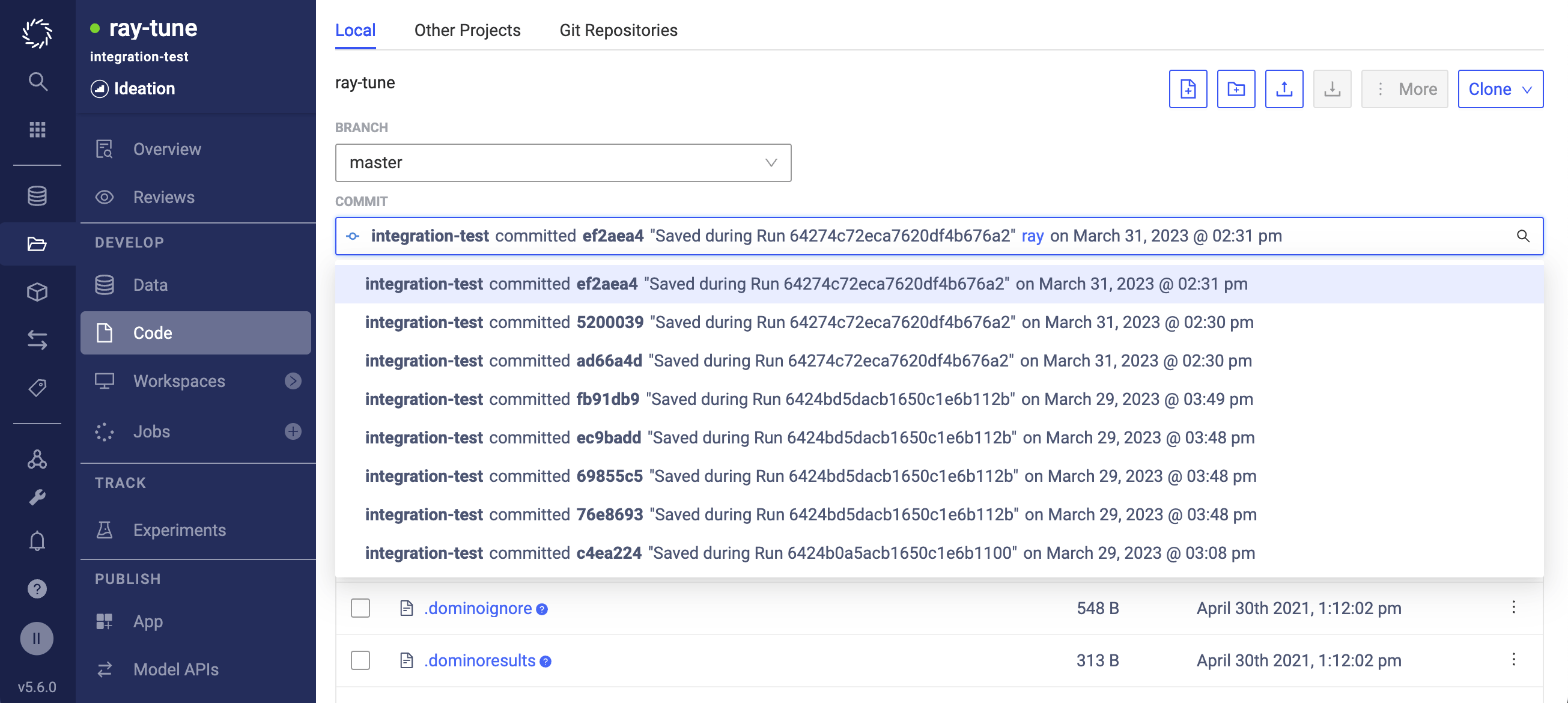 4. Click an older version to view that project version.
You can still access the version from which you reverted the project.
5. Click **Revert Project** to return your project to an earlier version.
This creates a new version at the top of the version history.
The version you reverted from is still accessible.
## Revert files
In Domino, you can revert individual files to earlier versions. This is useful when you want to revert to an earlier version of a file but preserve changes made in other files in the project.
### Revert to an earlier version of a file
1. Open the project that contains the file in Domino.
2. From the navigation bar, click **Code**.
3. Click the file you want to revert.
4. From the **Commit** menu, click to see all versions of the file. The current version is the first item in the list.
5. Click an older version to view that file version.
6. Click **Revert File** to revert your file to the earlier version. This creates a new commit in your project. This new file is at the top of the version history.
4. Click an older version to view that project version.
You can still access the version from which you reverted the project.
5. Click **Revert Project** to return your project to an earlier version.
This creates a new version at the top of the version history.
The version you reverted from is still accessible.
## Revert files
In Domino, you can revert individual files to earlier versions. This is useful when you want to revert to an earlier version of a file but preserve changes made in other files in the project.
### Revert to an earlier version of a file
1. Open the project that contains the file in Domino.
2. From the navigation bar, click **Code**.
3. Click the file you want to revert.
4. From the **Commit** menu, click to see all versions of the file. The current version is the first item in the list.
5. Click an older version to view that file version.
6. Click **Revert File** to revert your file to the earlier version. This creates a new commit in your project. This new file is at the top of the version history.
 The version you reverted from is still accessible.