> ## Documentation Index
> Fetch the complete documentation index at: https://docs.domino.ai/llms.txt
> Use this file to discover all available pages before exploring further.
# Set Project status
Projects have a status indicated by the colored dot next to the project name on the **Projects** page. A project’s status can be:
* **Green** indicates an active and progressing project. By default, new projects are set to green. You can [unblock](#set-a-project-as-blocked-or-unblocked) a project or [reopen](#reopen-a-project) a completed project to make it active again.
* **Red** indicates an active project that is [blocked](#set-a-project-as-blocked-or-unblocked).
* **Grey** indicates a [completed project](#set-a-project-as-complete).
## View Project status
Use the Projects Portfolio to track the status of projects to which you have access, including:
* Projects you own.
* Projects you have been added to as a collaborator.
* All projects across Domino (if you are a system administrator).
### Open the Projects Portfolio
1. In the top navigation pane, click **Govern > Projects Portfolio**
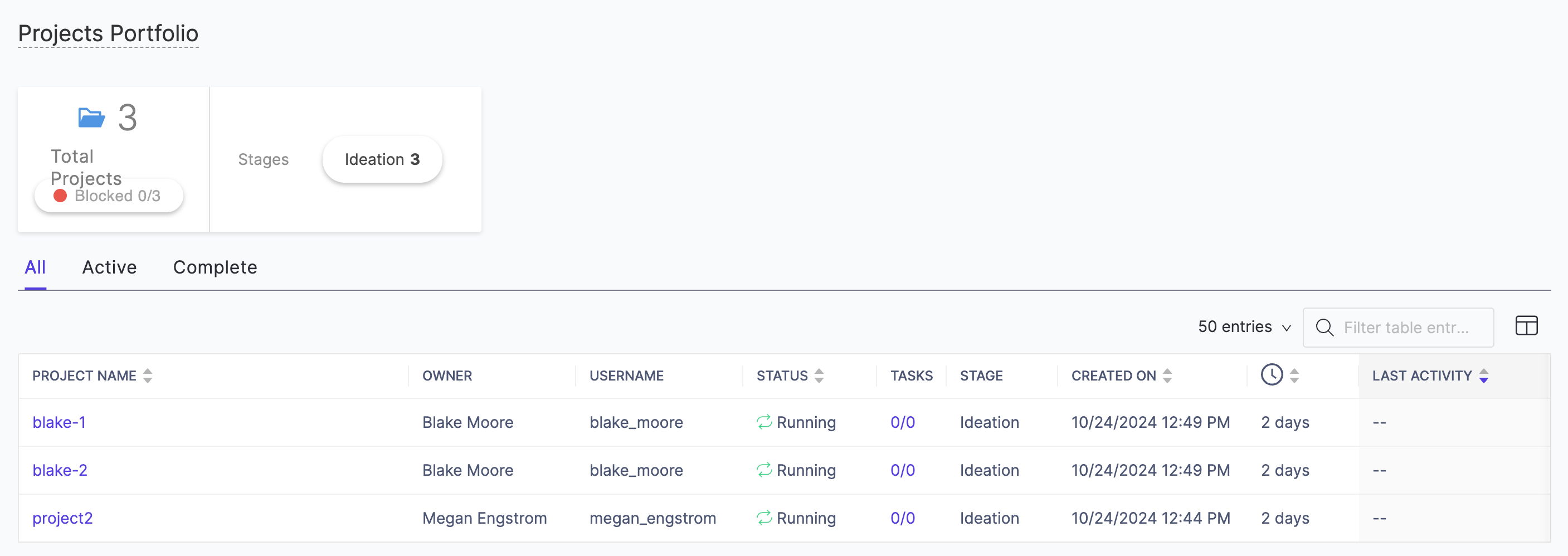 The buttons can be used to filter projects by stage or blocked status. The tabs filter by active or complete status.
Use this page to quickly understand the state of work in your projects. To maximize the usefulness of this tool, understand how administrators can [configure project stages](/cloud/admin/platform-configuration/configure-projects/configure-project-stages) for their teams, and [how to set project stages](/cloud/platform-capabilities/core-concepts/projects/track-projects/set-project-stages), [raise](/cloud/platform-capabilities/core-concepts/projects/track-projects/set-project-status) and [resolve](/cloud/platform-capabilities/core-concepts/projects/track-projects/set-project-status) blockers, and [change project status](/cloud/platform-capabilities/core-concepts/projects/track-projects/set-project-status).
## Set a Project as blocked or unblocked
If you are a project [owner or contributor](/cloud/platform-capabilities/core-concepts/projects/collaborate-on-projects), you can mark a project as blocked when you need assistance from colleagues or administrators to make progress. Domino administrators and project collaborators receive an email notification when you mark a project as blocked.
Set a project as blocked when:
* You need assistance setting up additional tools in a [Domino environment](/cloud/platform-capabilities/core-concepts/compute-environments/manage-compute-environments).
* You need access to new [data sources](/cloud/platform-capabilities/core-concepts/data).
* You need hardware capabilities not covered by your current [hardware tier](/cloud/admin/infrastructure-and-compute/manage-compute-resources/hardware-tiers).
The same menu used to mark a project as blocked can be used to unblock the project, which returns it to a green, active status.
1. Click the current stage box below the project name at the top of the project menu.
The buttons can be used to filter projects by stage or blocked status. The tabs filter by active or complete status.
Use this page to quickly understand the state of work in your projects. To maximize the usefulness of this tool, understand how administrators can [configure project stages](/cloud/admin/platform-configuration/configure-projects/configure-project-stages) for their teams, and [how to set project stages](/cloud/platform-capabilities/core-concepts/projects/track-projects/set-project-stages), [raise](/cloud/platform-capabilities/core-concepts/projects/track-projects/set-project-status) and [resolve](/cloud/platform-capabilities/core-concepts/projects/track-projects/set-project-status) blockers, and [change project status](/cloud/platform-capabilities/core-concepts/projects/track-projects/set-project-status).
## Set a Project as blocked or unblocked
If you are a project [owner or contributor](/cloud/platform-capabilities/core-concepts/projects/collaborate-on-projects), you can mark a project as blocked when you need assistance from colleagues or administrators to make progress. Domino administrators and project collaborators receive an email notification when you mark a project as blocked.
Set a project as blocked when:
* You need assistance setting up additional tools in a [Domino environment](/cloud/platform-capabilities/core-concepts/compute-environments/manage-compute-environments).
* You need access to new [data sources](/cloud/platform-capabilities/core-concepts/data).
* You need hardware capabilities not covered by your current [hardware tier](/cloud/admin/infrastructure-and-compute/manage-compute-resources/hardware-tiers).
The same menu used to mark a project as blocked can be used to unblock the project, which returns it to a green, active status.
1. Click the current stage box below the project name at the top of the project menu.
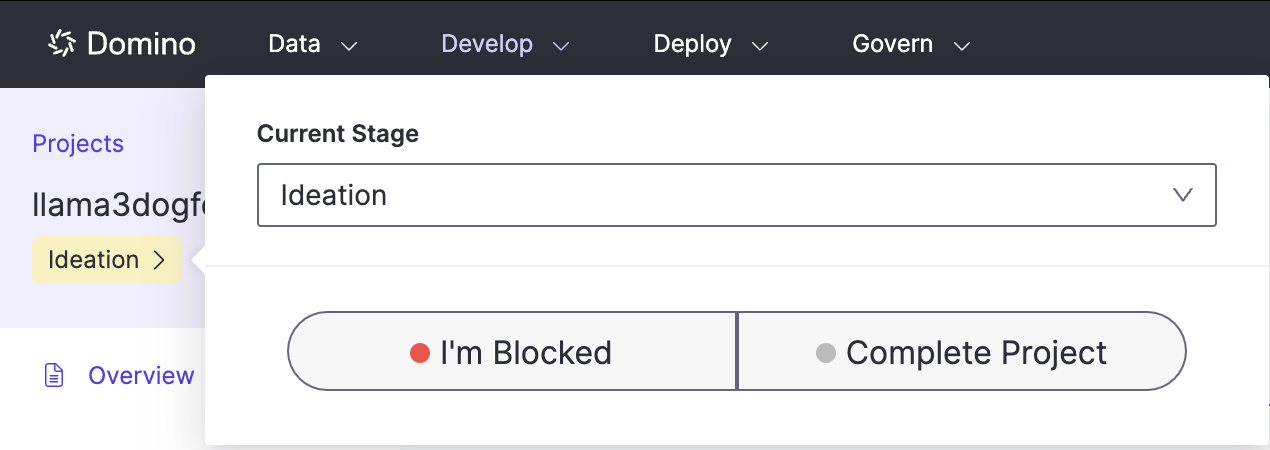 2. Click **I’m Blocked** or **Unblocked** and enter a message to describe the blocker.
3. Click **Raise a Blocker**.
When you change the status of a project, this event is listed on the project’s [Activity](/cloud/platform-capabilities/core-concepts/projects/track-projects/view-project-activity) page with the comment so project collaborators can discuss blockers. A blocked Project will show a red circle.
## Set a Project as complete
If you are a project [owner or contributor](/cloud/platform-capabilities/core-concepts/projects/collaborate-on-projects), you can mark a project as complete.
1. Click the current stage box below the project name at the top of the project menu.
2. Click **Complete** and enter a message to describe the conclusion.
Domino filters out complete projects from the active project views. However, a completed project is still a functioning project. You can modify its files and start runs, but before doing so you might want to reopen the project to indicate that work is continuing.
If you want to see your completed projects, on the Projects page, select the **Show completed projects** check box. The indicator adjacent to the project is gray.
## Reopen a Project
If you want to reopen the project, click the project name and click **Reopen Project**. The project returns to a green, active status.
## Next steps
* [View Project activity](/cloud/platform-capabilities/core-concepts/projects/track-projects/view-project-activity)
* [Promote Projects to production](/cloud/platform-capabilities/core-concepts/projects/track-projects/promote-projects-to-production)
2. Click **I’m Blocked** or **Unblocked** and enter a message to describe the blocker.
3. Click **Raise a Blocker**.
When you change the status of a project, this event is listed on the project’s [Activity](/cloud/platform-capabilities/core-concepts/projects/track-projects/view-project-activity) page with the comment so project collaborators can discuss blockers. A blocked Project will show a red circle.
## Set a Project as complete
If you are a project [owner or contributor](/cloud/platform-capabilities/core-concepts/projects/collaborate-on-projects), you can mark a project as complete.
1. Click the current stage box below the project name at the top of the project menu.
2. Click **Complete** and enter a message to describe the conclusion.
Domino filters out complete projects from the active project views. However, a completed project is still a functioning project. You can modify its files and start runs, but before doing so you might want to reopen the project to indicate that work is continuing.
If you want to see your completed projects, on the Projects page, select the **Show completed projects** check box. The indicator adjacent to the project is gray.
## Reopen a Project
If you want to reopen the project, click the project name and click **Reopen Project**. The project returns to a green, active status.
## Next steps
* [View Project activity](/cloud/platform-capabilities/core-concepts/projects/track-projects/view-project-activity)
* [Promote Projects to production](/cloud/platform-capabilities/core-concepts/projects/track-projects/promote-projects-to-production)