> ## Documentation Index
> Fetch the complete documentation index at: https://docs.domino.ai/llms.txt
> Use this file to discover all available pages before exploring further.
# Track and monitor experiments
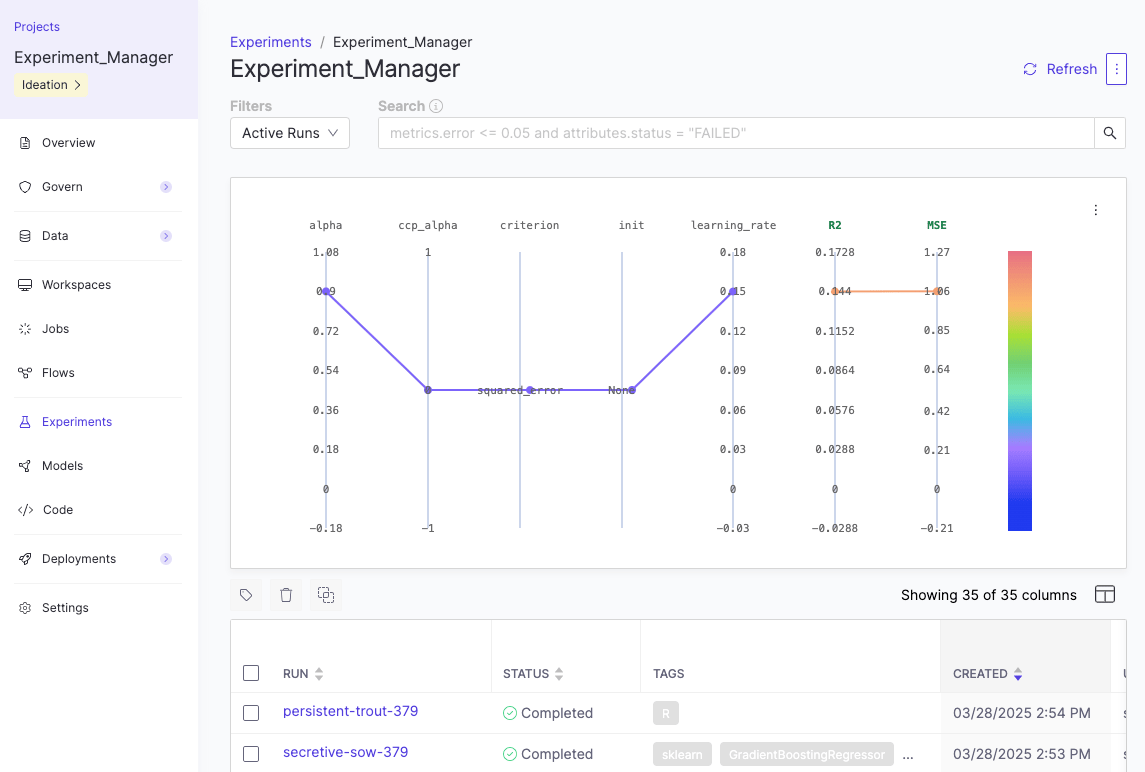
Domino’s Experiment Manager uses [MLflow Tracking](https://mlflow.org/docs/latest/tracking/) to log experiment details, such as parameters, metrics, and artifacts. Domino stores all your experiment metadata, data, and results within the project, making it easy to reproduce your work. This allows you to:
* Monitor experiments with both automatic and manual logging.
* Compare and review experiment runs effectively.
* Collaborate securely with colleagues.
 ## Experiment types
You can log two types of experiments in Domino:
[Traditional ML experiments](https://mlflow.org/docs/latest/ml/traditional-ml/) track parameters, metrics, and artifacts from model training workflows. When you train a model, Domino logs the configuration settings, performance metrics, and output files so you can compare different approaches.
You use traditional ML experiments when you train machine learning models with [scikit-learn](https://scikit-learn.org/stable/api/sklearn.html), TensorFlow, PyTorch, or similar frameworks.
[Agentic system experiments](/cloud/platform-capabilities/features/genai/agent-development-lifecycle) capture traces from LLM calls, agent interactions, and prompt chains. A trace shows the sequence of calls your system makes, including inputs, outputs, and downstream tool calls. You can attach evaluations to traces to measure quality, accuracy, or safety. You use agentic system experiments when you build applications with LLMs or AI agents.
## How experiments work in Domino
When you click **Experiments** in the Domino left navigation, you’ll see an empty dashboard unless at least one run has been logged. Domino doesn’t create experiments through the UI.
**Instead**
* You create an MLFlow experiment by calling `mlflow.set_experiment()` in code.
* The experiment appears in the UI only after you log at least one run.
For example, to set a unique experiment name:
```python theme={null}
# create a new experiment
import mlflow
import os
starting_domino_user = os.environ["DOMINO_STARTING_USERNAME"]
experiment_name = f"Domino_Experiment_{starting_domino_user}"
# Replace with the name of your experiment
mlflow.set_experiment(experiment_name="")
```
**Tip**: Experiment names need to be unique across your Domino Deployment. A good practice is to use a unique identifier (such as `username`) as part of your experiment name.
## Step 1: Create and log an experiment run
Launch a workspace or job to run your experiment code and log results to the Experiment Manager. Jobs provide better reproducibility and version control.
1. From your project, click **Workspaces** in the left navigation.
2. Launch a workspace using any environment based on the Domino Standard Environment. These environments already have the `mlflow` package installed.
3. Open a Python script or notebook to run your experiment code.
You can log experiments using auto-logging or manual logging. Auto-logging records parameters, metrics, and artifacts automatically for supported libraries. Manual logging gives you full control over what parameters, metrics, and artifacts are recorded.
This example shows you how to auto-log a [scikit-learn](https://scikit-learn.org/stable/api/sklearn.html) experiment.
```python theme={null}
# import MLflow library
import mlflow
import os
from sklearn.model_selection import train_test_split
from sklearn.datasets import load_diabetes
from sklearn.ensemble import RandomForestRegressor
# create and set a new experiment
starting_domino_user = os.environ["DOMINO_STARTING_USERNAME"]
experiment_name = f"Domino_Experiment_{starting_domino_user}"
mlflow.set_experiment(experiment_name=experiment_name)
# enable auto-logging
mlflow.autolog()
# start the run
with mlflow.start_run():
db = load_diabetes()
X_train, X_test, y_train, y_test = train_test_split(db.data, db.target)
rf = RandomForestRegressor(n_estimators = 100, max_depth = 6, max_features = 3)
rf.fit(X_train, y_train)
rf.score(X_test, y_test)
# end the run
mlflow.end_run()
```
[MLflow Tracking](https://mlflow.org/docs/latest/tracking.html#automatic-logging) offers more details and examples.
```python theme={null}
# import MLflow library
import mlflow
import os
# create a new experiment
starting_domino_user = os.environ["DOMINO_STARTING_USERNAME"]
experiment_name = f"Domino_Experiment_{starting_domino_user}"
mlflow.set_experiment(experiment_name=experiment_name)
# start a run and log parameter,metric, and artifact
with mlflow.start_run():
mlflow.log_param("batch_size", 32)
mlflow.log_metric("accuracy", 0.75)
with open("example.txt", "w") as f:
f.write("This is a sample artifact.")
mlflow.log_artifact("example.txt")
# end the run
mlflow.end_run()
```
Once your workspace is running, you’re ready to write and execute code that will create and log an experiment.
## Step 2: Monitor and evaluate experiments
Once you have logged at least one run in an experiment, you can view and analyze it in Domino.
1. Click **Experiments** in Domino’s left navigation pane.
2. Find and click the experiment to evaluate and show its associated runs.
3. Click a run to analyze the results in detail.
The run details show different information depending on your experiment type.
### Traditional ML experiments
When you log traditional ML experiments, Domino captures parameters, metrics, and artifacts from your model training. Here’s how to view and compare your results:
**View metrics and artifacts**\
The run details show parameters you configured, metrics that measure performance, and artifacts like model files or visualizations logged during training.
You can:
* Review parameter values to understand your configuration
* Track metrics over time to measure model performance
* Download artifacts like trained models, plots, or data files
**Compare runs**\
After reviewing individual runs, you can compare multiple runs to see how different configurations affect outcomes. Select up to four runs from the table view and click **Compare**.
## Experiment types
You can log two types of experiments in Domino:
[Traditional ML experiments](https://mlflow.org/docs/latest/ml/traditional-ml/) track parameters, metrics, and artifacts from model training workflows. When you train a model, Domino logs the configuration settings, performance metrics, and output files so you can compare different approaches.
You use traditional ML experiments when you train machine learning models with [scikit-learn](https://scikit-learn.org/stable/api/sklearn.html), TensorFlow, PyTorch, or similar frameworks.
[Agentic system experiments](/cloud/platform-capabilities/features/genai/agent-development-lifecycle) capture traces from LLM calls, agent interactions, and prompt chains. A trace shows the sequence of calls your system makes, including inputs, outputs, and downstream tool calls. You can attach evaluations to traces to measure quality, accuracy, or safety. You use agentic system experiments when you build applications with LLMs or AI agents.
## How experiments work in Domino
When you click **Experiments** in the Domino left navigation, you’ll see an empty dashboard unless at least one run has been logged. Domino doesn’t create experiments through the UI.
**Instead**
* You create an MLFlow experiment by calling `mlflow.set_experiment()` in code.
* The experiment appears in the UI only after you log at least one run.
For example, to set a unique experiment name:
```python theme={null}
# create a new experiment
import mlflow
import os
starting_domino_user = os.environ["DOMINO_STARTING_USERNAME"]
experiment_name = f"Domino_Experiment_{starting_domino_user}"
# Replace with the name of your experiment
mlflow.set_experiment(experiment_name="")
```
**Tip**: Experiment names need to be unique across your Domino Deployment. A good practice is to use a unique identifier (such as `username`) as part of your experiment name.
## Step 1: Create and log an experiment run
Launch a workspace or job to run your experiment code and log results to the Experiment Manager. Jobs provide better reproducibility and version control.
1. From your project, click **Workspaces** in the left navigation.
2. Launch a workspace using any environment based on the Domino Standard Environment. These environments already have the `mlflow` package installed.
3. Open a Python script or notebook to run your experiment code.
You can log experiments using auto-logging or manual logging. Auto-logging records parameters, metrics, and artifacts automatically for supported libraries. Manual logging gives you full control over what parameters, metrics, and artifacts are recorded.
This example shows you how to auto-log a [scikit-learn](https://scikit-learn.org/stable/api/sklearn.html) experiment.
```python theme={null}
# import MLflow library
import mlflow
import os
from sklearn.model_selection import train_test_split
from sklearn.datasets import load_diabetes
from sklearn.ensemble import RandomForestRegressor
# create and set a new experiment
starting_domino_user = os.environ["DOMINO_STARTING_USERNAME"]
experiment_name = f"Domino_Experiment_{starting_domino_user}"
mlflow.set_experiment(experiment_name=experiment_name)
# enable auto-logging
mlflow.autolog()
# start the run
with mlflow.start_run():
db = load_diabetes()
X_train, X_test, y_train, y_test = train_test_split(db.data, db.target)
rf = RandomForestRegressor(n_estimators = 100, max_depth = 6, max_features = 3)
rf.fit(X_train, y_train)
rf.score(X_test, y_test)
# end the run
mlflow.end_run()
```
[MLflow Tracking](https://mlflow.org/docs/latest/tracking.html#automatic-logging) offers more details and examples.
```python theme={null}
# import MLflow library
import mlflow
import os
# create a new experiment
starting_domino_user = os.environ["DOMINO_STARTING_USERNAME"]
experiment_name = f"Domino_Experiment_{starting_domino_user}"
mlflow.set_experiment(experiment_name=experiment_name)
# start a run and log parameter,metric, and artifact
with mlflow.start_run():
mlflow.log_param("batch_size", 32)
mlflow.log_metric("accuracy", 0.75)
with open("example.txt", "w") as f:
f.write("This is a sample artifact.")
mlflow.log_artifact("example.txt")
# end the run
mlflow.end_run()
```
Once your workspace is running, you’re ready to write and execute code that will create and log an experiment.
## Step 2: Monitor and evaluate experiments
Once you have logged at least one run in an experiment, you can view and analyze it in Domino.
1. Click **Experiments** in Domino’s left navigation pane.
2. Find and click the experiment to evaluate and show its associated runs.
3. Click a run to analyze the results in detail.
The run details show different information depending on your experiment type.
### Traditional ML experiments
When you log traditional ML experiments, Domino captures parameters, metrics, and artifacts from your model training. Here’s how to view and compare your results:
**View metrics and artifacts**\
The run details show parameters you configured, metrics that measure performance, and artifacts like model files or visualizations logged during training.
You can:
* Review parameter values to understand your configuration
* Track metrics over time to measure model performance
* Download artifacts like trained models, plots, or data files
**Compare runs**\
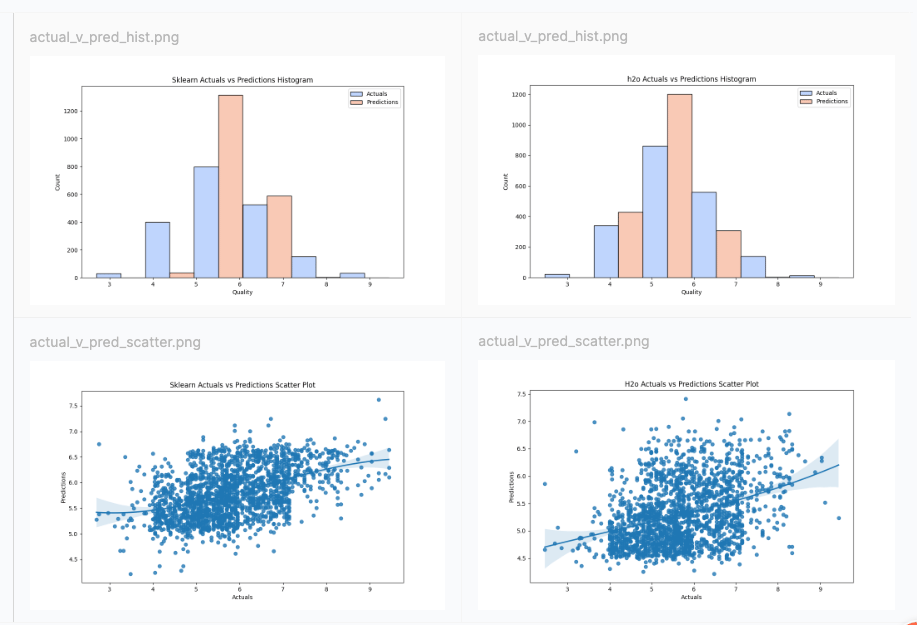
After reviewing individual runs, you can compare multiple runs to see how different configurations affect outcomes. Select up to four runs from the table view and click **Compare**.
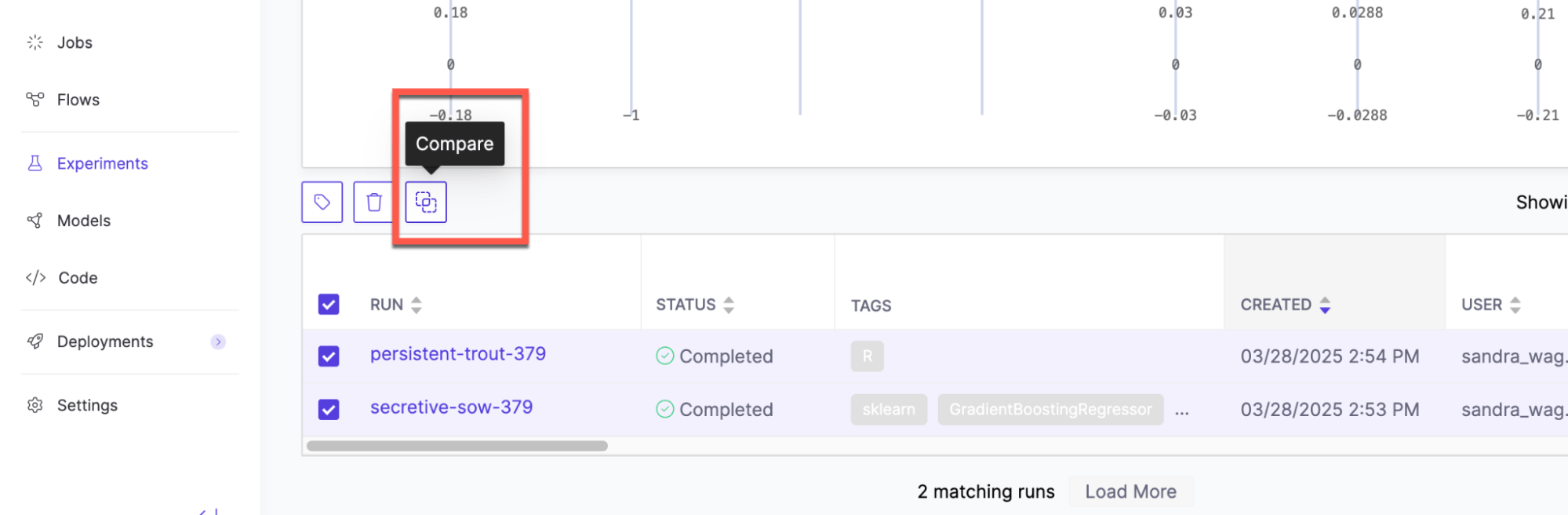 You can compare runs to see how parameters affect important metrics like model accuracy or training speed.
 ### Agentic system experiments
When you log agentic system experiments, Domino captures traces from LLM calls and agent interactions. Here’s how to view and compare your traces:
**View traces**\
When you open a run from an agentic system experiment, select the **Traces** tab to see the sequence of calls made during execution.
### Agentic system experiments
When you log agentic system experiments, Domino captures traces from LLM calls and agent interactions. Here’s how to view and compare your traces:
**View traces**\
When you open a run from an agentic system experiment, select the **Traces** tab to see the sequence of calls made during execution.
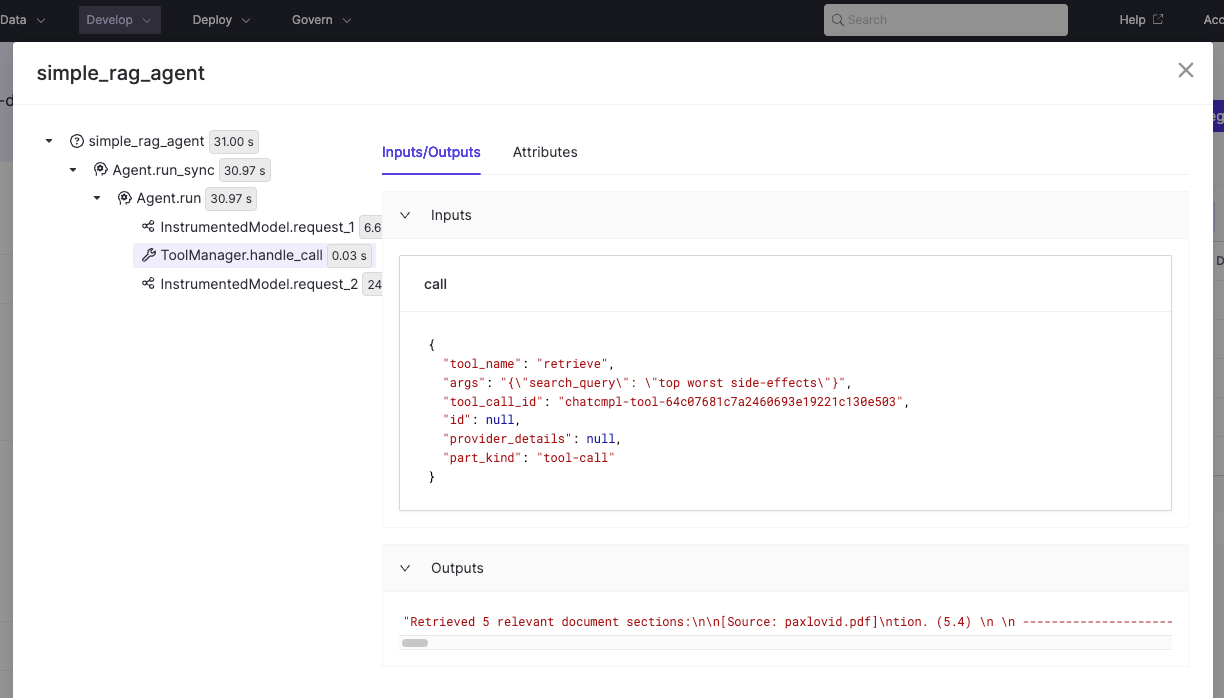 You can:
* See evaluations that were logged in code
* Add metrics (float values) or labels (string values) to traces by clicking Add Metric/Label
* Click any metric or label cell to open the detailed trace view
**Compare traces**\
When comparing agentic system runs, open the Traces comparison view to see how configurations perform on the same inputs.
You can:
* See evaluations that were logged in code
* Add metrics (float values) or labels (string values) to traces by clicking Add Metric/Label
* Click any metric or label cell to open the detailed trace view
**Compare traces**\
When comparing agentic system runs, open the Traces comparison view to see how configurations perform on the same inputs.
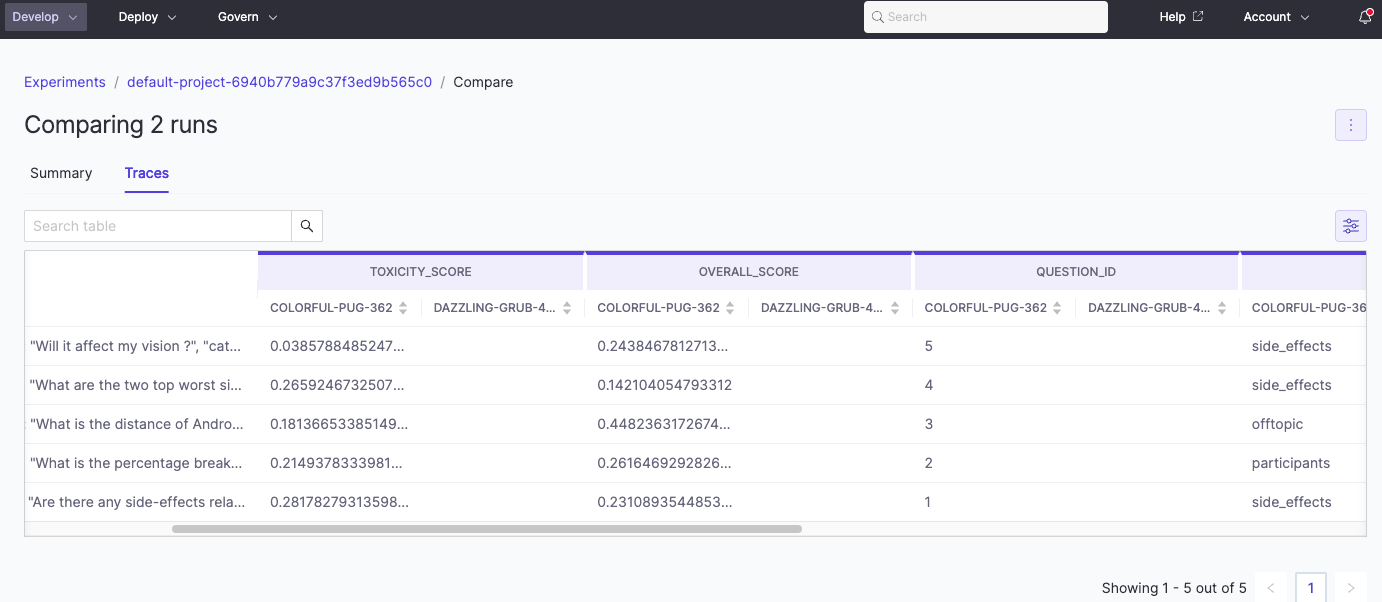 Review results across runs to spot patterns, compare traces and evaluations side-by-side, and click any metric or label cell to open the detailed trace view.
## Step 3: Export experiment results
You can export your single experiment results to a CSV or compare experiments and download to a PDF.
**To export single experiment results**:
1. From the **Experiments** view, open the experiment you want to export.
2. Click the three dots in the upper right and choose **Download CSV**.
**To export comparison results**:
1. From the **Experiments** view, select two to four runs and click **Compare**.
2. Click the three dots in the upper right and choose **Export as PDF**.
## Step 4: Share your projects and experiments
You can set permissions for project assets, including **MLflow logs**, on a project level. Use these methods on your projects to control access:
* [Choose the visibility](/cloud/platform-capabilities/core-concepts/projects/collaborate-on-projects/set-project-visibility) for your project. This will help you control who can see your project.
* **Searchable**: Discoverable by other Domino users.
* **Private**: Only viewable or discoverable by your project collaborators.
* [Invite collaborators](/cloud/platform-capabilities/core-concepts/projects/collaborate-on-projects/invite-collaborators) and set their [permissions](/cloud/platform-capabilities/core-concepts/projects/collaborate-on-projects/collaborator-permissions) based on project roles. This gives you detailed control over what they can access.
## Troubleshooting
* Experiment names must be unique across all projects within the same Domino instance.
* Child runs aren’t deleted when you delete a run that has children. Delete the child runs separately.
* You can’t stop a run from the UI. To stop a run, execute `mlflow.end_run()` from your workspace or job.
* When you trigger an experiment from a workspace, the manager shows the file name. But if you are running that and editing it, it doesn’t rename the experiment automatically. After completing an experiment in a workspace, trigger a job to manage version control.
* Best practice is to give your runs a name - otherwise it automatically creates one like `gifted-slug-123`.
## Advanced functionality
You can upload large artifact files directly to blob storage without going through the MLflow proxy server.
This [feature must be enabled inside the user notebook](https://github.com/cerebrotech/sagemaker-deployment-demo/blob/main/models/custom-pyfunc-advanced-llm-vllm.ipynb) code by setting the environment variable `MLFLOW_ENABLE_PROXY_MULTIPART_UPLOAD` to `true`.
```python theme={null}
import os
os.environ['MLFLOW_ENABLE_PROXY_MULTIPART_UPLOAD'] = "true"
```
This is helpful for both `log_artifact` calls and registering large language models. It is currently supported only in AWS and GCP environments. There are two additional settings available for configuration:
* `MLFLOW_MULTIPART_UPLOAD_MINIMUM_FILE_SIZE` - the minimum file size required to initiate multipart uploads.
* `MLFLOW_MULTIPART_UPLOAD_CHUNK_SIZE` - the size of each chunk of the multipart upload. Note that a file may be divided into a maximum of 1000 chunks.
[Multipart upload for proxied artifact access](https://mlflow.org/docs/latest/self-hosting/architecture/artifact-store/#multipart-upload-for-proxied-artifact-access) in the MLflow documentation has more information on using this feature. [Registering Hugging Face LLMs with MLflow](https://github.com/cerebrotech/sagemaker-deployment-demo/blob/main/models/custom-pyfunc-advanced-llm-vllm.ipynb) has directions specific to Domino.
## Next steps
* [Get started](/cloud/getting-started/for-modelers-and-builders) with a detailed tutorial on workspaces, jobs, and deployment.
* [Schedule recurring training jobs](/cloud/platform-capabilities/core-concepts/jobs/schedule-a-job).
* [Scale-out training](/cloud/platform-capabilities/features/development/distributed-training) for larger datasets.
* [Monitor model endpoints](/cloud/platform-capabilities/features/model-deployment/monitor-model-endpoints) to track resource usage and optimize deployed models for production.
Review results across runs to spot patterns, compare traces and evaluations side-by-side, and click any metric or label cell to open the detailed trace view.
## Step 3: Export experiment results
You can export your single experiment results to a CSV or compare experiments and download to a PDF.
**To export single experiment results**:
1. From the **Experiments** view, open the experiment you want to export.
2. Click the three dots in the upper right and choose **Download CSV**.
**To export comparison results**:
1. From the **Experiments** view, select two to four runs and click **Compare**.
2. Click the three dots in the upper right and choose **Export as PDF**.
## Step 4: Share your projects and experiments
You can set permissions for project assets, including **MLflow logs**, on a project level. Use these methods on your projects to control access:
* [Choose the visibility](/cloud/platform-capabilities/core-concepts/projects/collaborate-on-projects/set-project-visibility) for your project. This will help you control who can see your project.
* **Searchable**: Discoverable by other Domino users.
* **Private**: Only viewable or discoverable by your project collaborators.
* [Invite collaborators](/cloud/platform-capabilities/core-concepts/projects/collaborate-on-projects/invite-collaborators) and set their [permissions](/cloud/platform-capabilities/core-concepts/projects/collaborate-on-projects/collaborator-permissions) based on project roles. This gives you detailed control over what they can access.
## Troubleshooting
* Experiment names must be unique across all projects within the same Domino instance.
* Child runs aren’t deleted when you delete a run that has children. Delete the child runs separately.
* You can’t stop a run from the UI. To stop a run, execute `mlflow.end_run()` from your workspace or job.
* When you trigger an experiment from a workspace, the manager shows the file name. But if you are running that and editing it, it doesn’t rename the experiment automatically. After completing an experiment in a workspace, trigger a job to manage version control.
* Best practice is to give your runs a name - otherwise it automatically creates one like `gifted-slug-123`.
## Advanced functionality
You can upload large artifact files directly to blob storage without going through the MLflow proxy server.
This [feature must be enabled inside the user notebook](https://github.com/cerebrotech/sagemaker-deployment-demo/blob/main/models/custom-pyfunc-advanced-llm-vllm.ipynb) code by setting the environment variable `MLFLOW_ENABLE_PROXY_MULTIPART_UPLOAD` to `true`.
```python theme={null}
import os
os.environ['MLFLOW_ENABLE_PROXY_MULTIPART_UPLOAD'] = "true"
```
This is helpful for both `log_artifact` calls and registering large language models. It is currently supported only in AWS and GCP environments. There are two additional settings available for configuration:
* `MLFLOW_MULTIPART_UPLOAD_MINIMUM_FILE_SIZE` - the minimum file size required to initiate multipart uploads.
* `MLFLOW_MULTIPART_UPLOAD_CHUNK_SIZE` - the size of each chunk of the multipart upload. Note that a file may be divided into a maximum of 1000 chunks.
[Multipart upload for proxied artifact access](https://mlflow.org/docs/latest/self-hosting/architecture/artifact-store/#multipart-upload-for-proxied-artifact-access) in the MLflow documentation has more information on using this feature. [Registering Hugging Face LLMs with MLflow](https://github.com/cerebrotech/sagemaker-deployment-demo/blob/main/models/custom-pyfunc-advanced-llm-vllm.ipynb) has directions specific to Domino.
## Next steps
* [Get started](/cloud/getting-started/for-modelers-and-builders) with a detailed tutorial on workspaces, jobs, and deployment.
* [Schedule recurring training jobs](/cloud/platform-capabilities/core-concepts/jobs/schedule-a-job).
* [Scale-out training](/cloud/platform-capabilities/features/development/distributed-training) for larger datasets.
* [Monitor model endpoints](/cloud/platform-capabilities/features/model-deployment/monitor-model-endpoints) to track resource usage and optimize deployed models for production.