> ## Documentation Index
> Fetch the complete documentation index at: https://docs.domino.ai/llms.txt
> Use this file to discover all available pages before exploring further.
# Advanced Flows
There are advanced capabilities that you can use in Domino Flows.
It is recommended that you familiarize yourself with some of the core functionality before using the following advanced capabilities.
Some Flyte features are not yet available in Flows, such as [dynamic workflows](https://www.union.ai/docs/v1/flyte/user-guide/core-concepts/workflows/dynamic-workflows/) and [map tasks](https://www.union.ai/docs/v1/flyte/user-guide/core-concepts/tasks/map-tasks/).
## Caching
Caching allows you to avoid redundant computations by reusing cached results from previous executions. You can enable caching at the task level by configuring parameters in the task definition.
Whether a task execution uses the cache is determined by the state of the cache and the task execution’s task metadata, cache version, and cache key.
For a task execution to use the cache instead of re-computing the result, caching must be turned on for the task (more on that later) and there must be a result in the cache for the exact same:
1. Domino Project.
2. Task name. This is the `name` kwarg to the `DominoJobTask()`.
3. Task cache version. The cache version is formed by combining:
* The "Flyte task cache version".
* If the `cache` kwarg to the `DominoJobTask()` is a boolean, then the Flyte task cache version is the `cache_version` kwarg to the `DominoJobTask()`.
* If instead the `cache` kwarg is a `Cache` object, then the Flyte task cache version is the result of calling the `Cache` object’s `get_version()` method.
* The "domino job config task cache version", which comes from arguments to the task’s `DominoJobConfig()`. All args affect the version except:
* `Title`
* `VolumeSizeGiB`
* `ComputeClusterProperties.WorkerHardwareTierId`
* `HardwareTierId`
* `ComputeClusterProperties.WorkerCount`
* `ComputeClusterProperties.WorkerStorageGiB`
* `ComputeClusterProperties.MaxWorkerCount`
* `ComputeClusterProperties.MasterHardwareTierId`
* The resolved commits for all `git` inputs to the task. See [`DominoJobconfig()`](/cloud/platform-capabilities/features/flows/define-flows#base-classes) for details about floating `git` reference resolution on first run and relaunch.
* The task’s input and output names and types, which come from the `inputs` and `outputs` kwargs to the `DominoJobTask()`.
4. Task cache key. The cache key is formed from the task execution’s runtime input values.
If any of the above parameters change between task executions such that the new combination does not have a result in the cache, then the subsequent execution will not use the cache. Conversely, if caching is enabled for a task and there is a result in the cache with the exact same above parameters, then that result will be reused instead of executing the task again. Note that "workflow" is not mentioned above. So, two separate tasks in two different (or even the same) workflows can re-use the same result.
By default, caching is disabled for tasks. There are two ways to enable caching for a task.
The first way is to set the `cache` parameter to the boolean value `True` and specify a `cache_version` to use:
```python theme={null}
@workflow
def cache_bool_workflow(a: int, b: int) -> float:
# Create first task w/ caching enabled via the boolean True
add_task = DominoJobTask(
name='Add numbers',
domino_job_config=DominoJobConfig(Command="python add.py"),
inputs={'first_value': int, 'second_value': int},
outputs={'sum': int},
cache=True, # This boolean enables caching
cache_version="1.0", # Bumping the version is akin to invalidating the cache
use_latest=True
)
sum = add_task(first_value=a, second_value=b)
# Create second task w/ caching disabled
sqrt_task = DominoJobTask(
name='Square root',
domino_job_config=DominoJobConfig(Command="python sqrt.py"),
inputs={'value': int},
outputs={'sqrt': float},
use_latest=True
)
sqrt = sqrt_task(value=sum)
return sqrt
```
When running the example above with arbitrary workflow inputs `a=X` and `b=Y`, both tasks will execute initially. Then, subsequent reruns of the flow with `a=X` and `b=Y` will use the cache for the first task instead of re-computing the result. This reduces overall compute cost and flow run time.
In the above example, the `cache_version` parameter forms part of the version key for a task’s cached results. Changing the `cache_version` value is a method to force a rerun of the task, even if no other task parameters have changed.
With Flyte 1.15 onward, there is a second way to turn on caching for a task: by setting the `cache` parameter to a `Cache` object:
```python theme={null}
from flytekit.core.cache import Cache, CachePolicy, VersionParameters
# create a class that implements the CachePolicy interface
class SimpleCachePolicy(CachePolicy):
def get_version(self, salt: str, params: VersionParameters) -> str:
return "2.0"
@workflow
def cache_obj_workflow(a: int, b: int) -> float:
# create a Cache object that uses your CachePolicy
cache_obj = Cache(policies=SimpleCachePolicy())
# Create first task w/ caching enabled via the Cache object
add_task = DominoJobTask(
name='Add numbers',
domino_job_config=DominoJobConfig(Command="python add.py"),
inputs={'first_value': int, 'second_value': int},
outputs={'sum': int},
cache=cache_obj, # This kwarg enables caching
# the cache_version kwarg is not used when the cache kwarg is a Cache object
use_latest=True
)
sum = add_task(first_value=a, second_value=b)
# Create second task w/ caching disabled
sqrt_task = DominoJobTask(
name='Square root',
domino_job_config=DominoJobConfig(Command="python sqrt.py"),
inputs={'value': int},
outputs={'sqrt': float},
use_latest=True
)
sqrt = sqrt_task(value=sum)
return sqrt
```
Under the hood, the `Cache` object’s `get_version()` method is called to get the "Flyte task cache version" discussed above. In the above example, calling `get_version()` on the `Cache` object calls the cache policy’s `get_version()` method, which returns "2.0". So, in this simple example, bumping the string returned by `SimpleCachePolicy.get_version()` is akin to bumping `cache_version` when the `cache` kwarg is a boolean instead of a `Cache` object.
You can choose to have the system ignore some parameters when calculating the cache version and cache key.
* To ignore specific task inputs when the `cache` kwarg is a boolean, use the `cache_ignore_input_vars` kwarg to `DominoJobTask()`.
* `cache_ignore_input_vars` takes a tuple of strings corresponding to variable names. Any task input whose name appears in the list is excluded from the cache key calculation.
* In the first code example above, providing `cache_ignore_input_vars=("second_value",)` means that a task execution could use a cached result even if the runtime value of `second_value` is different from the runtime value of the execution that originally wrote the result to the cache.
* To ignore specific task inputs when the `cache` kwarg is a `Cache` object, use the `ignored_inputs` kwarg to `Cache()`.
* `ignored_inputs` functions the same way as `cache_ignore_input_vars`.
* To ignore specific args to the `DominoJobConfig()`, use the `cache_ignore_vars` kwarg to `DominoJobConfig()`.
* `cache_ignore_vars` takes a tuple of strings corresponding to `DominoJobConfig()` args (`"CommitId"`, `"EnvironmentId"`, etc.). Args in the tuple will be excluded from the cache version calculation.
* So, providing `cache_ignore_vars=("EnvironmentId",)` means that a task execution could use a cached result even if its `DominoJobConfig.EnvironmentId` is different from the execution that originally wrote the result to the cache.
You can see which flow tasks have or have not been recomputed by the caching symbol that appears in the flow graph view.
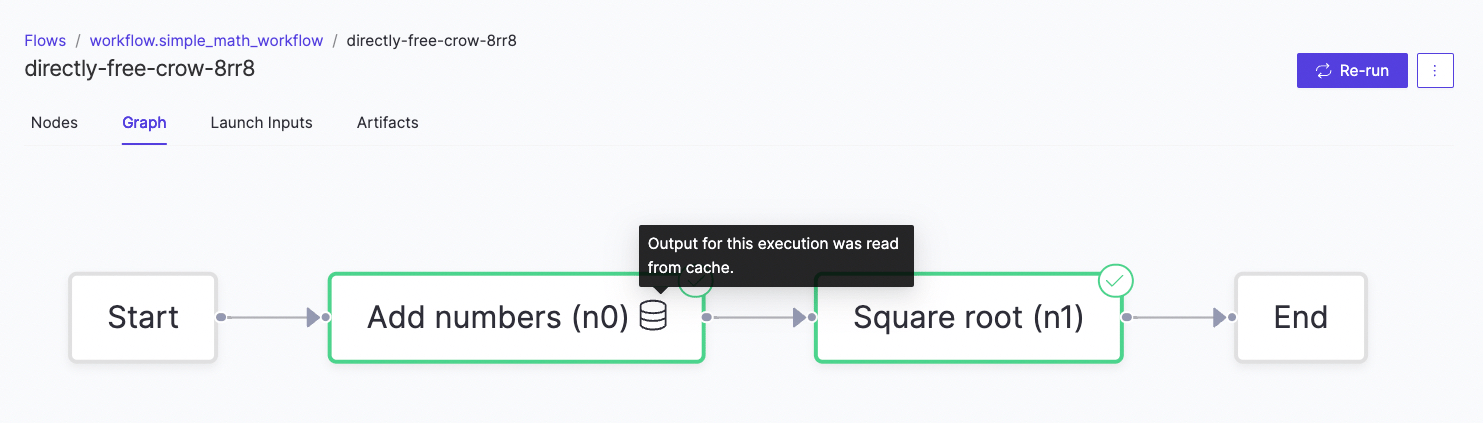 Caching is different than recovering from failures. While recovery retrieves the actual outputs that were written to the blob storage, caching uses the task definition to compose a unique key that is used to retrieve results from an actual cache. This means that cached results can be used across multiple flows if the task definitions are the same.
## Subflows
Subflows allow you to create nested flows by packaging a whole flow into a node. Subflows are useful when you want to abstract away complex flows into modular components that can be easily inserted into a broader flow. This also enables collaboration via assigning responsibilities at a subflow level.
To use subflows:
1. Start by defining your subflow like you would define any other flow. As an example, we will use the flow created in the [getting started](/cloud/platform-capabilities/features/flows/get-started-with-flows) guide as our subflow.
```python theme={null}
@workflow
def math_subflow(a: int, b: int) -> float:
# Create first task
add_task = DominoJobTask(
name='Add numbers',
domino_job_config=DominoJobConfig(Command="python add.py"),
inputs={'first_value': int, 'second_value': int},
outputs={'sum': int},
use_latest=True
)
sum = add_task(first_value=a, second_value=b)
# Create second task
sqrt_task = DominoJobTask(
name='Square root',
domino_job_config=DominoJobConfig(Command="python sqrt.py"),
inputs={'value': int},
outputs={'sqrt': float},
use_latest=True
)
sqrt = sqrt_task(value=sum)
return sqrt
```
2. In the same file, create your main flow that contains the subflow as a node.
```python theme={null}
@workflow
def math_subflow(a: int, b: int) -> float:
# Create first task
add_task = DominoJobTask(
name='Add numbers',
domino_job_config=DominoJobConfig(Command="python add.py"),
inputs={'first_value': int, 'second_value': int},
outputs={'sum': int},
use_latest=True
)
sum = add_task(first_value=a, second_value=b)
# Create second task
sqrt_task = DominoJobTask(
name='Square root',
domino_job_config=DominoJobConfig(Command="python sqrt.py"),
inputs={'value': int},
outputs={'sqrt': float},
use_latest=True
)
sqrt = sqrt_task(value=sum)
return sqrt
@workflow
def simple_math_flow(a: int, b: int):
# Call subflow
sqrt_of_sum = math_subflow(a=a, b=b)
# Create first task
random_task = DominoJobTask(
name='Do something else',
domino_job_config=DominoJobConfig(Command="sleep 10"),
inputs={'subflow_output': float},
use_latest=True
)
random_result = random_task(subflow_output=sqrt_of_sum)
return
```
3. Trigger an execution of the main flow in the same way you would trigger any other flow.
```bash theme={null}
pyflyte run --remote workflow.py simple_math_workflow --a 4 --b 5
```
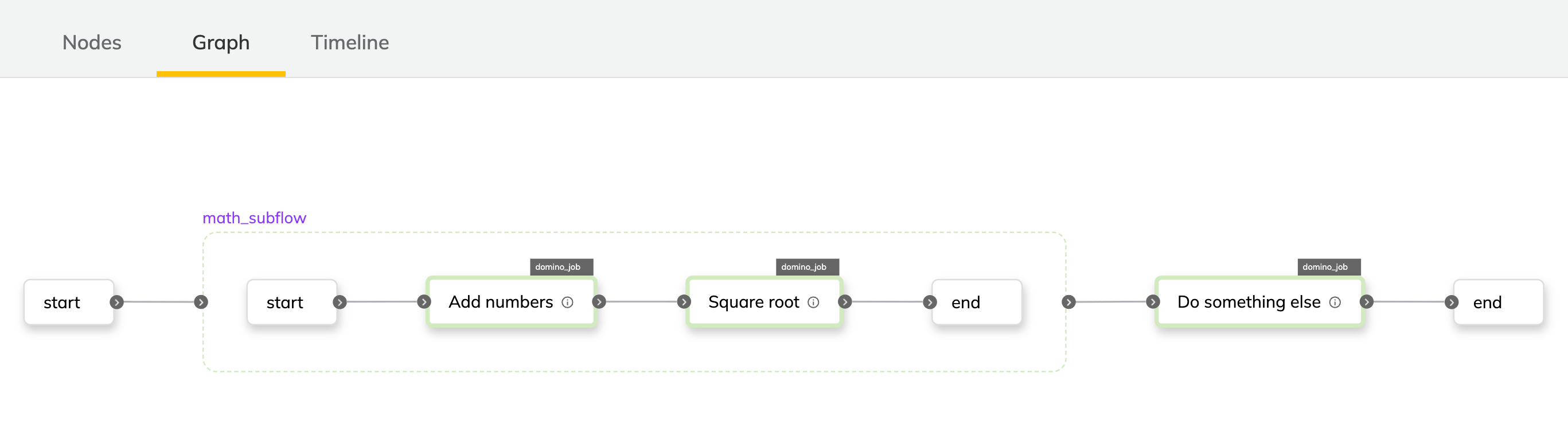
4. Monitor the results. Notice how the subflow is shown as its own node in the broader flow.
Caching is different than recovering from failures. While recovery retrieves the actual outputs that were written to the blob storage, caching uses the task definition to compose a unique key that is used to retrieve results from an actual cache. This means that cached results can be used across multiple flows if the task definitions are the same.
## Subflows
Subflows allow you to create nested flows by packaging a whole flow into a node. Subflows are useful when you want to abstract away complex flows into modular components that can be easily inserted into a broader flow. This also enables collaboration via assigning responsibilities at a subflow level.
To use subflows:
1. Start by defining your subflow like you would define any other flow. As an example, we will use the flow created in the [getting started](/cloud/platform-capabilities/features/flows/get-started-with-flows) guide as our subflow.
```python theme={null}
@workflow
def math_subflow(a: int, b: int) -> float:
# Create first task
add_task = DominoJobTask(
name='Add numbers',
domino_job_config=DominoJobConfig(Command="python add.py"),
inputs={'first_value': int, 'second_value': int},
outputs={'sum': int},
use_latest=True
)
sum = add_task(first_value=a, second_value=b)
# Create second task
sqrt_task = DominoJobTask(
name='Square root',
domino_job_config=DominoJobConfig(Command="python sqrt.py"),
inputs={'value': int},
outputs={'sqrt': float},
use_latest=True
)
sqrt = sqrt_task(value=sum)
return sqrt
```
2. In the same file, create your main flow that contains the subflow as a node.
```python theme={null}
@workflow
def math_subflow(a: int, b: int) -> float:
# Create first task
add_task = DominoJobTask(
name='Add numbers',
domino_job_config=DominoJobConfig(Command="python add.py"),
inputs={'first_value': int, 'second_value': int},
outputs={'sum': int},
use_latest=True
)
sum = add_task(first_value=a, second_value=b)
# Create second task
sqrt_task = DominoJobTask(
name='Square root',
domino_job_config=DominoJobConfig(Command="python sqrt.py"),
inputs={'value': int},
outputs={'sqrt': float},
use_latest=True
)
sqrt = sqrt_task(value=sum)
return sqrt
@workflow
def simple_math_flow(a: int, b: int):
# Call subflow
sqrt_of_sum = math_subflow(a=a, b=b)
# Create first task
random_task = DominoJobTask(
name='Do something else',
domino_job_config=DominoJobConfig(Command="sleep 10"),
inputs={'subflow_output': float},
use_latest=True
)
random_result = random_task(subflow_output=sqrt_of_sum)
return
```
3. Trigger an execution of the main flow in the same way you would trigger any other flow.
```bash theme={null}
pyflyte run --remote workflow.py simple_math_workflow --a 4 --b 5
```
4. Monitor the results. Notice how the subflow is shown as its own node in the broader flow.
 ## Approval flow
Flows allow you to add tasks in your flow where it will pause and wait for explicit human approval before proceeding. A use case where this can be useful is when model training has finished and you want someone to review the results before proceeding to downstream tasks that prepare it for deployment.
To use approvals in a flow:
1. Use the `approve` class provided by the Flyte SDK to add a required approval on the output of a task. As an example, we will use the flow created in the [getting started](/cloud/platform-capabilities/features/flows/get-started-with-flows) guide.
```python theme={null}
from flytekit import approve
from datetime import timedelta
@workflow
def approval_flow(a: int, b: int) -> float:
# Create first task
add_task = DominoJobTask(
name='Add numbers',
domino_job_config=DominoJobConfig(Command="python add.py"),
inputs={'first_value': int, 'second_value': int},
outputs={'sum': int},
use_latest=True
)
# Approval is added here
sum = approve(add_task(first_value=a, second_value=b), "Approval", timeout=timedelta(hours=2))
# Create second task
sqrt_task = DominoJobTask(
name='Square root',
domino_job_config=DominoJobConfig(Command="python sqrt.py"),
inputs={'value': int},
outputs={'sqrt': float},
use_latest=True
)
sqrt = sqrt_task(value=sum)
return sqrt
```
2. Trigger an execution of the main flow in the same way you would trigger any other flow.
```bash theme={null}
pyflyte run --remote workflow.py simple_math_workflow --a 4 --b 5
```
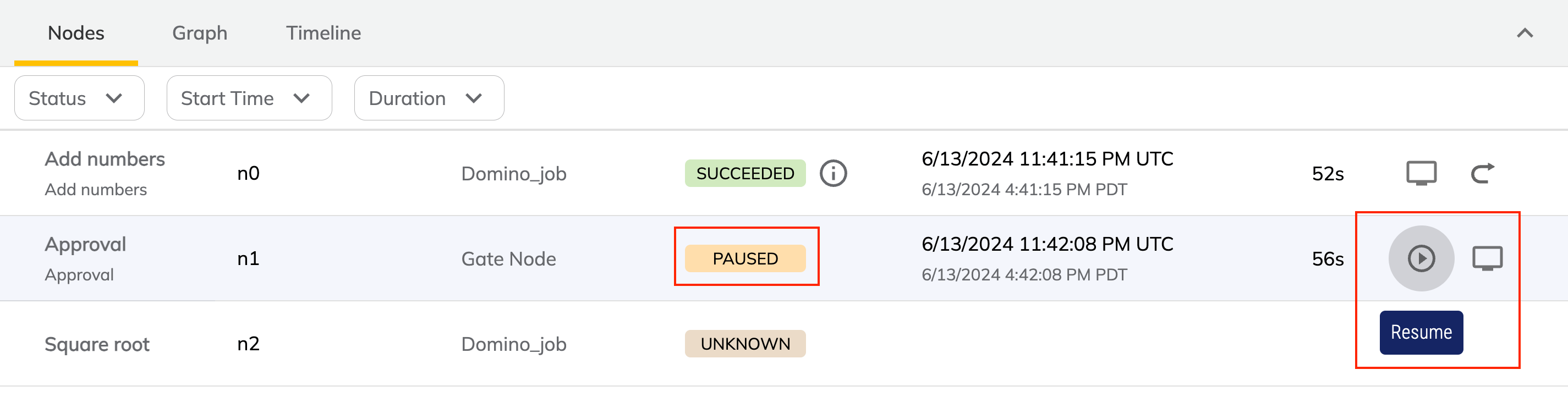
3. Monitor the results. Notice how the flow execution will pause after the first task and wait for approval. Click on the **Resume** button.
## Approval flow
Flows allow you to add tasks in your flow where it will pause and wait for explicit human approval before proceeding. A use case where this can be useful is when model training has finished and you want someone to review the results before proceeding to downstream tasks that prepare it for deployment.
To use approvals in a flow:
1. Use the `approve` class provided by the Flyte SDK to add a required approval on the output of a task. As an example, we will use the flow created in the [getting started](/cloud/platform-capabilities/features/flows/get-started-with-flows) guide.
```python theme={null}
from flytekit import approve
from datetime import timedelta
@workflow
def approval_flow(a: int, b: int) -> float:
# Create first task
add_task = DominoJobTask(
name='Add numbers',
domino_job_config=DominoJobConfig(Command="python add.py"),
inputs={'first_value': int, 'second_value': int},
outputs={'sum': int},
use_latest=True
)
# Approval is added here
sum = approve(add_task(first_value=a, second_value=b), "Approval", timeout=timedelta(hours=2))
# Create second task
sqrt_task = DominoJobTask(
name='Square root',
domino_job_config=DominoJobConfig(Command="python sqrt.py"),
inputs={'value': int},
outputs={'sqrt': float},
use_latest=True
)
sqrt = sqrt_task(value=sum)
return sqrt
```
2. Trigger an execution of the main flow in the same way you would trigger any other flow.
```bash theme={null}
pyflyte run --remote workflow.py simple_math_workflow --a 4 --b 5
```
3. Monitor the results. Notice how the flow execution will pause after the first task and wait for approval. Click on the **Resume** button.
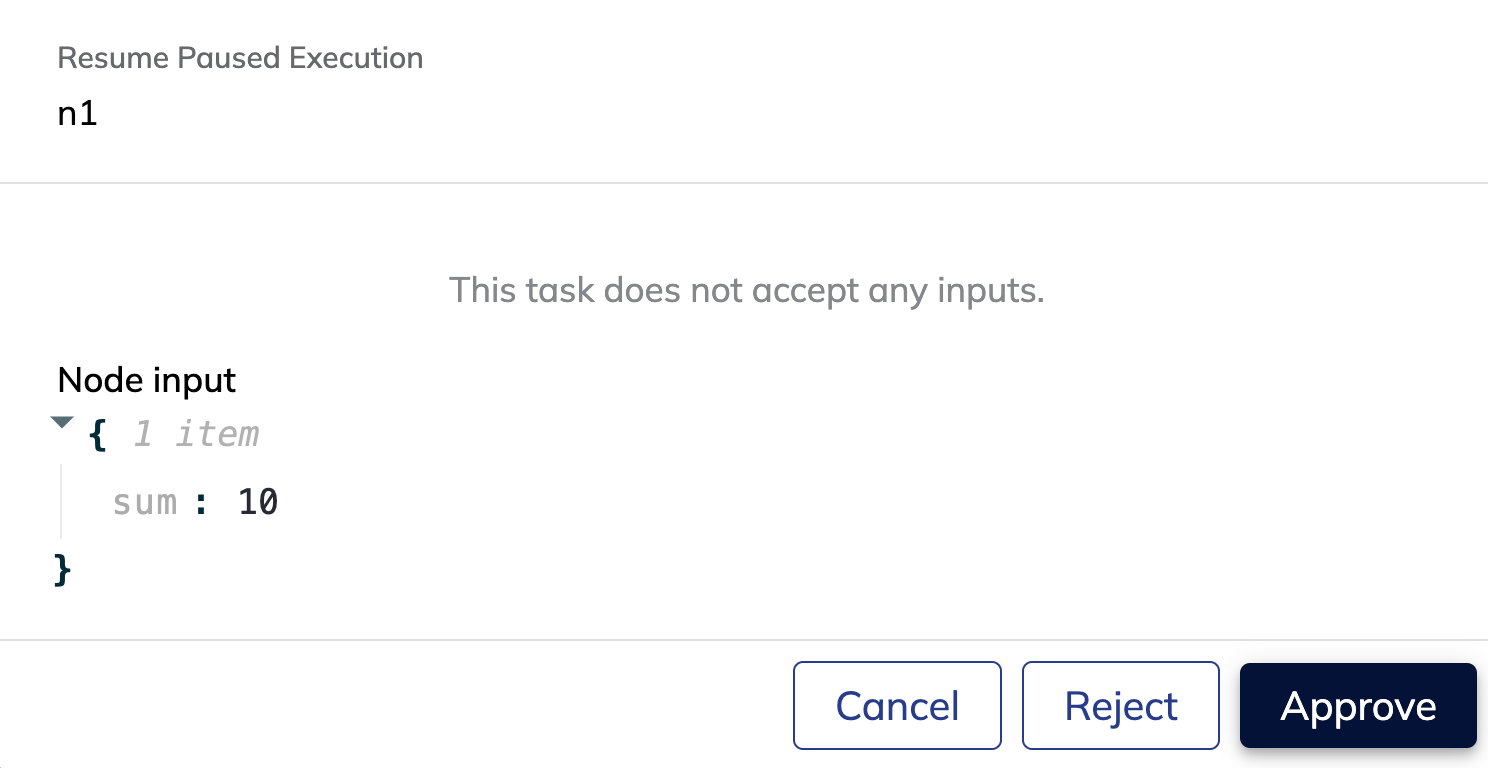
 4. Review the result and approve it to continue execution, or reject it to stop the execution.