> ## Documentation Index
> Fetch the complete documentation index at: https://docs.domino.ai/llms.txt
> Use this file to discover all available pages before exploring further.
# Examine Flow Artifacts
After you have defined Flow Artifacts, you can inspect artifacts produced by executions and discover bookmarked artifacts within a project.
## Inspect Flow Artifacts produced by executions
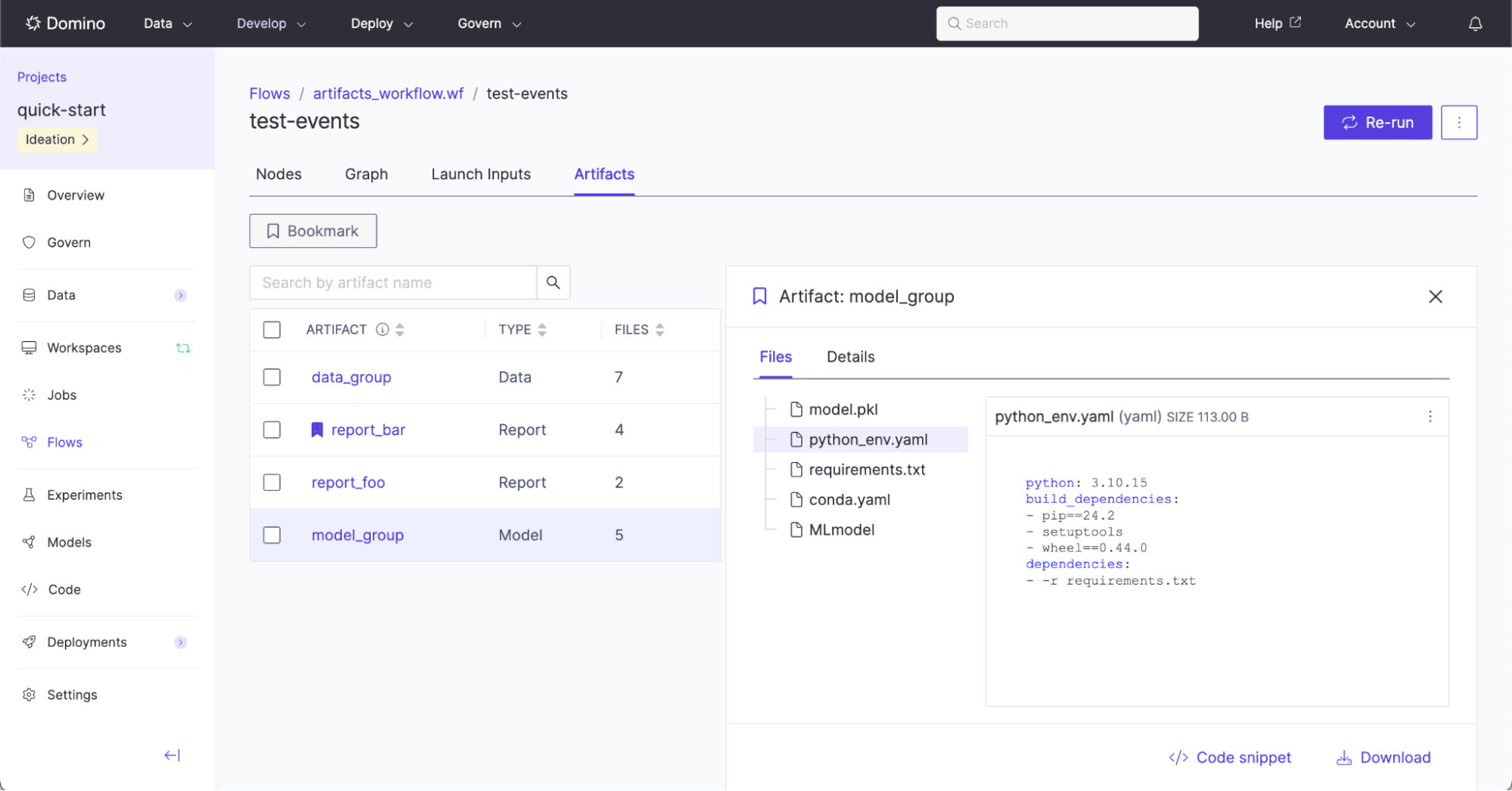
Flow Artifacts are surfaced in a dedicated section in the run view, where they can be easily discovered, inspected and downloaded.
Navigate to **Flows** > **Flow name** > **Run name** > **Artifacts** in order to inspect the artifacts produced by that particular run.
 ### Bookmark artifacts
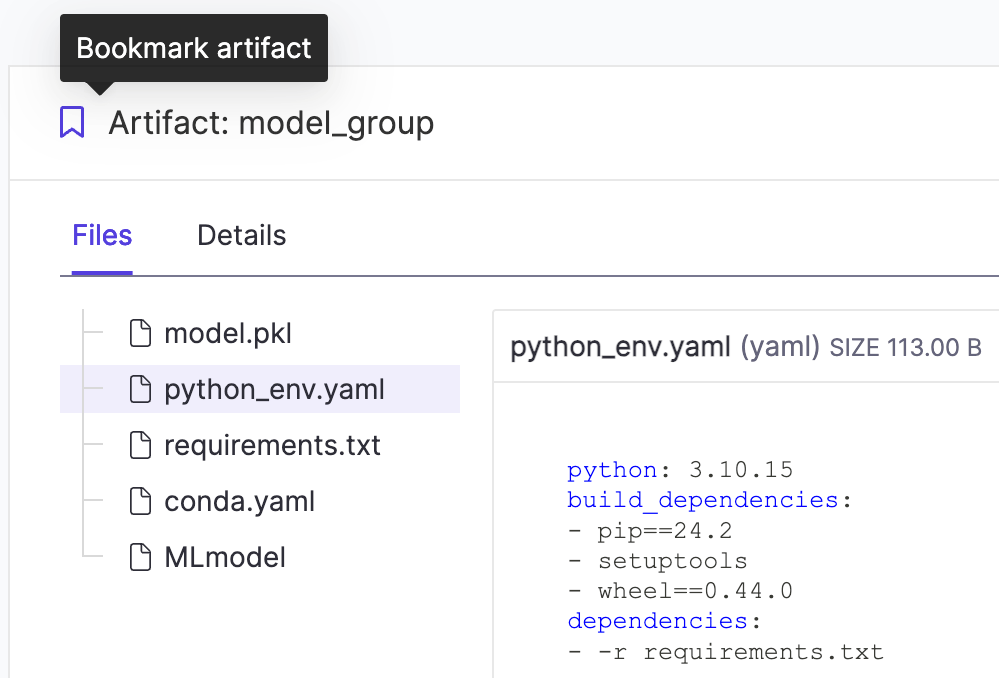
As many flows are executed, specific flow executions may generate outputs that are especially noteworthy to the project. These Flow Artifacts can be bookmarked by clicking on the **Bookmark artifact** icon on the right panel:
### Bookmark artifacts
As many flows are executed, specific flow executions may generate outputs that are especially noteworthy to the project. These Flow Artifacts can be bookmarked by clicking on the **Bookmark artifact** icon on the right panel:
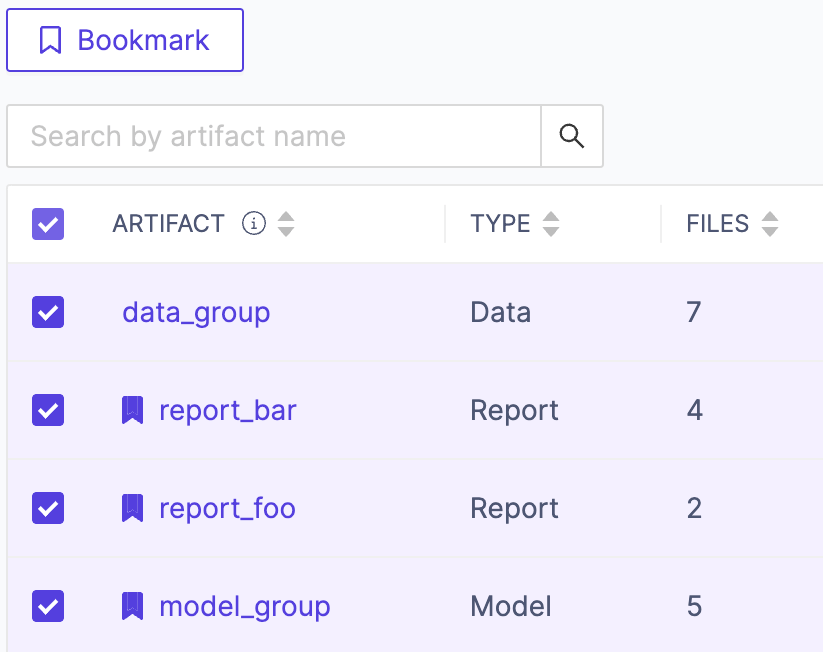
 Flow Artifacts can also be bookmarked in bulk by selecting multiple artifacts on the left panel, and clicking on the **Bookmark** button above:
 ### Access artifacts
Artifacts that have smaller file sizes may be viewed directly within Domino. The right panel provides two additional means of accessing artifacts, either by downloading them or by accessing them via code.
* The **Download** button will download all the files that are part of the selected artifact.
In this example, all five files (`model.pkl`, `python_env.yaml`, `requirements.txt`, `conda.yaml`, and `MLmodel`) are downloaded at once:
### Access artifacts
Artifacts that have smaller file sizes may be viewed directly within Domino. The right panel provides two additional means of accessing artifacts, either by downloading them or by accessing them via code.
* The **Download** button will download all the files that are part of the selected artifact.
In this example, all five files (`model.pkl`, `python_env.yaml`, `requirements.txt`, `conda.yaml`, and `MLmodel`) are downloaded at once:
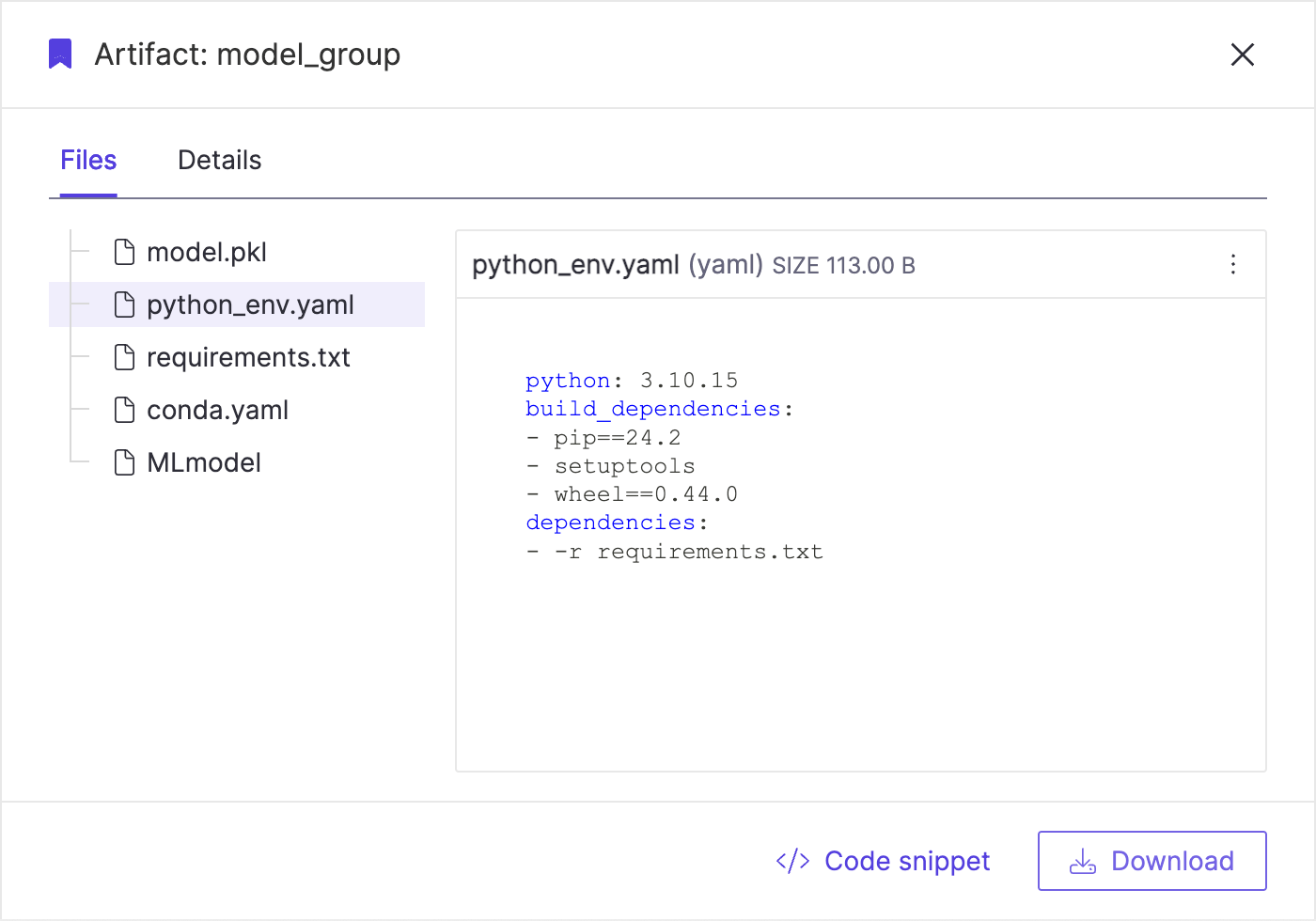 * The **Code snippet** button generates Python code to directly download stored artifacts to a local workspace. Copy the code using the **Copy** button and run it inside a workspace:
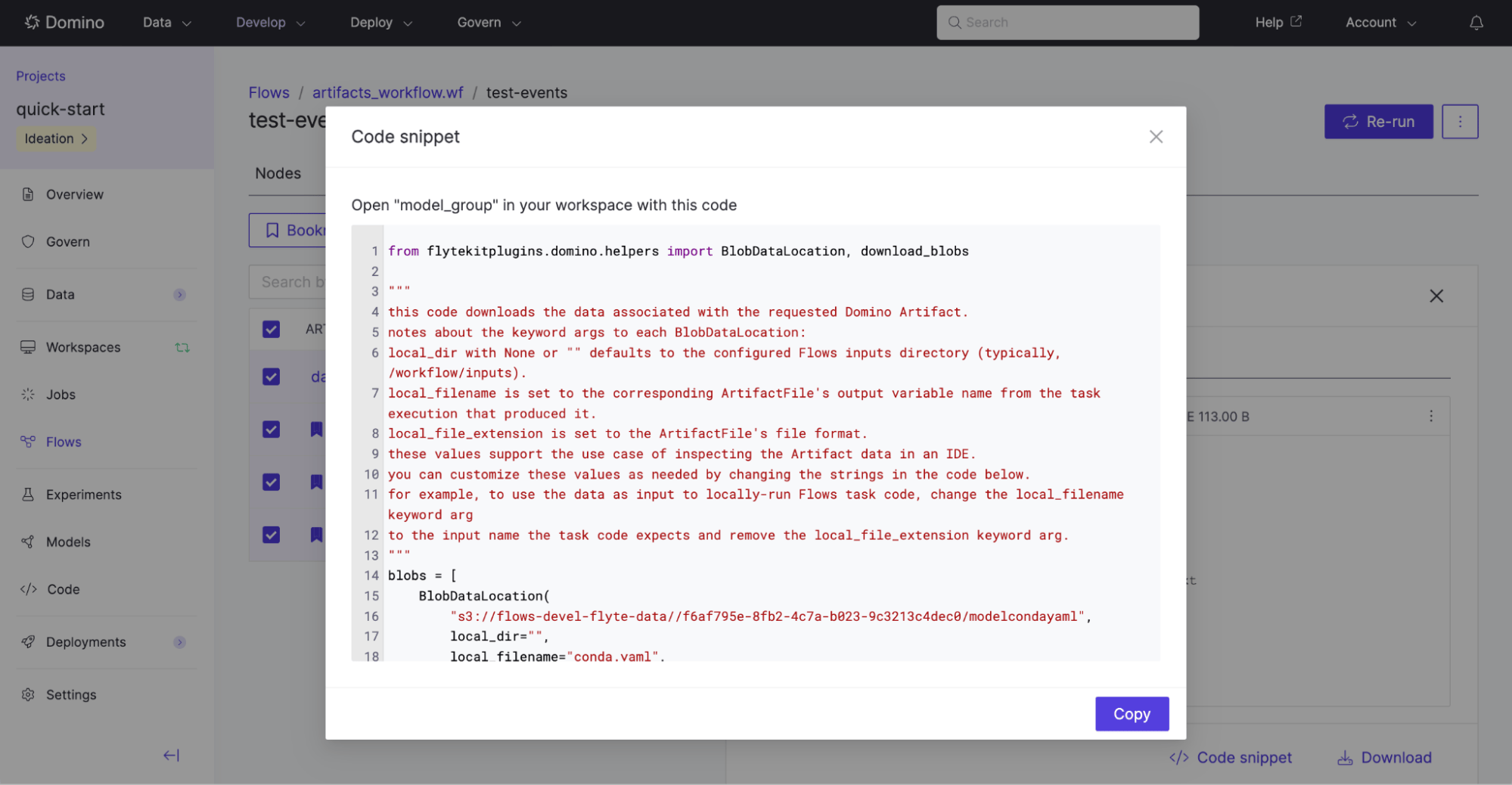 * The default syntax in the code snippet will copy all files within the Flow Artifact to the temporary `/workflow/inputs/` directory within your workspace.
To persist your Flow Artifacts outside of Flows so they are consumable for downstream processes, such as web apps or a batch job, change the `local_dir` parameter in the code snippet to write your files to a Domino Dataset or the DFS Artifacts file system.
## Discover bookmarked Flow Artifacts
Artifacts that have already been bookmarked are displayed at the top level view for Flows to allow for easier discoverability and reuse.
* Navigate to **Flows** > **Bookmarked Artifacts**, and view all the artifacts that were bookmarked on the current project, across flows and runs. This view includes the artifact name, type, and version, as well as additional metadata.
* The default syntax in the code snippet will copy all files within the Flow Artifact to the temporary `/workflow/inputs/` directory within your workspace.
To persist your Flow Artifacts outside of Flows so they are consumable for downstream processes, such as web apps or a batch job, change the `local_dir` parameter in the code snippet to write your files to a Domino Dataset or the DFS Artifacts file system.
## Discover bookmarked Flow Artifacts
Artifacts that have already been bookmarked are displayed at the top level view for Flows to allow for easier discoverability and reuse.
* Navigate to **Flows** > **Bookmarked Artifacts**, and view all the artifacts that were bookmarked on the current project, across flows and runs. This view includes the artifact name, type, and version, as well as additional metadata.
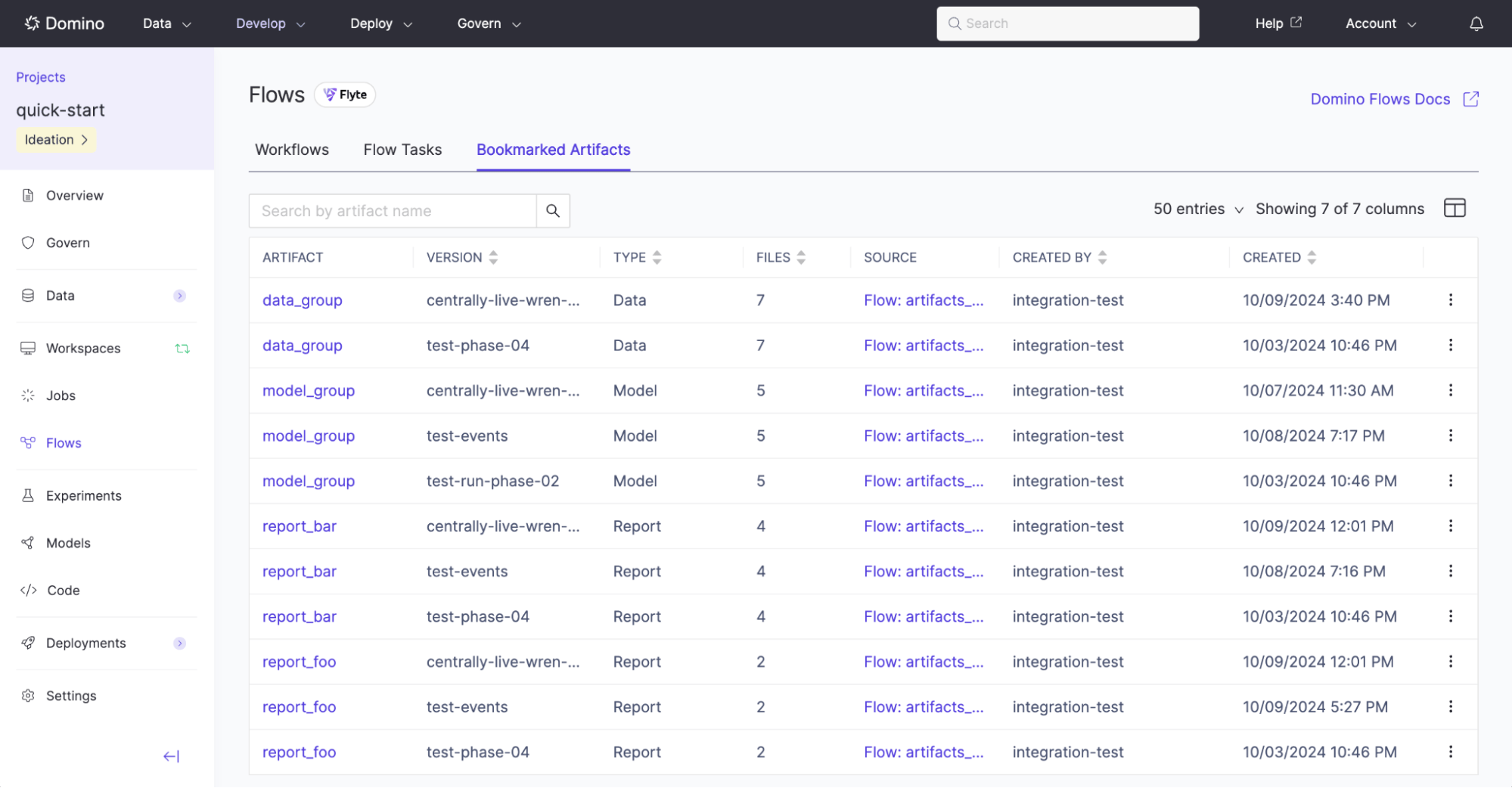 * Clicking on the **Source** column will navigate to the run that created the artifact, while clicking on the **Artifact** column will display a view of the artifact that includes all of its files.
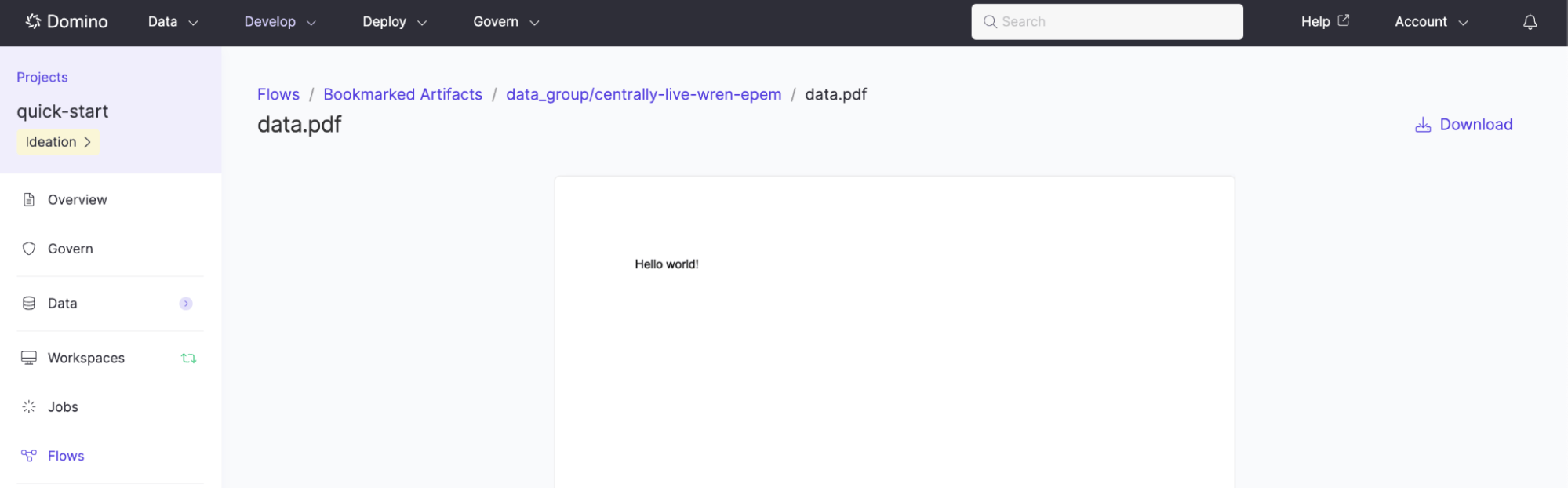
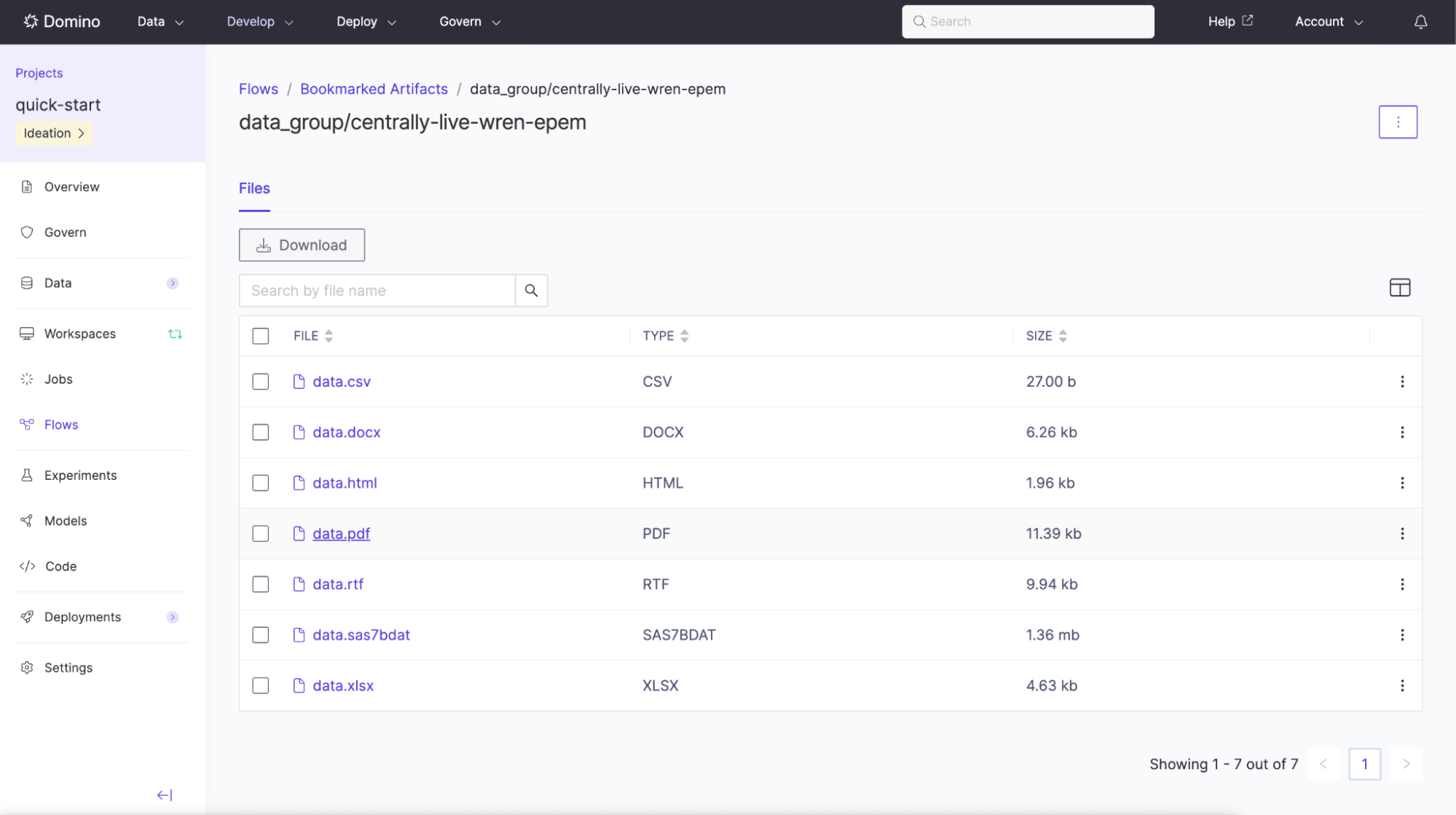 * This paginated view allows filtering files by name, as well as downloading one or more selected files at once. Clicking on a file name will display a larger file preview, alongside an option to download the file.
 ## Assign Flow Artifacts to Datasets
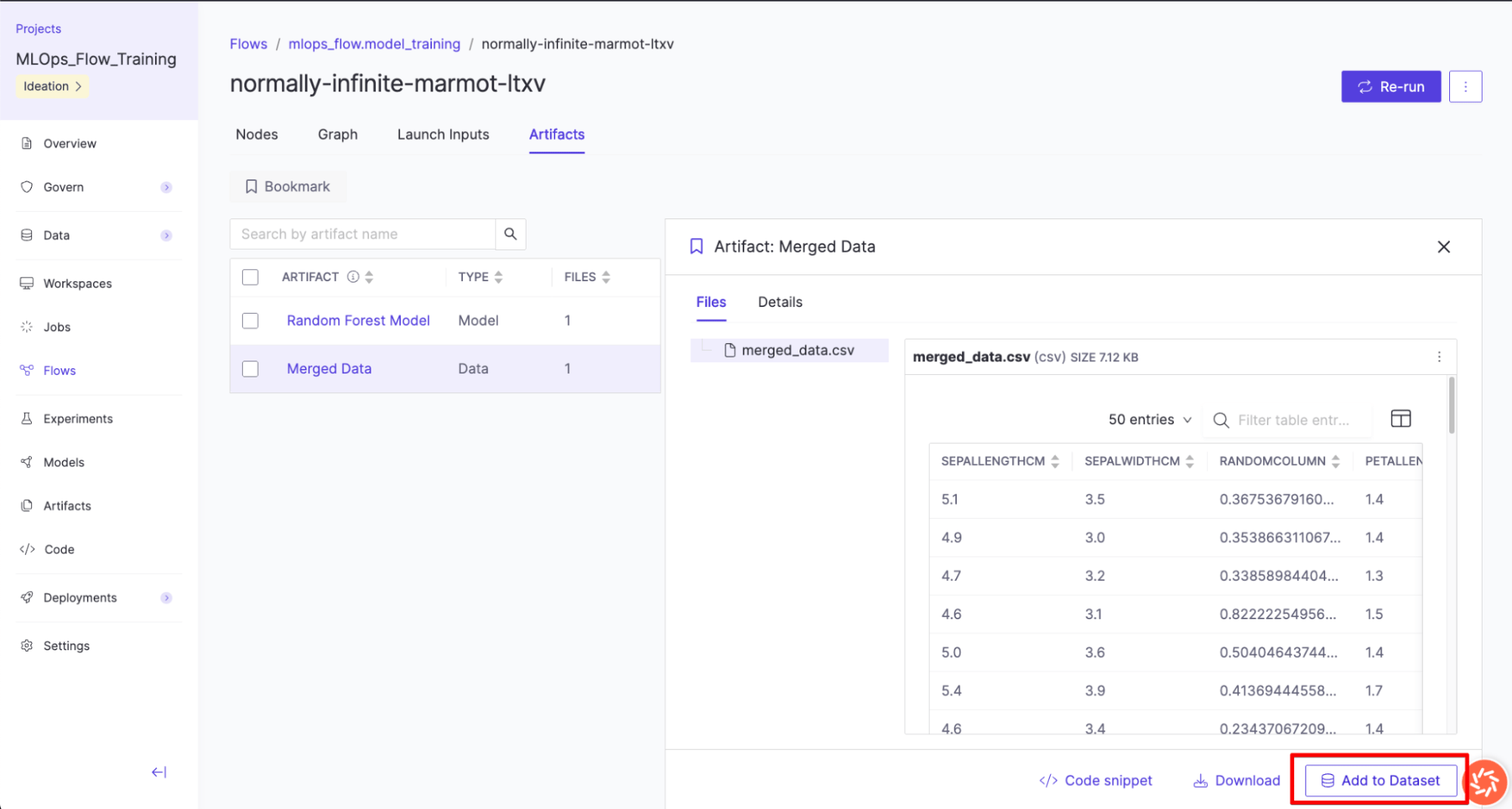
Once you have created a Flow Artifact, you can assign it to a dataset. You can choose an existing dataset or create a new one. There is also an option to automatically take a dataset snapshot after registration. The data’s lineage is automatically maintained between the Flow Artifact and the Dataset Snapshot.
## Assign Flow Artifacts to Datasets
Once you have created a Flow Artifact, you can assign it to a dataset. You can choose an existing dataset or create a new one. There is also an option to automatically take a dataset snapshot after registration. The data’s lineage is automatically maintained between the Flow Artifact and the Dataset Snapshot.
 After the artifact is added successfully to the dataset, you’ll see a confirmation message.
## Next steps
* Maximize the [reproducibility](/cloud/platform-capabilities/features/flows/reproducibility-flows) of Flows.
After the artifact is added successfully to the dataset, you’ll see a confirmation message.
## Next steps
* Maximize the [reproducibility](/cloud/platform-capabilities/features/flows/reproducibility-flows) of Flows.