> ## Documentation Index
> Fetch the complete documentation index at: https://docs.domino.ai/llms.txt
> Use this file to discover all available pages before exploring further.
# Get started with Flows
Make sure you have a good understanding of the [key concepts](/cloud/platform-capabilities/features/flows#important-terms) before you get started with Domino Flows.
## Basic flow
This section demonstrates a basic example that:
* Takes two integers as an input to a flow.
* The first task adds the integers together and passes the result as an input to the second task.
* The second task takes the square root of the input and returns the result as the final output of the flow.
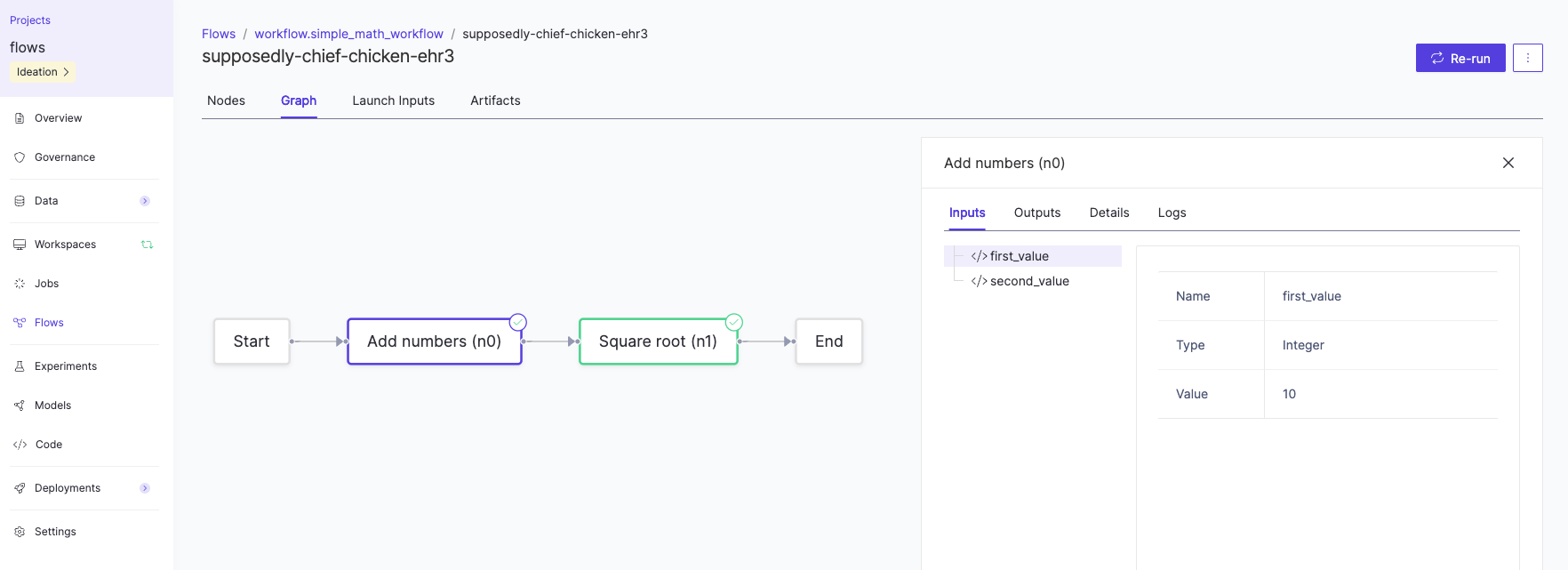
This example flow can be visualized as follows:
 To create a Domino Flow:
1. Create a workspace using the [Domino Standard Environment (DSE)](/cloud/platform-capabilities/core-concepts/compute-environments/manage-compute-environments/2-domino-standard-environments) from 6.0 onwards, or a custom environment that is built on top of the DSE >= 6.0, as these contain the required Flyte Python libraries.
2. Create a file named `add.py` in the root directory. Add the following code to the file to add two integer inputs together:
```python theme={null}
from pathlib import Path
# Read inputs
a = Path("/workflow/inputs/first_value").read_text()
b = Path("/workflow/inputs/second_value").read_text()
# Calculate sum
sum = int(a) + int(b)
print(f"The sum of {a} + {b} is {sum}")
# Write output
Path("/workflow/outputs/sum").write_text(str(sum))
```
3. Create a file named `sqrt.py` in the root directory. Add the following code to the file to calculate the square root of the input:
```python theme={null}
from pathlib import Path
# Read input
value = Path("/workflow/inputs/value").read_text()
# Calculate square root
sqrt = int(value) ** 0.5
print(f"The square root of {value} is {sqrt}")
# Write output
Path("/workflow/outputs/sqrt").write_text(str(sqrt))
```
4. Create a file named `workflow.py` in the root directory (see the [Flytekit Python library](https://github.com/dominodatalab/flytekit) documentation on GitHub). Add the following code to the file to define the flow:
```python theme={null}
from flytekit import workflow
from flytekitplugins.domino.task import DominoJobConfig, DominoJobTask
@workflow
def simple_math_workflow(a: int, b: int) -> float:
# Create first task
add_task = DominoJobTask(
name='Add numbers',
domino_job_config=DominoJobConfig(Command="python add.py"),
inputs={'first_value': int, 'second_value': int},
outputs={'sum': int},
use_latest=True
)
sum = add_task(first_value=a, second_value=b)
# Create second task
sqrt_task = DominoJobTask(
name='Square root',
domino_job_config=DominoJobConfig(Command="python sqrt.py"),
inputs={'value': int},
outputs={'sqrt': float},
use_latest=True
)
sqrt = sqrt_task(value=sum)
return sqrt
```
5. **Commit the code** and run the following command in the Workspace terminal to register and run the flow:
```bash theme={null}
pyflyte run --remote workflow.py simple_math_workflow --a 10 --b 6
```
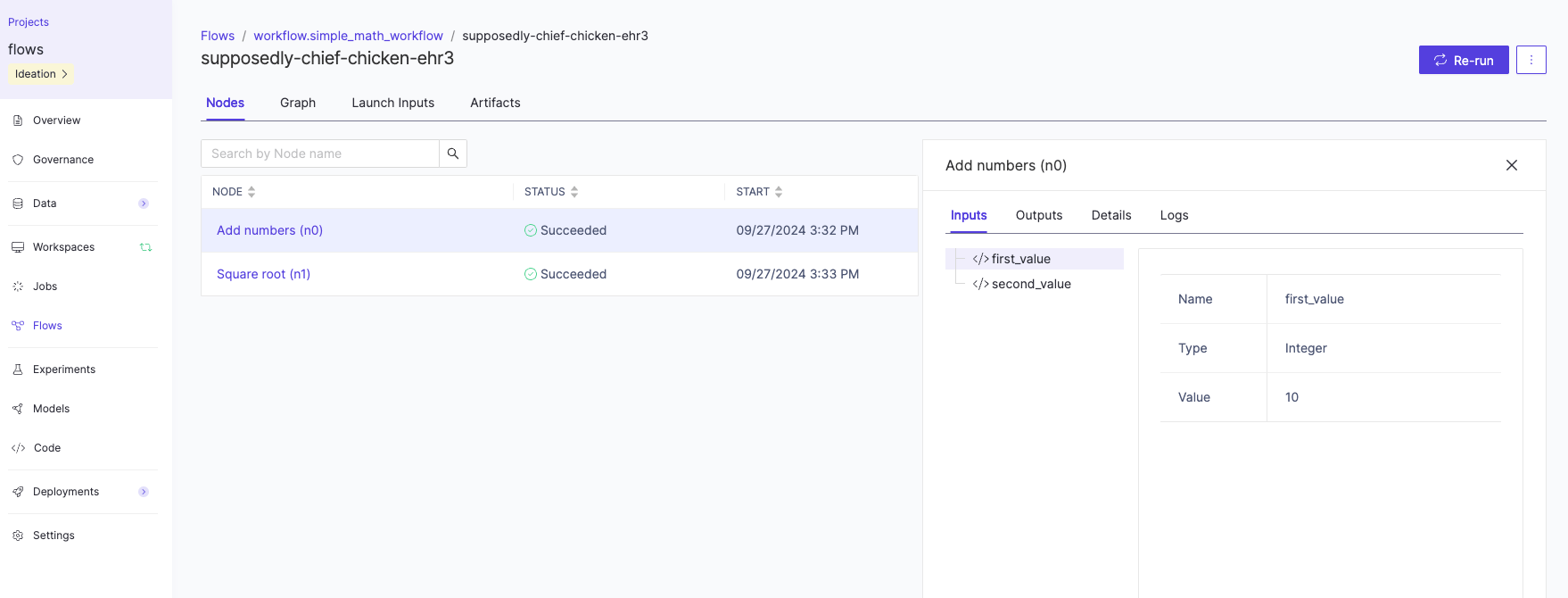
6. Once you run the command above, navigate to **Flows** > **Flow name** > **Run Name** in the Domino UI to monitor the results and view the outputs that were produced by the execution.
To create a Domino Flow:
1. Create a workspace using the [Domino Standard Environment (DSE)](/cloud/platform-capabilities/core-concepts/compute-environments/manage-compute-environments/2-domino-standard-environments) from 6.0 onwards, or a custom environment that is built on top of the DSE >= 6.0, as these contain the required Flyte Python libraries.
2. Create a file named `add.py` in the root directory. Add the following code to the file to add two integer inputs together:
```python theme={null}
from pathlib import Path
# Read inputs
a = Path("/workflow/inputs/first_value").read_text()
b = Path("/workflow/inputs/second_value").read_text()
# Calculate sum
sum = int(a) + int(b)
print(f"The sum of {a} + {b} is {sum}")
# Write output
Path("/workflow/outputs/sum").write_text(str(sum))
```
3. Create a file named `sqrt.py` in the root directory. Add the following code to the file to calculate the square root of the input:
```python theme={null}
from pathlib import Path
# Read input
value = Path("/workflow/inputs/value").read_text()
# Calculate square root
sqrt = int(value) ** 0.5
print(f"The square root of {value} is {sqrt}")
# Write output
Path("/workflow/outputs/sqrt").write_text(str(sqrt))
```
4. Create a file named `workflow.py` in the root directory (see the [Flytekit Python library](https://github.com/dominodatalab/flytekit) documentation on GitHub). Add the following code to the file to define the flow:
```python theme={null}
from flytekit import workflow
from flytekitplugins.domino.task import DominoJobConfig, DominoJobTask
@workflow
def simple_math_workflow(a: int, b: int) -> float:
# Create first task
add_task = DominoJobTask(
name='Add numbers',
domino_job_config=DominoJobConfig(Command="python add.py"),
inputs={'first_value': int, 'second_value': int},
outputs={'sum': int},
use_latest=True
)
sum = add_task(first_value=a, second_value=b)
# Create second task
sqrt_task = DominoJobTask(
name='Square root',
domino_job_config=DominoJobConfig(Command="python sqrt.py"),
inputs={'value': int},
outputs={'sqrt': float},
use_latest=True
)
sqrt = sqrt_task(value=sum)
return sqrt
```
5. **Commit the code** and run the following command in the Workspace terminal to register and run the flow:
```bash theme={null}
pyflyte run --remote workflow.py simple_math_workflow --a 10 --b 6
```
6. Once you run the command above, navigate to **Flows** > **Flow name** > **Run Name** in the Domino UI to monitor the results and view the outputs that were produced by the execution.
 7. To visualize the full execution flow, click on the **Graph** pivot.
 ## Training flow
This section demonstrates a basic training flow example with the following steps:
1. Data is loaded in from two different sources and a snapshot of the data is taken.
2. The data is merged together as a single dataset.
3. Basic preprocessing is done on the dataset.
4. A model is trained using the cleaned dataset.
The training flow can be visualized as follows:
## Training flow
This section demonstrates a basic training flow example with the following steps:
1. Data is loaded in from two different sources and a snapshot of the data is taken.
2. The data is merged together as a single dataset.
3. Basic preprocessing is done on the dataset.
4. A model is trained using the cleaned dataset.
The training flow can be visualized as follows:
 To create the training flow:
1. Make a fork of the template [GitHub repository](https://github.com/dominodatalab/domino-ai-flows).
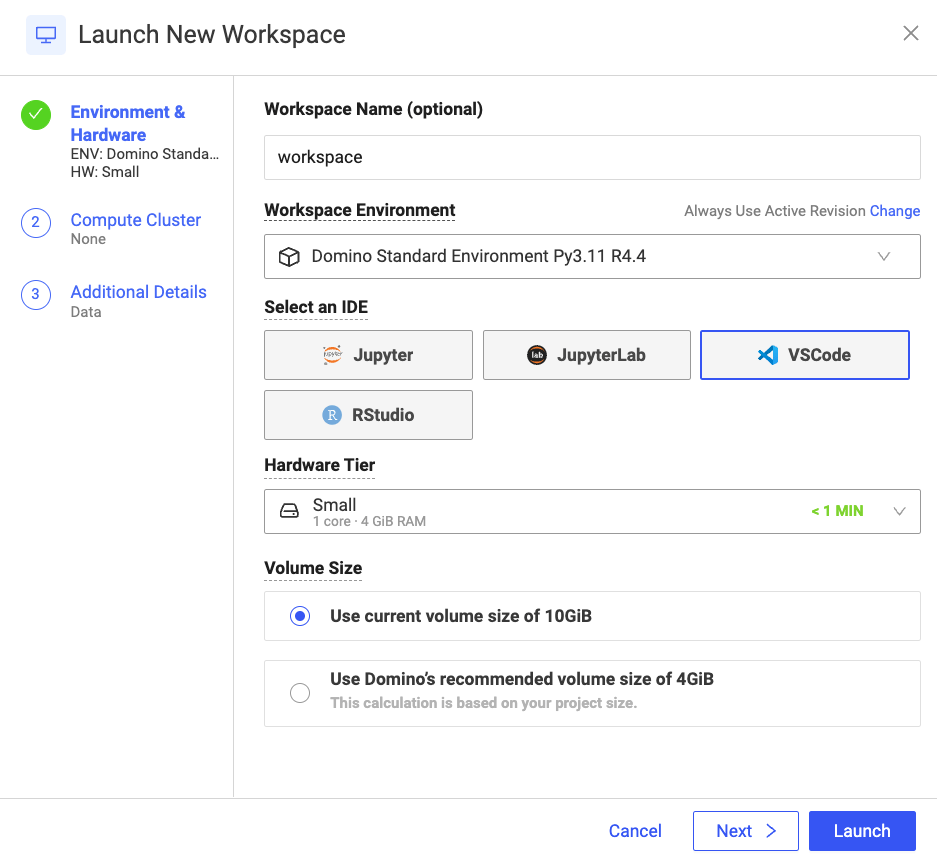
2. Create a Workspace using the [Domino Standard Environment (DSE)](/cloud/platform-capabilities/core-concepts/compute-environments/manage-compute-environments/2-domino-standard-environments) from 6.0 onwards, or a custom environment that is built on top of the DSE >= 6.0.
To create the training flow:
1. Make a fork of the template [GitHub repository](https://github.com/dominodatalab/domino-ai-flows).
2. Create a Workspace using the [Domino Standard Environment (DSE)](/cloud/platform-capabilities/core-concepts/compute-environments/manage-compute-environments/2-domino-standard-environments) from 6.0 onwards, or a custom environment that is built on top of the DSE >= 6.0.
 3. Inspect the `mlops_flow.py` file for the definition of the flow. Note how a helper method, called `run_domino_job_task`, is used here instead of the `DominoJobConfig` and `DominoJobTask` in the basic example above.
```python theme={null}
task1 = run_domino_job_task(
flyte_task_name='Load Data A',
command='python /mnt/code/scripts/load-data-A.py',
inputs=[Input(name='data_path', type=str, value=data_path_a)],
output_specs=[Output(name='datasetA', type=FlyteFile[TypeVar('csv')])],
use_project_defaults_for_omitted=True,
environment_name=environment_name,
hardware_tier_name="Small",
cache=cache,
cache_version="1.0"
)
task2 = run_domino_job_task(
flyte_task_name='Load Data B',
command='python /mnt/code/scripts/load-data-B.py',
inputs=[Input(name='data_path', type=str, value=data_path_b)],
output_specs=[Output(name='datasetB', type=FlyteFile[TypeVar('csv')])],
use_project_defaults_for_omitted=True,
environment_name=environment_name,
hardware_tier_name="Small",
cache=cache,
cache_version="1.0"
)
# Additional tasks
```
4. Run the following command in the Workspace terminal to register and run the flow:
```bash theme={null}
pyflyte run --remote mlops_flow.py model_training --data_path_a /mnt/code/data/datasetA.csv --data_path_b /mnt/code/data/datasetB.csv
```
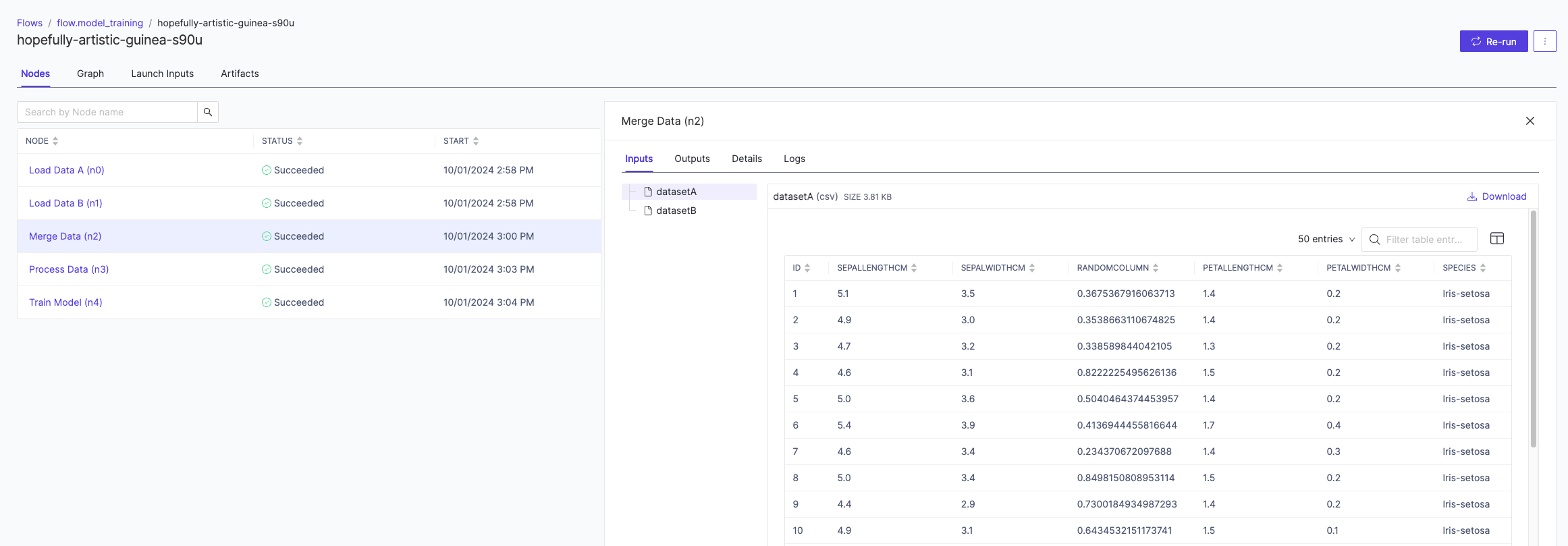
5. Navigate to **Flows** > **Flow name** > **Run name** to monitor the results and view the outputs that were produced by the execution.
3. Inspect the `mlops_flow.py` file for the definition of the flow. Note how a helper method, called `run_domino_job_task`, is used here instead of the `DominoJobConfig` and `DominoJobTask` in the basic example above.
```python theme={null}
task1 = run_domino_job_task(
flyte_task_name='Load Data A',
command='python /mnt/code/scripts/load-data-A.py',
inputs=[Input(name='data_path', type=str, value=data_path_a)],
output_specs=[Output(name='datasetA', type=FlyteFile[TypeVar('csv')])],
use_project_defaults_for_omitted=True,
environment_name=environment_name,
hardware_tier_name="Small",
cache=cache,
cache_version="1.0"
)
task2 = run_domino_job_task(
flyte_task_name='Load Data B',
command='python /mnt/code/scripts/load-data-B.py',
inputs=[Input(name='data_path', type=str, value=data_path_b)],
output_specs=[Output(name='datasetB', type=FlyteFile[TypeVar('csv')])],
use_project_defaults_for_omitted=True,
environment_name=environment_name,
hardware_tier_name="Small",
cache=cache,
cache_version="1.0"
)
# Additional tasks
```
4. Run the following command in the Workspace terminal to register and run the flow:
```bash theme={null}
pyflyte run --remote mlops_flow.py model_training --data_path_a /mnt/code/data/datasetA.csv --data_path_b /mnt/code/data/datasetB.csv
```
5. Navigate to **Flows** > **Flow name** > **Run name** to monitor the results and view the outputs that were produced by the execution.
 ## Next steps
* [Define Flows](/cloud/platform-capabilities/features/flows/define-flows)
* [Define Flow Artifacts](/cloud/platform-capabilities/features/flows/define-flow-artifacts)
* [Launch Flows](/cloud/platform-capabilities/features/flows/launch-flows)
* [Monitor Flows](/cloud/platform-capabilities/features/flows/monitor-flows)
* [Examine Flow Artifacts](/cloud/platform-capabilities/features/flows/examine-flow-artifacts)
* [Flows Reproducibility](/cloud/platform-capabilities/features/flows/reproducibility-flows)
* [Advanced Flows](/cloud/platform-capabilities/features/flows/advanced-flows)
## Next steps
* [Define Flows](/cloud/platform-capabilities/features/flows/define-flows)
* [Define Flow Artifacts](/cloud/platform-capabilities/features/flows/define-flow-artifacts)
* [Launch Flows](/cloud/platform-capabilities/features/flows/launch-flows)
* [Monitor Flows](/cloud/platform-capabilities/features/flows/monitor-flows)
* [Examine Flow Artifacts](/cloud/platform-capabilities/features/flows/examine-flow-artifacts)
* [Flows Reproducibility](/cloud/platform-capabilities/features/flows/reproducibility-flows)
* [Advanced Flows](/cloud/platform-capabilities/features/flows/advanced-flows)