

- Policy Builder: A visual UI for defining policies step-by-step
- YAML: A code-based method for advanced customization
Use cases for policies
Policies can:- Require approvals before releasing models or reports
- Capture evidence and risk classifications during review
- Show or hide questions based on input
- Define multi-stage workflows with approvers and conditions
- Use gates to restrict specific actions, such as deploying a published App, an agent, or a model Endpoint, until all required approvals are complete
Create a policy
You can create a policy either from scratch or by using an existing template. Both methods allow you to use the Policy Builder UI or the Code editor.Start a new policy
Follow these steps to begin defining your policy:- Go to Govern > Policies, then click Create Policy.
- Choose None (start from scratch) or choose a policy template.
- Enter a name and description and click Create.
Choose a view
Once created, the policy opens in the Policy Builder by default. You can switch between these views at any time:- Policy Builder (UI editor): Guided form for building stages, rules, and questions
- Graph view: Visual overview of the policy’s workflow
- Code editor: Raw YAML editor for advanced configuration
user-organization-name with your organization’s name to correctly assign approvers.
Policies are written in YAML and must be published before use. Build governance policies in our documentation has more building blocks for advanced customization.
Use the policy builder
The Policy Builder is a guided interface for defining policy components without writing YAML.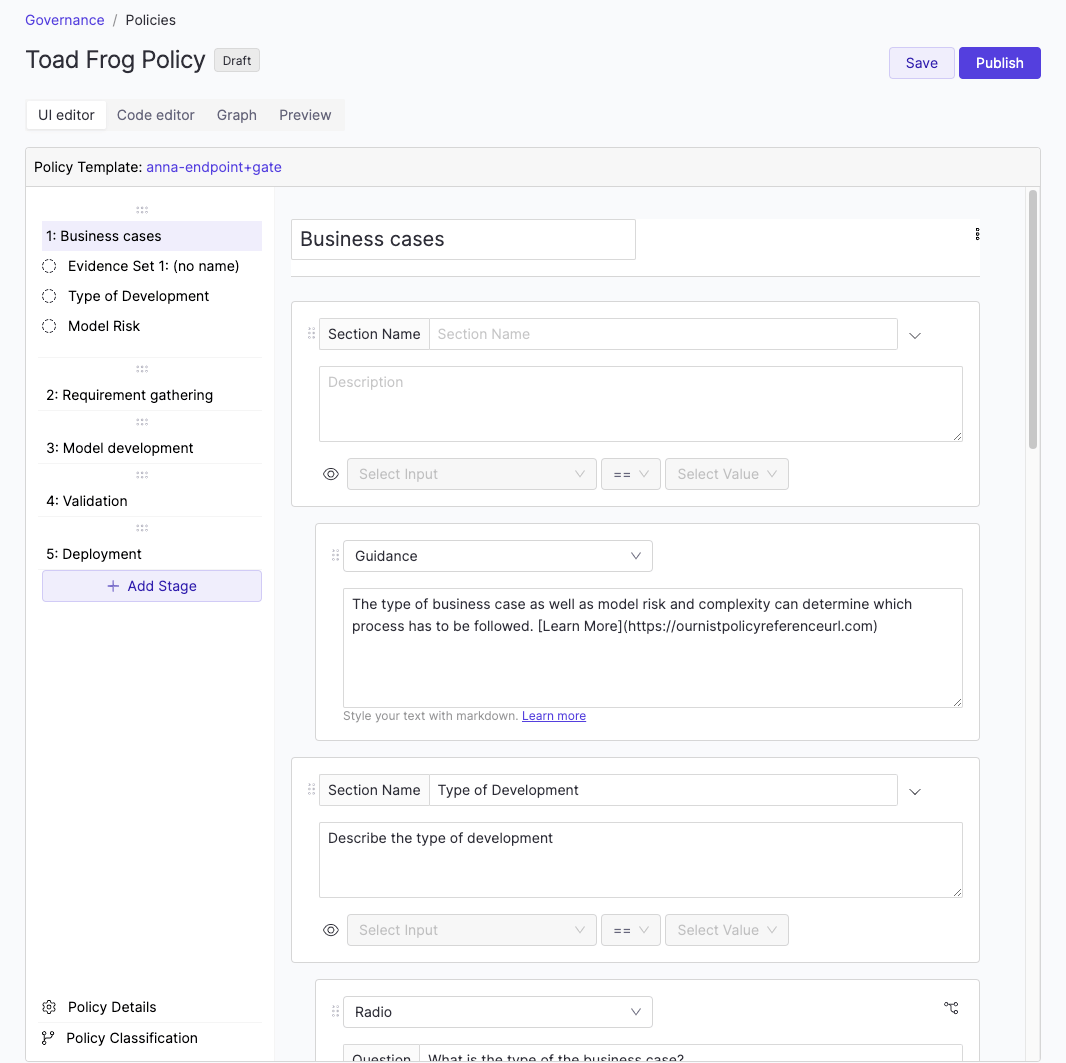
- Define policy stages such as validation or deployment
- Assign approvers to each stage
- Add evidence questions approvers must answer
- Add scripted checks for model validation
- Configure classification and visibility rules
Define rules and logic
You can use rules to evaluate evidence, classify policy executions, and control which sections of a policy are shown to users. Classification and visibility rules often work together. For example, a classification rule can drive a visibility rule.Classification rules
You can use classification rules to apply tags or labels to a policy execution based on collected evidence. These outputs can:- Trigger downstream rules
- Influence policy bundle matching
- Inform audit or compliance filters
Visibility rules
Visibility rules can be applied to sections of a policy, such as to show or hide specific stages or questions based on earlier responses. Use the eye icon in the section header to define a visibility condition.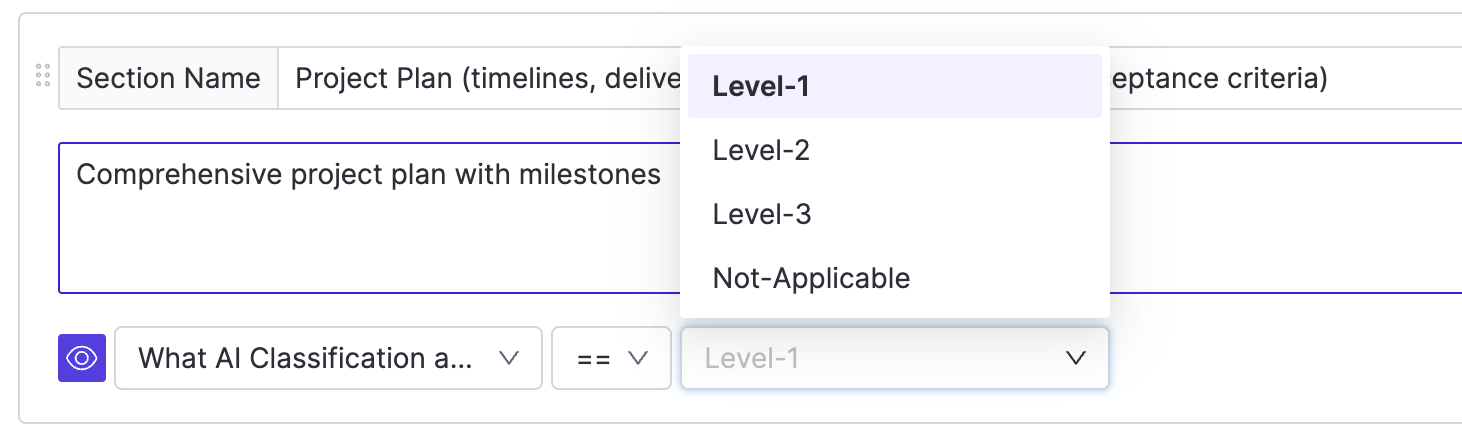
- Choose the input question to evaluate
- Specify the value that must be selected to make the section visible
- Reference more than one input question
- Use classification values to control visibility
About gating
Gating controls when certain operations are allowed based on policy status. For example, you can block a user from deploying a published App or an agent until all stages in the associated policy bundle are approved. Gates must be defined in YAML. Gates has details about how gates work and how to define them.Enforce required policies
Policy enforcement lets Governance admins define a set of policies that Domino attaches automatically to every governed asset of a given type, deployment-wide. This closes the gap where a practitioner could bypass governance by not attaching a policy. The current release supports policy enforcement for apps. Enforced policies always attach at their latest version. Practitioners cannot remove an enforced policy from a bundle. Governance, System, and Cloud admins can remove one if needed.Configure the enforced policy set
- Go to Govern > Policies.
- Click Policy enforcement.
- Select the policies to require for apps, then save. Use the toggle to turn enforcement on or off; changes take effect on the next app version.
How enforcement applies to apps
Enforcement runs when an app version is created:- New app: Domino creates the bundle with every currently enforced policy attached.
- New version of an ungoverned app: If the app has no bundle yet, Domino creates one with every enforced policy attached.
- New version of a governed app: Domino attaches any enforced policies that are missing from the bundle and upgrades already-attached enforced policies to their latest version.
Create a new version of a policy
You can modify a published policy by creating a new version. The new version remains in draft until it is published. When publishing the new version, you can:- Choose whether the update is mandatory or optional for bundles using an earlier version
- Select which bundles are affected
- Decide whether to retain or revoke existing approvals
Policy diff
When drafting a new policy version or reviewing a published one, you can use the Changes tab to compare it against the previous version. The diff view shows both a side-by-side YAML comparison and a visual representation of structural changes, making it easy to spot what was added, removed, or modified.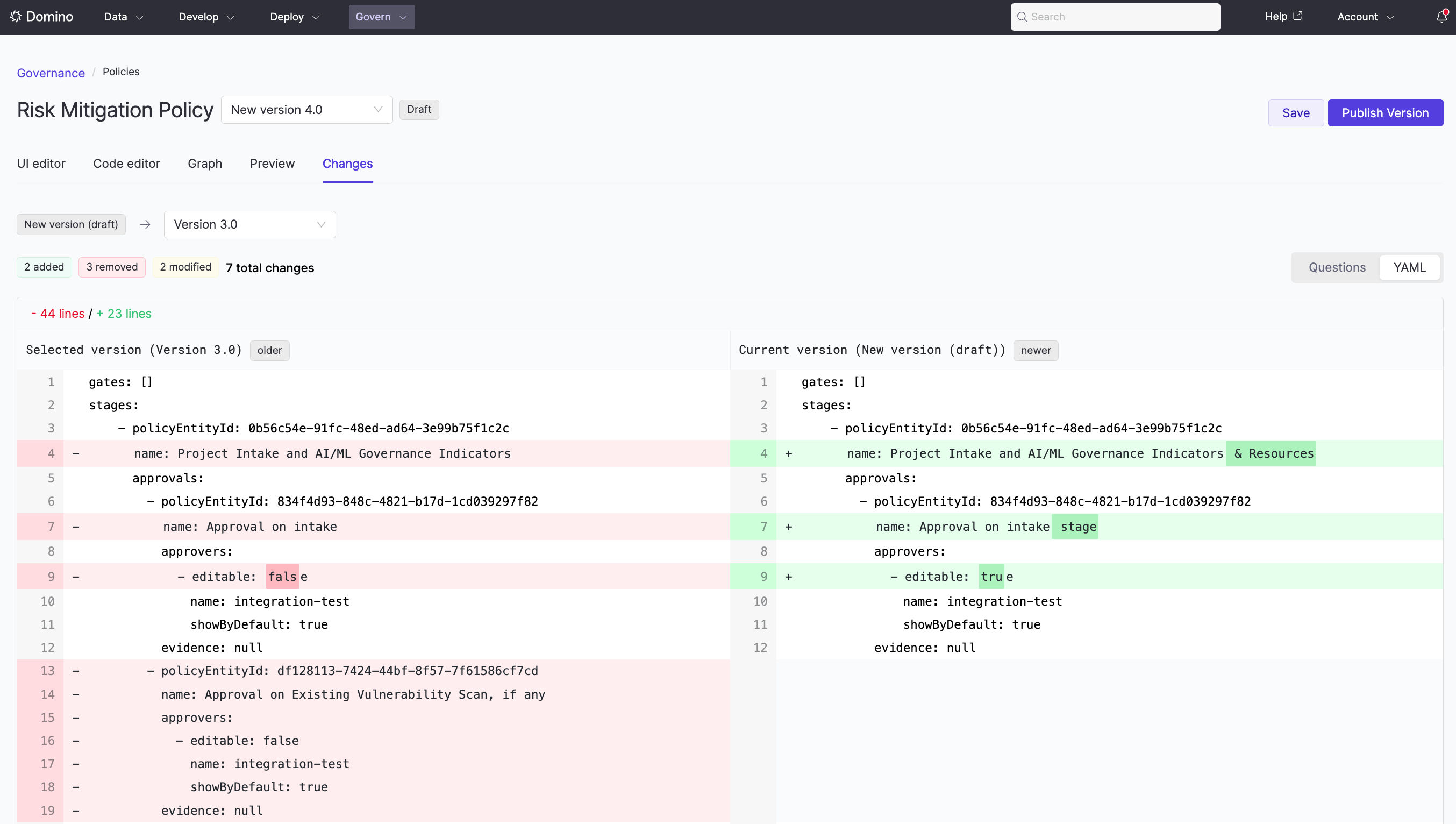
Mandatory version update
When publishing a mandatory update:- Select the bundles that must upgrade during the publish step
- Affected bundles are blocked from further edits until upgraded
- To upgrade a bundle, open it and click Upgrade Policy in the warning message
Optional version update
For minor or non-blocking changes, you can publish the new version as an optional update.- Bundles governed by the previous version display a warning that a new version is available
- These bundles are not blocked and can continue to be edited
Archive policies
You can archive policies to reduce clutter in the policy table. Archived policies:- Cannot be restored
- Do not link to a detail page
- Only appear when the Archived filter is applied
- Go to Govern > Policies and find the policy to archive.
- Click the … menu next to the policy and select Archive.
- If no active bundles use the policy, click Confirm.
- If active bundles are using the policy, Domino shows a warning and prevents archival.
Next steps
- Policy components: review YAML configuration details for policies
- Gates: control governed actions based on approval status
- Roles and security: understand permissions and role assignment for Governance