> ## Documentation Index
> Fetch the complete documentation index at: https://docs.domino.ai/llms.txt
> Use this file to discover all available pages before exploring further.
# Domino API authentication
Learn how to use the [Domino API](/cloud/reference/api/domino-open-api) and the different methods you can use securely authenticate into Domino programmatically.
## Authenticate with a Personal Access Token
Personal Access Tokens (PATs) are user-managed credentials that let you authenticate against the [Domino API](/cloud/reference/api). You create each token with a name, an optional description, and a custom expiration time. Once a token expires or is revoked, it can no longer be used.
PATs give you full control over your API credentials: you can create as many as you need, each with its own expiration, and revoke or delete them individually or all at once.
You can manage your PATs through the **Account** > **Account settings** > **Personal Access Token** panel in the Domino UI, or via the [Domino API](/cloud/reference/api/domino-open-api).
### Create a Personal Access Token
#### Using the UI
1. Go to **Account** > **Account settings** > **Personal Access Token**.
2. Click **Generate new Token**.
 3. Fill in the token details:
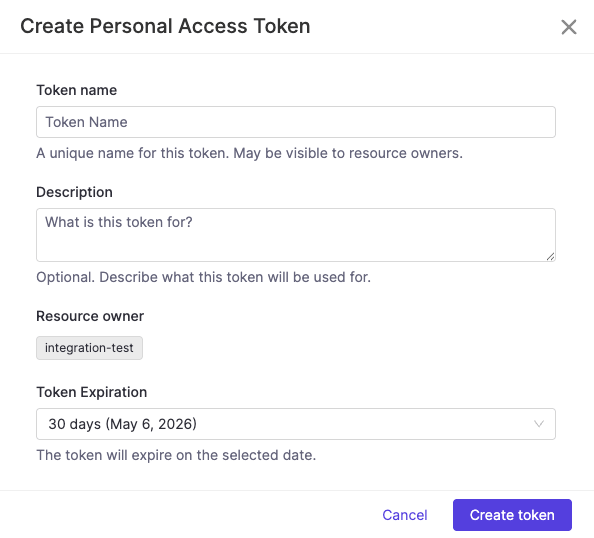
* **Token name** — A unique name for this token. May be visible to resource owners. Only alphanumeric characters, hyphens, and dots are allowed.
* **Description** — Optional. Describe what this token will be used for.
* **Token Expiration** — Select how long the token should be valid from the dropdown.
3. Fill in the token details:
* **Token name** — A unique name for this token. May be visible to resource owners. Only alphanumeric characters, hyphens, and dots are allowed.
* **Description** — Optional. Describe what this token will be used for.
* **Token Expiration** — Select how long the token should be valid from the dropdown.
 4. Click **Create token**.
The token value is only shown once, immediately after creation. Copy and store it securely — you will not be able to retrieve it again.
#### Using the API
Token names must be unique, use only alphanumeric characters, hyphens, and dots, and are automatically lowercased. The `expiresIn` field is expressed in seconds.
```shell theme={null}
curl -X POST \
-H "Authorization: Bearer $DOMINO_ACCESS_TOKEN" \
-H "Content-Type: application/json" \
-d '{"name": "my-domino-token", "description": "My personal Domino API token", "expiresIn": 86400}' \
$DOMINO_API_HOST/api/pat/v1/tokens
```
### Use a Personal Access Token
Once created, use the PAT as a bearer token in the `Authorization` header of any Domino API request:
```shell theme={null}
curl -H "Authorization: Bearer $PAT" \
$DOMINO_API_HOST/v4/users/self
```
### Manage your Personal Access Tokens
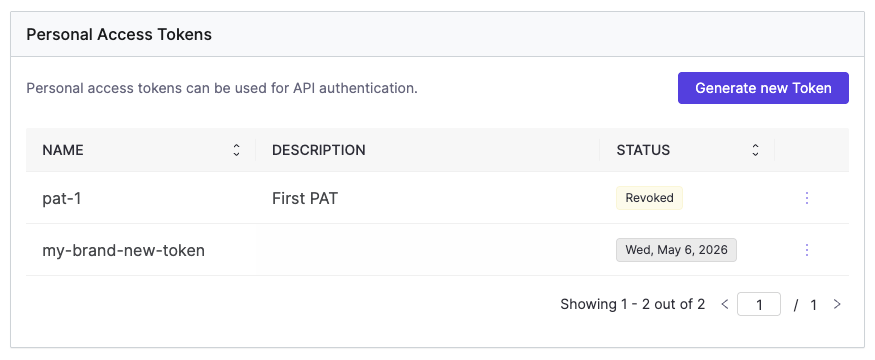
The PAT panel lists all your tokens with their name, description, last used date, and current status. The **STATUS** column shows either a status badge (**Revoked**, **Expired**) or the token’s expiration date for active tokens.
| Status | Description |
| ------------- | ---------------------------------------------------------------- |
| Active | Token is valid and not expiring within 7 days. |
| Expiring Soon | Token is valid but expires within 7 days. Rotate it proactively. |
| Expired | Token’s expiration date has passed. |
| Revoked | Token was manually invalidated. |
If your roles are modified by an administrator, your existing PATs will be automatically revoked. You will need to create new tokens to reflect the updated permissions.
To revoke or delete a token, click the three-dot menu at the end of the token row and select **Revoke** or **Delete**.
**Revoke** immediately invalidates the token. It will remain visible in your list with a **Revoked** status until you delete it.
**Delete** permanently removes the token and all its metadata.
For full API details, see the [Domino REST API reference](/cloud/reference/api/domino-open-api).
Administrators can manage and revoke PATs across all users in the platform. See [Manage Personal Access Tokens](/cloud/admin/identity-and-access/manage-users/personal-access-tokens) for details.
## Authenticate with a Domino Service Account token
Domino provides a convenient way for external software and automation pipelines to access Domino APIs via Domino Service Accounts. These accounts are managed by the Domino Administrators and have long-lasting credentials, making them easy to use in other parts of the enterprise outside of Domino.
See [Domino Service Accounts documentation](/cloud/admin/identity-and-access/manage-users/service-accounts) for more information.
Once you receive your token from an admin, you can use the token to authenticate and run Domino API calls.
The following example starts a Domino Job using the `SA_TOKEN`. As an additional security measure, you should store the SA token as a [custom environment variable for secure credential storage](/cloud/platform-capabilities/core-concepts/projects/configure-projects/store-project-credentials).
```shell theme={null}
$ curl -H "Authorization: Bearer $SA_TOKEN" \
--header 'Content-Type: application/json' \
--data '{ "projectId": "12398gg098", "runCommand": "main.py"}' \
$DOMINO_API_HOST/api/jobs/v1/jobs
```
## Choosing between a Personal Access Token and a Domino Service Account
Both PATs and Domino Service Account tokens authenticate against the Domino API, but they serve different purposes.
Use a **Personal Access Token** when you are acting as yourself — running your own scripts, triggering jobs interactively, or accessing the API from your local machine. A PAT carries your identity and your permissions. It is the right choice for work that is tied to you as a user.
Use a **[Domino Service Account](/cloud/admin/identity-and-access/manage-users/service-accounts)** when the action should not be tied to a specific person — for example, a CI/CD pipeline, a scheduled automation, or a system integration. Service Accounts have a stable identity independent of any individual user, which means they are not affected by changes to a person’s account or roles, and they can be managed and audited by administrators separately.
As a rule of thumb: if you would be the one running it manually, use a PAT. If a system or pipeline would run it on its own, use a Service Account.
## Configure a service to trust Domino’s JWT
Each system will have different steps for configuration but will likely require that you enter Domino’s JWKS endpoint which is `/auth/realms/DominoRealm/protocol/openid-connect/certs>`. For offline services, retrieve and record the JWKS data to use offline with your library. Alternatively, you can use the public key or certificate which can be found at `/auth/realms/DominoRealm`.
See [JSON Web Key Sets](https://auth0.com/docs/tokens/concepts/jwks) to learn more about JWKS.
## Token claims
By default, the Domino Token contains standard claims like name, username, and email, but you add mappers in the `domino-play` client in Keycloak to include additional custom claims. This can be useful if you intend to set up bounded claims in the system to which you are integrating. For example, you might want to only authorize users with a specific organization claim or any other SAML assertion that flows into Domino from your Identity Provider.
## Use the API Proxy for Domino API Authentication
You can use the API proxy to authenticate calls to Domino APIs using the address and port exposed by the proxy process. If you make a call to Domino and use this proxy, the proxy automatically adds the authentication information (the access JWT token) to the proxied request.
See [JWT.io](https://jwt.io/) for information about decoding and inspecting the content of a JWT token.
Authentication with the API proxy
1. The run starts immediately and the token is acquired when the first call is made through the proxy:
```shell theme={null}
$ curl "$DOMINO_API_PROXY/v4/users/self"
{"firstName":"Jack","lastName":"London","fullName":"Jack London","userName":"jack-london","email":"jack.london@oaklandpub.com","avatarUrl":"","id":"123456789"}
```
2. The API proxy runs and `$DOMINO_API_PROXY` contains the proxy address.
## Authenticate with an API key \[LEGACY]
To interact with secured endpoints of the [Model Monitoring API](/cloud/reference/api/model_monitoring/dmm-api) or [Domino Platform API](/cloud/reference/api/domino-open-api), you must send an API authentication token or key along with your request. This parameter identifies you as a specific Domino user so Domino can check for authorization.
This feature will be deprecated in future versions of Domino. Domino recommends using [Personal Access Tokens](#_authenticate_with_a_personal_access_token) or [Domino Service Accounts](/cloud/admin/identity-and-access/manage-users/service-accounts) instead, depending on your use case. See [Choosing between a Personal Access Token and a Domino Service Account](#_choosing_between_a_personal_access_token_and_a_domino_service_account) for guidance on which option is right for you.
To authenticate your requests, include your API key with the header `X-Domino-Api-Key`.
### Get your API key
1. Go to **Account** > **Account settings** > **API Key**.
2. Click **Regenerate** to produce an API key. You will only be able to view this once.
Anyone with this key can authenticate to the Domino application as the user it represents and take any actions that the user is authorized to perform. Treat it like a sensitive password.
4. Click **Create token**.
The token value is only shown once, immediately after creation. Copy and store it securely — you will not be able to retrieve it again.
#### Using the API
Token names must be unique, use only alphanumeric characters, hyphens, and dots, and are automatically lowercased. The `expiresIn` field is expressed in seconds.
```shell theme={null}
curl -X POST \
-H "Authorization: Bearer $DOMINO_ACCESS_TOKEN" \
-H "Content-Type: application/json" \
-d '{"name": "my-domino-token", "description": "My personal Domino API token", "expiresIn": 86400}' \
$DOMINO_API_HOST/api/pat/v1/tokens
```
### Use a Personal Access Token
Once created, use the PAT as a bearer token in the `Authorization` header of any Domino API request:
```shell theme={null}
curl -H "Authorization: Bearer $PAT" \
$DOMINO_API_HOST/v4/users/self
```
### Manage your Personal Access Tokens
The PAT panel lists all your tokens with their name, description, last used date, and current status. The **STATUS** column shows either a status badge (**Revoked**, **Expired**) or the token’s expiration date for active tokens.
| Status | Description |
| ------------- | ---------------------------------------------------------------- |
| Active | Token is valid and not expiring within 7 days. |
| Expiring Soon | Token is valid but expires within 7 days. Rotate it proactively. |
| Expired | Token’s expiration date has passed. |
| Revoked | Token was manually invalidated. |
If your roles are modified by an administrator, your existing PATs will be automatically revoked. You will need to create new tokens to reflect the updated permissions.
To revoke or delete a token, click the three-dot menu at the end of the token row and select **Revoke** or **Delete**.
**Revoke** immediately invalidates the token. It will remain visible in your list with a **Revoked** status until you delete it.
**Delete** permanently removes the token and all its metadata.
For full API details, see the [Domino REST API reference](/cloud/reference/api/domino-open-api).
Administrators can manage and revoke PATs across all users in the platform. See [Manage Personal Access Tokens](/cloud/admin/identity-and-access/manage-users/personal-access-tokens) for details.
## Authenticate with a Domino Service Account token
Domino provides a convenient way for external software and automation pipelines to access Domino APIs via Domino Service Accounts. These accounts are managed by the Domino Administrators and have long-lasting credentials, making them easy to use in other parts of the enterprise outside of Domino.
See [Domino Service Accounts documentation](/cloud/admin/identity-and-access/manage-users/service-accounts) for more information.
Once you receive your token from an admin, you can use the token to authenticate and run Domino API calls.
The following example starts a Domino Job using the `SA_TOKEN`. As an additional security measure, you should store the SA token as a [custom environment variable for secure credential storage](/cloud/platform-capabilities/core-concepts/projects/configure-projects/store-project-credentials).
```shell theme={null}
$ curl -H "Authorization: Bearer $SA_TOKEN" \
--header 'Content-Type: application/json' \
--data '{ "projectId": "12398gg098", "runCommand": "main.py"}' \
$DOMINO_API_HOST/api/jobs/v1/jobs
```
## Choosing between a Personal Access Token and a Domino Service Account
Both PATs and Domino Service Account tokens authenticate against the Domino API, but they serve different purposes.
Use a **Personal Access Token** when you are acting as yourself — running your own scripts, triggering jobs interactively, or accessing the API from your local machine. A PAT carries your identity and your permissions. It is the right choice for work that is tied to you as a user.
Use a **[Domino Service Account](/cloud/admin/identity-and-access/manage-users/service-accounts)** when the action should not be tied to a specific person — for example, a CI/CD pipeline, a scheduled automation, or a system integration. Service Accounts have a stable identity independent of any individual user, which means they are not affected by changes to a person’s account or roles, and they can be managed and audited by administrators separately.
As a rule of thumb: if you would be the one running it manually, use a PAT. If a system or pipeline would run it on its own, use a Service Account.
## Configure a service to trust Domino’s JWT
Each system will have different steps for configuration but will likely require that you enter Domino’s JWKS endpoint which is `/auth/realms/DominoRealm/protocol/openid-connect/certs>`. For offline services, retrieve and record the JWKS data to use offline with your library. Alternatively, you can use the public key or certificate which can be found at `/auth/realms/DominoRealm`.
See [JSON Web Key Sets](https://auth0.com/docs/tokens/concepts/jwks) to learn more about JWKS.
## Token claims
By default, the Domino Token contains standard claims like name, username, and email, but you add mappers in the `domino-play` client in Keycloak to include additional custom claims. This can be useful if you intend to set up bounded claims in the system to which you are integrating. For example, you might want to only authorize users with a specific organization claim or any other SAML assertion that flows into Domino from your Identity Provider.
## Use the API Proxy for Domino API Authentication
You can use the API proxy to authenticate calls to Domino APIs using the address and port exposed by the proxy process. If you make a call to Domino and use this proxy, the proxy automatically adds the authentication information (the access JWT token) to the proxied request.
See [JWT.io](https://jwt.io/) for information about decoding and inspecting the content of a JWT token.
Authentication with the API proxy
1. The run starts immediately and the token is acquired when the first call is made through the proxy:
```shell theme={null}
$ curl "$DOMINO_API_PROXY/v4/users/self"
{"firstName":"Jack","lastName":"London","fullName":"Jack London","userName":"jack-london","email":"jack.london@oaklandpub.com","avatarUrl":"","id":"123456789"}
```
2. The API proxy runs and `$DOMINO_API_PROXY` contains the proxy address.
## Authenticate with an API key \[LEGACY]
To interact with secured endpoints of the [Model Monitoring API](/cloud/reference/api/model_monitoring/dmm-api) or [Domino Platform API](/cloud/reference/api/domino-open-api), you must send an API authentication token or key along with your request. This parameter identifies you as a specific Domino user so Domino can check for authorization.
This feature will be deprecated in future versions of Domino. Domino recommends using [Personal Access Tokens](#_authenticate_with_a_personal_access_token) or [Domino Service Accounts](/cloud/admin/identity-and-access/manage-users/service-accounts) instead, depending on your use case. See [Choosing between a Personal Access Token and a Domino Service Account](#_choosing_between_a_personal_access_token_and_a_domino_service_account) for guidance on which option is right for you.
To authenticate your requests, include your API key with the header `X-Domino-Api-Key`.
### Get your API key
1. Go to **Account** > **Account settings** > **API Key**.
2. Click **Regenerate** to produce an API key. You will only be able to view this once.
Anyone with this key can authenticate to the Domino application as the user it represents and take any actions that the user is authorized to perform. Treat it like a sensitive password.