

- Green indicates an active and progressing project. By default, new projects are set to green. You can unblock a project or reopen a completed project to make it active again.
- Red indicates an active project that is blocked.
- Grey indicates a completed project.
View Project status
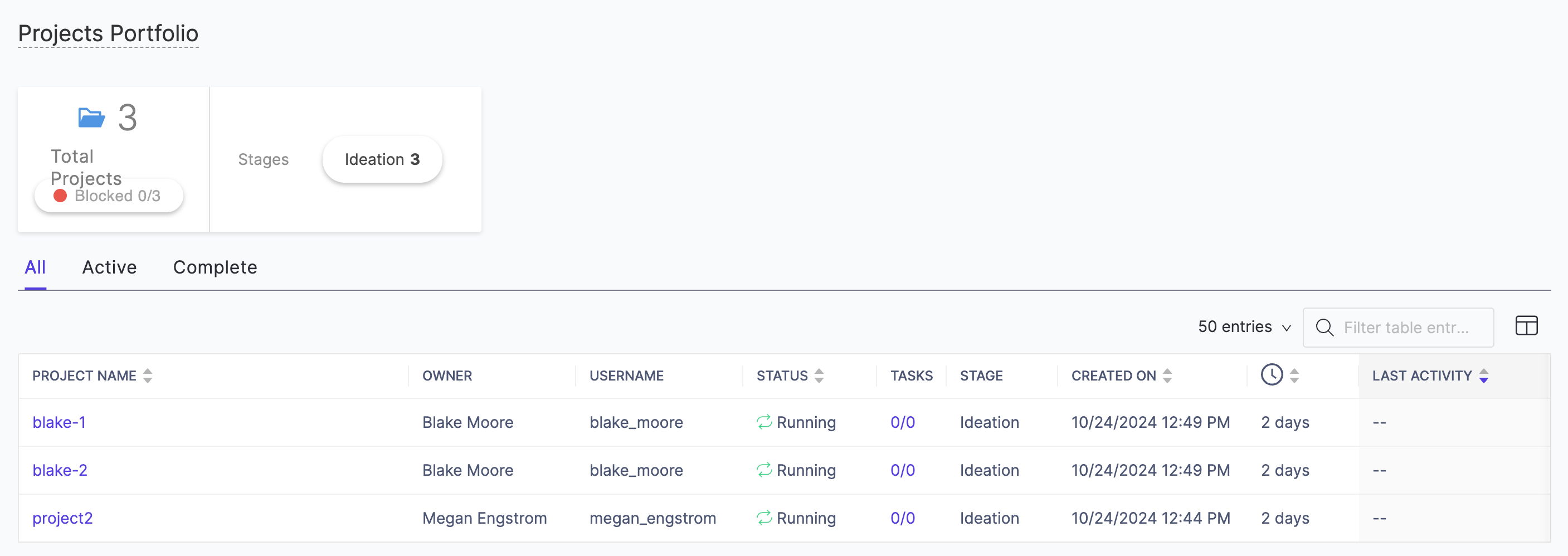
Use the Projects Portfolio to track the status of projects to which you have access, including:- Projects you own.
- Projects you have been added to as a collaborator.
- All projects across Domino (if you are a system administrator).
Open the Projects Portfolio
-
In the top navigation pane, click Govern > Projects Portfolio
Set a Project as blocked or unblocked
If you are a project owner or contributor, you can mark a project as blocked when you need assistance from colleagues or administrators to make progress. Domino administrators and project collaborators receive an email notification when you mark a project as blocked. Set a project as blocked when:- You need assistance setting up additional tools in a Domino environment.
- You need access to new data sources.
- You need hardware capabilities not covered by your current hardware tier.
-
Click the current stage box below the project name at the top of the project menu.
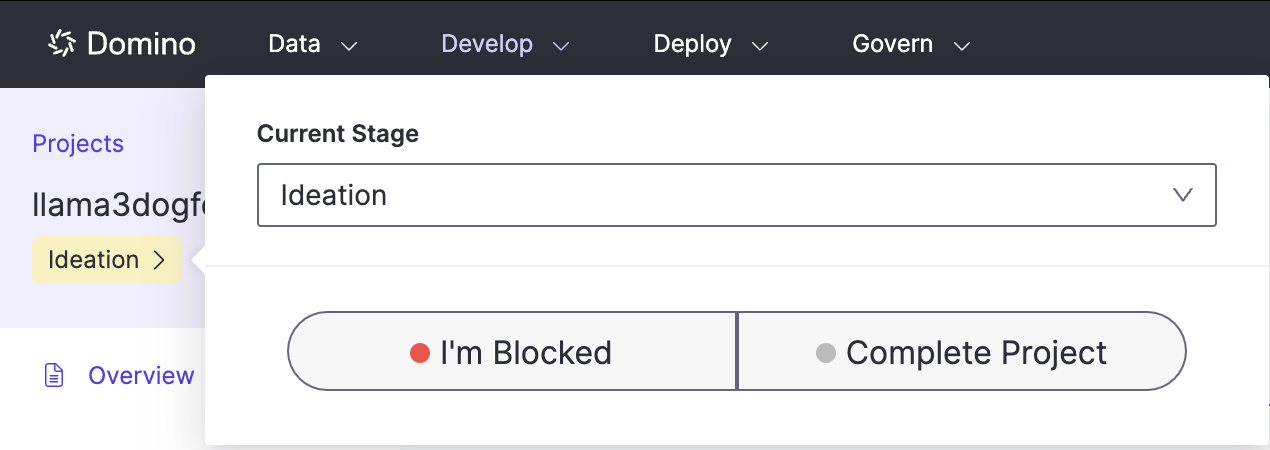
- Click I’m Blocked or Unblocked and enter a message to describe the blocker.
- Click Raise a Blocker. When you change the status of a project, this event is listed on the project’s Activity page with the comment so project collaborators can discuss blockers. A blocked Project will show a red circle.
Set a Project as complete
If you are a project owner or contributor, you can mark a project as complete.-
Click the current stage box below the project name at the top of the project menu.
- Click Complete and enter a message to describe the conclusion.