

In 6.3, this App Preview and versioning workflow requires
EnableAppsSDLC, which is enabled by default. Direct Dataset mounts require dataset.mountingEnabledInApps.Project files
generate_data.pygenerates 300 transactions with synthetic routes and writes them to a Dataset.model.pytrains the model, logs the run with MLflow, saves the model, and defines the endpoint function.app.pycreates the transaction review interface, calls the endpoint, and records session decisions.app.shstarts the App for preview and deployment.
How the solution fits together
Configure the Compute Environment
Your Domino deployment must allow Datasets to mount in Apps. A Compute Environment gives every compute stage the same software stack. The separate Hardware Tier controls its compute resources. Create the tutorial Compute Environment:- Open Govern > Environments and select Create Environment.
- Name the Environment Synthetic Transaction Review and use the Domino Standard Environment as its base.
- Select Customize before Building.
- Add these Dockerfile instructions:
View the Compute Environment Dockerfile instructions
View the Compute Environment Dockerfile instructions
- Create the Environment and wait for its first revision to change to Succeeded.
- Use this revision and a small CPU Hardware Tier for the Workspace, endpoint, and App.
Build the transaction review App
Generate data in a Domino Dataset
In the Git-based Project, create a writable Dataset named
Commit and push the file, then run:The script writes 300 fixed-seed records to 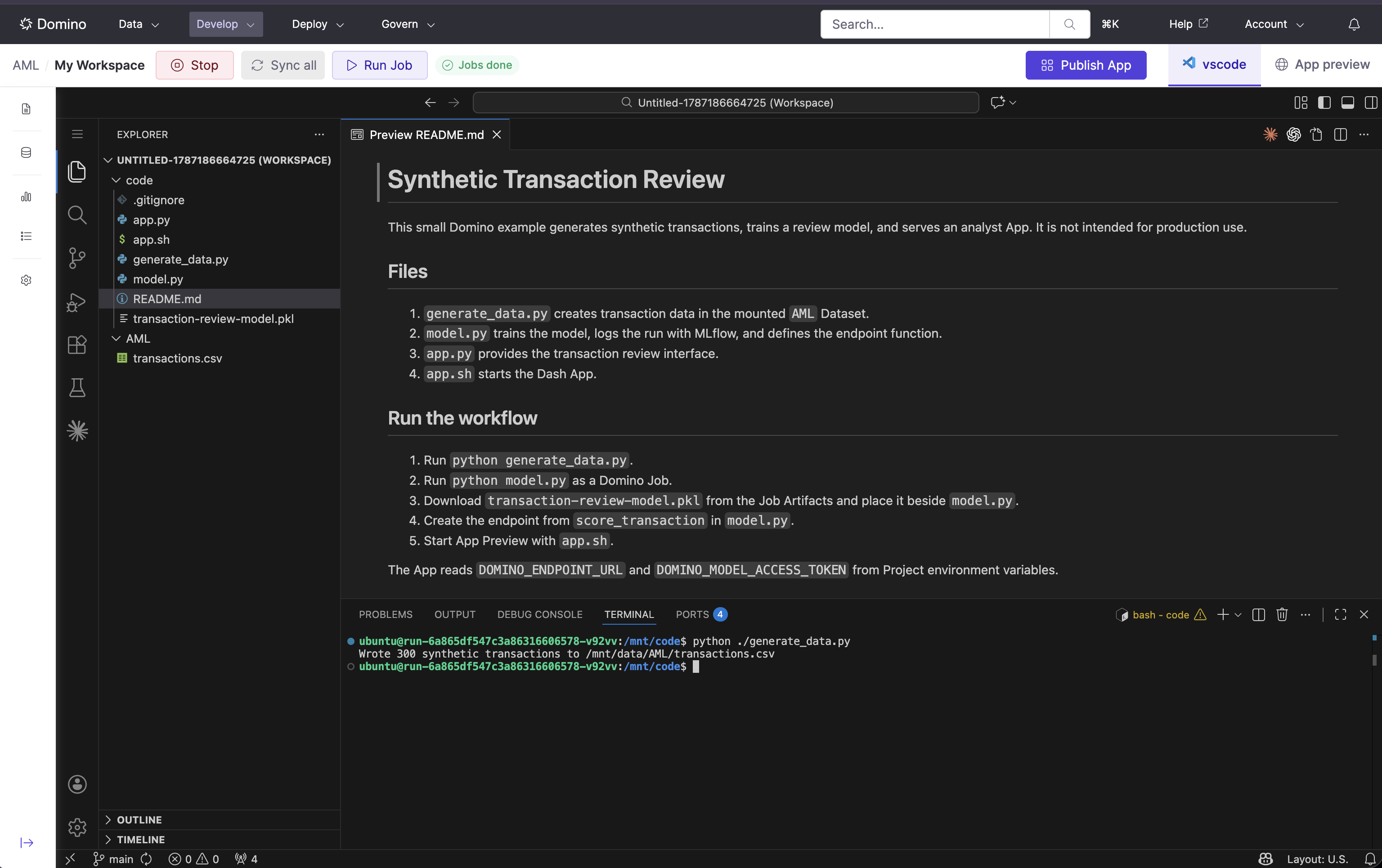
AML. Start a Workspace from your Git branch with the tutorial Environment revision and CPU Hardware Tier.The Dataset outlives the Workspace, so Jobs and Apps can use the same records.Add generate_data.py to the repository.View generate_data.py, generate the synthetic Dataset
View generate_data.py, generate the synthetic Dataset
generate_data.py
/mnt/data/AML/transactions.csv. Open the Dataset and confirm that the file exists.Train and deploy the model
Add
The Job makes training repeatable outside the Workspace. Domino retains its logs and Artifacts, and MLflow records the run.Start a Job with the tutorial Environment revision and CPU Hardware Tier. Use this command:The Job trains one logistic regression model and writes The response’s
model.py to the repository, then commit and push it.View model.py, train and serve the model
View model.py, train and serve the model
model.py
transaction-review-model.pkl to its Artifacts.Download transaction-review-model.pkl from the Job’s Artifacts, place it beside model.py, then commit and push it. In Deployments > Endpoints, create a synchronous endpoint. The latest default-branch commit packages the trained artifact with its scoring code.- File:
model.py - Function:
score_transaction - Environment: the revision used by the Workspace
- Hardware Tier: a small CPU tier
- Instances: 1
- Access: require an access token
result object contains transaction_id, risk_score, review_priority, and review_indicators. The endpoint lets the App request scores without loading or training the model.Preview the App in the Workspace
Add
Commit and push both files. App Preview runs that commit with the selected Environment, Hardware Tier, and Dataset mount before you publish a version.Create these Project environment variables. Keep their values out of Git and screenshots.Open App Preview in the Workspace and use 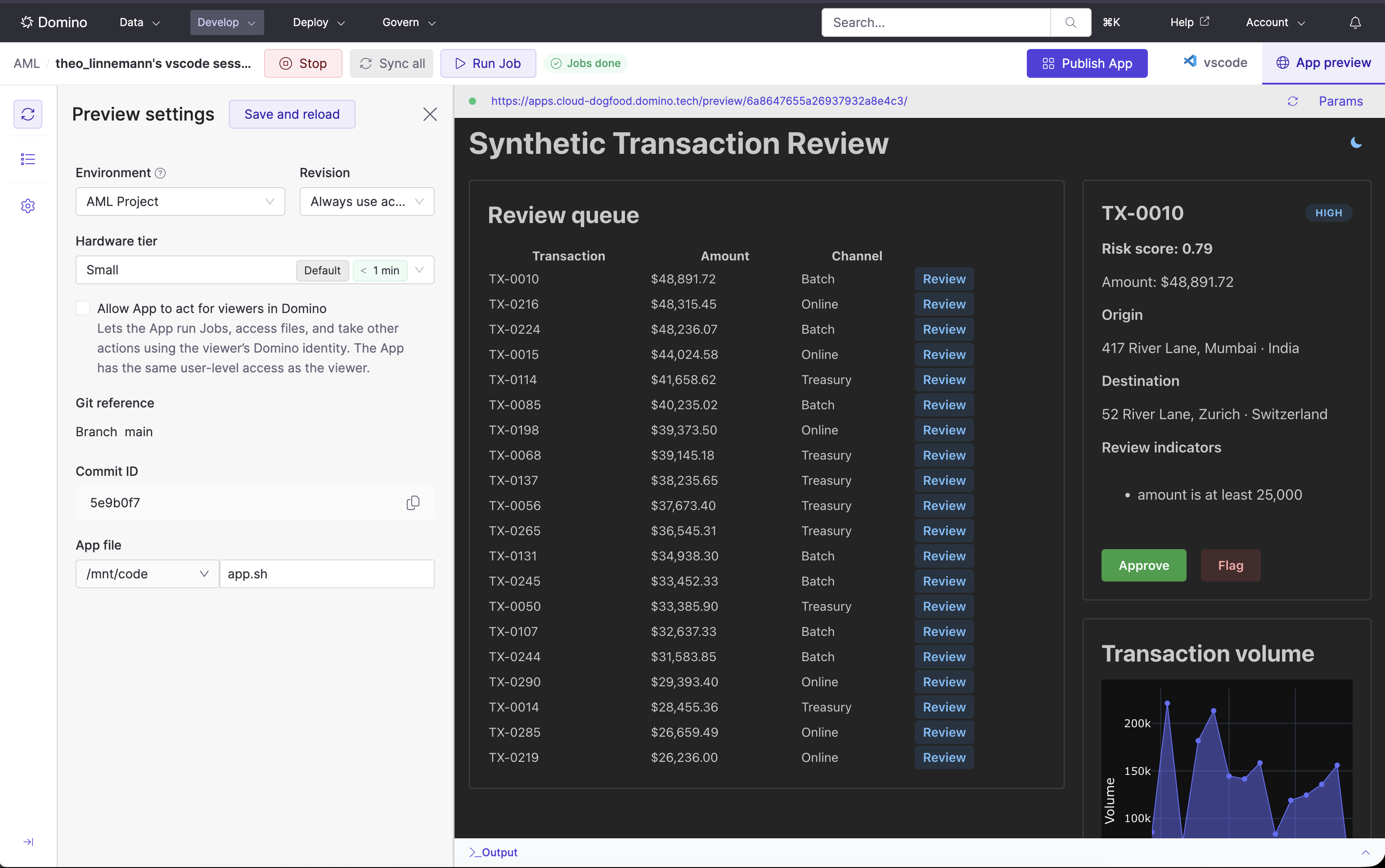
app.py and app.sh to the repository.View app.py, preview the Dash App
View app.py, preview the Dash App
app.py
View app.sh, launch the App
View app.sh, launch the App
app.sh
app.sh as the entry point. Select the tutorial Environment revision and CPU Hardware Tier, and keep the AML Dataset mounted.Select Review beside a transaction to call the endpoint. Select Approve or Flag to record a decision for the browser session.Deploy the App
Publish the Draft App as Synthetic Transaction Review and confirm that it includes the 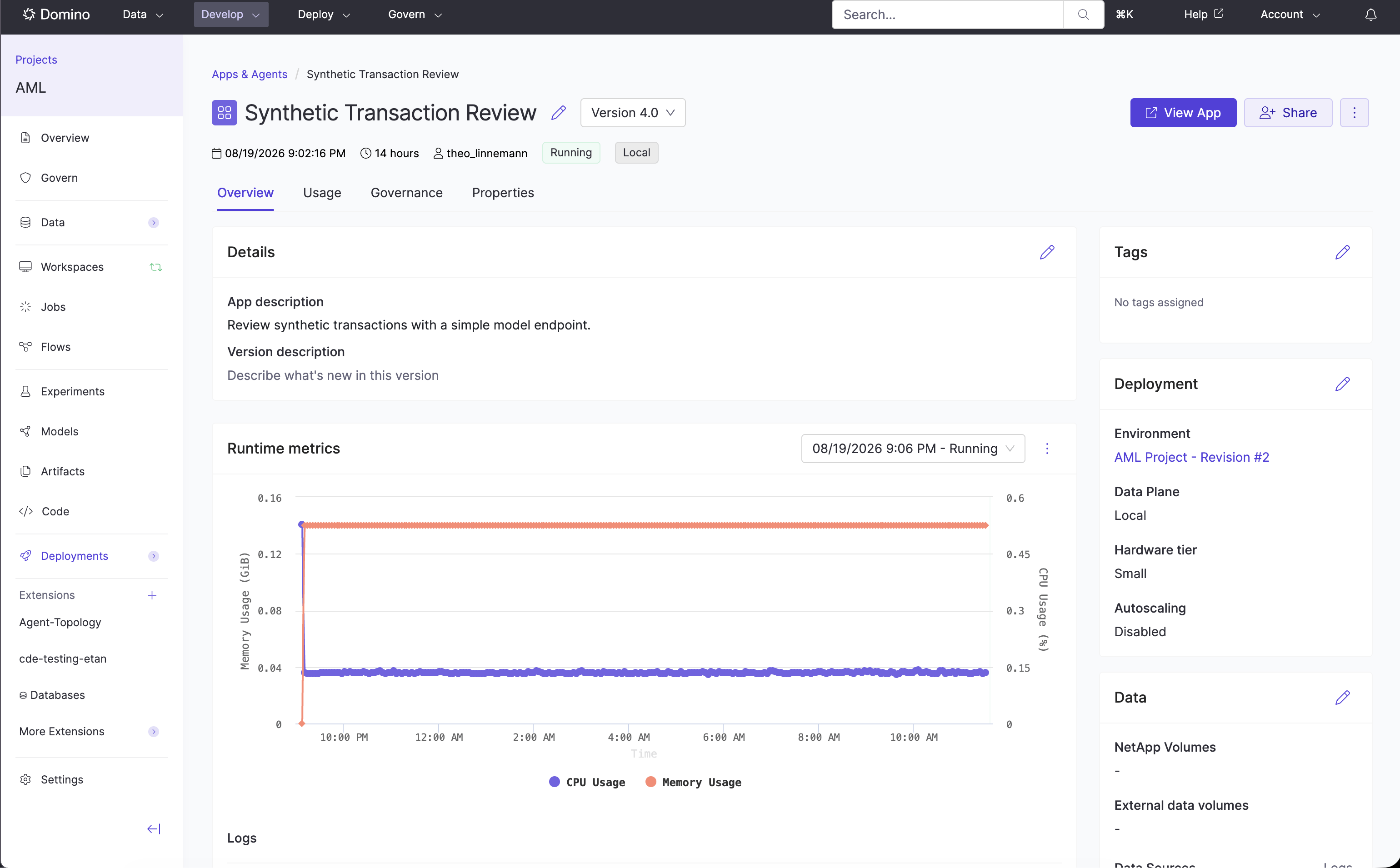
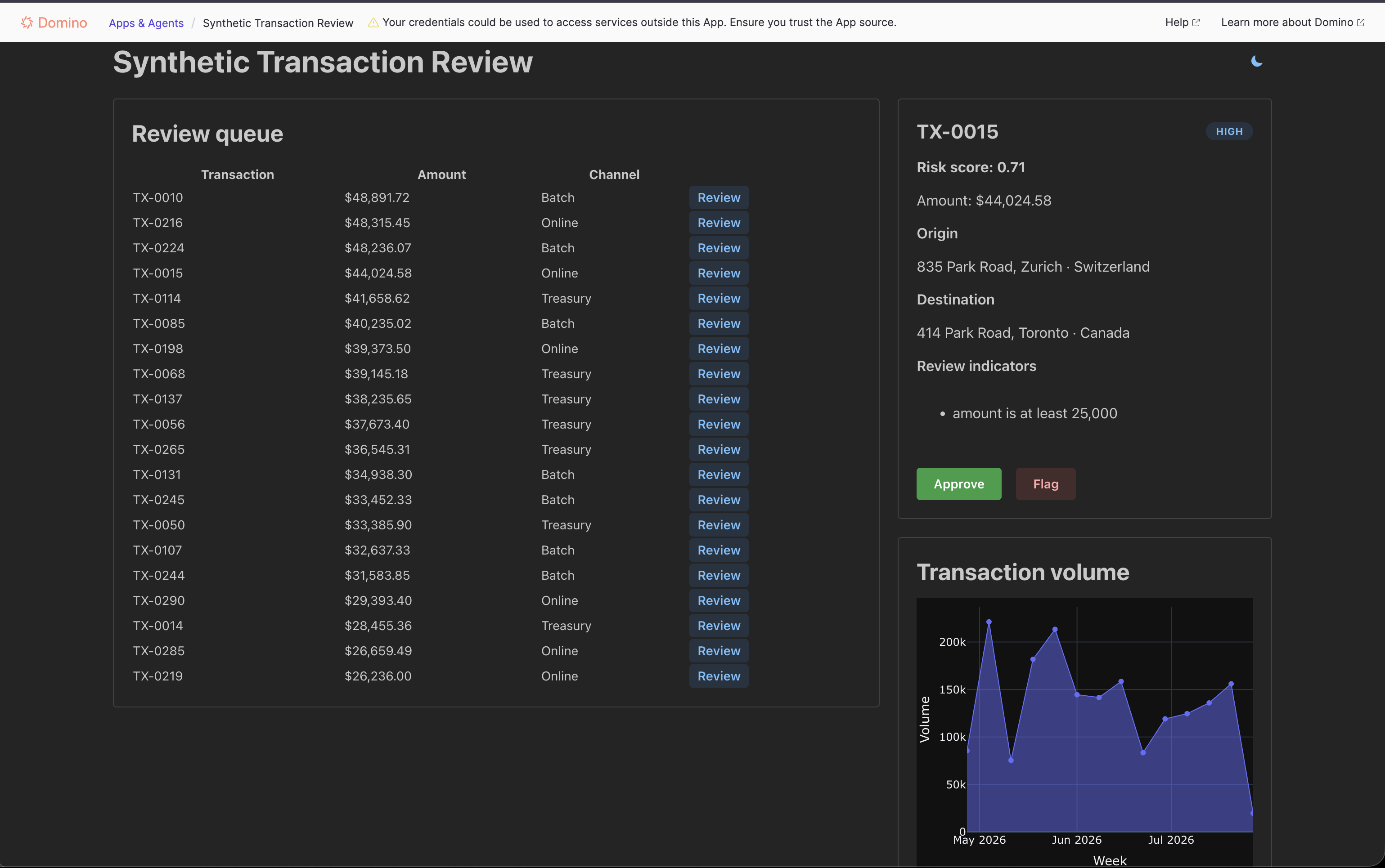
AML Dataset mount. The immutable version pins the Git commit, entry point, Compute Environment revision, and Dataset configuration. Publishing does not deploy it.Select the version, configure its Hardware Tier and audience, then deploy it.