

Use the Keycloak UI
-
Open the admin UI at
https://<deployment-url>/auth/adminand log in to Keycloak. -
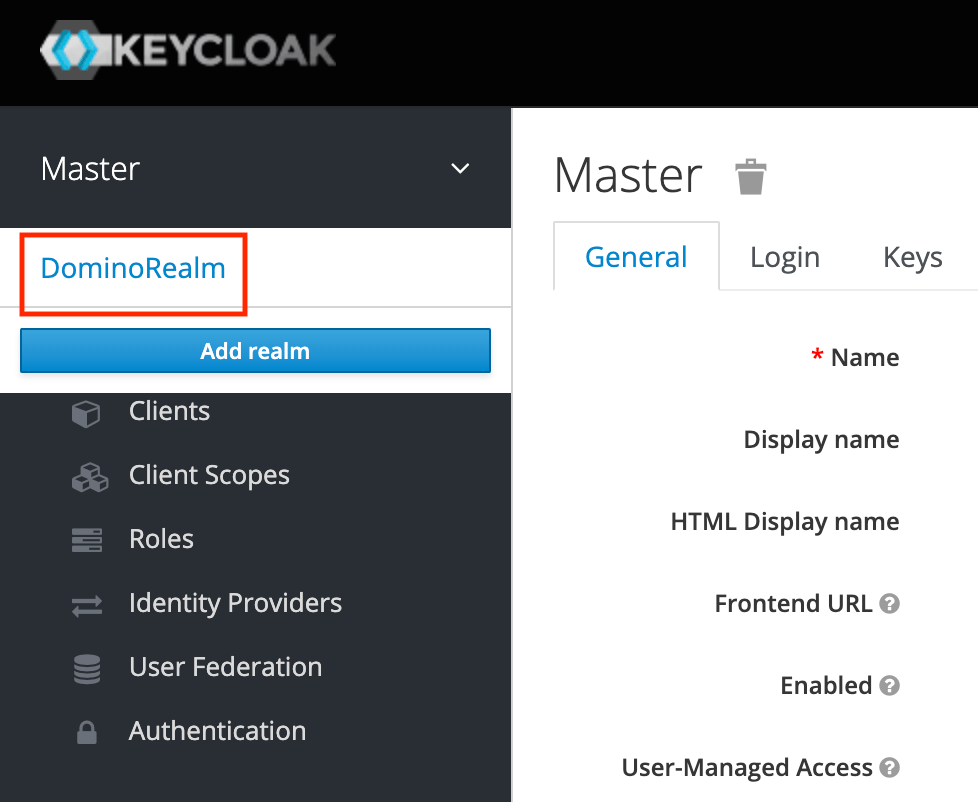
Navigate to the DominoRealm realm from the dropdown:
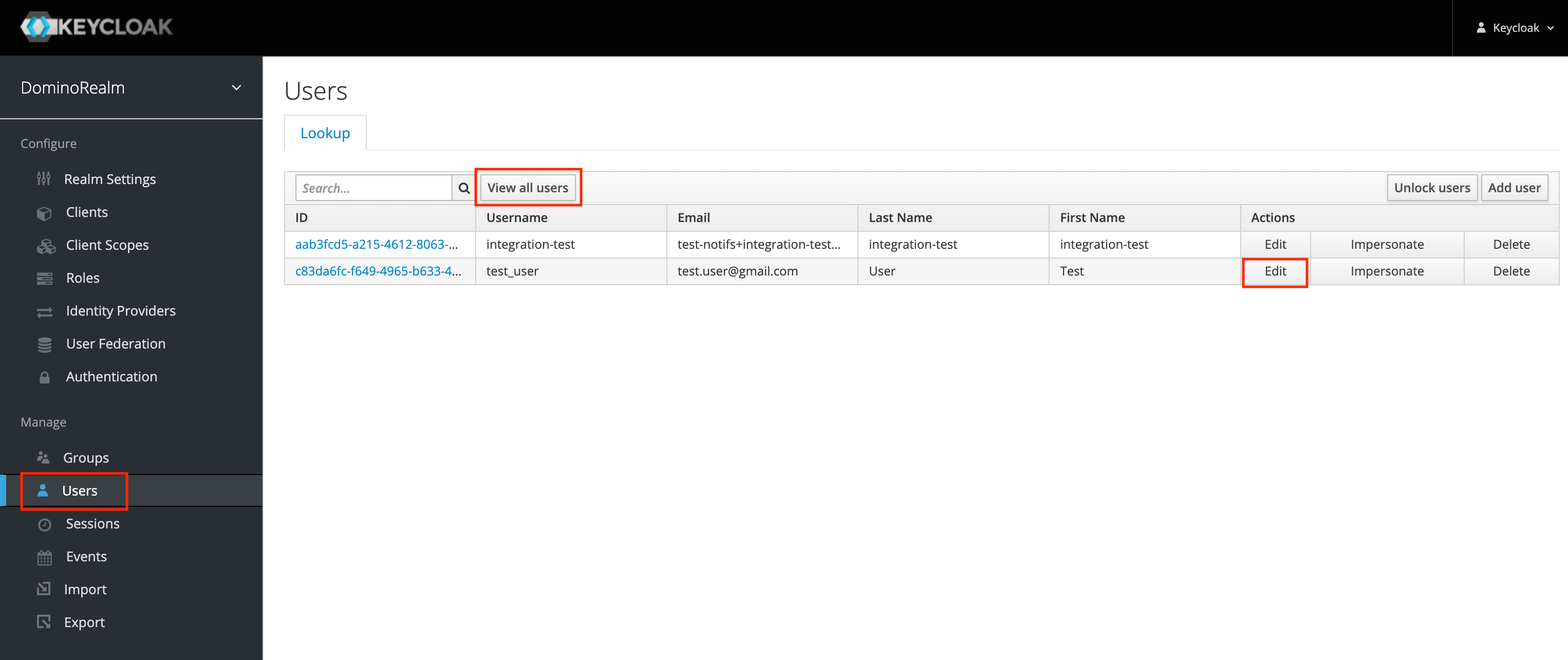
- Navigate to the Users tab.
-
Find the desired user (you may need to click View all users) and click edit.
-
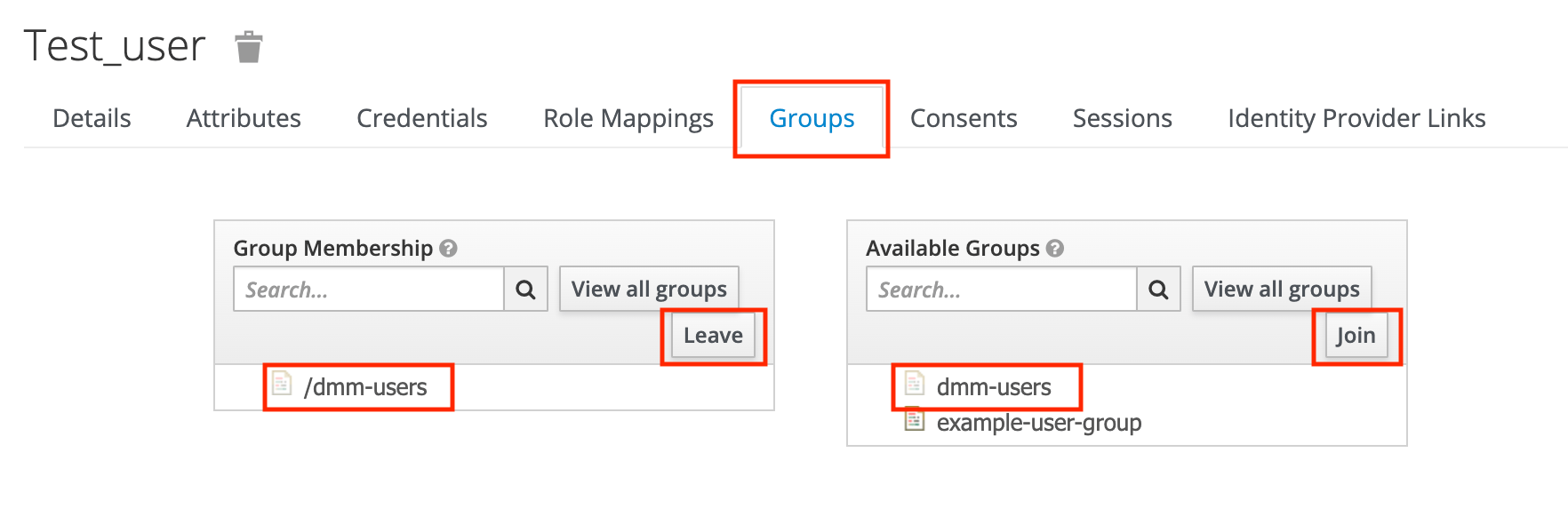
Navigate to the Groups tab.
To grant access:
- Click Available Groups > dmm-users.
- Click Join.
- Click Group Membership > dmm-users.
- Click Leave.
- Repeat for all desired users.
Using the script
If there is a high volume of users, adjust the Keycloak AccessToken settings in the UI so the script runs uninterrupted: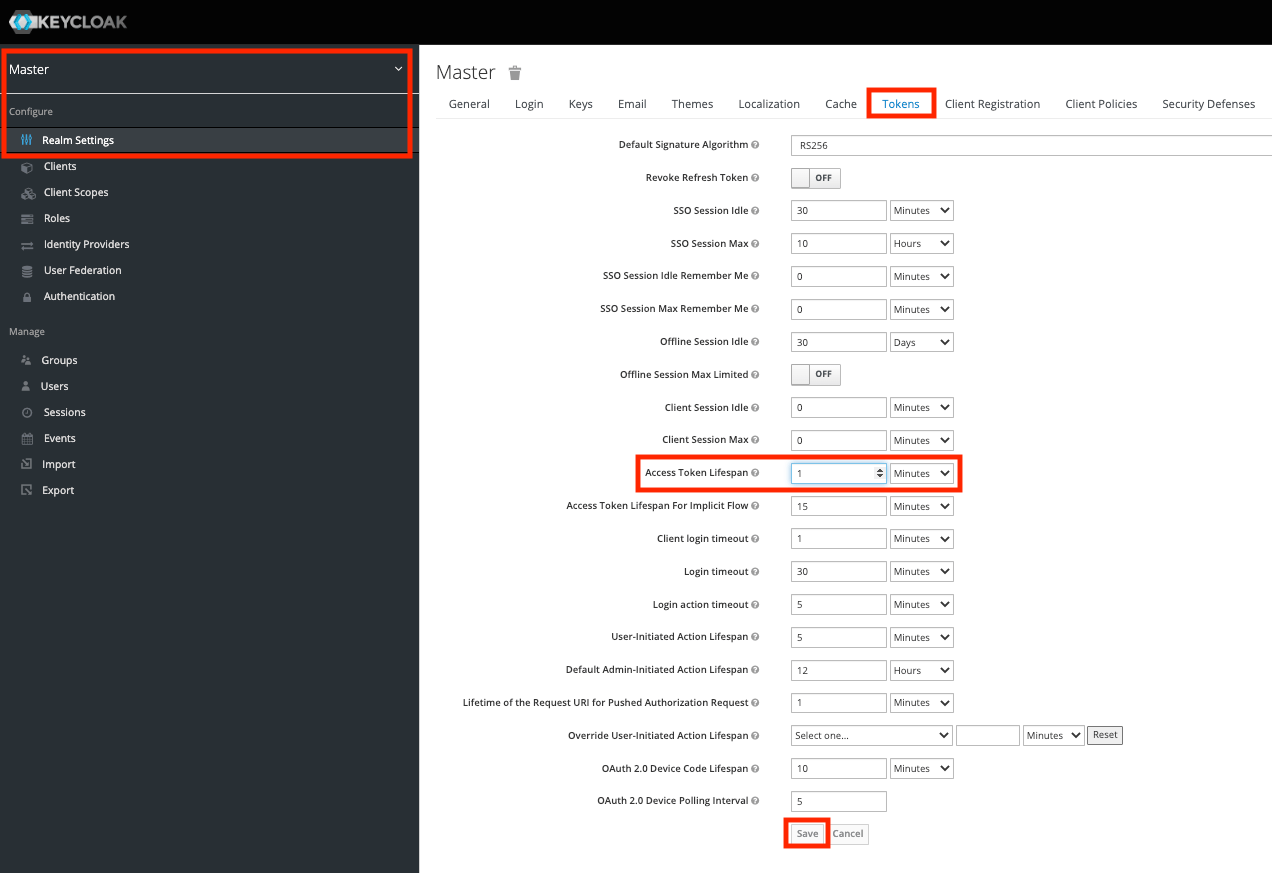
- Log in to Keycloak.
- Navigate to Realm Settings in the Master realm.
- Click the Tokens Tab.
- Increase the Access Token Lifespan to something sufficiently large.
- Save the changes, then follow the steps below to run the script.
-
To use the Domino Model Monitor Access Control Script, you must set environment variables based on your deployment:
-
Domino host URL (
DOMINO_HOST) -
Keycloak admin username (
KEYCLOAK_ADMIN_USERNAME) -
Keycloak admin password (
KEYCLOAK_ADMIN_PASSWORD) -
The Keycloak realm (
KEYCLOAK_REALM) environment variable defaults toDominoRealmand can be overridden if needed.
To set these environment variables, replace the placeholders and run the following commands in the terminal:Make sure that the trailing ”/” is not included in theDOMINO_HOSTvariable. -
Domino host URL (
-
Run the script with a list of usernames and the command to execute.
The example below shows how to format the list of usernames:
Ensure that the usernames are correctly spelled out. If a username is misspelled or doesn’t exist, the script silently skips that user and continues with the remaining users. The command can either be
GRANTorREMOVEto grant or remove Model Monitor access for the specified usernames. For example, to grant Model Monitor access to two users (usernamesfooandbar), run the following command: