

Overview
Project settings control how executions run and who can see the Project. Set them once and every Workspace and Job starts with the right defaults. To open them, click Settings in the Project’s navigation pane.How it works
- Hardware & Environment settings set the defaults for every execution started in the Project.
- Access & Sharing settings control visibility and collaborators.
- Contributors can change the default Environment and Hardware Tier and set environment variables; only the Project owner can change visibility or the Project name. See the full permission tables.
Set the default Hardware Tier
On the Hardware & Environment tab, select the Hardware Tier for the Project’s executors: the virtual instances or on-premises machines that run your code. Your administrator configures which tiers are available. Pick a tier that balances performance against cloud cost or on-premises tenancy. The tier is the default for every run in the Project; a run that needs different hardware can override it.Workspace and Jobs volume size
Volumes are the storage space dedicated to a Workspace or Job. The default size is 10 GiB, configurable by an administrator. If your administrator has enabled recommendations, Domino suggests a volume size when you launch a Workspace, based on your Project size and previous usage. Increase the volume size if your Workspace or Job needs more storage.In a Git-based Project, the first Workspace you launch always uses the volume size from your Project settings. Later launches get volume recommendations.
Set the default environment
Compute Environments are the container specifications your Project runs in. Whenever an executor launches for the Project, Domino loads the Environment set on the Hardware & Environment tab. You can create Environments or use public ones shared in your deployment. To go further, customize the Domino software Environment.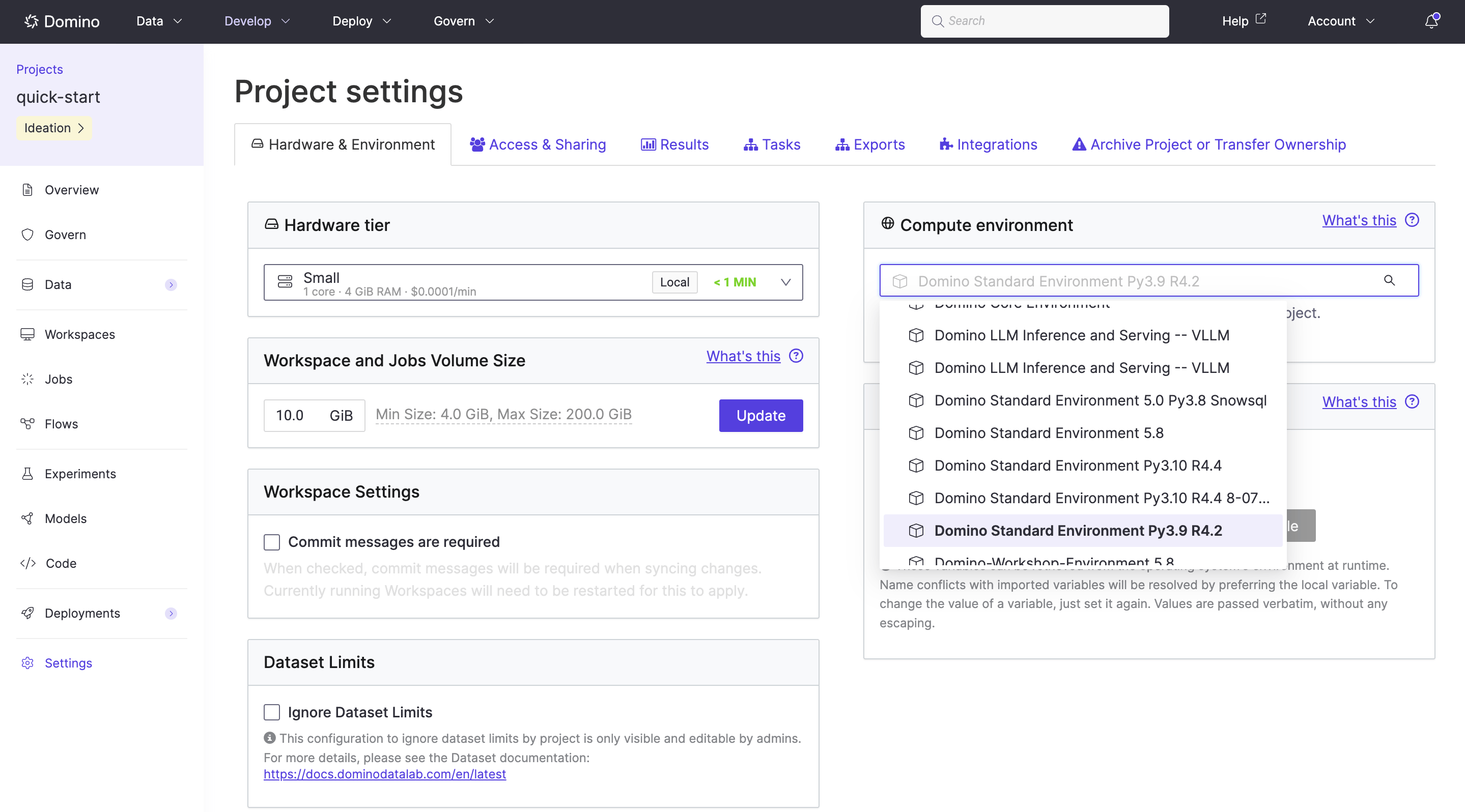
If you use a custom Environment, reapply the same customizations after switching to another Environment.
Set Project visibility
On the Access & Sharing tab, choose who can view the Project:- Searchable: Anyone can see the Project’s name and description in search results, but only collaborators can see its contents.
- Private: Only collaborators can find or view the Project.
Public visibility is not available in Domino Cloud deployments.
Store credentials as environment variables
Don’t put passwords or secret keys in your source code: anyone who can read the code can take them, and they end up in version control. Instead, store them as Project environment variables, which Domino injects when your code runs. This keeps credentials out of Git and Domino version history and lets you share source files without sharing secrets. You must be a contributor or the Project owner to add, modify, or delete environment variables. On the Settings page, add key/value pairs in the Environment variables section. Values are passed verbatim (no escaping needed) and are limited to 64K.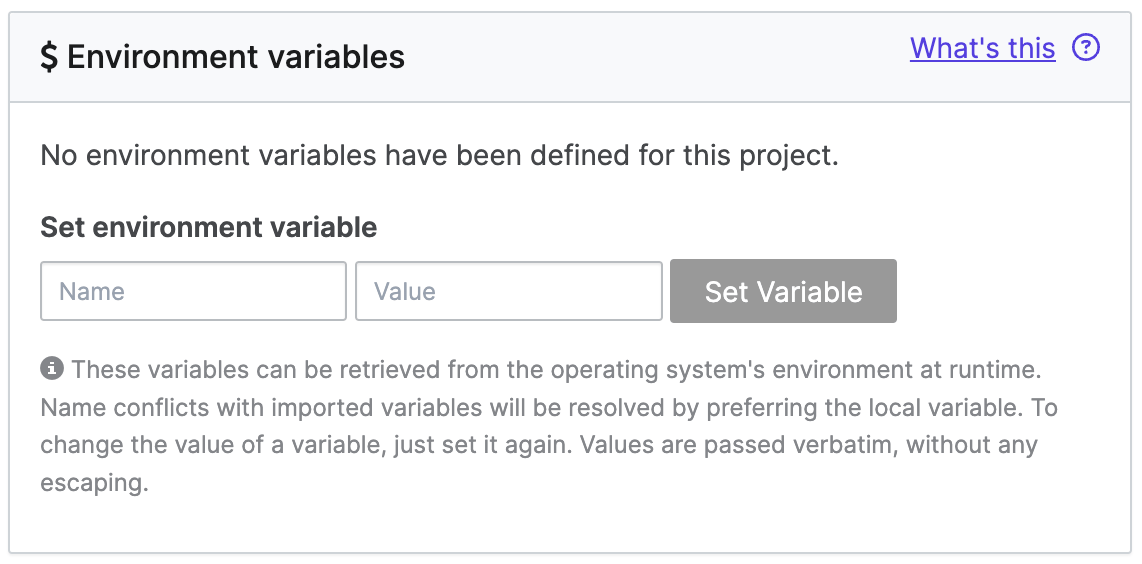
All collaborators in a Project can see the environment variable values, so this protects credentials from readers of your code, not from your collaborators.
Tag a Project
Tags help colleagues find Projects. Assign and remove them from the Project’s overview page, drawing on the Namespaces that your admins and librarians define centrally, so the same classification means the same thing in every Project. For the full picture, including how the tag structure is built and how to filter by tag, see Tags. Project tags are separate from model registry tags and Domino Model Monitoring tags.Get notified about long-running executions
To catch Jobs and Workspaces you forgot to shut down, set email notifications in your account settings (these apply across Projects): click your username, go to Notifications, select Notify me about long-running Jobs and Workspace sessions, and pick a time threshold. The emails list your running sessions, how long they’ve run, when they’ll shut down automatically (if applicable), and links to shut them down.Enforce commit messages
Admins and Project owners can make commit messages mandatory in Workspaces to enforce internal documentation practices.Related
- Collaborate on Projects: grant access and set collaborator roles.
- Manage Projects: rename, transfer, or archive a Project.
- Compute Environments: build and manage the Environments your Projects use.