

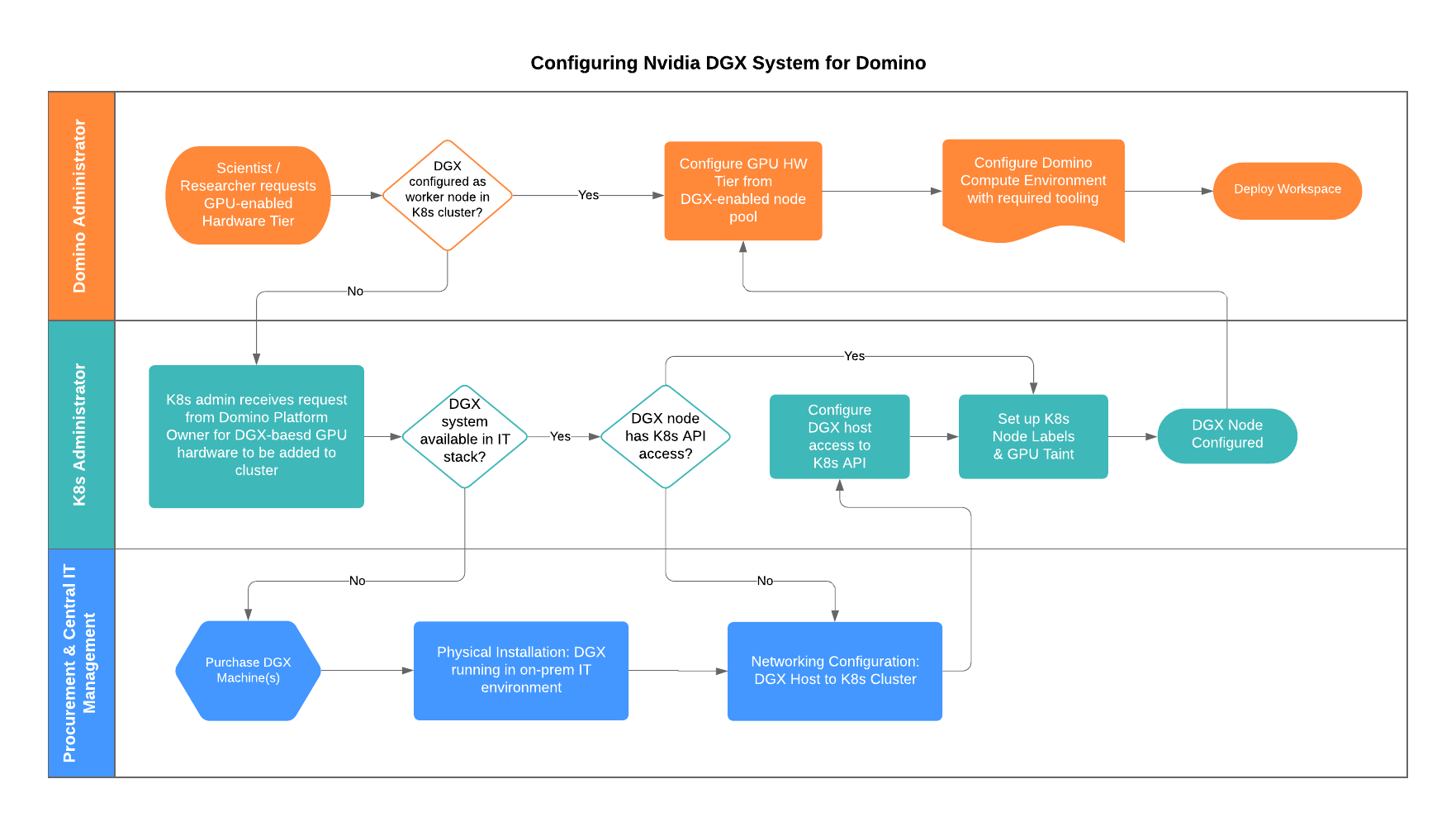
Install NVIDIA DGX in Domino
You can purchase NVIDIA DGX systems through NVIDIA’s Partner Network. Install the DGX system in a hosting environment with network access to additional host and storage infrastructure required to host Domino.Configure DGX System for Domino
Option A: New Kubernetes cluster & Domino installation If this is a new (greenfield) deployment of Domino: Install and configure a Kubernetes cluster that meets Domino’s cluster requirements, including valid configuration of your Kubernetes’ network policies to support secure communication between pods that will host Domino’s platform services and compute grid. Option B: Existing Kubernetes cluster and/or Domino installation-
Add the DGX to your K8s API server as a worker node, with a node label consistent with your chosen naming conventions. The default node label for GPU-based worker nodes is
default-gpu. - You must add proper taints to your DGX node. This facilitates the selection of the DGX for GPU-based workloads running on Domino.
Configure CUDA / NVIDIA drivers
NVIDIA DriverYour server administrator must configure the NVIDIA driver at the host level. Use the configuration guide to identify the correct NVIDIA driver for your host. See the DGX Systems Documentation for more information. CUDA Version
The CUDA software version required for a given development framework, such as Tensorflow, is documented on their website. For example, Tensorflow >=2.1 requires CUDA 10.1 and some additional software packages, for example, CuDNN. CUDA and NVIDIA Driver Compatibility
After you identify the correct CUDA version, consult the CUDA-NVIDIA Driver Compatibility Table. In the Tensorflow 2.1 example, the CUDA 10.1 requirement means you must be running CUDA >=10.1 and NVIDIA driver >=410.48 on the host. Table 1 in the previous link will guide your choice of matching CUDA and NVIDIA driver versions. Subsequently, the Domino Compute Environment must be configured to leverage the exact CUDA version that corresponds to the application. Simplifying this constraint, CUDA drivers provide backwards compatibility: the CUDA version on the host can be greater or equal to that which is specified in your Compute Environment. Because the CUDA software installation process often returns unexpected results when attempting to install an exact CUDA version, including patch version, the fastest route to a functioning configuration is typically to install the latest available minor release from your required major version of CUDA, and subsequently creating a Docker environment variable (ENV) from within your Compute Environment that constrains compatible sets of CUDA, GPU generations, and NVIDIA drivers. Need Additional Assistance?
Consult your Domino customer success engineer for guidance on your specific needs. Domino can sample configurations that will simplify your configuration process.
NVIDIA DGX best practices
-
Build Node
Domino recommends you do not use a DGX GPU as a build node for environments. Instead, opt for a CPU resource as part of your overall Domino architecture. -
Splitting GPUs per Tier
Domino recommends providing several GPU tiers with different numbers of GPUs in each tier. For example, 1, 2, 4, and 8 GPU hardware tiers as different training jobs can take use of single or parallel GPU usage and consuming a whole DGX box for one workload might not be feasible in your environment. -
Governance
After splitting up hardware tiers, access can be global or, alternatively, limited to specific organizations. Domino recommends that you ensure that the right organizations have GPU Hardware Tier access, or are restricted, to ensure availability for critical work, and/or to prevent the unauthorized use of GPU tiers.