

Share the App
Domino checks access at its proxy, so your App code doesn’t need its own sign-in. Three permissions are separate:- Viewing decides who can open the App. The sharing mode sets it.
- Discovering decides who sees the App in App lists and can request access.
- Editing comes from the Project, not the App. Project collaborators can edit every App in the Project, so to add an editor, add a collaborator.
Choose who can view the App
Set access with Share in the App list, or in the Access and sharing settings when you publish.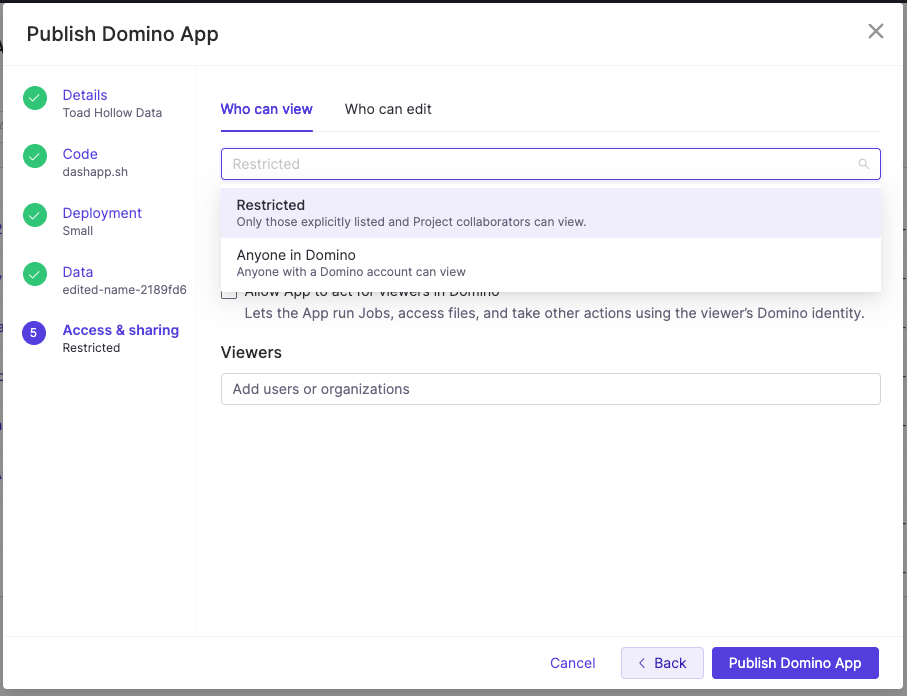
The transaction review App shows transaction details, so keep it Restricted and add the compliance team’s organization. Domino notifies each user by email and in Domino with a link to the App.
Let others find the App
In Restricted mode, turn on Globally discoverable to let every Domino user find the App and request access. Discovery lets people who need the App ask for it without you widening access for everyone. You get an email and an in-app notification for each request, and you accept or deny it in the Share App dialog. Review permissions from time to time. Remove viewers who no longer need access, and move an App from Anyone in Domino to Restricted if its data becomes sensitive.Start, stop, and roll back
Start or stop the selected version from the App’s details page. Neither creates a version. A running App uses its Hardware Tier until you stop it, so stop Apps nobody uses. Stopping removes the pod, and files the App wrote to local disk are lost. See Persist what the App writes.Roll back to a previous version
Every version pins its code, environment, and data configuration, so you back out a bad release by starting an older version instead of reverting code and republishing. On the App’s details page, start the version that last worked. Domino stops the running instance and starts the selected version exactly as it was published. Then open the App and check the behavior that broke. Dataset contents and external systems aren’t versioned, so the rolled-back version reads their current state. To fix the problem, reopen the App in a Workspace, test the fix in App Preview, and publish a new version.Track usage
Open the App’s details page and select Usage.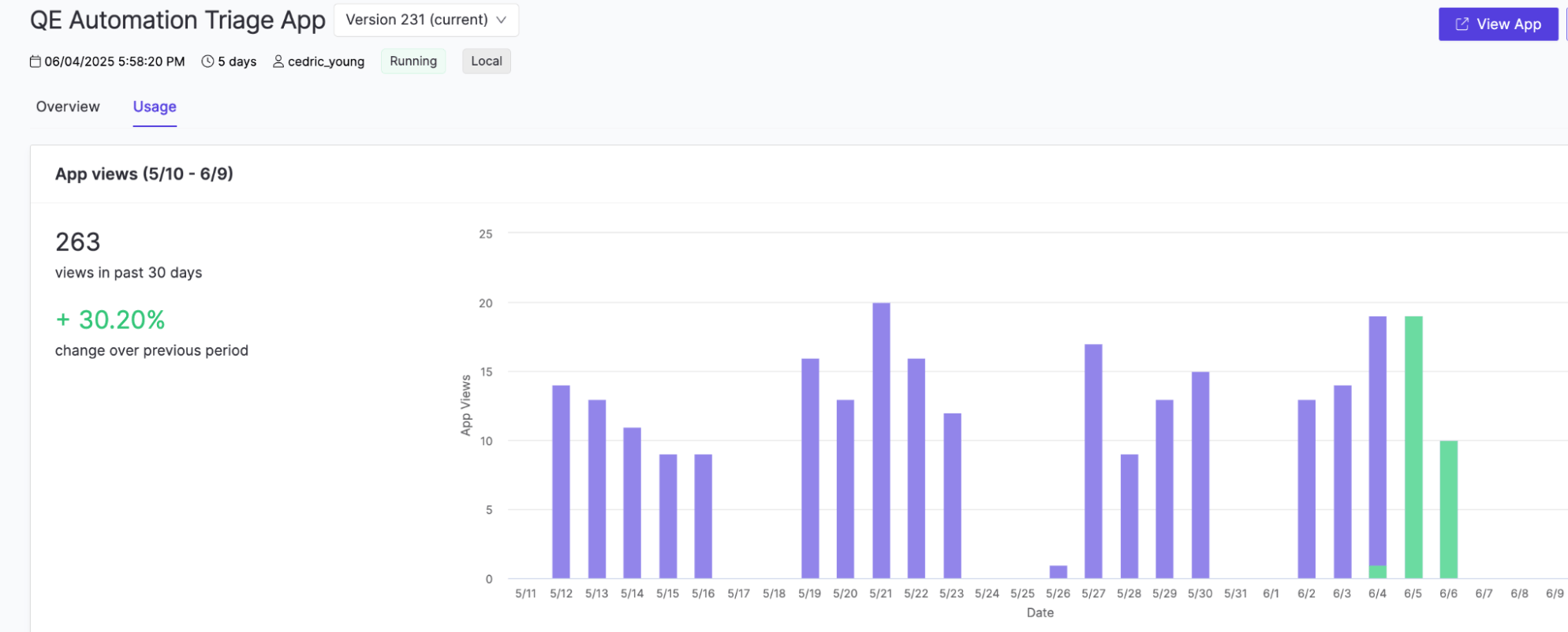
Monitor resource consumption
The Runtime metrics card on the Monitoring tab charts CPU and memory for the selected instance over the last 15 days. Use the instance selector to view another start of the same version.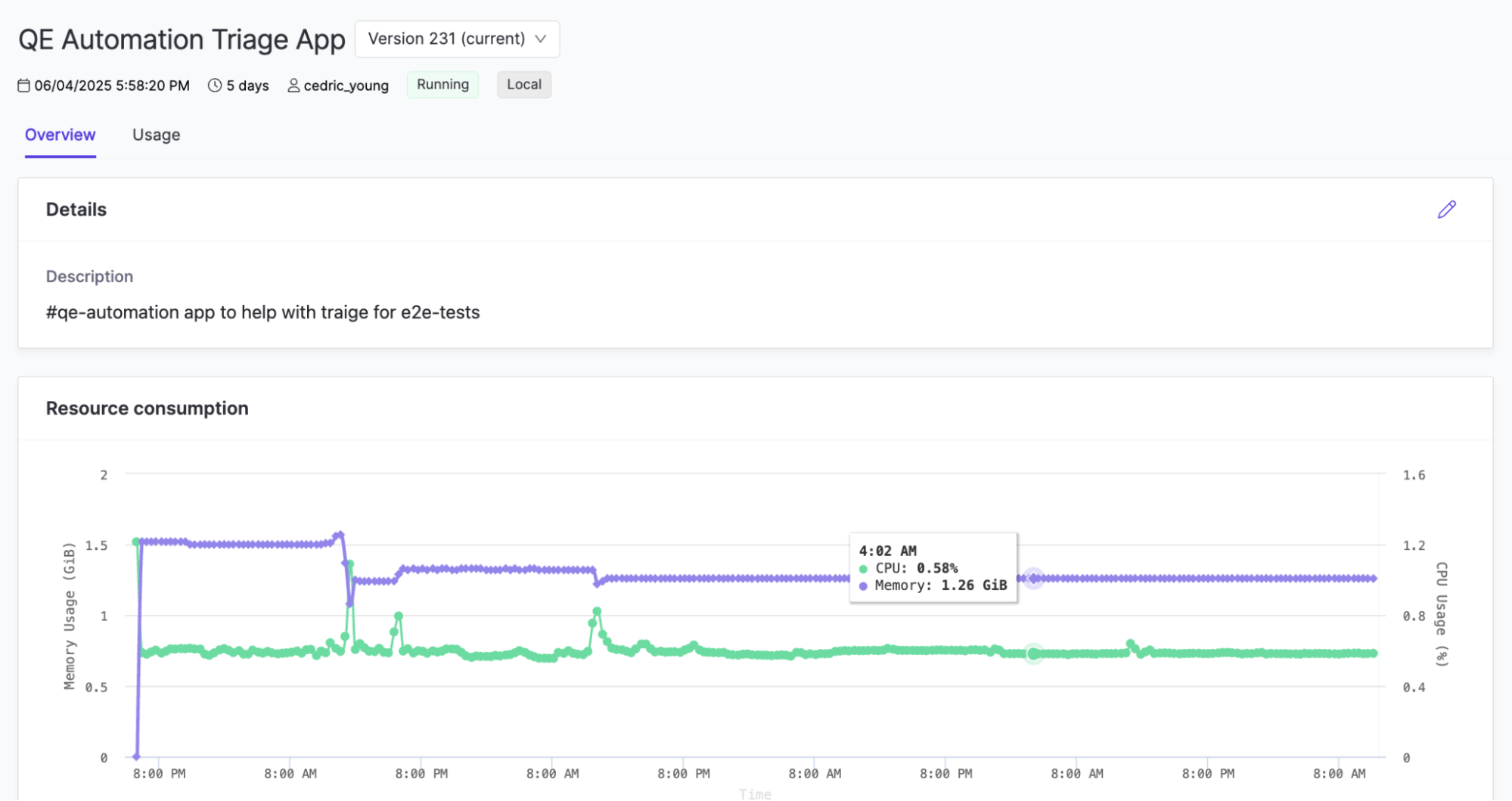
- If usage stays above 80%, move to a larger tier or turn on autoscaling.
- Spikes usually line up with data loads or heavy visualizations. In the transaction review App, a spike on every Review points at the endpoint call. Cache scores or batch the calls.
- A gradual increase can mean a memory leak.
Read logs
Domino keeps logs for every instance, during and after it runs. Read them on the App details page or download them. Look at the App’s standard output and error stream first. It holds the stack traces, print statements, and framework messages your code produces. Domino also keeps platform-side logs for each instance, such as routing and scheduling messages, and packages them in a support bundle. Logs are organized by version. A version can start many times, so use the instance selector to pick one run. A new version starts its logs fresh. With autoscaling, Domino interleaves logs from every pod into one log.Audit activity
The Audit Trail records version start and stop events and access changes. Access and visibility events carry the matching resource type, such asApp Access Granted, App Visibility Changed, and App Discoverability Changed. The Audit Trail glossary lists every event.
Troubleshoot
Most App problems show up as a failed start, a blank or broken page, or resources that don’t load. Start from the symptom, then use the logs or a support bundle to confirm the cause.
Check the logs after every Compute Environment or dependency change.
Download a support bundle
The support bundle is an archive of everything Domino recorded about one instance: the App’s logs, the platform-side logs for routing, scheduling, and execution, the runtime configuration, and the resource history. Download it from the logs panel on the App details page, where your deployment allows support bundle downloads, and attach it when you ask your administrator or Domino Support for help.Allow external resources
If your deployment enforces iframe restrictions or a content security policy, an administrator allows external fonts, APIs, and embedded pages by adding their URLs to the allowlist.1
Find the blocked URLs
Run the App and open the browser’s developer console, for example with
Cmd+Option+J or Ctrl+Shift+J in Chrome. Look for errors such as:2
Send the list to your administrator
Include every blocked URL the App depends on.
3
Restart the App
After the allowlist is updated, stop and start the App.
Related
- Develop and test: Fix a problem in a Workspace and publish a new version.
- Deploy to production: Change Hardware Tiers and autoscaling.
- Identity: Read the viewer’s identity, or act as the viewer.