Environment setup
If a Posit Workbench Environment does not already exist in your Domino deployment, create one. Read about Environment management if you aren’t already familiar.Choose a base image
When you create the Environment, usequay.io/domino/field:rstudio-workbench as the base image.
Edit the Dockerfile
Add the following lines to the Dockerfile Instructions. They validate that the base image meets the pre-requisites for automatic custom image compatibility, prepare/opt/domino for Domino executions, set the password for the domino user, create a startup script that waits for Posit Workbench and tails its logs, and configure Posit Workbench to run sessions as the domino user.
Add the pluggable Workspace tool
Enter the following in the Pluggable Workspace Tools field of the Environment definition:Use Positron in a Workspace
1
Launch a Workspace
Launch a Workspace that uses the Environment and select Posit as the IDE. Log in with the username 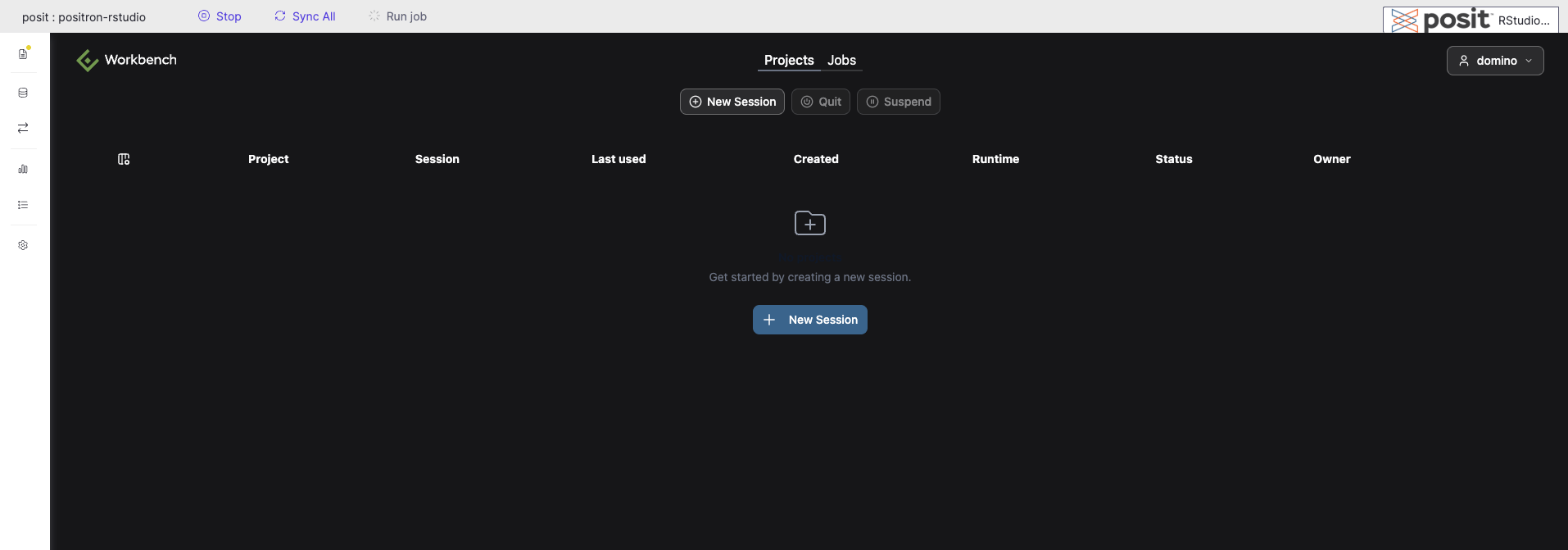
domino and the password domino. The Dockerfile instructions above set this password. Posit Workbench opens to the Projects view.2
Create a session
Select New Session, choose Positron Pro, and select Launch.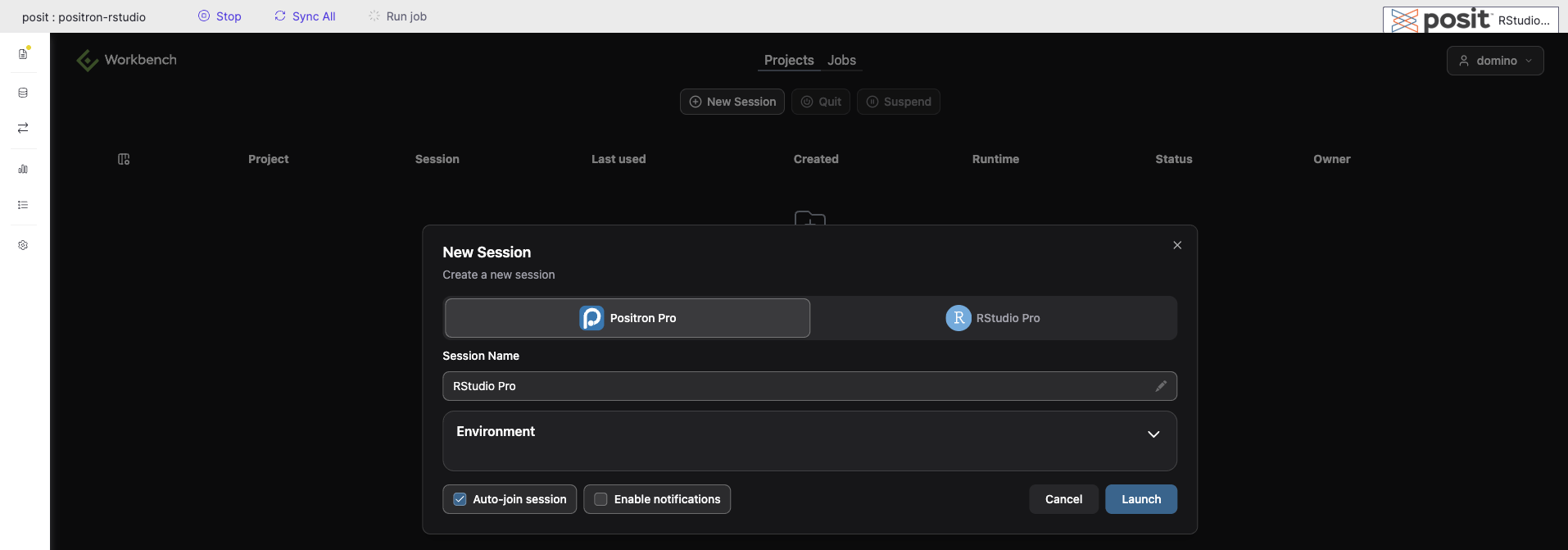
3
Start working
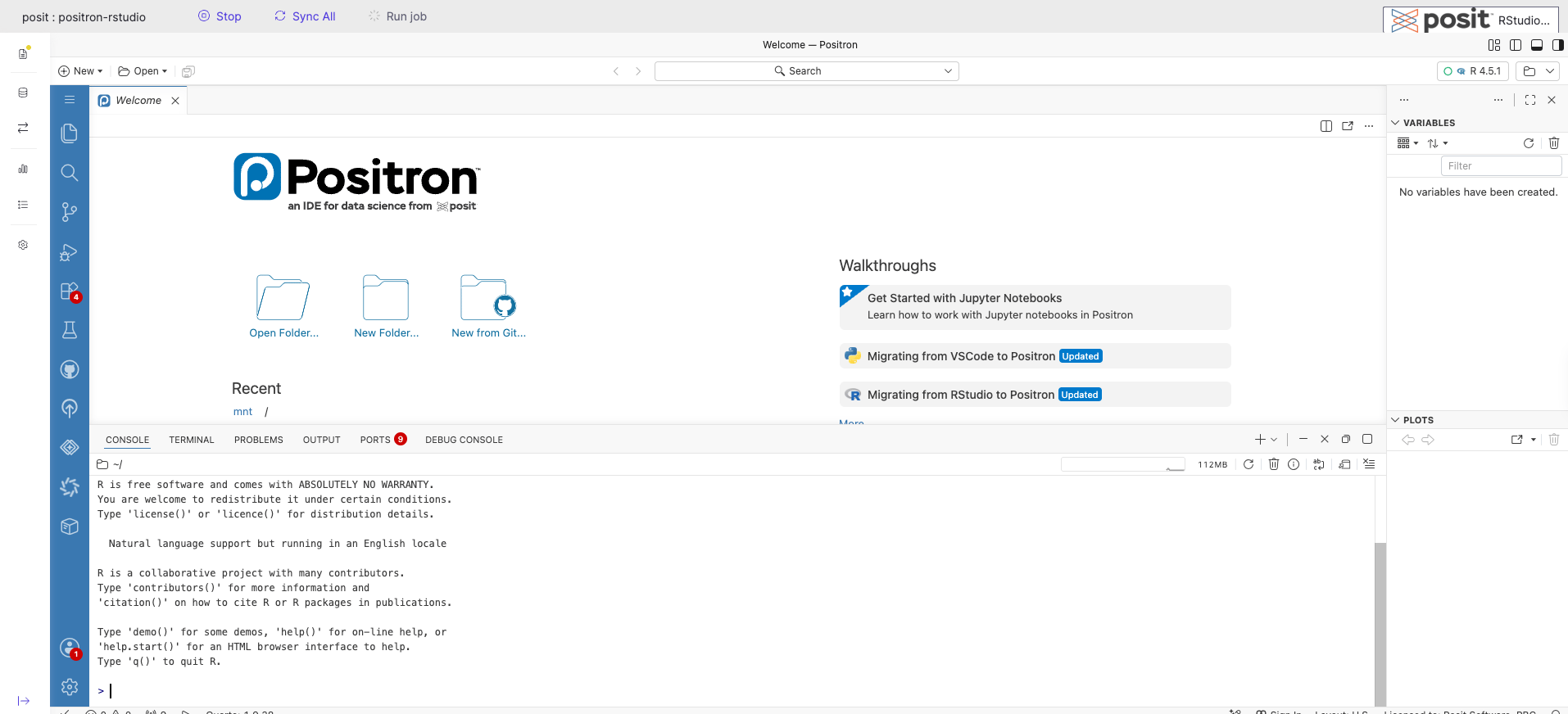
When the session starts, the Positron IDE opens.