- Datasets are defined in a .yaml file, along with input folders and output folders.
- A newly defined dataset is stored in the input folder specified in the .yaml file. By default, the dataset in the input folder is read-only, while files in the output folder are writable.
- If you do not write anything to the output folder, the dataset remains unchanged.
- You must copy any files that you’d like to persist from the dataset in the input folder to the output folder.
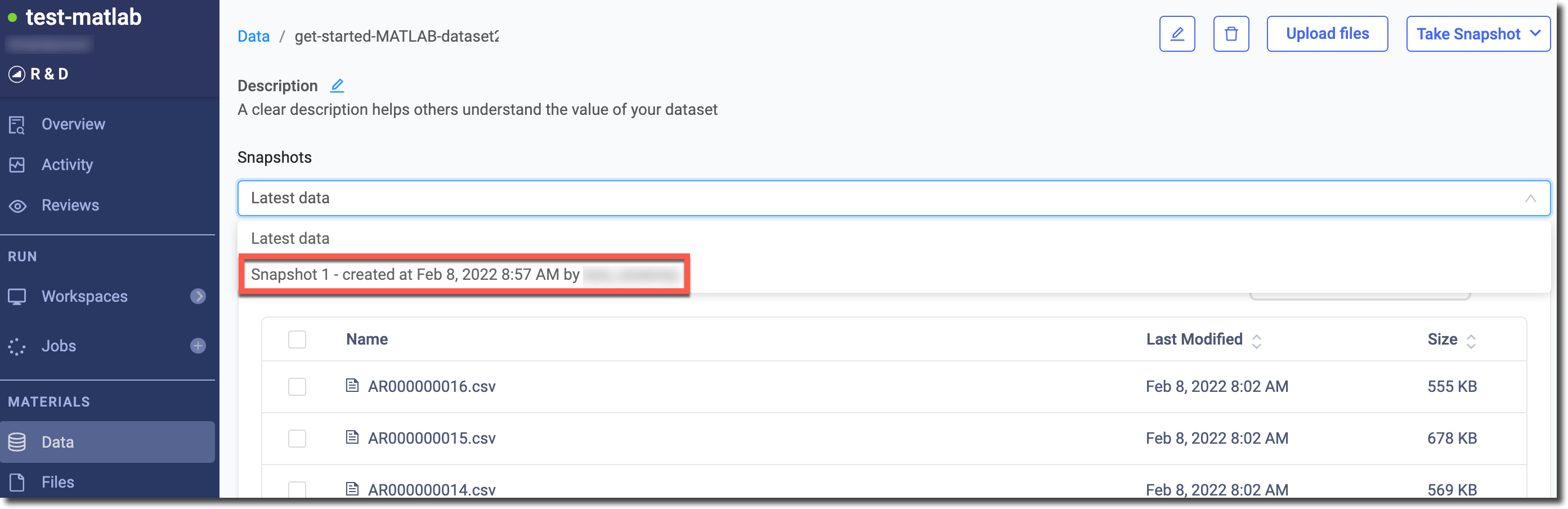
- If you write to the output folder, the dataset files will be overwritten. However, datasets are saved as snapshots so you can roll back to a previous snapshot of the dataset if needed.
Step 1: Add a dataset to your Project
- In the navigation pane, click Data.
- Click Create New Dataset.
-
Type a Name (such as get-started-MATLAB-dataset) and description for your dataset, then click Create Dataset.
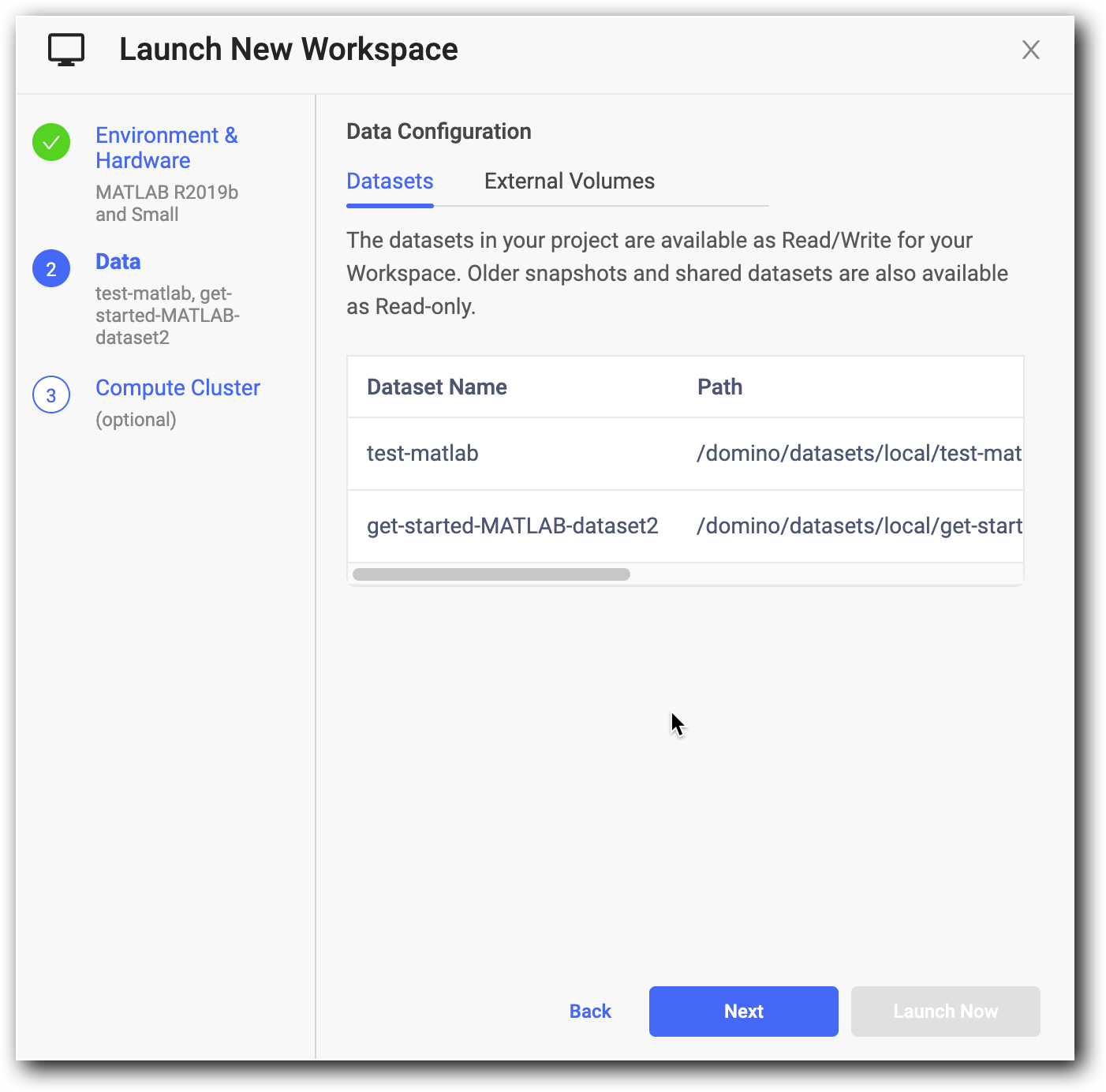
- To take an initial snapshot to create the initial version of your dataset, in the navigation pane, click Workspaces. Click Create New Workspace and give it a name.
- Select MATLAB as your workspace IDE. Click Launch Now. Your MATLAB workspace launches with a new folder used to store the data that is part of your dataset.
-
To locate the new folder, click the ”/” in the file path of your MATLAB workspace. Next, go to the dataset folder that Domino created for you:
/domino/datasets/local/get-started-MATLAB-dataset.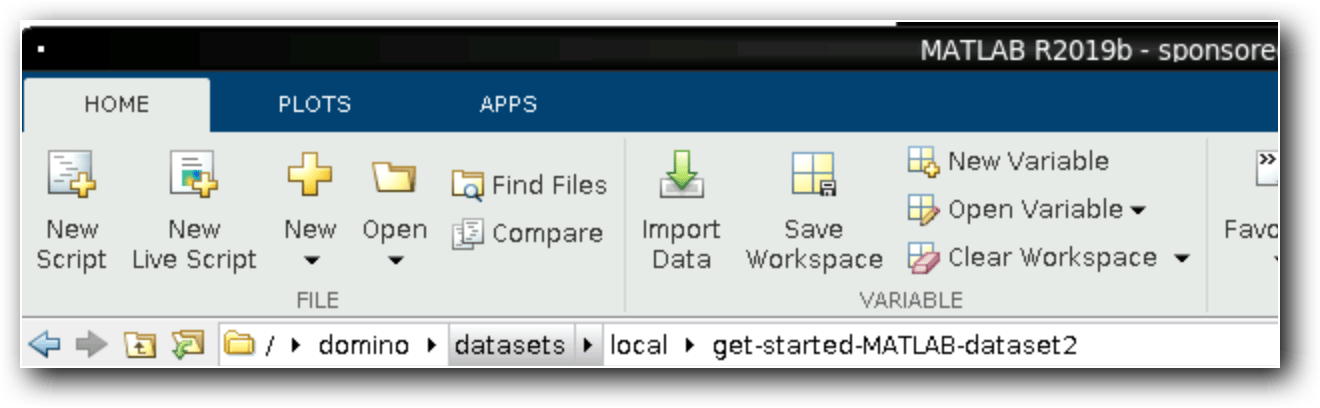
- To populate the dataset, download weather station files from the same NOAA repository that you used earlier in the project. Use the back arrow to return to your work directory (/mnt), and create script named downloadToDatasetDir.m.
-
Copy and paste the following to create a function to download the NOAA data:
-
Save the file, then type downloadToDatasetDir to run it from the Command Window in your MATLAB workspace. Click the / in the navigation bar and go to /domino/datasets/local/get-started-MATLAB-dataset to see the output.
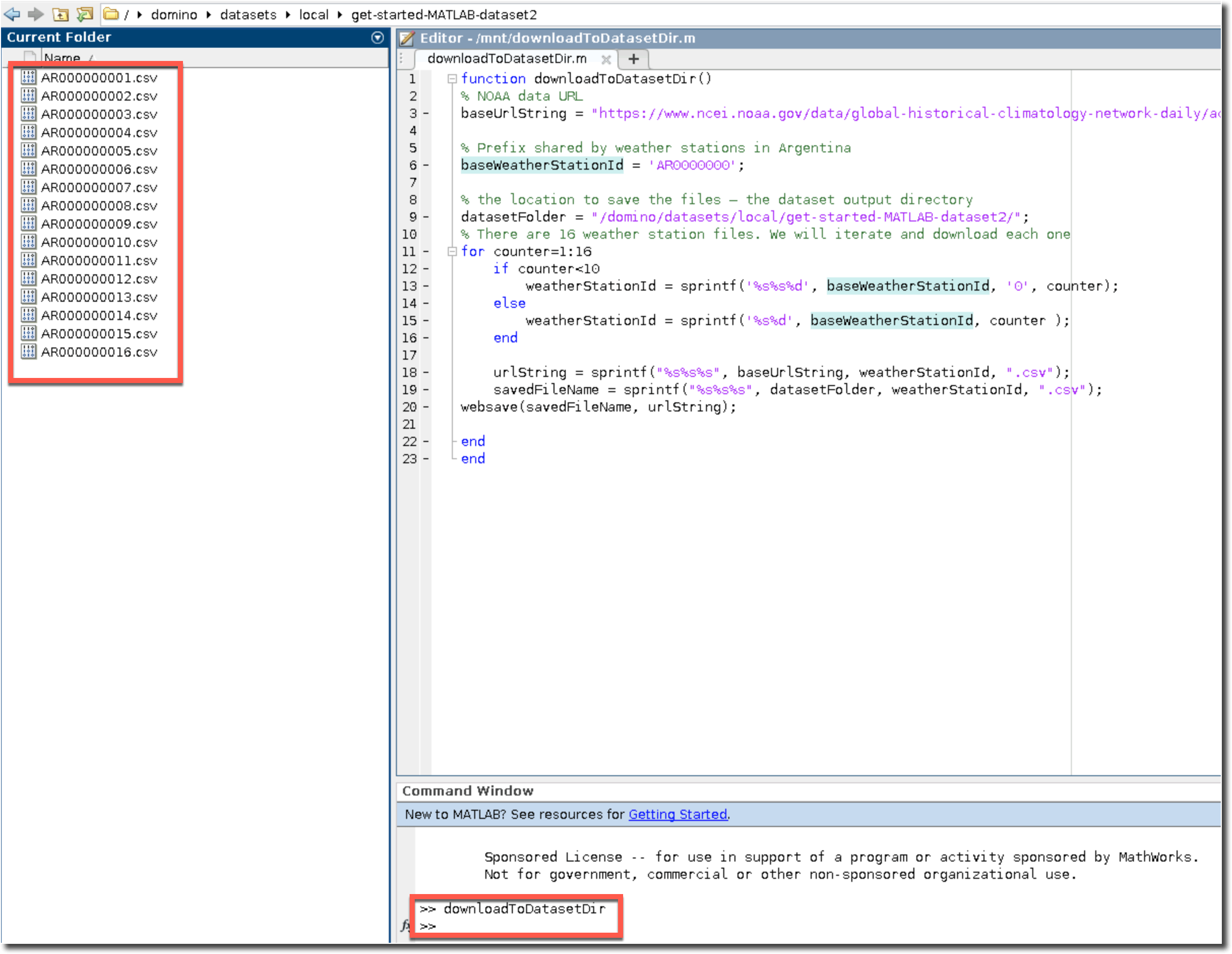
- To save the files to Domino, in the navigation pane, click Files Changes. Click Sync All Changes.
-
In the navigation pane, click the Domino logo. Then, click Data and you can see that the dataset is listed.
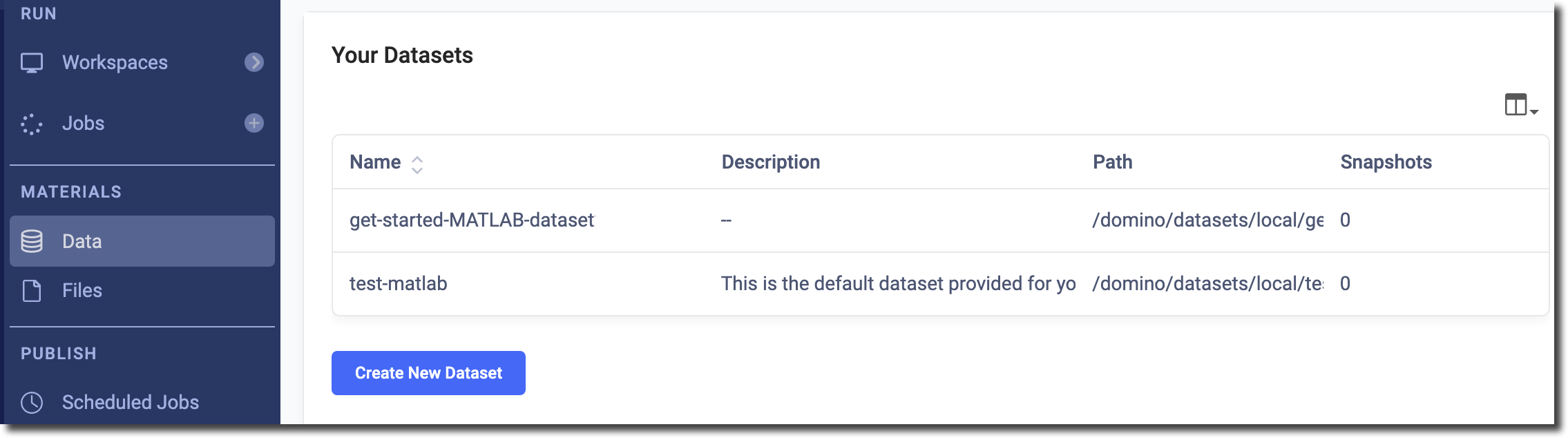
- Click the dataset to open a list of the files that you downloaded.
Step 2: Create a snapshot
When you are ready to version the contents of a dataset, you can create a Snapshot.-
From the navigation pane, click Data.
- Double-click the dataset for which you want to create a snapshot.
-
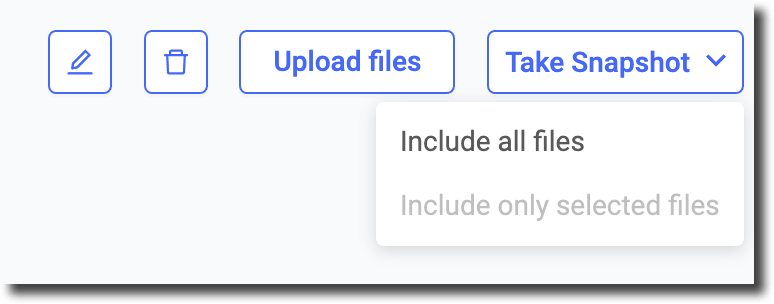
Click Take Snapshot > Include all files.
-
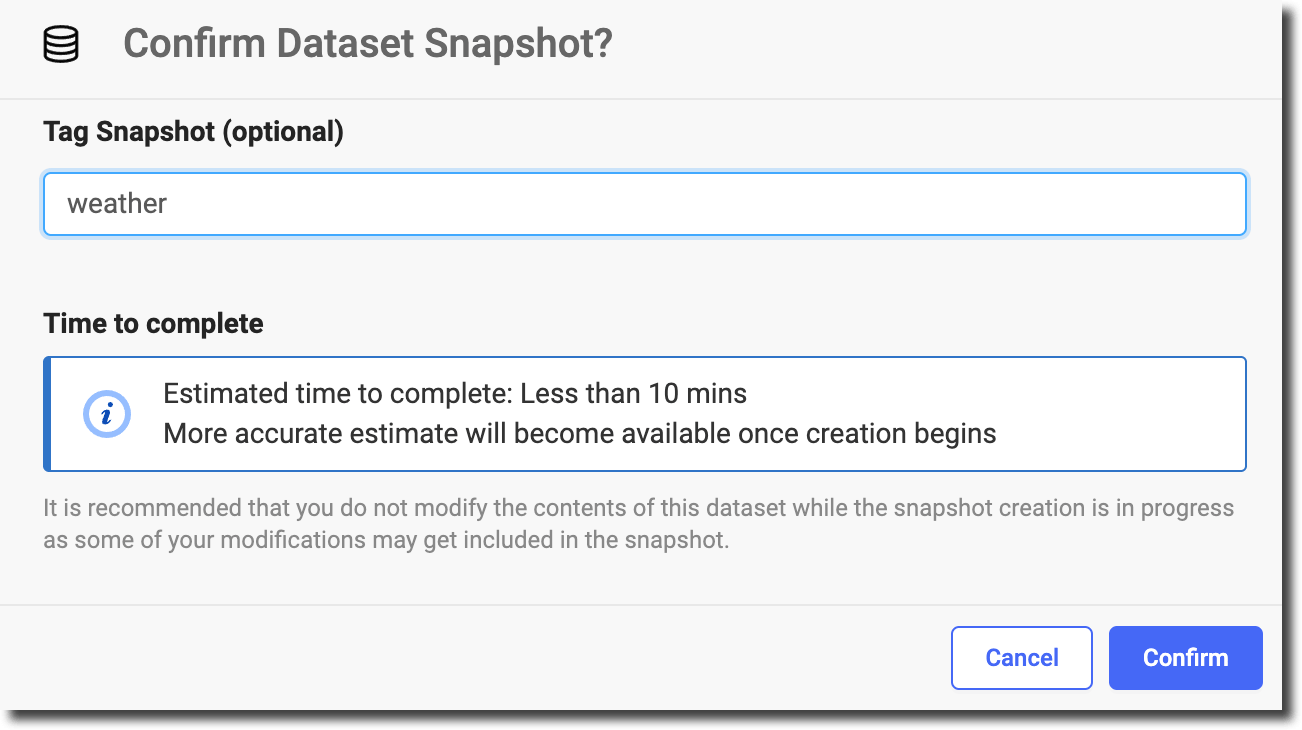
In the Confirm Dataset Snapshot? window, type a tag such as “weather.” You can use this tag to mount the snapshot with a friendly name in subsequent executions. Click Confirm.