

- Go to a project.
- From the navigation pane, click Jobs > Schedules.
- Click Schedule a Job to open the Create a Scheduled Job page.
-
Define the Job:
Scheduled Job Name
Enter the name of the Job. The Jobs Dashboard lists each Job by this name. Branch or Commit Id
In a Git-based project you can specify a branch or commit ID when launching or editing a Job. File Name
Enter the name of the file to execute. Include any optional arguments to pass to the file. Data Plane & Hardware
Select the Hardware Tier used by the Job. The same tab lists the Datasets and NetApp Volumes the Job mounts, in a table with Storage and Snapshot columns. Pin an asset to a single snapshot from the Snapshot column. Choose a snapshot per asset at launch covers the options. Environment
Select the compute environment used by the Job. Optional: Select the Environment revision. By default, Domino uses the latest revision of your Environment when the Environment starts.You can also configure your Job to create Snapshots of Datasets it mounts upon execution completion. This feature requiresDomino recommends using the revision set as the active one by the project owner. If you select a different revision, the Not Recommended warning is shown.AllowDatasetSnapshotsOnExecutionCompletionto be enabled. See the create a snapshot guide for more details. A Dataset pinned to a single snapshot mounts read-only, so a completion snapshot of it captures no changes. - Select and define the compute cluster. The configuration options for each cluster type are explained here:
-
Set up the schedule.
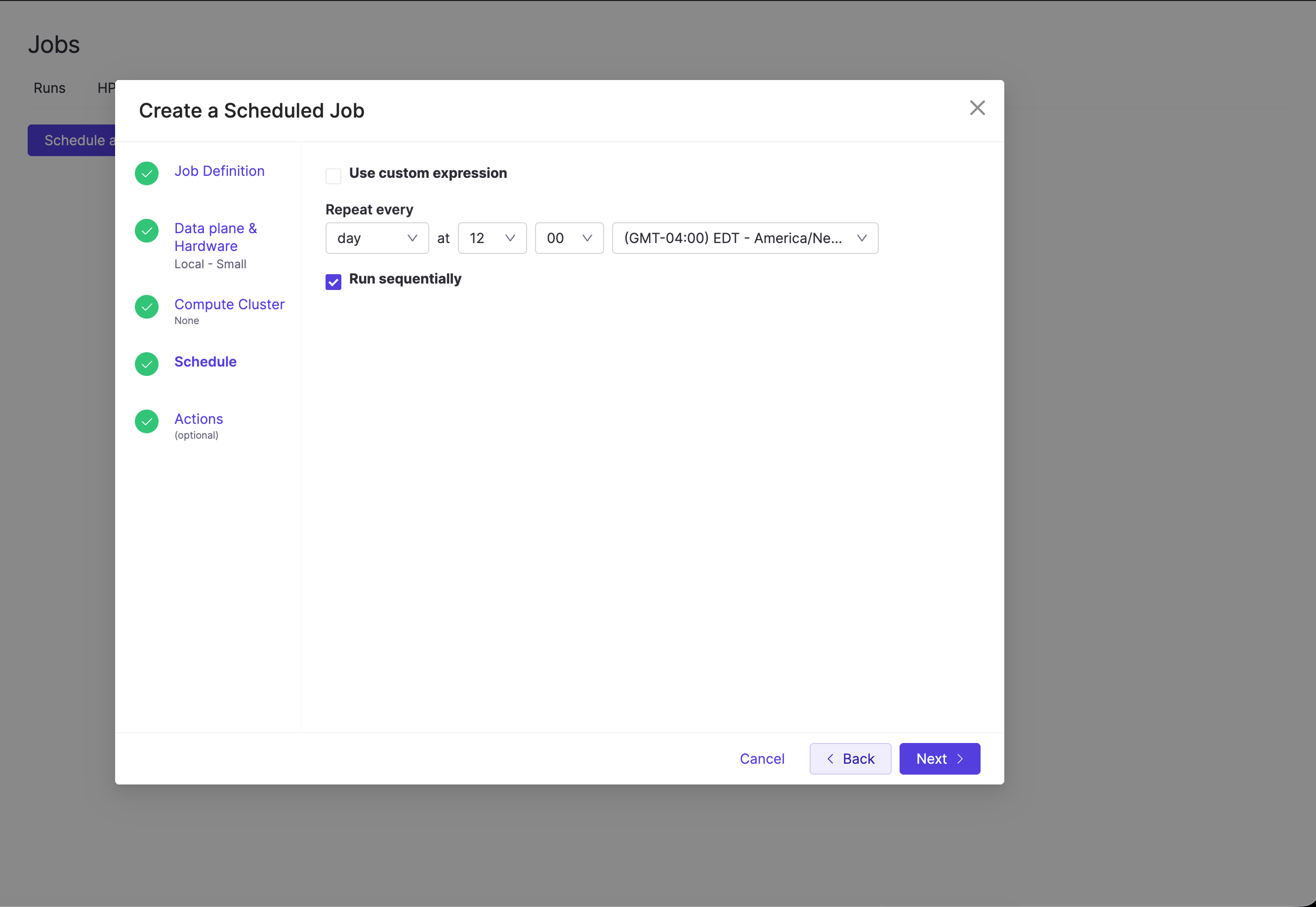
Enter a custom Quartz CronTrigger expression. For example, if you want to run the Job on the fifth minute of every day, enter the following:Repeat everyTo learn more about these expressions, see CronTrigger expressions.
Set the frequency at which you want the Job to repeat. Run sequentially
When you set a Job to run sequentially, the scheduler always waits for the last Job it started to complete before starting the next one. For example, if you set up a scheduled Job to run once per hour, and one of the Jobs launched by the scheduler takes 90 minutes to complete, the next hourly Job does not start until the previous one has finished. Otherwise, multiple Jobs from this scheduler are allowed to run simultaneously. The scheduler does not wait for the previous Job to finish if it’s still running. This mode should be used when your Job doesn’t depend on output from the previous Job. -
Set up any additional actions:
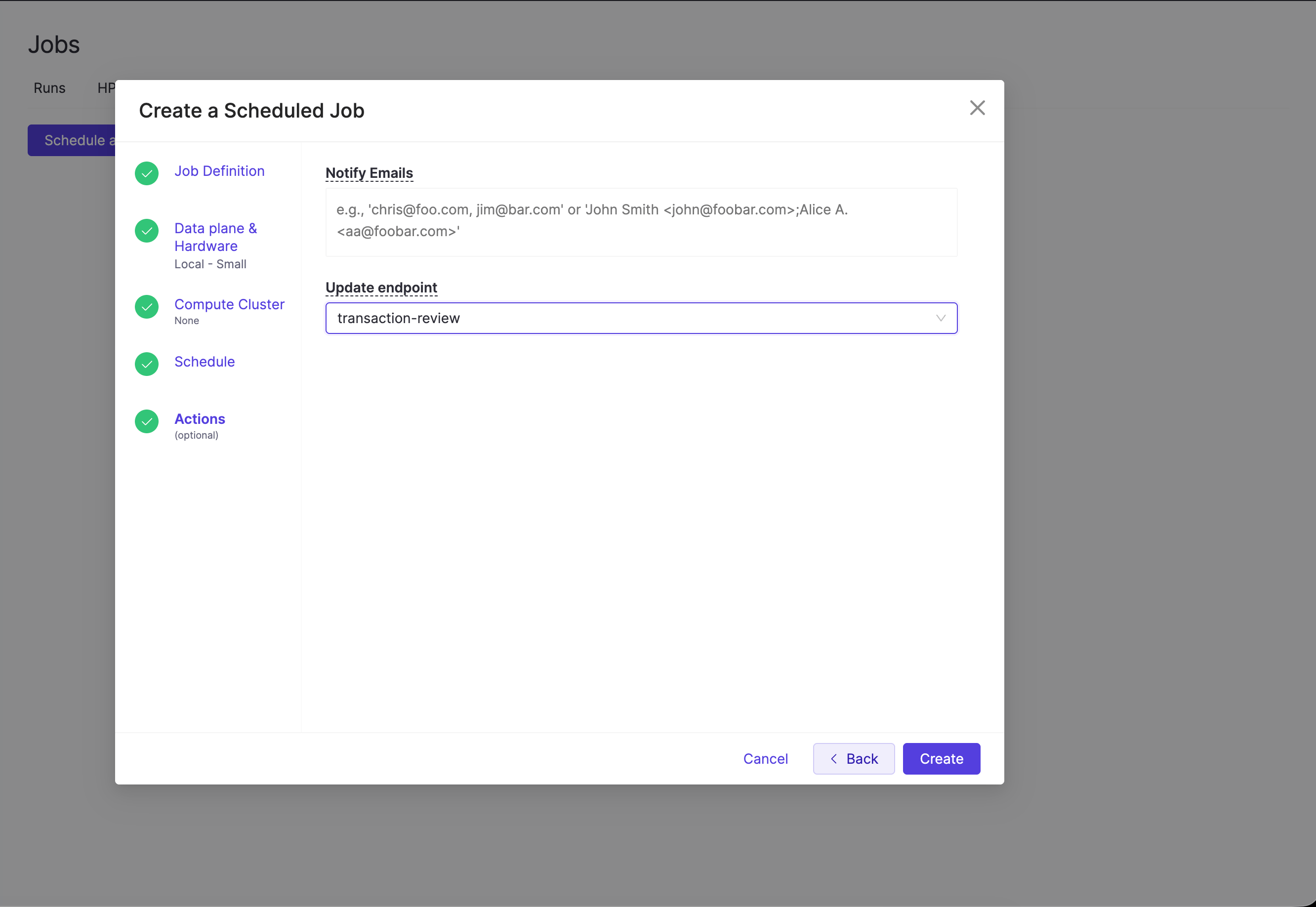
Enter a list of email addresses to notify when the Job is completed. Update Domino endpoint
If a Domino endpoint has been published from the project, the selected Domino endpoint is republished after the Job has been completed. Use this for retraining and updating a Domino endpoint regularly.In restricted Projects, scheduled Runs use the current restricted revision of the Environment selected for the Job. This revision may be different for a scheduled Run from the revision used in a previously scheduled Run.
Manage scheduled Jobs
From Jobs > Schedules, you can update or remove existing schedules. These actions require the Create Scheduled Job, Edit Scheduled Job, or Delete Scheduled Job permission granted to Project Owners and Contributors. See Collaborator Permissions for details. Edit a scheduleOpen the scheduled Job and change any field, including the cron expression, file name, hardware tier, environment, or notification settings. Saving applies the changes to the next scheduled run. Delete a schedule
Delete a scheduled Job to stop all future runs. Historical Job runs launched by the schedule remain in the Jobs Dashboard. Domino does not have a dedicated pause action for scheduled Jobs. To stop future runs without losing the configuration, edit the schedule and set a far-future start time, then restore it when you want runs to resume.
Create and manage scheduled Jobs in the UI. The public API reference does not include endpoints for scheduled Jobs. The Job endpoints in the public API start on-demand Jobs only.
Next steps
- Monitor and view Job results.
- Automate complex pipelines with Apache Airflow or Kubeflow.