

Install VS Code extensions
You can install VS Code extensions in the following ways:- Use the pre-run script.
- Use VS Code’s extensions manager.
Use the pre-run script
- Go to the environment.
- Click Edit Environment.
-
In Pre Run Script, paste the following:
- Click Build.
Use VS Code’s extensions manager
Use the VS Code’s extensions manager to install extensions from the marketplace. You must build the extensions in your environment to make them available in every new VS Code workspace.- Find the extension you want to install in the Visual Studio Marketplace. For example, install the scala-lang extension.
-
Microsoft obscures the download URL for the extension by default. Open your browser’s development tools, then click Download extension.
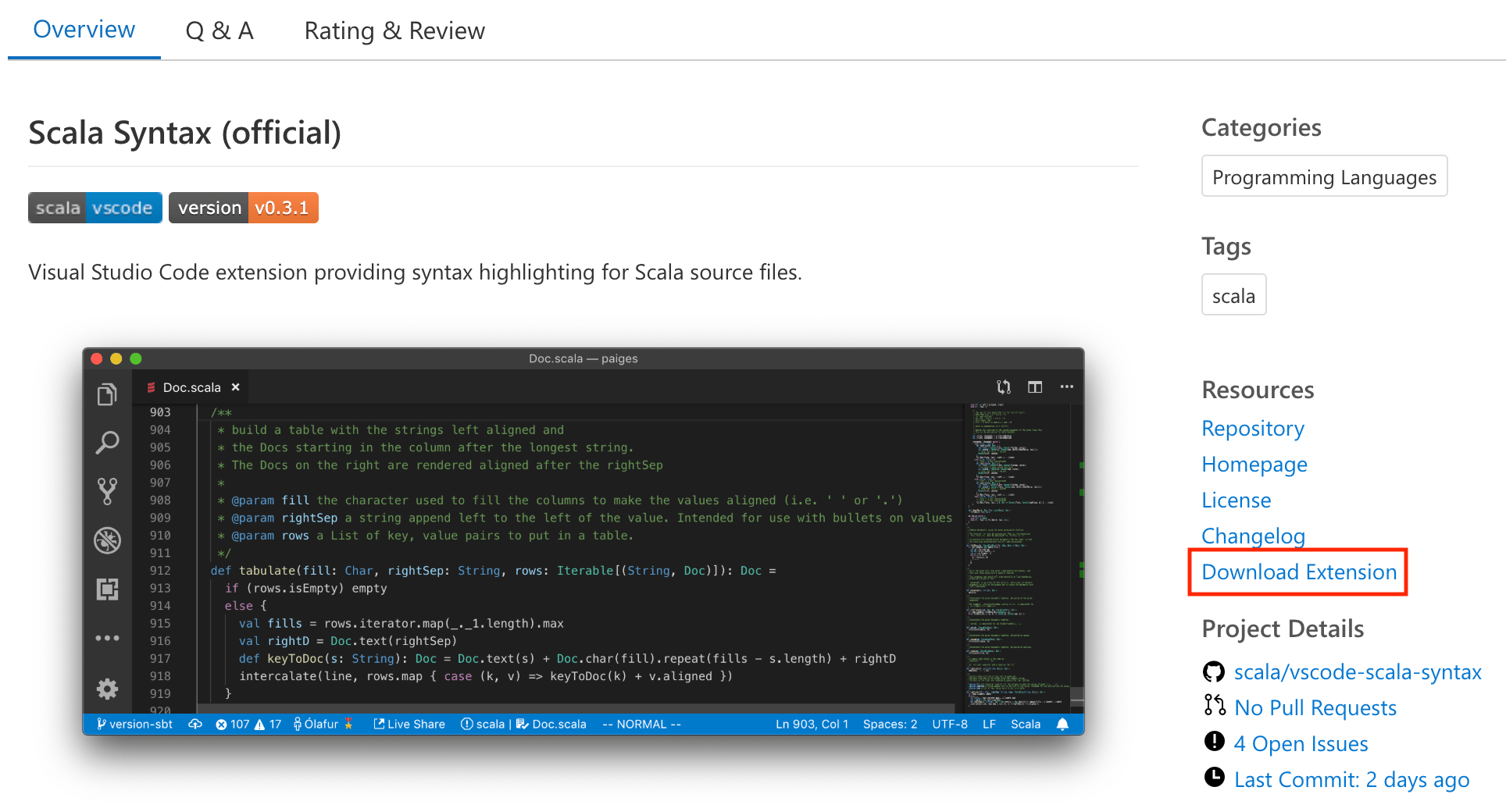
-
Get the download URL for the extension from the request details in your browser’s development tools. It ends with
/vspackage. Copy this URL.
- In Domino, create a new environment. As the base image, use one of the VS Code-equipped Domino standard environments, listed in the Domino standard environments.
-
Add the following instructions to your environment’s Dockerfile. Replace the folder names and example
/vspackageURL with the extension URL you retrieved previously. These commands download the extension, extract the required files, and add them to the appropriate folder. - Click Build. After a successful build, you can use this new environment to launch VS Code workspace sessions with the extensions already installed.
Install VS Code
You can add VS Code to an environment that does not include it. The base environment must be 2018-05-23 or newer.-
Add the following to your compute environment Dockerfile instructions:
-
Add the following to your compute environment’s Pluggable Workspace Tools: