

Coding assistants help you as you work: they read your Project’s code and write alongside you in the IDE. To build an agentic system and deploy it for other people to use, see Agents.
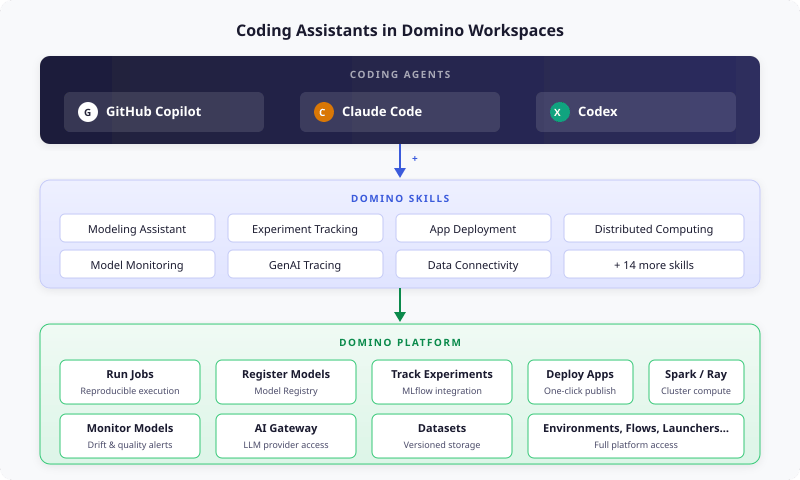
What’s included
The Domino Standard Environment ships with three coding agents, pre-installed and ready to use:
In VS Code Workspaces, all three agents come as pre-installed extensions. All three also work as CLI tools in any Workspace IDE, including the VS Code terminal.
Domino-aware agents
Coding assistants that run in Domino detect your Domino project automatically. They interact with platform resources, including datasets, jobs, and registered models, through a skills framework. The skills come from the public domino-ai-plugin repository, which also installs them in Claude Code, Codex, Cursor, Gemini CLI, and Antigravity outside Domino; see Domino skills reference. Your coding agent knows about your project files, datasets, and the full Domino platform. There’s no generic sandbox. The agent operates with full context of where the workspace runs and which tools are available.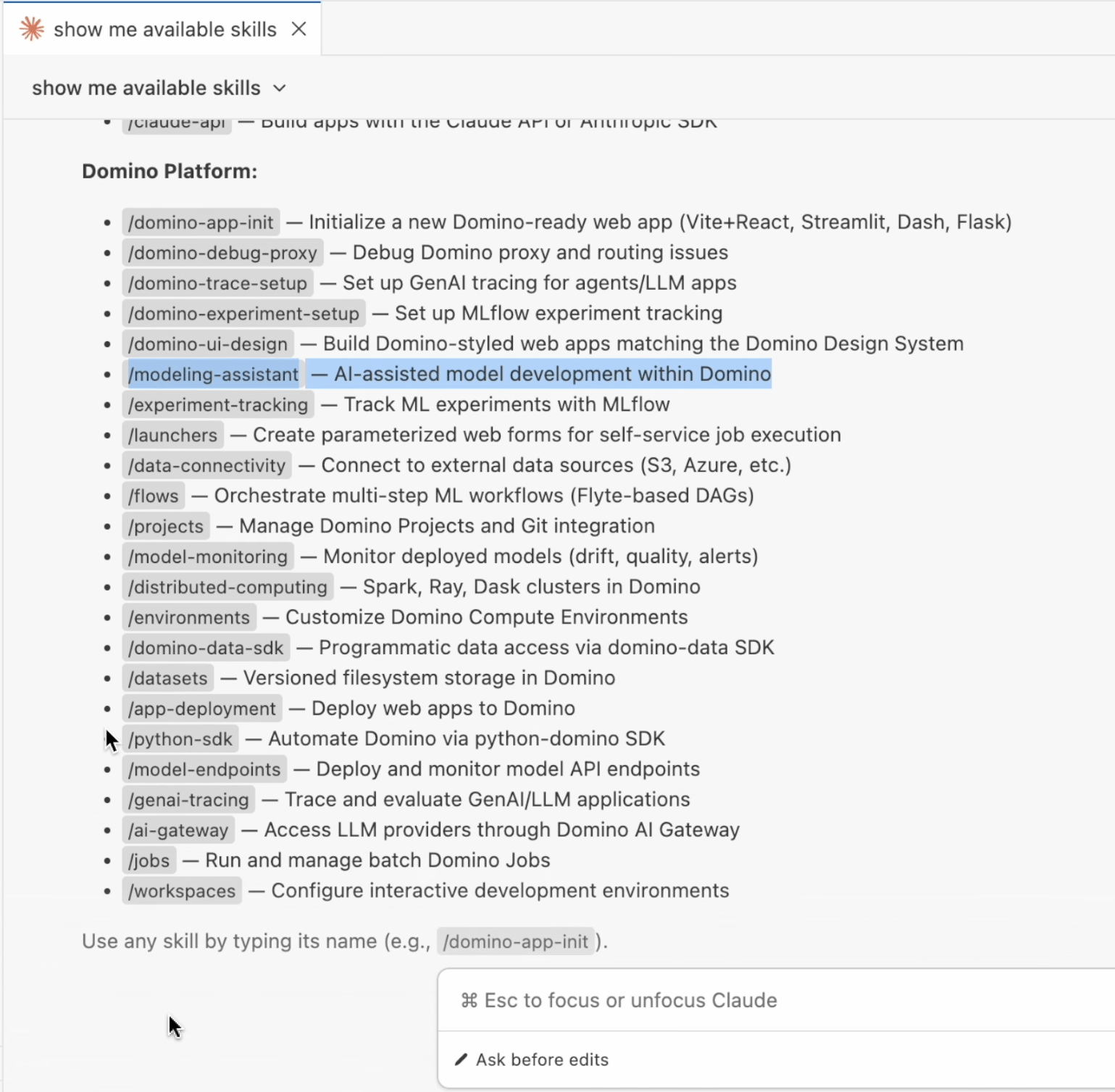
Persistence
In VS Code, JupyterLab, Jupyter, and RStudio, the Domino Standard Environment saves~/.claude, ~/.claude.json, ~/.codex, and ~/.copilot with the Workspace automatically. These directories hold the settings, sign-in, and history of Claude Code and Codex (CLI and VS Code extension) and of the GitHub Copilot CLI, so you don’t need home directory persistence for them. When you restart a Workspace, these agents keep their configuration, authentication state, and conversation context from previous sessions.
The GitHub Copilot extension in VS Code may keep its state elsewhere. To keep its sign-in and chat history between sessions, turn on Home Directory Persistence.
The saved directories also hold each agent’s copy of the Domino Skills, so the skills in a Workspace can lag behind the environment’s image. Troubleshoot explains how to get the current copy.
Next steps
The topics in this section show you how to use AI coding assistants in your projects.- Get started: Launch a workspace and authenticate your coding agent in under five minutes.
- Domino Skills: Explore the skills framework and the full list of Domino-specific actions available to your agent.
- Modeling assistant walkthrough: See a full end-to-end demo of how to train and compare models with the modeling assistant skill.
- Reuse credentials: Reuse Claude Code, Codex, and GitHub Copilot CLI subscriptions across workspaces without authenticating again each time.
- Custom environments (advanced): Standardize on a different coding agent, pin versions, or add CLI tools using custom environments.
- Troubleshoot: Get information about known issues and workarounds for coding assistants in Domino workspaces.