

- Support for sudden bursts in traffic
- Strict latency and uptime SLAs
- Security, legal, or locality restrictions
Model export API
Domino’s Model Export API exports Docker images of Domino-built models, model artifacts, project files, dependent packages, base environments, and more. The API registers the images with Domino’s internal image registry. You then fetch it, customize it, and deploy it inside your runtime environment with existing CI/CD pipelines to facilitate tests and production-readiness steps. By default, all files present in a project are copied into the generated model image. The default image includes the specified compute environment, project files, a Flask/Plumber harness that exposes the REST interface, and an authentication and load balancing layer.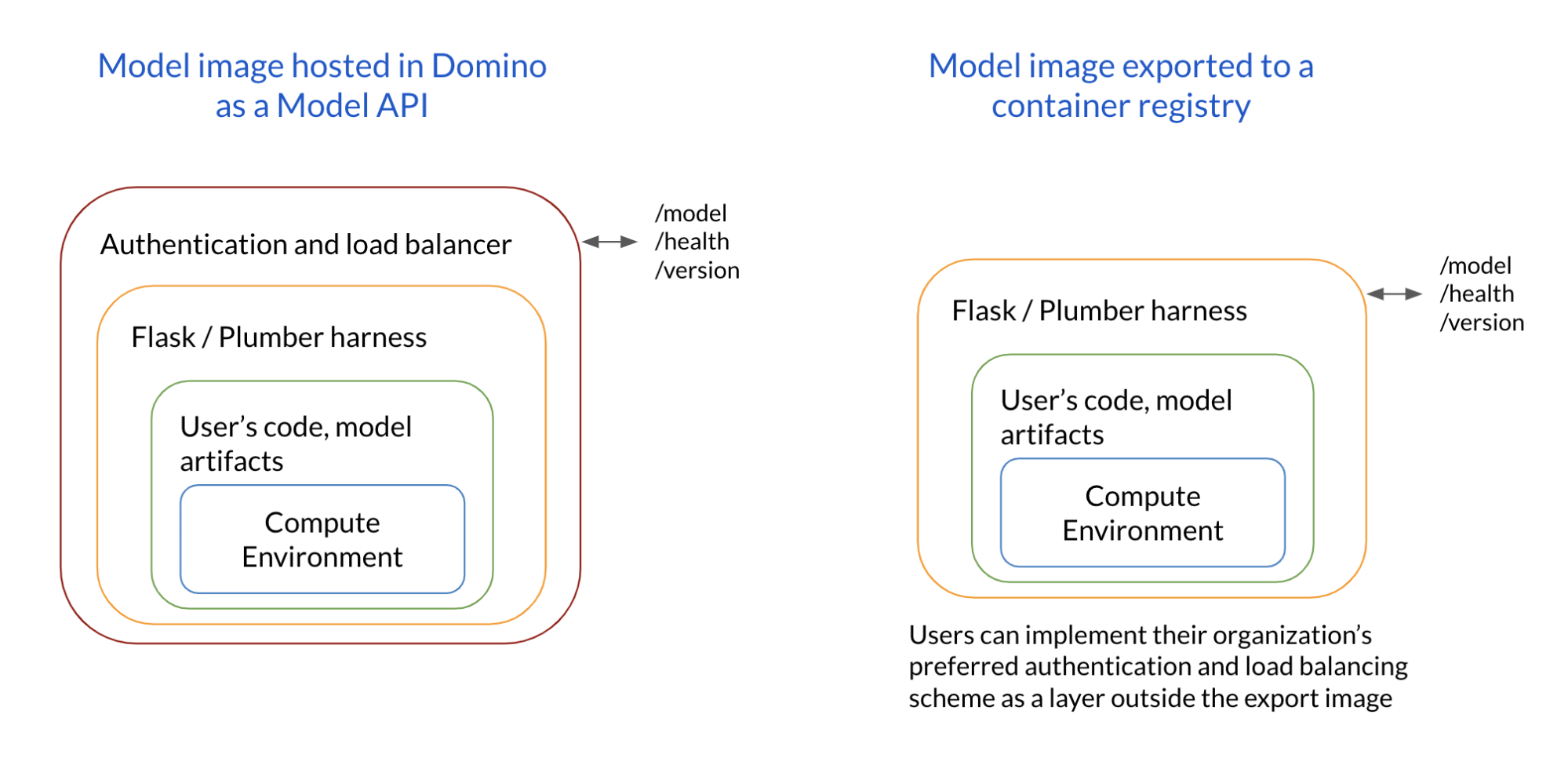
.modelignore file in the project’s root folder to omit them. Filenames, folder names, or UNIX shell regular expressions are allowed in this file.
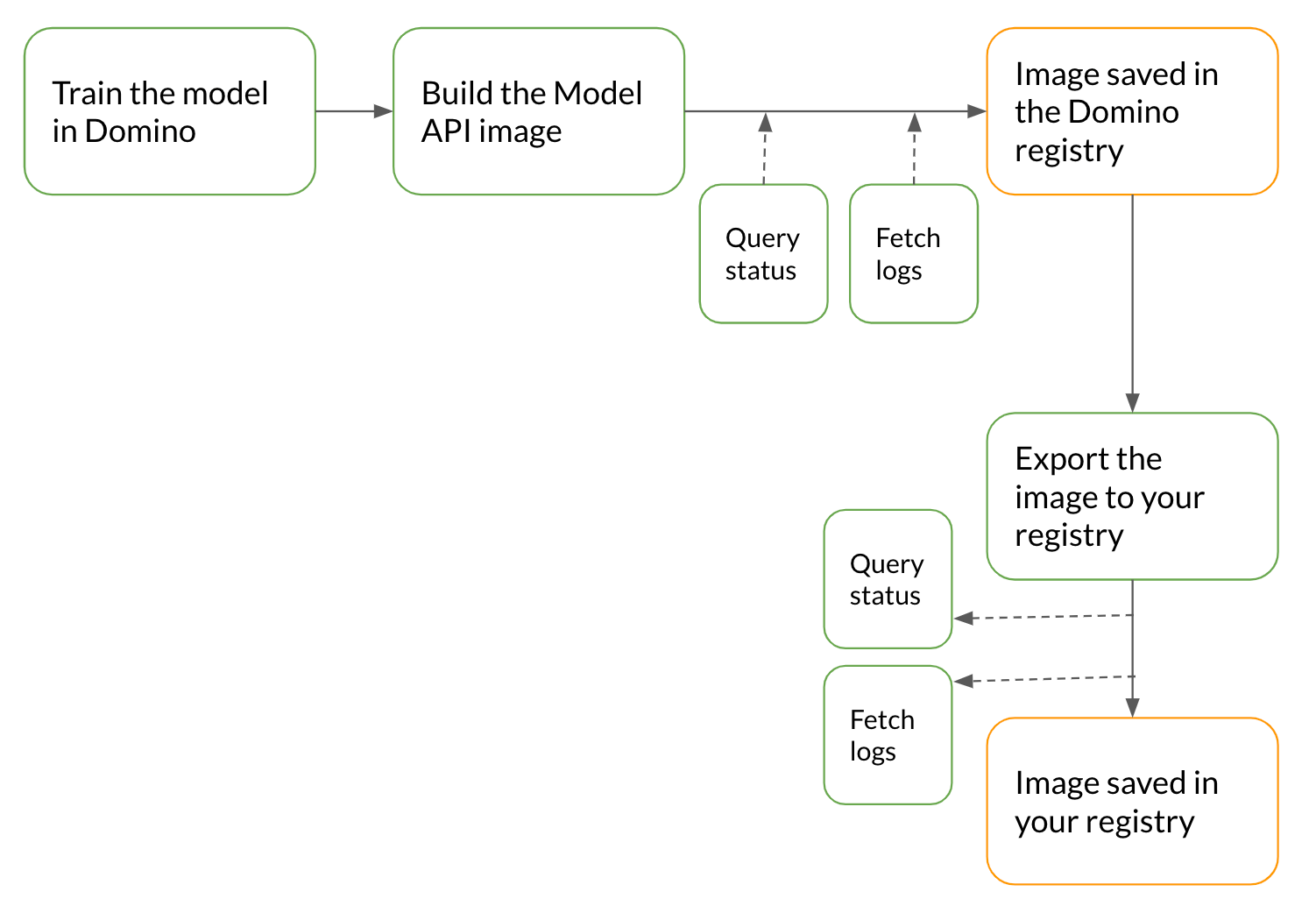
1. Train the model in Domino
A data scientist creates a project in Domino, associates an environment with it, and conducts multiple experiments to identify the best production model. The data scientist or MLOps engineer then configures the CI/CD pipeline to run through the next steps to deploy the model from the project.2. Build the model image
Your CI/CD pipeline calls the Build Model Image API to trigger a build process. This call builds and saves the generated model image in Domino’s internal container registry. The API response includes the model ID and the model version ID, which are used to poll for the build status or to fetch build logs. The model build process comprises Preparing, Building, Complete, or Failed. Invoke the build process:3. Export the model image to your registry
After the image is built and registered in Domino’s internal registry, export it to your registry with Domino’s Export Model Image API. The API responds with an export process ID, which is used to poll for the status or fetch export operation logs. As part of a production workflow, ensure the image is first deployed for staging. Invoke the build process:4. Run the exported image in a staging environment
Stand up the image in your test environment, which is often a separate Kubernetes cluster dedicated to stage and test workflows. You can also configure your CI/CD pipeline to customize the image to prepare it for staging. Deploy an exported model Image on an existing Kubernetes cluster with these steps. This export assumes your K8s cluster is running and kubectl is installed. Then create the K8s manifest files, which describe your application & service and use kubectl to deploy them. Use these Sample Kubernetes manifest files and procedures to deploy the Image. my-model-deployment.yamlIf you pull from a private registry, add a secret to your Kubernetes cluster so the pod can authenticate with the docker registry.