This walkthrough demonstrates the modeling assistant skill from start to finish. Starting from an empty project with a single dataset, the coding agent analyzes the data, generates training scripts, trains multiple models as Domino Jobs, and compares results in Experiment Manager.
Setup
This demo uses a Domino project with a single dataset for predicting diabetes. The project has no existing code or models.
-
Create a new Domino project or use an existing one with a dataset.
-
Launch a VS Code workspace using the Domino Standard Environment.
-
Open Claude Code and authenticate (as explained in Get started).
Step 1: Activate the modeling assistant
In the Claude Code prompt, type:
Use the modeling assistant skill. Do a quick analysis of the data set
in the project and then train a few models and validate.
-
Claude Code activates the modeling-assistant skill and begins by detecting the Domino environment.
-
The agent identifies the project, locates the dataset, and starts the workflow.
Step 2: Train models as Domino Jobs
The agent writes a data analysis script, generates a parameterized PyTorch model, creates a training script with MLflow tracking, and submits training as Domino Jobs. All steps run automatically.
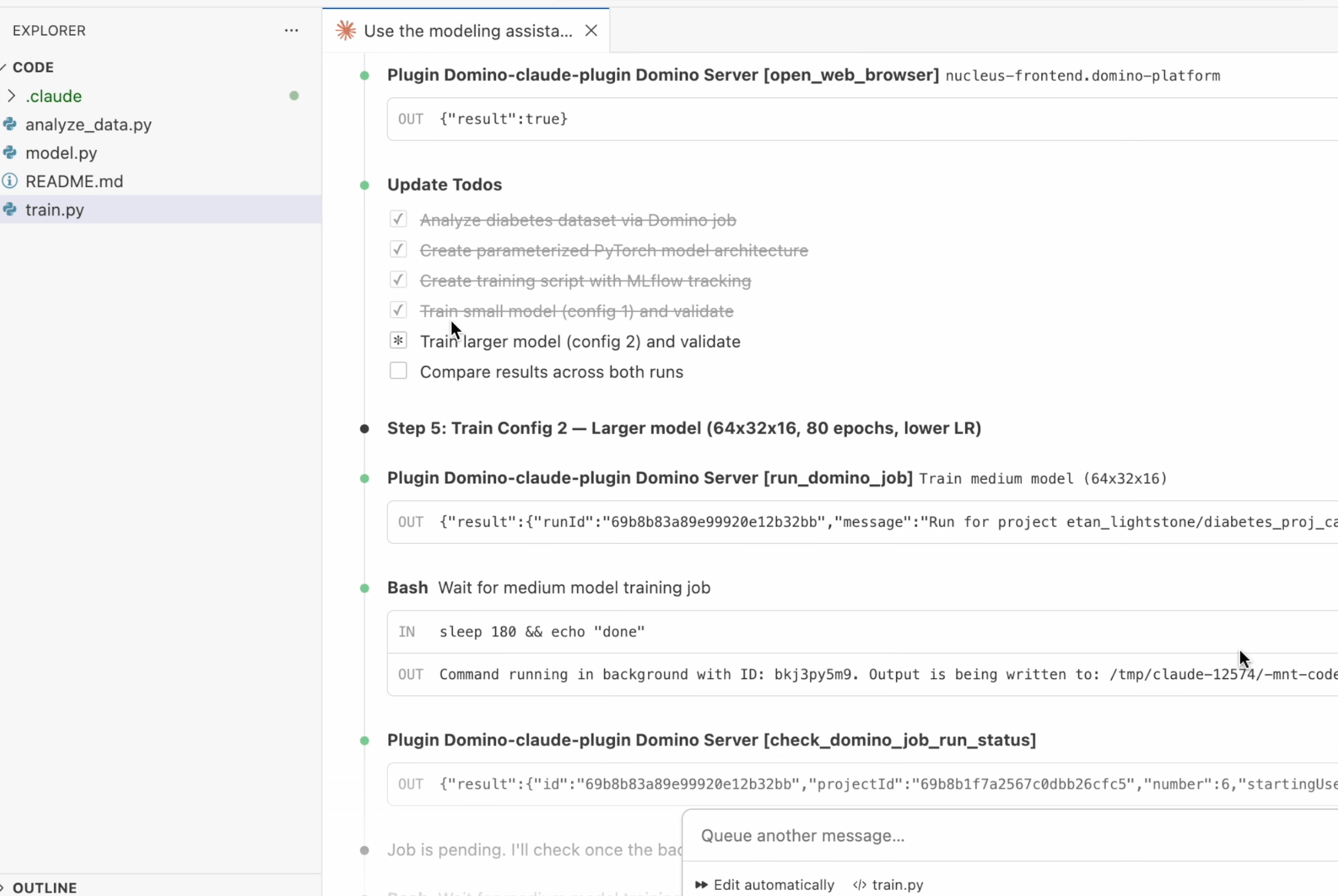 Key details about the generated training pipeline:
-
Training runs as a reproducible Domino Job, not inline in the workspace.
-
All parameters, including batch size, learning rate, epochs, and architecture, are logged to Experiment Manager.
-
The agent trains multiple models with different configurations for comparison.
Step 3: Review results in Experiment Manager
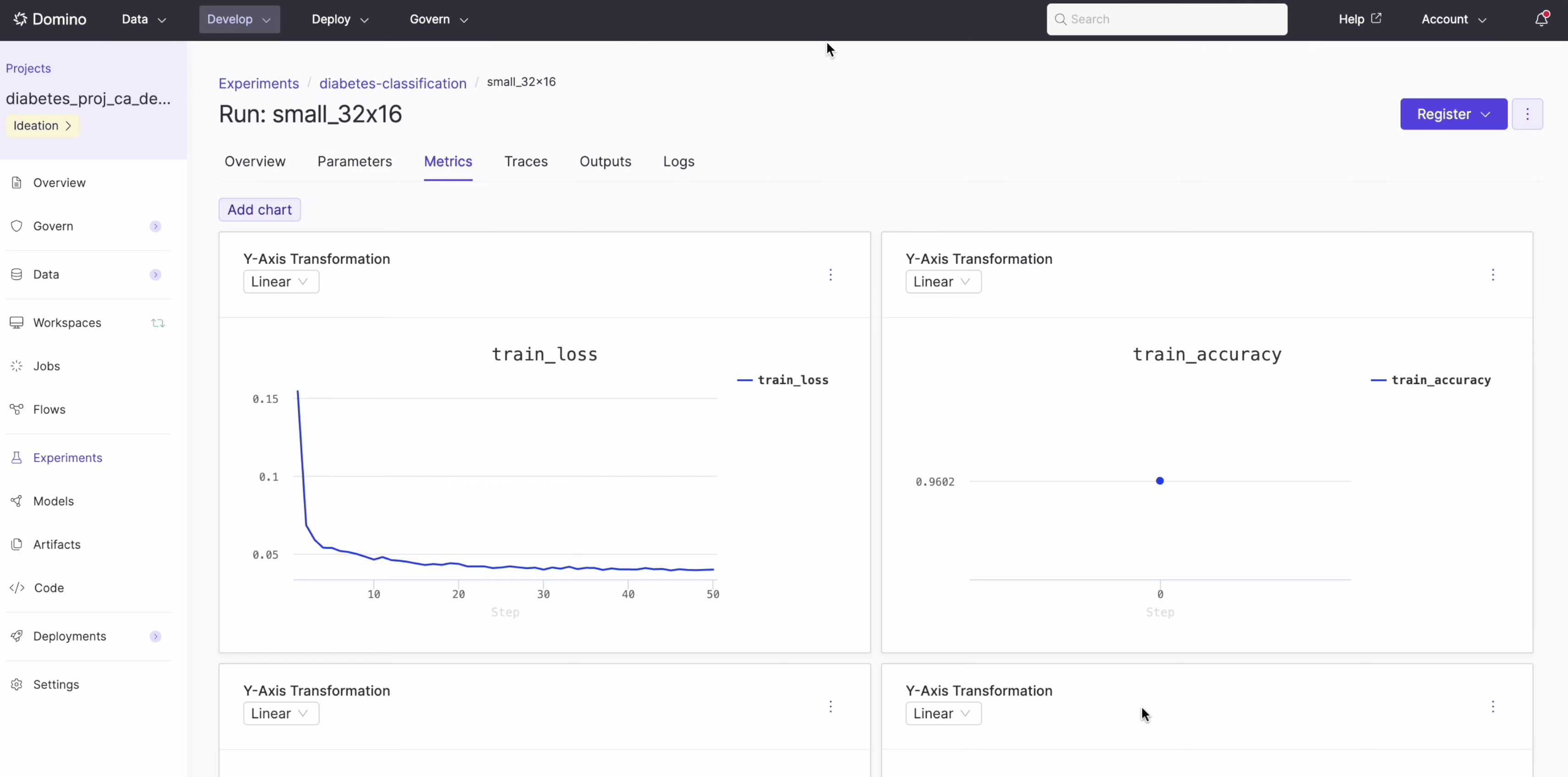
Experiment Manager tracks each training job with complete parameter lineage.
Navigate to Experiments in your project sidebar to see the runs.
The experiment view displays:
-
Training loss and accuracy curves over time.
-
Model parameters, including activation, batch size, dropout, epochs, and hidden layers.
-
Full lineage back to the training job and code.
Step 4: Compare models
After all models finish training, the agent generates a comparison grid showing both models side by side with key takeaways:
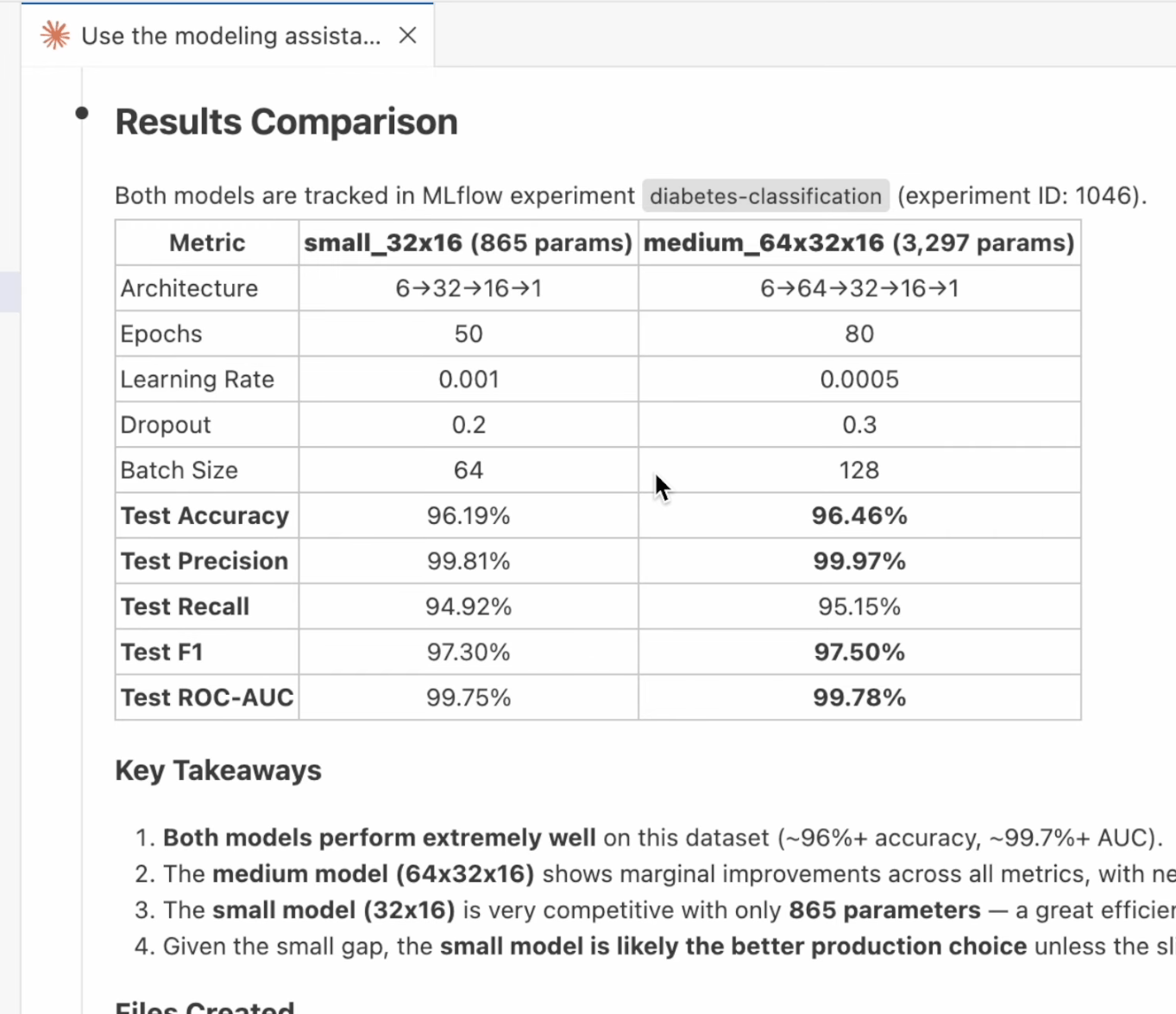 In this example, the agent trained two models:
| Metric | small_32x16 (865 params) | medium_64x32x16 (3,297 params) |
|---|
| Test Accuracy | 96.19% | 96.46% |
| Test Precision | 99.81% | 99.97% |
| Test Recall | 94.92% | 95.15% |
| Test F1 | 97.30% | 97.50% |
Step 5: Register a model
From the Experiments view, register any trained model to the Domino Model Registry by clicking the Register button on the experiment run.
All training jobs reproduce consistently. Re-run any job from the Jobs page to verify or iterate on results.
Summary
In this walkthrough, the modeling assistant skill handled the complete workflow:
-
Detected the Domino environment and project structure.
-
Explored and analyzed the dataset.
-
Generated a parameterized PyTorch model and training script.
-
Submitted training as reproducible Domino Jobs.
-
Tracked all parameters and metrics in Experiment Manager.
-
Compared multiple model configurations with recommendations.
All lineage stays intact. The Domino platform tracks, reproduces, and audits every step from data analysis to model comparison.
Next steps

