

Manage node pools
In the Admin panel, go to Platform Settings > Deployment Configuration.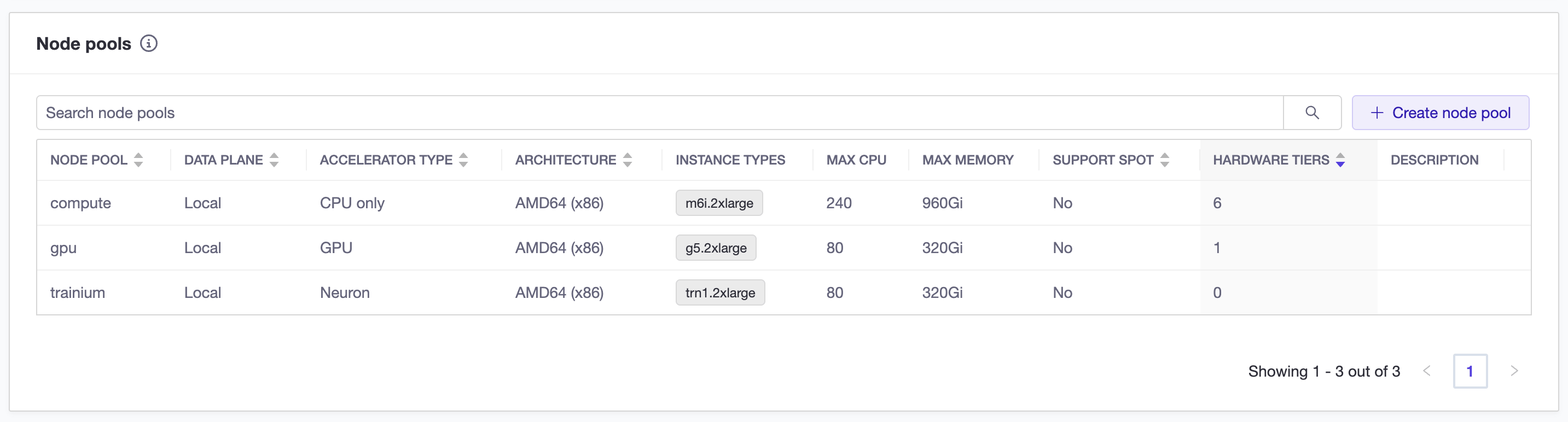
- Node pool: The name of the node pool.
- Data plane: The data plane where the node pool is located.
- Accelerator type: The accelerator used by the node pool. It can be CPU only, GPU, or Neuron.
- Architecture: The CPU architecture of the instances in the node pool, AMD64 or ARM64. This column appears on deployments with multi-architecture support enabled.
- Instance types: The instance types configured in the node pool.
- Max CPU: The maximum number of virtual CPUs the node pool can use, if a limit is set.
- Max memory: The maximum amount of memory the node pool can use, if a limit is set.
- Support spot: Whether the node pool supports spot instances.
- Hardware tiers: The number of hardware tiers that have configured this node pool.
- Description: A description of the node pool.
Add a new node pool
-
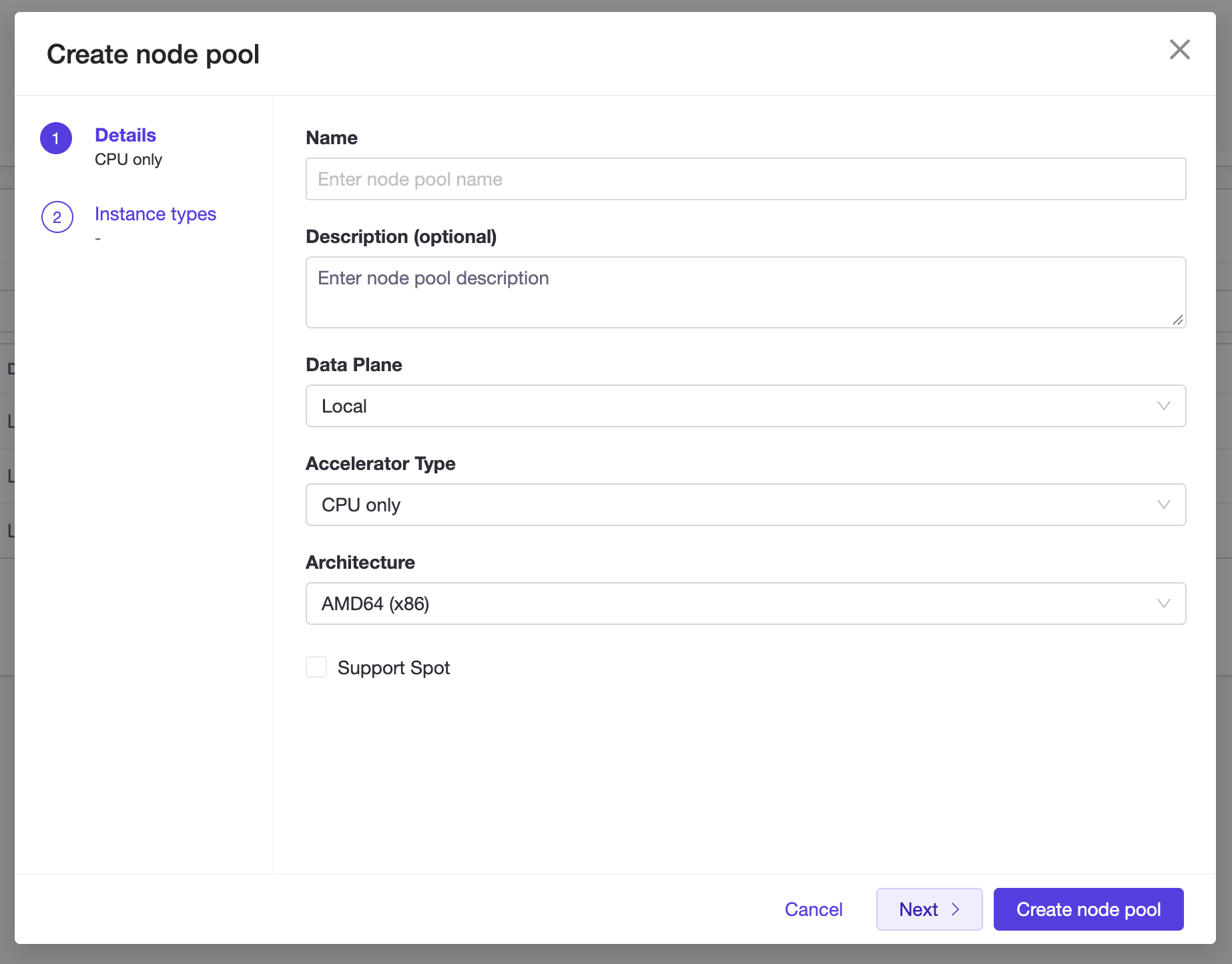
To add a new node pool, click the Add Node Pool button.
-
In the Add Node Pool dialog, fill in the following fields:
- Name: The name of the node pool.
- Description: A description of the node pool.
- Data plane: The data plane where the node pool is created.
- Accelerator type: The accelerator type for the node pool. It can be CPU only, GPU, or Neuron.
-
Architecture: The CPU architecture of the instances in the node pool, either AMD64 or ARM64. This option appears on deployments with multi-architecture support enabled. Domino applies the architecture to the node pool’s scheduling requirements through the
kubernetes.io/archnode label. Node pools created before this field existed useamd64. Match the architecture of the hardware tiers that use the node pool.
Node pools use theamd64CPU architecture by default. On data planes that provide Arm-based instance types, you can createarm64node pools with the CPU only or GPU accelerator type. Neuron accelerators are available only onamd64node pools, so Domino rejects a node pool that combines Neuron witharm64. -
Select the instance types you want to add to the node pool by checking the checkboxes next to the instance types.
The table shows only instance types that match the architecture you selected, in the Architecture column. If you change the architecture, Domino clears your instance type selections. Domino also rejects a node pool whose instance types use a different architecture, or that are not available in the data plane’s region.
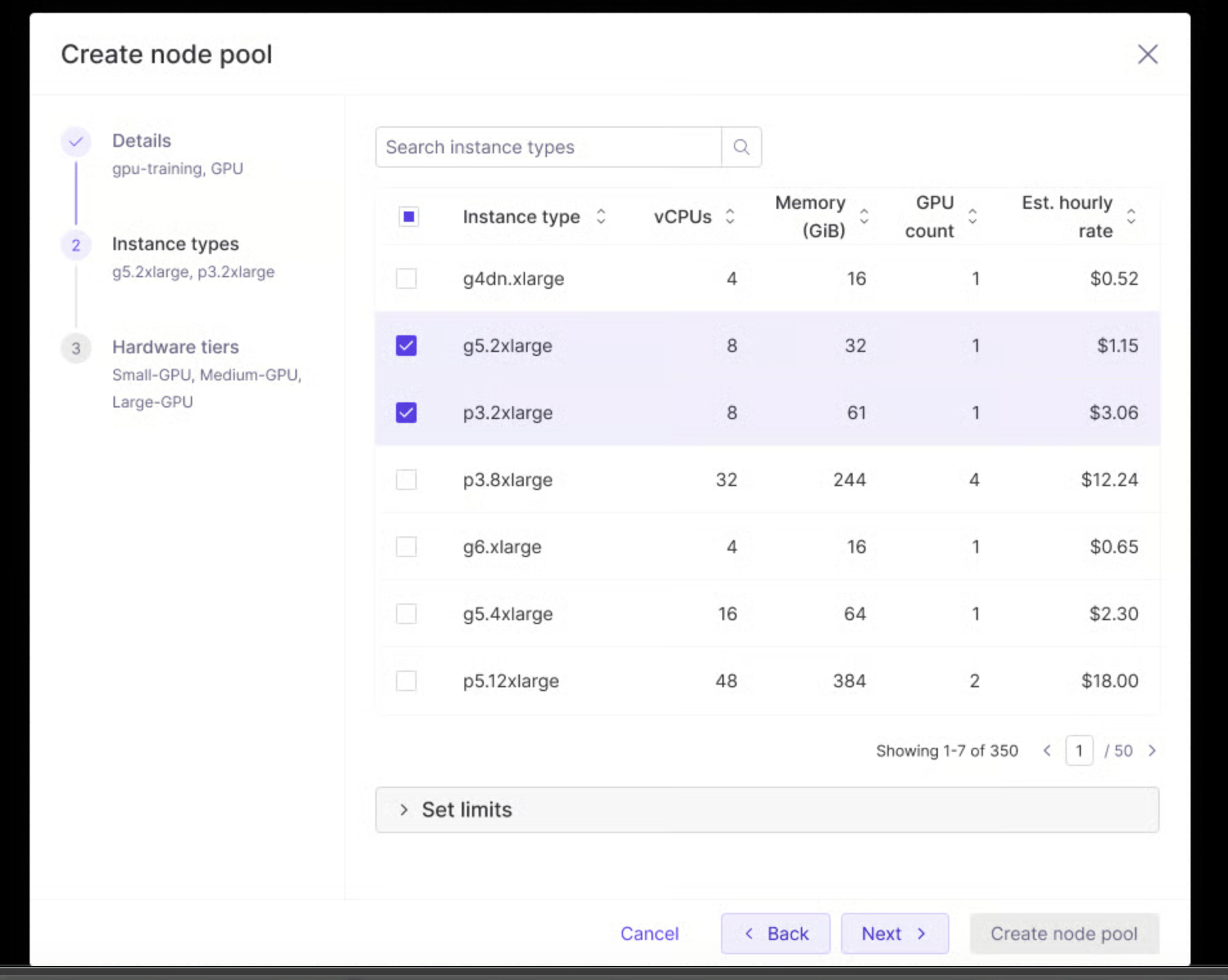
- Instance type: The name of the instance type.
- vCPUs: The number of virtual CPUs in the instance type.
- Memory (GiB): The amount of memory in the instance type.
- GPU count: The number of GPUs in the instance type, if applicable.
- Est. hourly rate: An estimate of the cost per hour for the instance type.
-
You can set the limits for the node pool in the Set Limits section. The limits are the maximum number of nodes that can be created in the node pool. This helps you to avoid creating a large number of nodes and helps keep costs under control.
Limits are defined by the following fields:
- Maximum CPU: The maximum number of virtual CPUs that can be used in the node pool (integer).
-
Maximum memory: The maximum amount of memory that can be used in the node pool (binary SI units, for example,
16Gi; see Binary SI).To limit the node pool to a number of instances, you can multiply the vCPU value of the instance type by the number of instances you want to limit the node pool to. For example, if you want to limit the node pool to 10 instances ofc5.2xlarge, you can set the maximum CPU to80(10 * 8 vCPUs).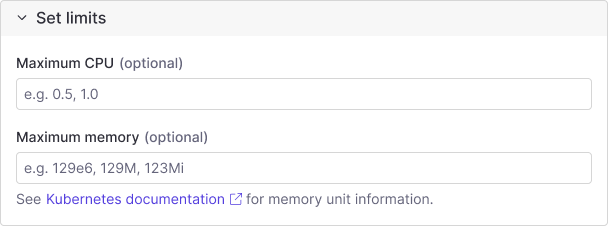
- Click the Create Node Pool button to create the node pool.
Edit a node pool
You can update the description and limits on a node pool you created, without recreating it or its hardware tiers. Instance types, data plane, and accelerator type are fixed at creation.You cannot edit the built-in node pools that ship with your deployment (
compute, platform, gpu, and trainium, plus compute-arm64 and gpu-arm64 on deployments with Arm-based nodes). Their limits are managed through your deployment configuration, so the edit action is hidden for them.- In the node pools table, click the three dots menu in the node pool row and select Edit.
-
In the Edit Node Pool dialog, update any of the following fields:
- Description: The description of the node pool.
- Maximum CPU: The maximum number of virtual CPUs the node pool can use (integer). Leave empty to remove the limit.
-
Maximum memory: The maximum amount of memory the node pool can use, in binary SI units, for example
16Gi. Leave empty to remove the limit. See Binary SI.
- Click Save to apply the changes. Any field you leave unchanged keeps its current value. To clear an existing description or limit, empty the field before saving.
Delete a node pool
- If the node pool is not used by any hardware tier, you can delete it by clicking the three dots menu in node pool row and selecting Delete.
-
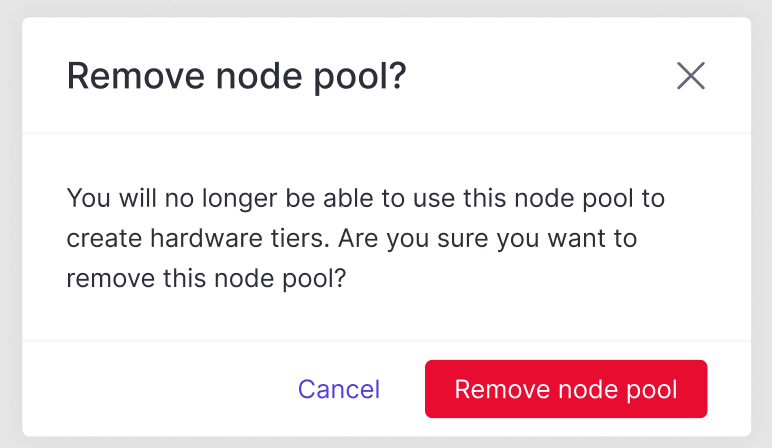
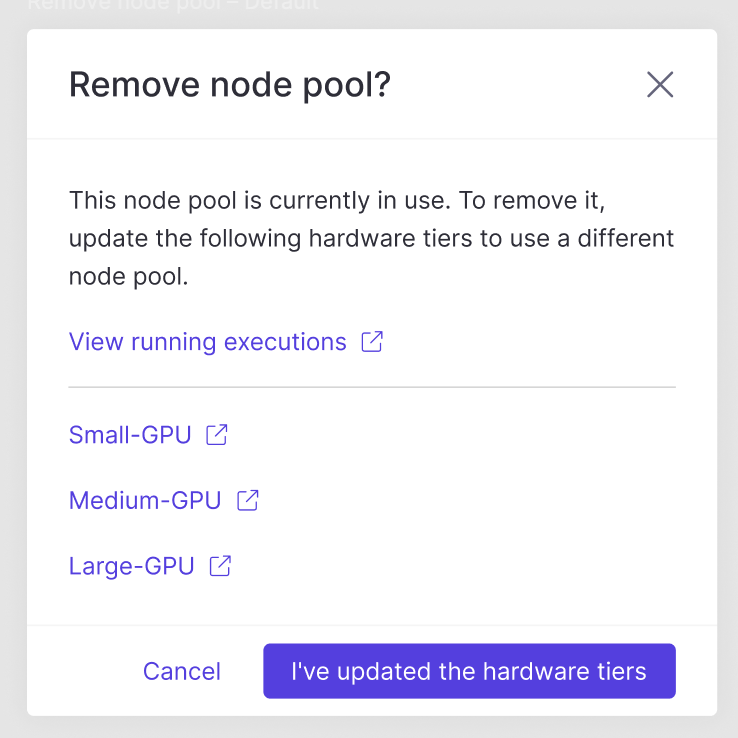
A confirmation dialog appears. You see one of the following messages:
-
If the node pool is not being used by any hardware tier:
-
If the node pool is used by some hardware tier:
-
If the node pool is not being used by any hardware tier: