predict_location.py launcher file.
Domino endpoint setup
- To get started, click Domino endpoints in the Domino project menu bar then click the Create Domino endpoint button.
-
On the screen that appears, add an Endpoint Name (e.g.
Weather Prediction Domino endpoint), a Description and leave it associated with your current Project. Click Next. -
On the next screen, below The file containing the code to invoke (must be a Python or R file), click inside the text box. A drop down will be displayed with the files Domino can use for the Domino endpoint. Select
predict_location.py. -
For The function to invoke, select
predict_weather, which is the entrypoint function to the file. - Choose the Environment and under Deployment Target, the hardware to use for the Domino endpoint.
- Click Create Domino endpoint.
- Domino will load the Domino endpoint overview screen, and will initially report a Preparing to build status, then move to a Building status, and finally to a Running status.
Debug the Domino endpoint
To get an idea of what is not working:- Click the Versions tab to switch to that view.
- On the screen that will appear, click View All Instance Logs.
-
Now scroll down to see the log of the container that Domino started to host your model. You will notice the following lines towards the bottom of the log (the time and server IP address will differ on your version):
This means that the API attempted to start looking for the API key
launcher_apithat you stored earlier as part of the project’s environment variables. Environment variables for Domino endpoints need to be set differently. - Click the Back button in your web browser to return to the endpoint version overview screen. In your Domino endpoint window, click on the Settings tab.
- Now, switch to the Environment view by clicking on it in the navigation menu.
-
Click Add Variable. Domino will give you the option to add a key-value pair for the environment variable. For the Name, enter
launcher_api_key. For the Value, use the same API key as when you’ve set up the environment variable for your launcher. - Finally, click Save Variables.
- Switch back to the Versions tab and then click the vertical dots in the Actions column.
- In the menu that will appear, click Start Version. This time, the endpoint will find the missing environment variable and run, showing a Running status.
Test the Domino endpoint
- Switch to the Overview tab.
- Scroll down to the area titled Calling your endpoint.
-
In the box titled Request, enter the following text:
This is a JSON snippet containing a call to your Domino endpoint. It sends the necessary two arguments to the
predict_weathermethod so that it can run. You can either use the station ID in the code above or change it. - Click the Send button below the Request box. This will trigger the execution of your prediction script.
-
The result will appear in the Response box. For example:
The actual prediction is in the
resultblock of the above JSON snippet that the Domino endpoint returned. -
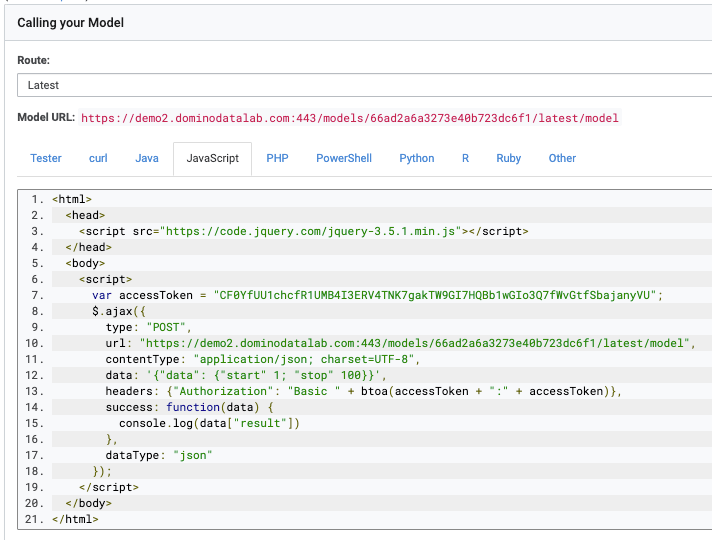
You can now share the Domino endpoint with your colleagues using the language-specific code snippets in the tabs next to the Tester. For example, this is how a JavaScript application will call your Domino endpoint: