

How deploying works
An App has at most one running instance. Deploying a version replaces the one that was running, so viewers always reach a single version at the App’s URL. You can deploy any published version, not only the newest. Deploying an older version is how you roll back. A version’s deployment settings decide how and where it runs. Unlike its code, environment, and data configuration, you can change them after publishing: resize or rescale the App for its traffic without a new version. If a governance policy gates deployment, Domino checks it each time the version deploys or restarts.Deploy the App
These steps deploy the Synthetic Transaction Review version you published and, if required, governed.1
Choose the Hardware Tier
On the App’s details page, select the version and select Deploy, then confirm the Hardware Tier.The transaction review App does little work per request. It reads a CSV once at startup and calls an endpoint when a reviewer selects Review. A small CPU tier is enough for a compliance team. Turn on autoscaling here so the same small tier also handles spikes in demand. See Size and scale an App.
2
Deploy and open the App
Deploy. When the status changes to Running, open the App URL and score one transaction.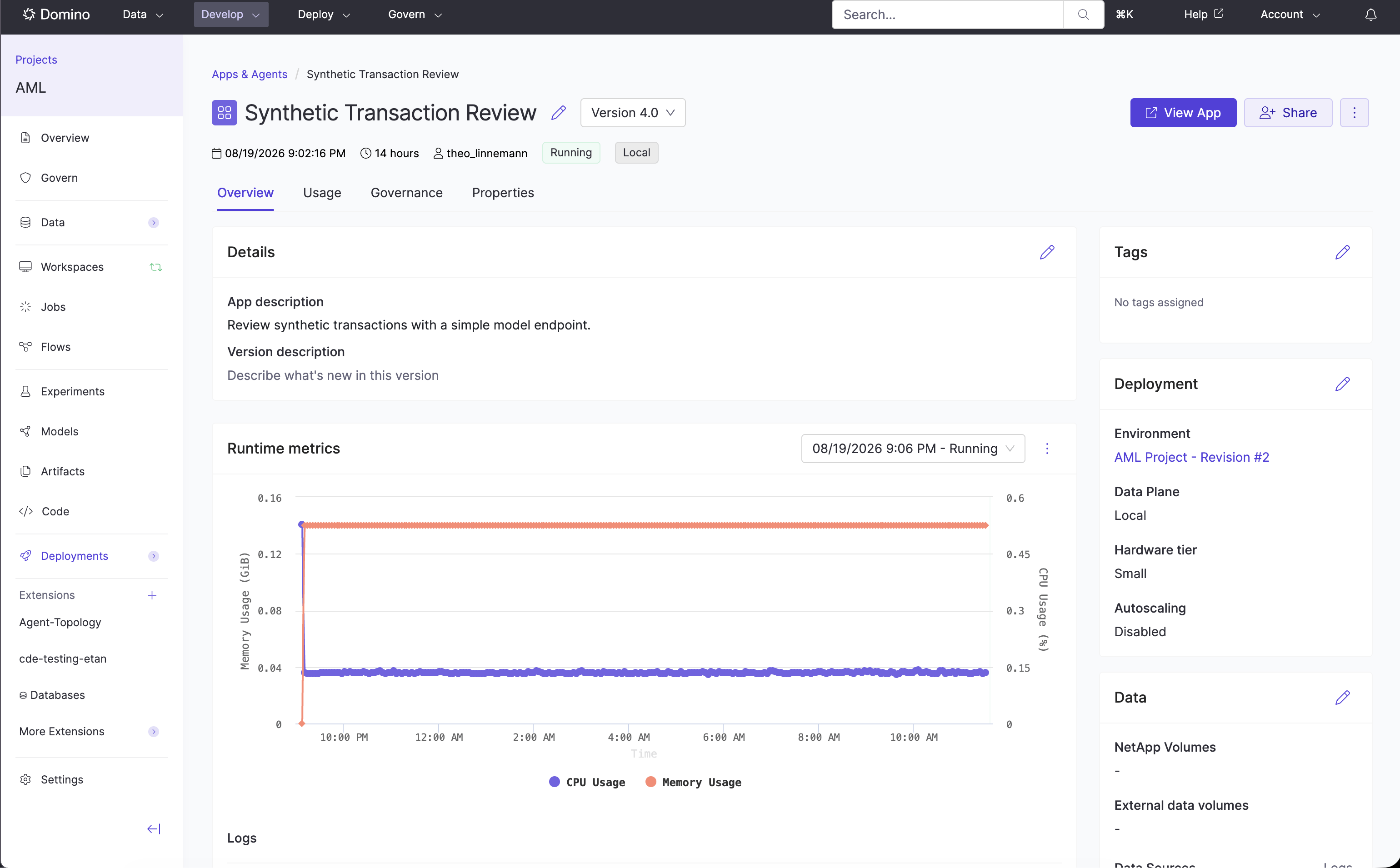
Deployment settings
Deployment settings control how and where a version runs, not what it runs. Changing one updates the version in place and restarts the running instance. It doesn’t create a version.Size and scale an App
Domino runs an App in a pod on its Hardware Tier. Turn on autoscaling and pick a lightweight Hardware Tier. Domino adds pods within seconds when demand spikes and removes them when it falls, so you don’t size the App for peak traffic or weigh cost against performance. Without autoscaling, size the pod for the viewers you expect. Both are deployment settings. Changing them restarts the App without creating a version.Estimate what one pod serves
With autoscaling on, capacity is pods times viewers per pod. If one action uses 100 MB of RAM and 20% of a CPU, a pod with 1 core and 1 GB of RAM serves 5 viewers running that action at once, so 40 such pods serve 200 concurrent reviewers on small, cheap tiers. Without autoscaling, pick a Hardware Tier with enough cores for the viewers you expect; in this example CPU is the limit, not memory. Run heavy or long-running computation as its own execution: start a Job or call an endpoint from the App and show the result when it’s ready. The App stays responsive, the work runs on its own Hardware Tier, and each run has its own logs and record. Depending on the tier, the pod shares a node with other containers or runs on a dedicated node.Use every core on the pod
Without autoscaling, make the App use every core on its pod.- Dash and Flask
- Shiny
Flask’s built-in server, which Dash also uses, is for development. For production traffic, serve the App through a production server such as Change For a plain Flask App, point
gunicorn, with worker processes sized for the pod.Dash exposes its Flask server as app.server. Add gunicorn to the App’s Compute Environment, then add one line after the Dash constructor:app.py
app.sh to run gunicorn with 4 worker processes:app.sh
gunicorn at the Flask object instead, such as app-flask:app. See the Flask deployment documentation for other options.Configure autoscaling
With autoscaling on, Domino adds and removes pods for the running App dynamically, keeping CPU and memory use across pods near their targets. Scale-up happens within 20 seconds, and scaling happens without a restart or republish. That lets you choose a lighter-weight, cheaper Hardware Tier than you would for an App that doesn’t autoscale and rely on autoscaling to absorb demand spikes. Extra pods run only while demand needs them, so you don’t have to trade cost against performance up front. Turn on autoscaling when you publish or deploy the App. Start from the default parameters, then adjust them for your framework as described below.
The App’s Monitoring tab shows CPU and memory across all pods with autoscaling events, so you can check the settings under real load. See Monitor resource consumption.
Custom autoscaling values persist across sessions. On a remote Data Plane, autoscaled pods share the volume your administrator names in
com.cerebro.domino.apps.autoscaledExecutionPvcNamesForRemoteDataPlanes; see Configuration. On a remote Data Plane, autoscaled pods share the volume your administrator names in com.cerebro.domino.apps.autoscaledExecutionPvcNamesForRemoteDataPlanes; see Configuration. On a remote Data Plane, autoscaled pods share the volume your administrator names in com.cerebro.domino.apps.autoscaledExecutionPvcNamesForRemoteDataPlanes; see Configuration. On a remote Data Plane, autoscaled pods share the volume your administrator names in com.cerebro.domino.apps.autoscaledExecutionPvcNamesForRemoteDataPlanes; see Configuration.
R and Shiny
Shiny serves one request per R process, so Domino scales a Shiny App by adding pods.- Turn on Enable session affinity to avoid transient connectivity errors for viewers.
- Pick a small, low-CPU Hardware Tier and a high Maximum Pods.
Streamlit
Streamlit keeps each viewer’s session state in server memory, and features such as file uploads and generated media need every request from a session to reach the same pod. Turn on Enable session affinity when a Streamlit App autoscales.Flask, Dash, and other frameworks
Leave Enable session affinity off unless the framework keeps per-viewer state in memory. Requests then spread across pods, and Domino can scale down sooner. The transaction review App keeps its decisions in the browser session, not in server memory, so it doesn’t need affinity.Script deployments with the API
The/api/apps/v1/ endpoints cover the same operations as the UI: create an App, create a Draft App for a Workspace, publish, list and create versions, and start, stop, or live-sync a version. Publishing into an App whose entry point or configuration type doesn’t match returns 422.
The older /api/apps/beta/ endpoints are unchanged, so existing callers need no migration. App instance reads (list instances, logs, real-time logs, views, and instance delete) exist only on the beta endpoints. Both are documented in the Domino Platform API reference under the Apps, AppVersions, and AppInstances tags.
Filter and sort the App list
GET /api/apps/beta/apps accepts the same filters as GET /api/apps/v1/apps; v1 adds draftsOnly and entryPoint. Filter by projectId, name, ownerId, status, publisherId, or tagIds, in any combination. Two more filters cover type and access:
configurationTypefilters by type. Without it, the endpoint returns every App and Agent you can see.STANDARDreturns only Apps.AISYSTEMreturns only Agents.accessStatusfilters by your own access:granted(you can open the App),pending(your access request is waiting), ornoAccess(no access and no pending request).
sortField (name, lastUpdated, status, views, lastViewed, or published, the time the App’s current instance was published) and sortOrder (asc or desc).
This lists the Apps you can open, most recently published first:
Related
- Operate: Share, monitor, roll back, and troubleshoot the deployed App.
- Hardware Tier best practices: How administrators size tiers.