

- Account for overhead
- Isolate workloads and users using node pools
- Isolate compute cluster workloads
- Set resource requests and limits to the same values
Account for overhead
When designing hardware tiers, consider what resources are available on a given node when Domino submits your workload for execution. Not all physical memory and CPU cores of your node are available due to system overhead. Consider the following overhead components:- Kubernetes management overhead
- Domino daemon-set overhead
- Domino execution sidecar overhead
Kubernetes management overhead
Kubernetes typically reserves a portion of each node’s capacity for daemons and pods that are required for Kubernetes itself. The amount of reserved resources usually scales with the size of the node, and also depends on the Kubernetes provider or distribution. See the following for information about reserved resources by cloud-provider managed Kubernetes providers:Get available resources for your instance
-
Run the following command to check one of your compute nodes:
-
Find the
Allocatablesection of the output. This shows the memory and CPU available for Domino.
Domino daemon-set overhead
Domino runs a set of management pods that reside on each of the compute nodes. Use these for log aggregation, monitoring, and environment image caching. The overhead of these daemon-sets is roughly 0.5 CPU core and 0.5 Gi RAM. This overhead is taken from the allocatable resources on the node.Domino execution overhead
For each Domino execution, there is a set of supporting containers in the execution pod that manages authentication, handling request routing, loading files, and installing dependencies. These supporting containers make CPU and memory requests that Kubernetes considers when scheduling workspace, job, and app pods. The supporting container overhead currently is roughly 1 CPU core and 1.5 GiB RAM. You can configure this so it might vary for your deployment. Example: Consider anm5.2xlarge EC2 node with a raw capacity of 8 CPU cores and 32 GiB of RAM.
When used as part of an EKS cluster, the node reports the following allocatable capacity of ~27GiB of RAM and 7910m CPU cores.
- In the Admin application, click Infrastructure.
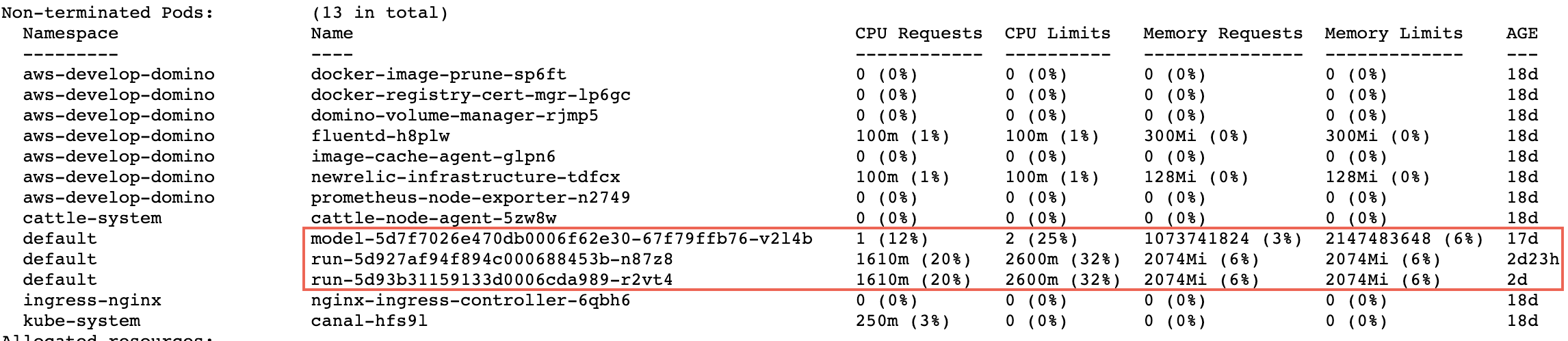
- Click the name of a node. In the following image, there is a box around the execution pods. The other pods handle logging, caching, and other services.
Isolate workloads and users using node pools
Define node pools:- Go to Advanced > Hardware Tiers.
- Create or edit a hardware tier.
-
In the Node Pool field, enter
your-node-poolwhich must match the node pool label such as:dominodatalab.com/node-pool=<your-node-pool>. You can name a node pool anything you like, but Domino recommends naming them something meaningful given the intended use.
default and default-gpu node pools, with the assumption that most user executions run on nodes in one of those pools. As your compute requirements become more sophisticated, you might want to keep certain users separate from one another or provide specialized hardware to certain groups of users.
For example, if there’s a data science team in New York City that needs a specific GPU machine that other teams don’t need it, you can use the following label for the appropriate nodes: dominodatalab.com/node-pool=nyc-ds-gpu. In the hardware tier form, you would specify nyc-ds-gpu. To ensure only that team has access to those machines, create a NYC organization, add the correct users to the organization, and give that organization access to the new hardware tier that uses the nyc-ds-gpu node pool label.
Isolate compute cluster workloads
Domino on-demand compute clusters often require pooling a large amount of compute resources on specialized hardware (for example, using larger nodes compared to your other workloads). Consider a use case where you want a set of extra large nodes to be available for on-demand Ray workloads but not available for regular workloads.- In the admin panel, go to Manage Resources > Hardware Tiers.
- Create or edit a hardware tier.
- From Restrict to compute cluster, select the Ray checkbox.
ray-head and ray-worker Hardware Tiers.