

Before you begin
- A Git-based Project you can edit. Only Git-based Projects support Edit in Workspace.
- A Compute Environment with your framework installed. The transaction review App needs
dashanddash-mantine-components. - For the transaction review App, the
AMLDataset and theMODEL_ENDPOINT_URLandMODEL_ACCESS_TOKENProject environment variables from Get started.
Start a Workspace for the App
On the Project’s Deploy > Apps & Agents page, select Create, then App in Workspace. Domino starts a Workspace with the Project’s code. Any Workspace in the Project works the same way.
Creating an App doesn’t deploy it. Viewers see nothing until you deploy a version. If your administrator turns off the
EnableAppsSDLC feature flag, which is on by default, Publish App creates and deploys the App in one step.Write the entry point
An App is application code plus an entry point that starts a web server. The server must listen on Two other things in this code apply to every App. Domino serves each App under its own URL path and puts that path in
0.0.0.0, port 8888. Domino routes viewers to that port. An App that listens anywhere else fails to start.The transaction review App’s entry point is app.sh. The address and port are set in app.py:DOMINO_RUN_HOST_PATH at startup. Dash, Streamlit, Flask, and any other framework that takes a base path must read it from that variable. A path assembled from the Project name or run ID stops working after a restart; see Migrate an App that builds its own path. The endpoint URL and token come from Project environment variables, not from the code.App frameworks has the launch line for Streamlit, Flask, Shiny, and static HTML. A coding assistant with Domino Skills can scaffold an App that already follows these rules.Commit your changes
Commit
app.py and app.sh. Preview runs the latest commit. Uncommitted edits never reach it.Run the App in App Preview
In the Workspace’s App Preview tab, set the App file to 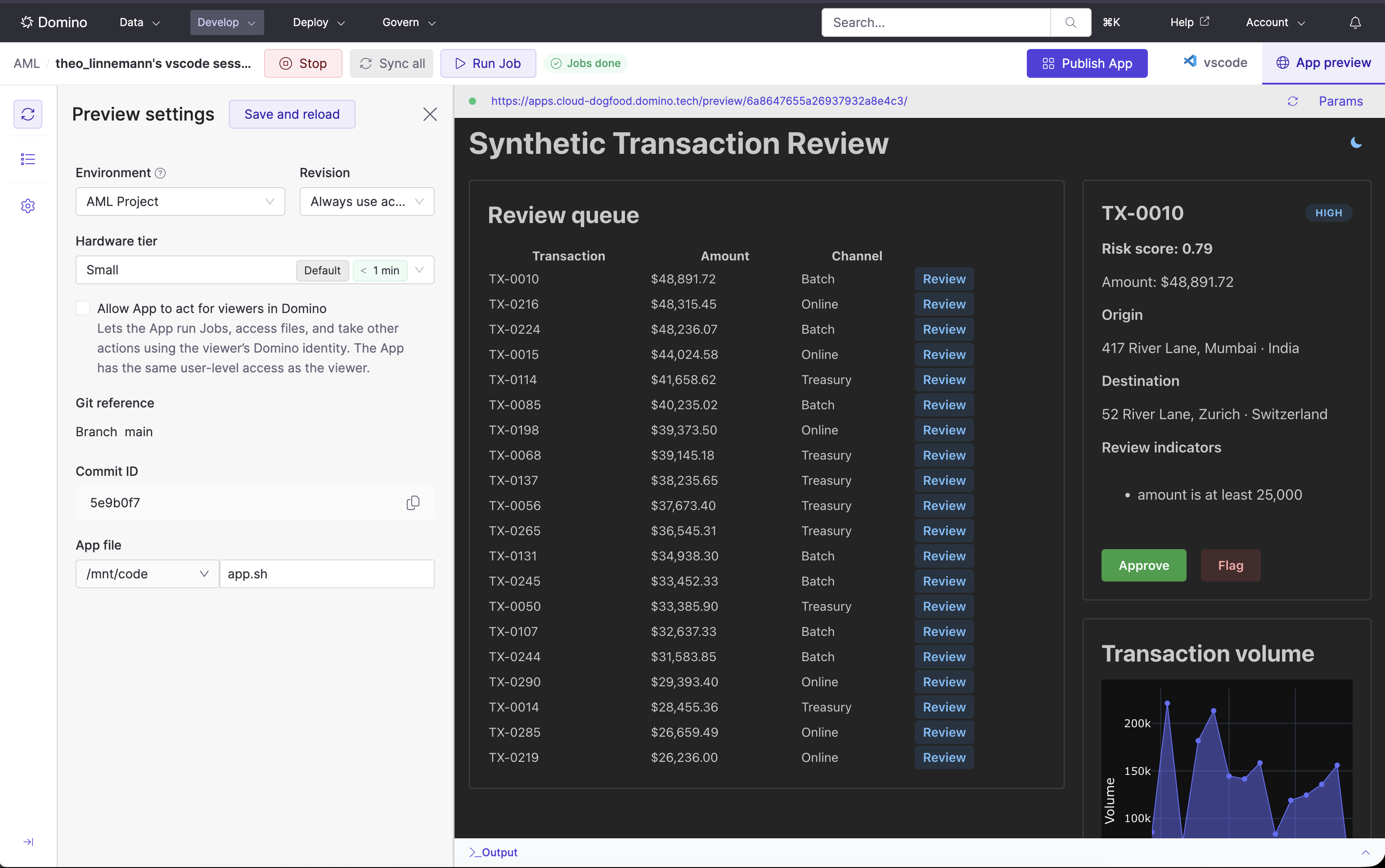
app.sh, keep the AML Dataset mounted, and start the preview. These settings become the defaults when you publish, so the version you publish matches what you tested.Domino creates a Draft App for this Workspace and starts it in a private App runtime. The first load takes about as long as starting a deployed App. When the page loads, select Review next to a transaction. A score confirms that the App reached the Dataset and the endpoint.Iterate with live sync
Edit the code and commit. For example, change
head(20) to head(50) in review_queue() to show 50 transactions. Live sync applies the new commit to the running preview without a full restart. A preference controls whether it syncs on every commit or only when you ask.While the preview runs, you can also:- Add query parameters to test parameterized views.
- Open the preview in its own tab at
/preview/<draftAppId>. The URL works only for you. - Read the App logs or change preview settings from the Workspace sidebar.
- Download a support bundle for the preview instance.
Publish
Select Publish App in the Workspace. Domino records a version from the preview settings. The Draft App and the Workspace stay as they are. Continue with Publish.
Draft lifecycle
A Draft App survives Workspace restarts.- Stopping the Workspace stops the preview. Administrators can also stop previews.
- Deleting the Workspace deletes the Draft App.
- Each Draft App has one preview at a time. Starting a new preview stops the old one.
- Previews don’t count against the per-Project limit on running Apps.
- Autoscaling applies to deployed versions. Test it after you deploy.
Update an App viewers already use
Edit in Workspace opens a published version in a Workspace with its own Draft App. Viewers keep using the deployed version while you work. Nothing changes for them until you deploy the new version.1
Open the version in a Workspace
On the App’s details page, select the version and then Edit in Workspace. Domino creates a Workspace and a Draft App with that version’s configuration and starts a preview.
2
Change and test the code
Edit and commit. Live sync applies each commit to the preview.
3
Publish a new version
Select Publish App and publish a new version of the same App. The entry point must match the App’s. See Publish.
4
Deploy it
Deploy the version. If it misbehaves, start the previous version.
v1.2-data-upgrade.
Build with coding assistants and Domino Skills
Coding assistants run in your Workspace. Domino Skills add App-specific actions:
Ask the assistant to “create a Streamlit app for this project” and it uses domino-app-init. The skills reference lists every skill.
Migrate an App that builds its own path
With theSecureIdentityPropagationToAppsEnabled feature flag on, which is the default since Cloud Release 90, Domino hosts Apps at https://<domino-domain>/apps/<app-id>/. An App that builds its path from DOMINO_PROJECT_OWNER, DOMINO_PROJECT_NAME, and DOMINO_RUN_ID keeps running until its next restart. Then it shows a blank page, a 404, or a 502, or a Dash App stops serving assets and callbacks.
Read the path from DOMINO_RUN_HOST_PATH instead. Domino sets it at startup, and it’s correct whether or not the flag is on.
Related
- Publish: Record a version of the Draft App.
- Identity: Read the viewer’s identity in your code.
- Run multiple Apps in a Workspace: Serve more than one App from one Workspace.