

- Search for packages across PPM snapshots
-
See which snapshot is configured in your
renv.lockfile - Install packages with a single command
- Maintain reproducibility for GxP-regulated workflows
How it works
Search for packages with or without version numbers. The integration shows which snapshots contain them and highlights your current snapshot. Select a snapshot and copy a formatted command for R or bash. This command can install packages, update your environment, and write changes torenv.lock. Your admin can customize the command logic to meet GxP compliance requirements.
Paste and run the command in your workspace.
Prerequisites
Before you use PPM integration, verify these requirements:- A network-accessible PPM server
- Your admin has configured a PPM server in Domino
-
Your admin has configured the environment to include an
update.R scriptwhich handles:- Package installation
-
renvupdates -
Snapshotting the
renv.lockfile - GxP compliance logic
Step 1: Search for validated R packages in PPM
Use the PPM integration to find packages. Search by package name to see which snapshots include them.- Launch a workspace using RStudio or VS Code.
- In the left sidebar, select Posit Package Manager.
-
In the PPM panel, enter a comma-separated list of R packages.
You can optionally include version constraints using
==,>=,<=,<, or>. The panel shows snapshots that contain all the packages and meet version constraints. -
Review the snapshot currently defined in your
renv.lockfile at the top of the panel.
Step 2: Install packages and update your environment
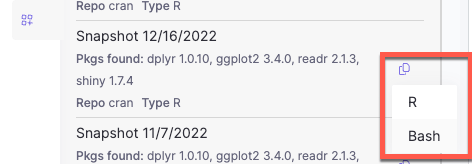
After you select a snapshot, install packages and update your environment with a single command.- Click the copy button next to your selected snapshot.
-
Choose either R or Bash based on where you want to run the command (in the R console or in the terminal).
-
Paste and run the command in your workspace. For example, if you pick
R, it looks something like this:This command runs a script configured by your admin. The script can install packages, update the environment, runrenv::snapshot(), or execute GxP compliance logic. -
Select the refresh icon at the top of the PPM panel.
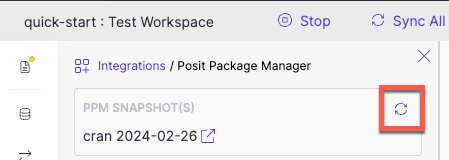
- Your selected snapshot now appears under PPM Snapshots.
Notes
-
If you launched the workspace with an existing
renv.lockfile, the panel shows the snapshot defined in that file. - If the integration doesn’t work, verify prerequisites with your admin.
- If you use bash, reload your terminal for the snapshot to appear in your environment.
Next steps
- Learn about launching workspaces in Domino.
- View workspace details about user actions, view current and historical workspace resource usage, and view sessions and commits that were made in a workspace.