

Create a user
Use the Admin panel to manually add users by email and assign their roles. They’ll receive an invitation to set up their account after creation.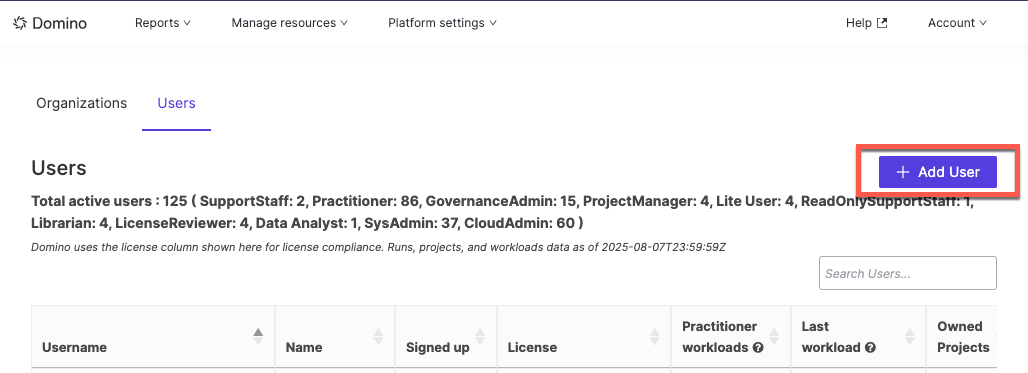
- Go to Admin panel > Users > View all.
- Click Add User.
- Enter the user’s email address and assign roles.
- Click Save.
- A notification
- An invitation to set up their account
Activate or deactivate a user
- Go to Admin panel > Users > View all.
- Find and select the user in the list.
- Click Activate or Deactivate, depending on their current status.
After deactivation
After deactivating a user, complete the following cleanup tasks to prevent orphaned resources and broken executions.-
Stop and delete workspaces:
- Go to Reports > Workspaces and search for any workspaces owned by the user.
- Delete these workspaces.
-
Check for active executions:
- Go to Reports > Executions to view any running endpoints or apps owned by the user.
- Make note of any that must remain active after project transfer. They need to be restarted.
-
Transfer or archive projects:
- Go to Reports > Projects.
- Either archive the user’s projects, or transfer ownership to another user.
Next steps
- Learn how to manage and assign user roles.
- See how to reset a user’s password.