

- Use model-related features
- Edit the hardware tier
- Edit or manage Environment definitions
Enable the data analyst role
- Log in as an administrator.
- Go to Admin > Platform settings > Configuration records > Click Add Record.
-
Create a new config option
com.cerebro.domino.dataAnalyst.enabledand set it totrue.
- Restart the Domino services to apply the new setting.
- Go to Admin > Manage resources > Hardware tiers.
- Next to the hardware tier you want to use for Data Analysts, click Edit and select the Is Tier for Data Analysts checkbox.
- Click Update.
Assign the data analyst role
After you enable the Data Analyst role, Keycloak has adata-analyst-user role in the domino-play client. Use either of the following methods to set up a Keycloak client role.
Manually assign the user role
Manually assign a single user the Data Analyst role:- Log in to Keycloak.
- Go to DominoRealm > Users > Click the user ID > Role Mappings.
Use Keycloak groups to assign the role
Assign all members of a Keycloak group to the Data Analyst role. Regardless of your authentication framework, you must propagate thedata-analyst-user role in the domino-play client and the Practitioner Domino global role. The following steps use the SAML/LDAP authentication method:
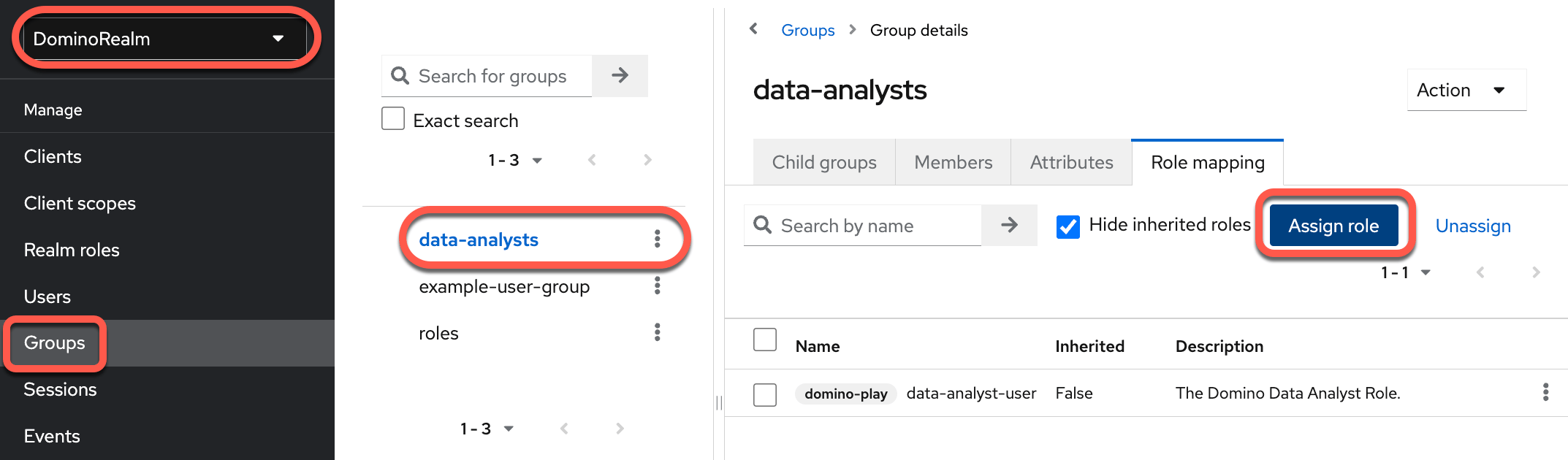
- Log in to Keycloak and go to DominoRealm.
-
Click Groups and create a new group, such as
data-analyst-group. - In the new group, click Role Mappings.
-
Click Assign role > Filter by clients > Select data-analyst-user > Assign.
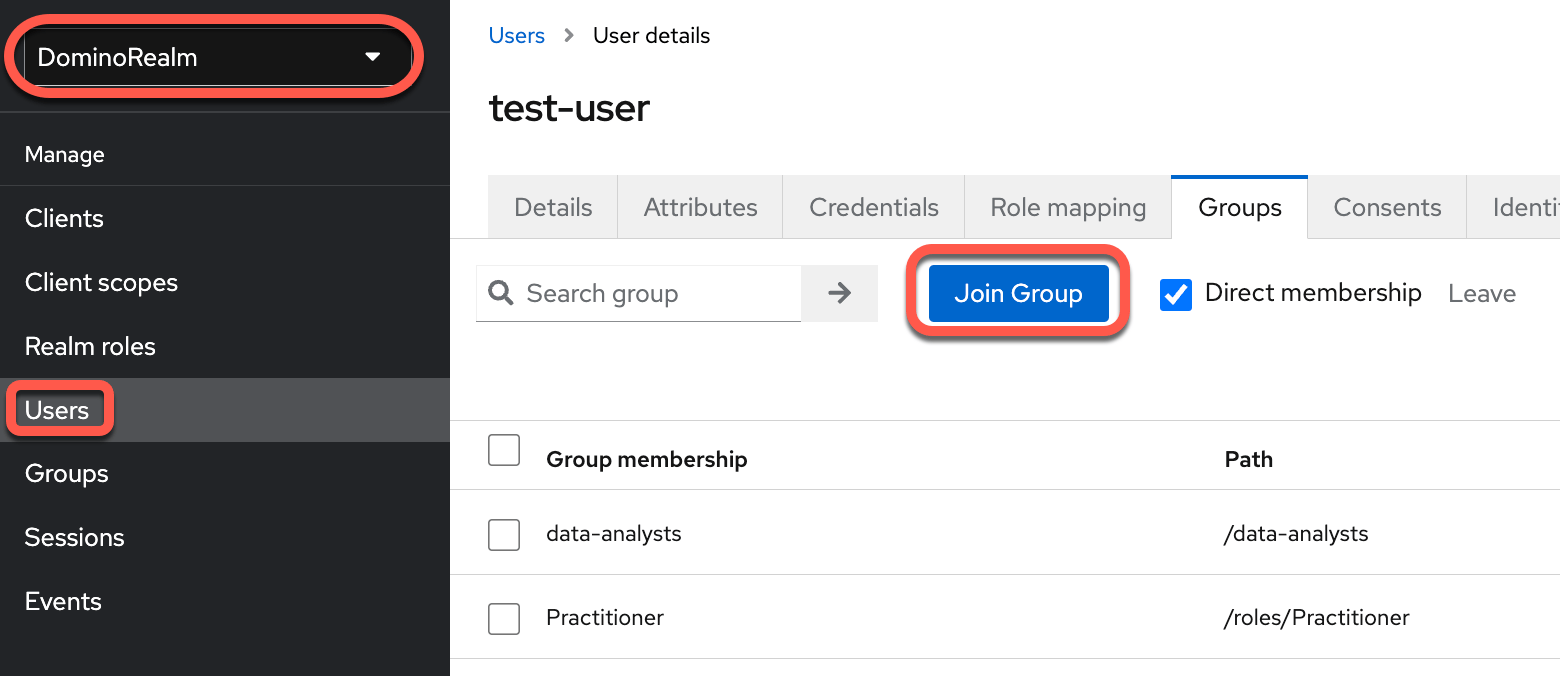
- Go to DominoRealm > Users and find the user you want to add.
- Click the user ID > Groups.
-
Click Join group > Data analyst.
Monitor data analysts
View user activity reports to view user information and activity. After you enable the Data Analyst role, the Users page displays a License column with the following values:- DataScienceProfessional (standard Domino license)
- DataAnalyst (the new Data Analyst license)
- LiteUser (a legacy role)