

publish() function and the robust MATLAB Report Generator. To simplify things, in this tutorial, you will use the publish() function, which uses a MATLAB m file as a document template.
Imagine that you receive data daily about Berlin’s weather. You want to generate a scheduled email visualizing this data, as well as the forecasted number of hot days in the next 365 days.
To do that, create the following files:
-
An
m.file, based on your Live Script, that will:- Load Berlin weather data from a URL.
- Prepare the data.
- Generate predictions using the model you create with the data.
-
Call the
publish()function.
-
An
m.file that will be your report template that shows:- A weather prediction plot.
- The number of predicted hot days.
Step 1: Publish the weather prediction report
- Go to Workspaces and click Open Last Workspace.
- Go to New > Script to create a new file.
-
Click Save > Save As to name it
predictWeatherReport.m. -
Copy and paste the following code to your file. This code initializes a
structto hold the results, defines a hot day temperature threshold (in degrees Celsius), downloads the current data for Berlin weather, and saves it to the workspace. It will read the downloaded file into a table format. -
To prepare the data, copy and paste the following code that will start with data from the year 1999, adjust the temperature data to full degrees, and complete missing data. If there are less than 1000 rows of data, the data will stop processing.
-
Copy and paste the following code which will load the model that you created previously and save it into a
.matfile. Then, it will create the table to use as input with the updated data that was read from the URL previously. -
Copy and paste the following code that will run the model and load the
resultstruct with the prediction. -
Copy and paste the following code to share the prediction result with the template in the
.mstfile. You must include this because thepublish()function runs in isolation from the workspace. To ensure the data file has a unique name for each run of this script, this code uses the Domino environment variable for the run number. -
Copy and paste the following code to call the
publish()function. The report will be published to a subfolder of theresults/folder, along with the number of the current run in the filename. - Click Save.
Step 2: Create the report template
-
To create the report template, create a script named
predictWeatherReportTemplate.m. Copy and paste the following code to load the data. This tutorial uses the following format for the filename when loading the data:results/predictData_<Domino Run Number>. The data is stored in a variable calledresult. -
Copy and paste the following code to add a title to the template. In this MATLAB template, comments will be rendered as markup. For more information, see MATLAB’s documentation about markup comments for publishing.
-
Copy and paste the following to add the plot with the data that you loaded previously and show the hot day predictions as output.
- Click Save.
- Click File Changes in the navigation bar. Then, click Sync All Changes to save and commit your changes.
-
To test the
predictWeatherReport.mfile, type the following in the Command Window to call the file and press Enter:The following graph shows the weather forecast: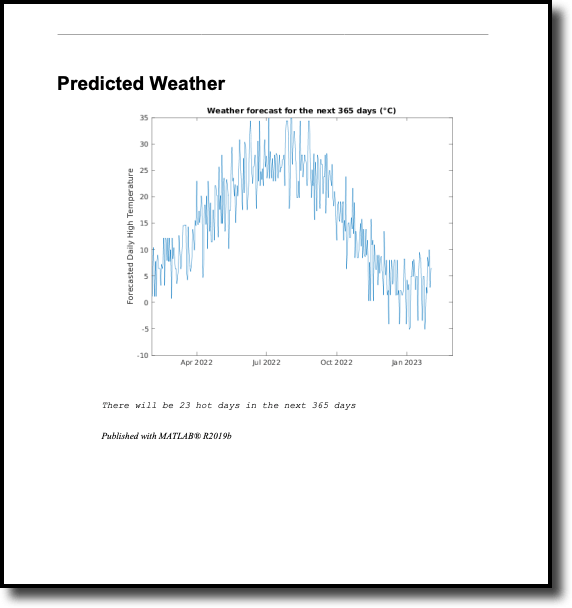
results/folder.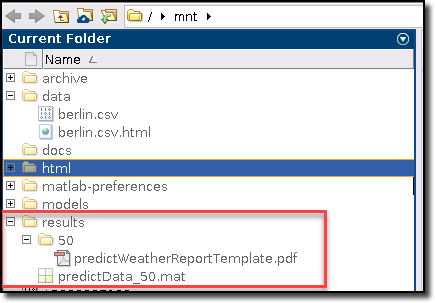
- Save and sync your changes.
- Stop your MATLAB session. Click the Domino icon and then, in the navigation pane, click Jobs > Schedules.
-
Click Schedule a Job.
-
Type a name for the job and type
predictWeatherReport.mas the file to run for this job. - Select a hardware tier.
- Confirm that your environment is the same as the one in which you developed your model.
- Click Next.
-
Type a name for the job and type
- On the Attach Compute Cluster page, select none and click Next
- Schedule the job to run every weekday. Leave the Run sequentially option checked. Click Next.
- Type the email addresses for those to notify when the job is complete. Click Create.