

Connect to a Data Source
Some data stores require additional steps. The Data Source connector page has more details about specific connections.Data Sources can be set up to use either service account credentials or individual user credentials. Verify the credentials you’ll need with your administrator before connecting to data sources.
- From the navigation pane, click Data > Data Sources.
- Click Create a Data Source.
- Choose an option from the Select Data Store dropdown.
- Enter credentials for the Data Source and choose from the options.
- Click Finish Setup.
Add an existing Data Source to a project
You can add data sources to a project in two ways. First, you can add a data source directly to the project’s data page. Second, a data source can be added automatically when used in the code within the project. You can add a data source to a project if you have access to that data source and it is set up. This step is not required, but it helps you see which data sources are used in your projects. If you don’t add a Data Source to a project, you can still use it in your code if you have permission to access it.- In your project, go to Data > Data Sources > Add a Data Source.
- Select an existing Data Source from the list.
- Click Add to Project.
Use the Domino Data API
After a Data Source is properly configured, use the Domino Data API to retrieve data without installing drivers or Data Source-specific libraries. The auto-generated code snippets provided in your workspace are based on the Domino Data API, which supports tabular and file-based Data Sources. The API supports Python and R. The Data API comes pre-packaged in the Domino Standard Environment (DSE). You can install the Data API in custom environments if needed. The Data API’s Data Source client uses environment variables available in the workspace to automatically authenticate your identity. You can override this behavior using custom authentication.Get code snippets
Domino creates code snippets to help you access data sources for your project using the Domino Data API. Code snippets are available for Python and R and customized for tabular and file-based Data Sources. The Data Source must be added to your project to enable snippets. Here’s how to get a code snippet that you can copy and paste into your workspace:- In your workspace, go to Data > Data Sources.
-
Click the copy icon to display language options.
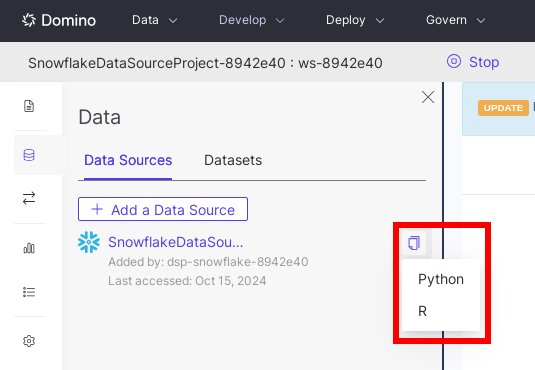
- Select Python or R to copy the code snippet in the desired language.
- Paste the copied snippet into your own code, and modify it as needed.
Domino data sources do not support querying nested objects. The workaround is to
UNNEST the object in the SQL query.The following is an example UNNEST query:Query a tabular store
You can query a tabular store with the following code, assuming a data source namedredshift-test is configured with valid credentials for the current user:
Read/write to an object store
List
Get the data source from the client:Read
You can get object content, without having to create object entities, by using the data source API and specifying theObject key name:
Write
Similar to the read/get APIs, you can also write data to a specific object key. From the data source:Write to a local file
Parquet
Because Domino uses PyArrow to serialize and transport data, the query result is easily written to a local parquet file. You can also use pandas as shown in the CSV example.CSV
Because serializing to a CSV is lossy, Domino recommends using the Pandas.to_csv API so you can leverage its multiple options.-
In a Domino Nexus deployment, Data Sources can be accessed on both the
Localand remote data planes, with the exception of Starburst Trino which can only be accessed on the Local data plane. Data sources may not be usable in every data plane due to network restrictions. - Connectivity issues may originate anywhere between your Domino deployment and the external data store. Consult your administrator to verify that the Data Source is accessible from your Domino deployment.
Next steps
- Create training sets using the Domino Data API.
- Run or schedule a job to train your model or update your model’s predictions using the latest data.
- Learn more about developing and deploying models in Domino.
- Use model monitoring to detect data drift.