

Create a Palantir Foundry Data Source
The easiest and most secure way to connect to Palantir from Domino is to have your administrator create a Data Source for Palantir Foundry for users to access. After your administrator has created the Data Source, you can use the Data Source as usual.You must specify the dataset path, obtained from the Dataset Preview in Palantir, in your query as shown in this example:
Connect using individual user credentials
You can also choose to use individual user credentials to connect to Palantir. However, you should contact your Palantir admin to ensure this method is compliant with your organization’s governance policies. To connect to Palantir Foundry using this method, you must have the following:- A Palantir Foundry account.
- An access token.
- A path to the Dataset.
Create an access token
- Sign in to Palantir Foundry.
- In the Foundry sidebar, click Account and select Settings.
-
Under User settings, click Tokens.
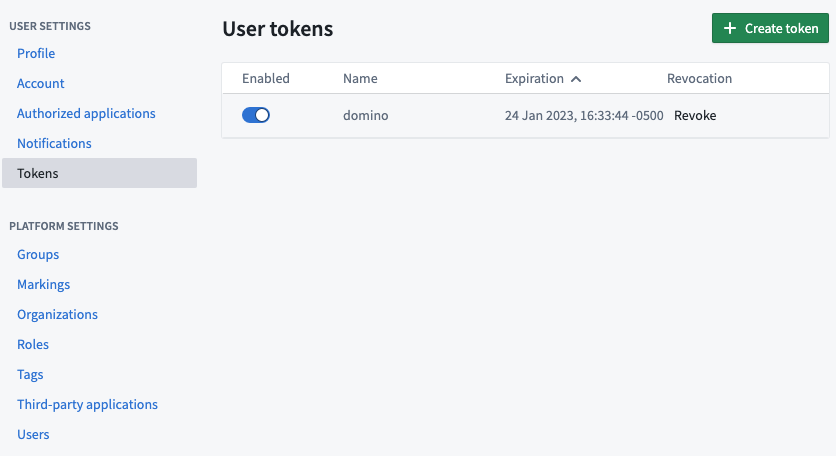
- Click Create token.
- Copy the user token and save the token string. You can store it as an environment variable in Domino.
Copy the Dataset path
- In the Palantir Foundry application, go to the Project containing the dataset and select the dataset.
- In the About section, copy the Location attribute.
- Save the location path or RID string to store as an environment variable in Domino.
Add environment variables to Domino
You can store your Palantir connection information securely in Domino as environment variables in your user or project settings.- Sign in to Domino.
- Click User or Project settings.
- Click Environment Variables.
-
Add the
PALANTIR_TOKENenvironment variable with the value of the user token you created in Foundry. -
Add the
PALANTIR_HOSTNAMEenvironment variable with the value of your Foundry instance hostname.
Add the Palantir-SDK package to your environment
Some Domino Workspace Environments have thepalantir-sdk package installed by default. You can also add Dockerfile commands to the environment definition to add packages:
Run your code
You can now access your Palantir Foundry data through Python, from a Jupyter notebook or VS Code.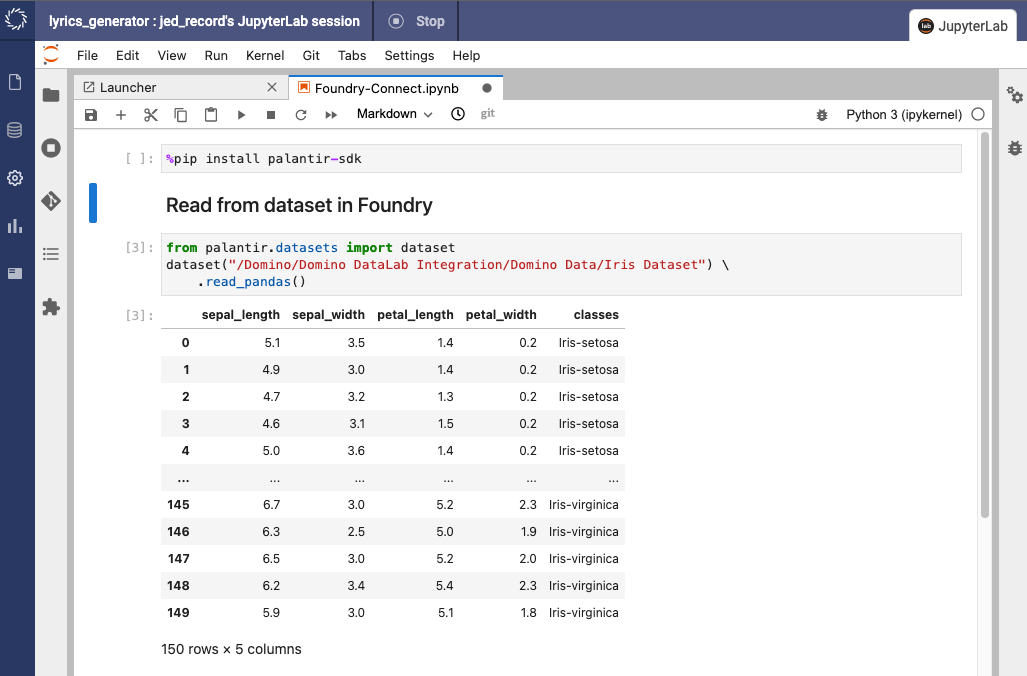
Next steps
- After connecting to your Data Source, learn how to Use Data Sources.
- Share this Data Source with your collaborators.