

Create a new Dataset
If the Dataset you need is not yet in Domino, you can create it in your Project:- In the UI
- In `python-domino`
- In the REST API
- In your Project, go to Data > Domino Datasets > Create New Dataset.
- Enter a Dataset Name and Description, then click Next.
- Enter the users or organizations to give them permission to the Dataset.
- Specify the user or organization’s role.
- Click Add.
- Repeat steps 3-5 as needed.
- Click Finish.
Create a new Dataset from a snapshot
Snapshots are read-only. To iterate on one, create a new Dataset from it, modify the new Dataset, and take a new snapshot. See Create a new Dataset from a snapshot for the UI, CLI, and API steps.Upload files to a Dataset
Use the Domino UI to upload up to 50 GB or 50,000 individual files. For larger uploads, use the Domino CLI for your upload.- In the UI
- In the CLI
- In your Project, go to Data > Domino Datasets.
-
Open the Dataset to which you want to add files, then click Upload files:
 Uploading to a folder can fail if you do not have permissions to write to it. For example, a folder created from a Workspace might not be writable through the UI without appropriate changes to permissions.
Download files from Datasets
Use the Domino UI or CLI to download files and folders from your Projects.- In the UI
- In the CLI
- In your Project, go to Data > Domino Datasets.
- Open the Dataset you want to download files from.
- Navigate to the directory where your files are located.
-
Either:
- Click the vertical dots next to the file or folder you want to download. Click Download. If you are downloading a folder, the downloaded file is a ZIP or TAR archive, which can be toggled via the
com.cerebro.domino.dataset.batchDownloadArchiveFormatconfiguration record key. Otherwise, the file downloads directly. - Click the checkboxes to the left of the files and directories you want to download, and then click Download Selected Items. If you are downloading a folder or multiple files, the downloaded file is a ZIP file (default) or TAR archive, which can be toggled via the
com.cerebro.domino.dataset.batchDownloadArchiveFormatconfiguration record key. Otherwise, the file downloads directly.
- Click the vertical dots next to the file or folder you want to download. Click Download. If you are downloading a folder, the downloaded file is a ZIP or TAR archive, which can be toggled via the
Modify Datasets
You can always modify the contents of a Dataset or rename the Dataset.Rename a Dataset
You can change the name of a Dataset.- In the navigation pane, click Data.
- Click Domino Datasets.
- Click the Dataset to rename.
- Go to More Actions > Rename Dataset.
- Enter a New Name and click Rename.
Delete a Dataset
If you no longer need the entire Dataset, you can mark it for deletion. When you mark a Dataset for deletion, it removes the Dataset and its associated snapshots from the originating Project and from all projects that it was shared with. Domino executions cannot use the Dataset. A Domino administrator must perform the final deletion.- In the navigation pane, click Data.
- Click Domino Datasets.
- Click the name of the Dataset to delete.
- Go to More Actions > Click Delete Dataset.
- Click Delete Dataset to confirm that you want to mark the Dataset for deletion. Your administrator must permanently delete the Dataset.
Add or remove files
You can add or delete files in a Dataset using the Domino UI. With the CLI, you can add all the files in a folder to a Dataset.- In the UI
- In the CLI
In the navigation pane, click Data, then click the name of the Dataset to change.
- To add files, click Upload files.
- To delete files, select the files to delete, then click Delete Selected Items.
- To rename the Dataset, click Rename Dataset, enter the new name, then click Rename.
Rename files and folders
You can change the name of the latest version of a file or folder in a Dataset. Domino also does not rename files or folders in snapshots.- Go to a Project that uses a Dataset.
- In the navigation pane, click Data.
- To rename the file or folder, go to the end of the row and click the three vertical dots.
- Click Rename.
- In the Rename window, enter the New Name and click Rename.
Schedule Jobs to update a Dataset
If you have data in an external source from which you want to periodically fetch and load into Domino, you can set up scheduled jobs to write to Datasets. Suppose you have data stored in an external Data Source that is periodically updated. If you wanted to fetch the latest state of that file once a week and load it into a Domino Dataset, you could set up a scheduled Run:- Create a Dataset to store the data from the external source.
- Write a script that fetches the data and writes it to the Dataset.
- Create a scheduled Job to run your script with the new Dataset configuration. The following is a detailed example showing how to fetch a large, dynamic data file from a private S3 bucket with a scheduled Run once a week.
-
Create a Dataset to hold the file. This example shows the Dataset named
fetched-from-s3.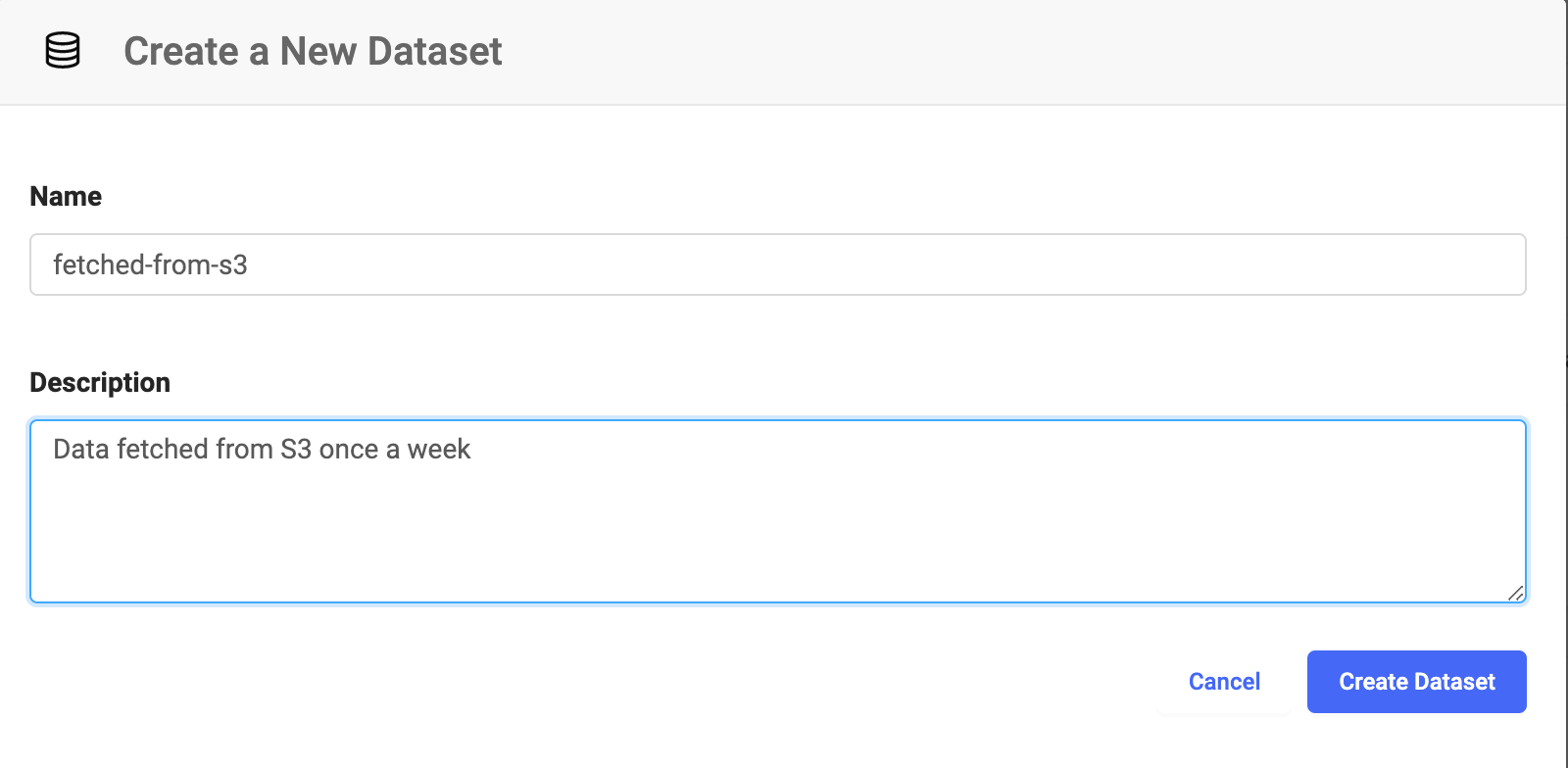
my_bucketand the file you want is namedsome_data.csv. You can set up your script like this: fetch-data.py - Set up a scheduled Job that executes this script once a week with the correct Dataset configuration.