

Launch a new flow
A new flow must be launched using the Flyte CLI via thepyflyte run command.
In the example below, we assume that:
-
A flow is defined inside a
workflow.pyfile. -
The flow is defined using a method called
test_workflow. -
The flow takes two input arguments called
inputA(int) andinputB(string).
Set a name
A name is automatically generated for each run, but you can explicitly set the name as well:Flow run names must be unique across all your flows within the same project.
Add tags
You can also add tags to a run execution:Flow versioning
Flows are automatically versioned inside Domino. Runs of each flow version are grouped together and the runs of the latest flow version are shown by default. You can view and select versions in the Runs view of your flow.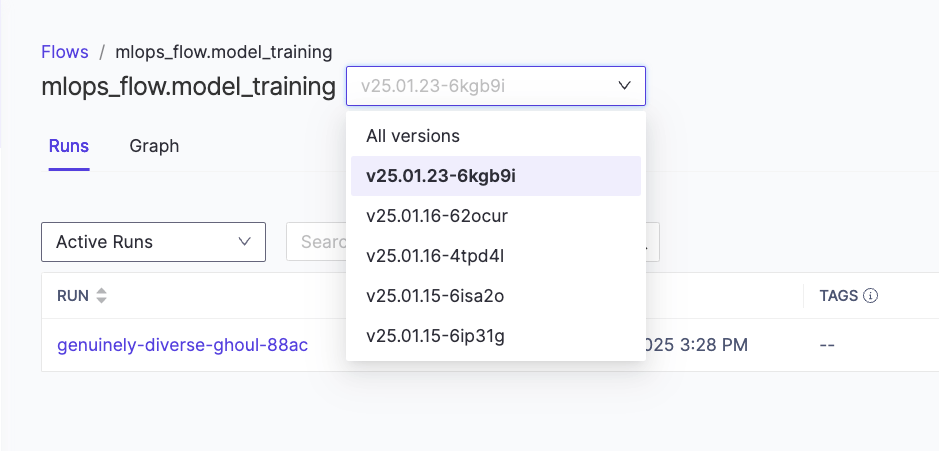
workflow.py definition file cause a new version to be serialized and registered to Domino when that flow is launched from the CLI. This flexibility allows for rapid iteration: new workflow definitions can be written, serialized, and tested in flows without requiring an immediate commit to Git or DFS. This speeds up development and debugging as workflows can be quickly adjusted and re-registered.
However, since the registered flows are stored in a serialized format, it is important to ensure that the workflow code is eventually committed to Git or DFS. Without this, there is a risk that only the compiled workflow in the Domino UI remains available and that you’ll lose the syntax that built it. A good practice is to leverage this iterative flexibility while maintaining awareness of when a workflow has reached a stable state that should be preserved in version control. Regularly syncing workflow code with Git ensures that development remains traceable and reproducible.
Relaunch an existing flow
After a flow has been triggered for the first time, it can be relaunched directly through the UI. To relaunch an existing flow:-
Navigate to Flows > Flow name > Flow Version > Run name and click Re-run from the top-right corner of the page.
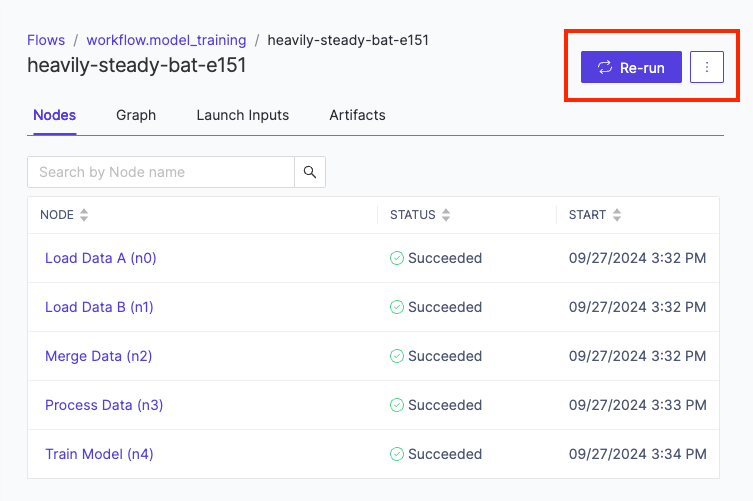
Re-running an existing Flow
-
Provide a name for the new run and choose whether to overwrite caching. For more details on caching, see the Advanced Flows section.
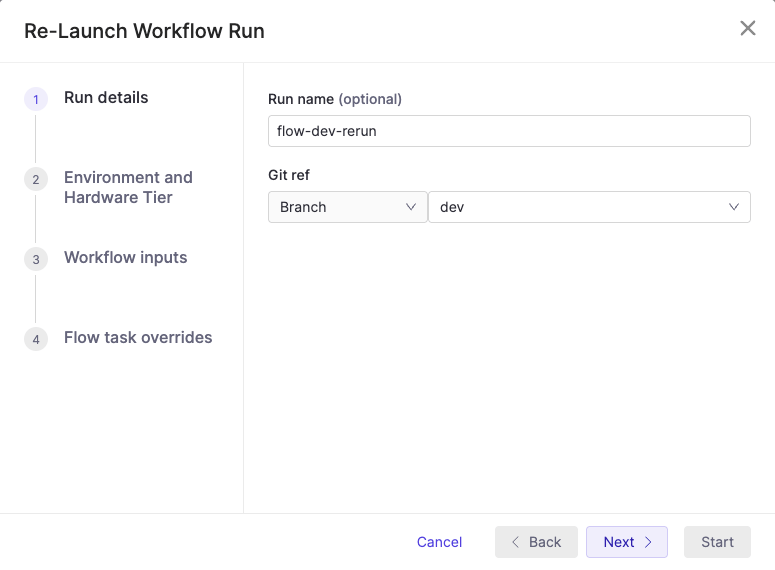
Name and configure the Flow Re-run
-
Choose whether to reuse the latest inputs or enter new input parameters, then click Launch Run to trigger the relaunch.
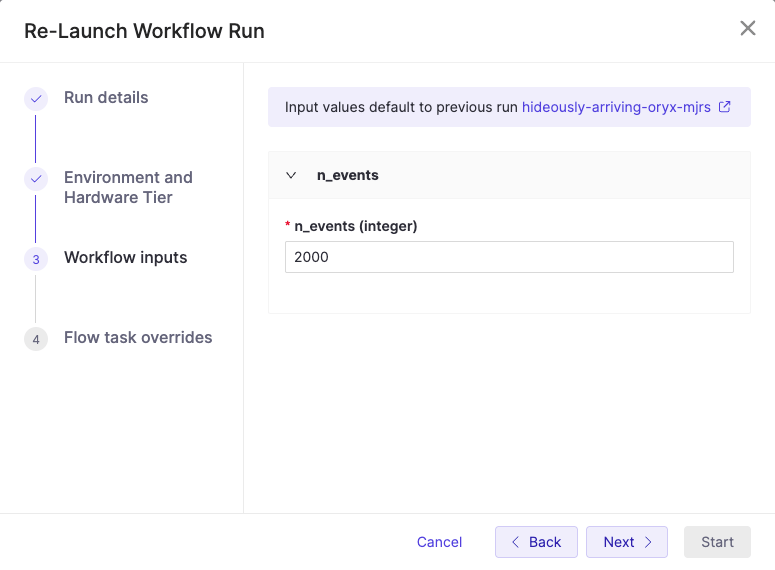
Customize workflow inputs
-
Override task-specific settings such as the Domino environment, hardware tier or Git reference for the task code. Overrides can be configured for each individual task. When a Git override is used, the files used as task inputs must exist in the new Git reference.
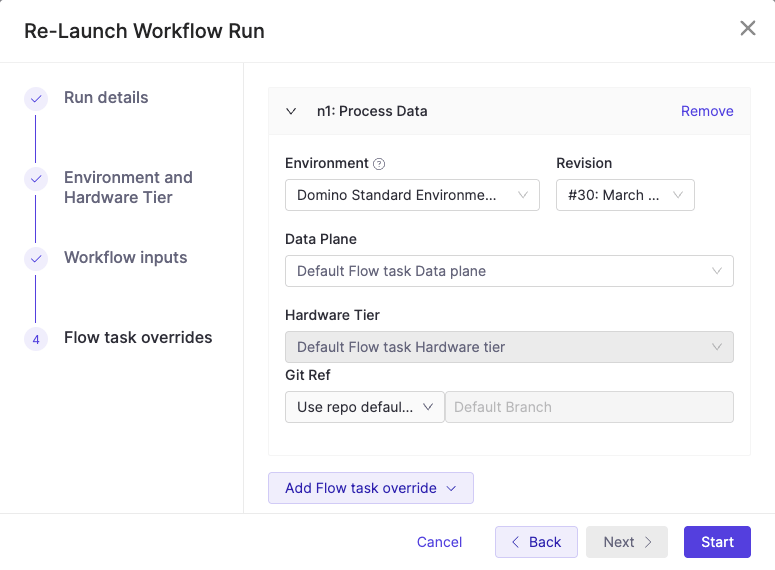
Adding a task configuration override
When relaunching a Flow, the behavior of floating
git references specified using GitRef() depend on the use_latest_git_ref argument to DominoJobTask(). See Advanced Flows for further details.Recover from failure
If a task fails due to unexpected transient issues (job timed out, out-of-capacity issues, spot instance pre-emption, internal server error, etc.), it is possible to continue execution from the point of failure rather than restarting the entire flow execution from the beginning. When this happens, you can click the Recover button of the execution view in the Domino Flows UI. This resumes the execution from the point of failure by re-using the outputs that have already been computed.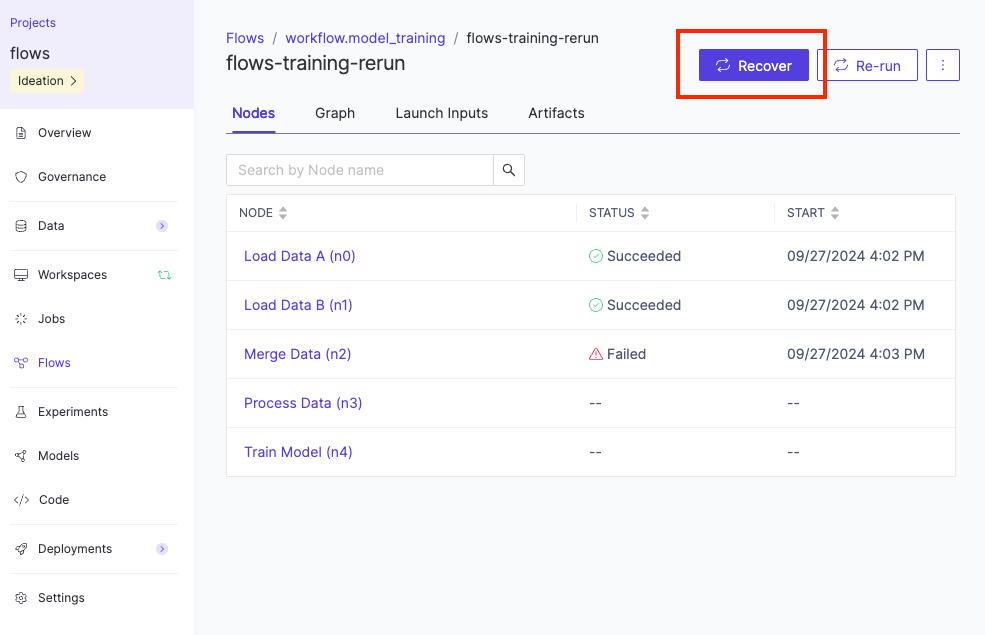
This capability is meant for transient issues only. If an execution has failed due to a user error in the code, you must relaunch the flow from the CLI after making your changes so that a new version of the code can be registered.
Rerun a single node
During experimentation, you may be focused on specific parts of the flow and want to execute just a single node with different input parameters. To do this in Flows:-
Navigate to the relevant node in the execution view of the Domino UI, and click Rerun Node.
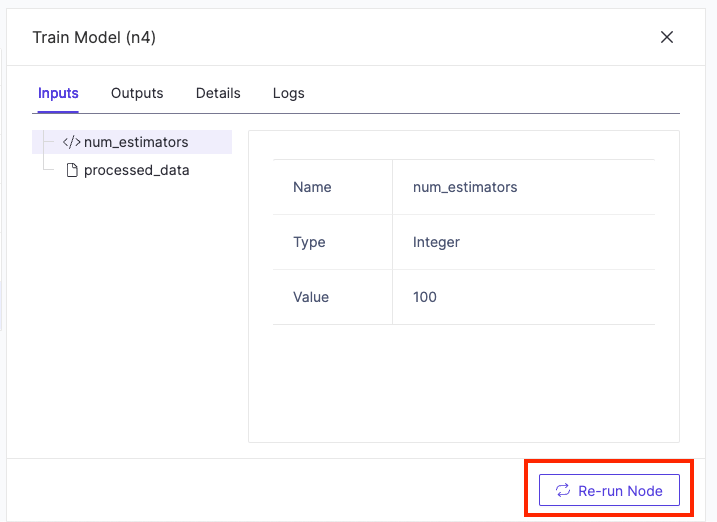
-
Provide a name for the new run and choose whether to overwrite caching. For more details on caching, see the Advanced Flows section.
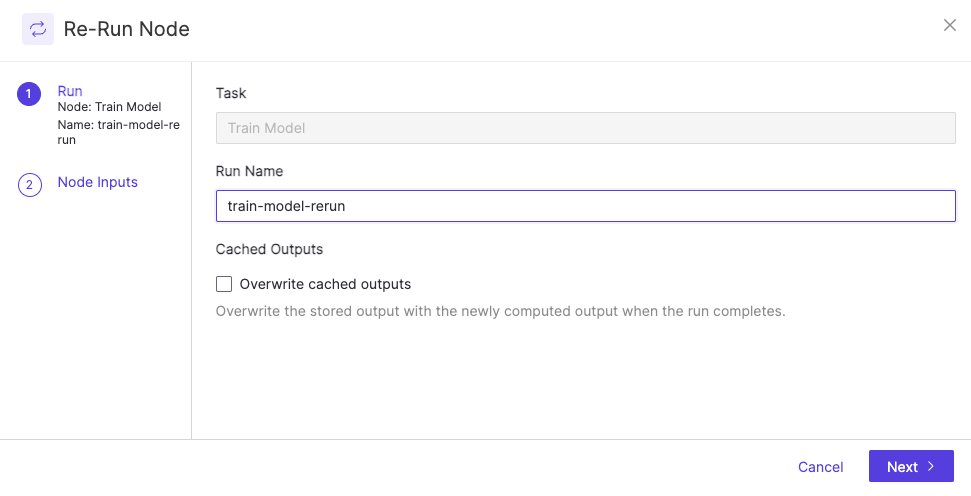
-
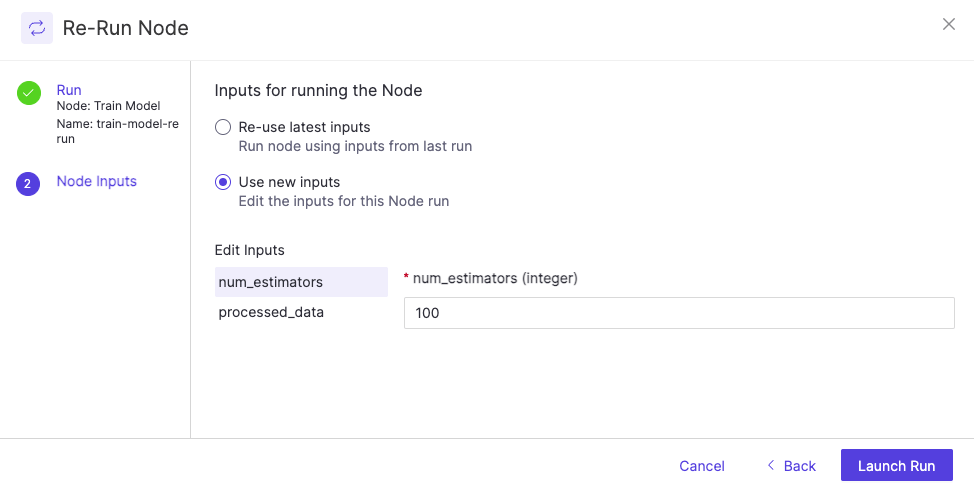
Choose whether to reuse the latest inputs or enter new input parameters. Then click Launch Run to trigger the relaunch of the node.
Relaunching flows through the UI only works in scenarios where the flow definition has not changed. If changes are being made to the original flow definition, they must be launched through the CLI so that a new version can be registered.