

Domino UI
The Domino Flows UI can be accessed by navigating to the Flows page within your Project view. This section documents some of the key experiences that are available on this page.Flow and task list
Upon landing in the Flows UI, you have access to a list of all the flows that have been registered into the Project. In this view, you can:- Keep track of and monitor all the flows in your Project.
- Click any of the flows to navigate to the details view for the flow.
- View the lineage of Flow artifacts attached to a Dataset.
- Filter between active/archived flows or search for flows by name.
- Change the number of entries and columns to display in the table.
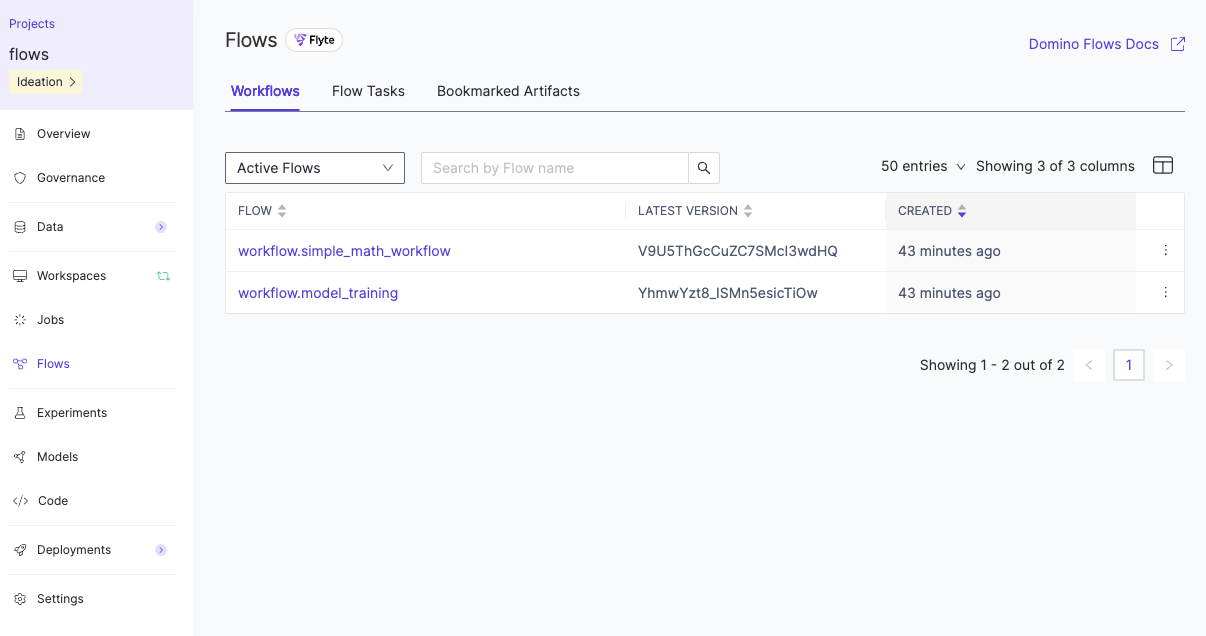
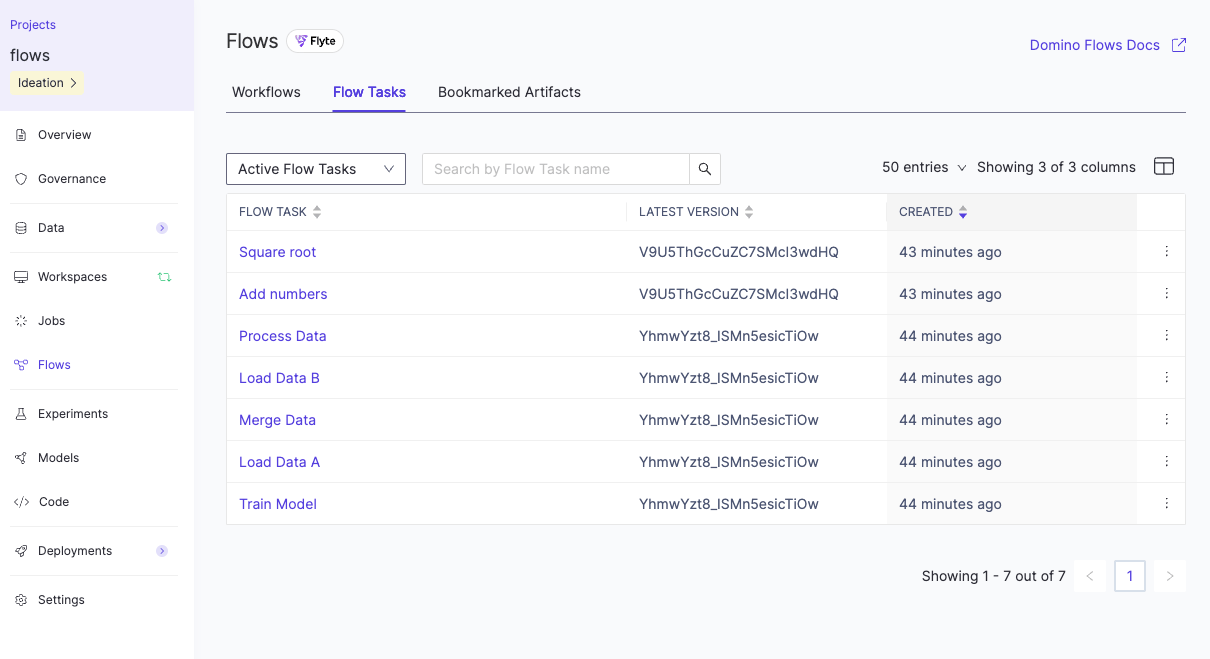
Flow Tasks pivot navigates you to a similar view but at the task level. This view is an aggregate list of tasks from across all flows registered in this project.
Flow and task details
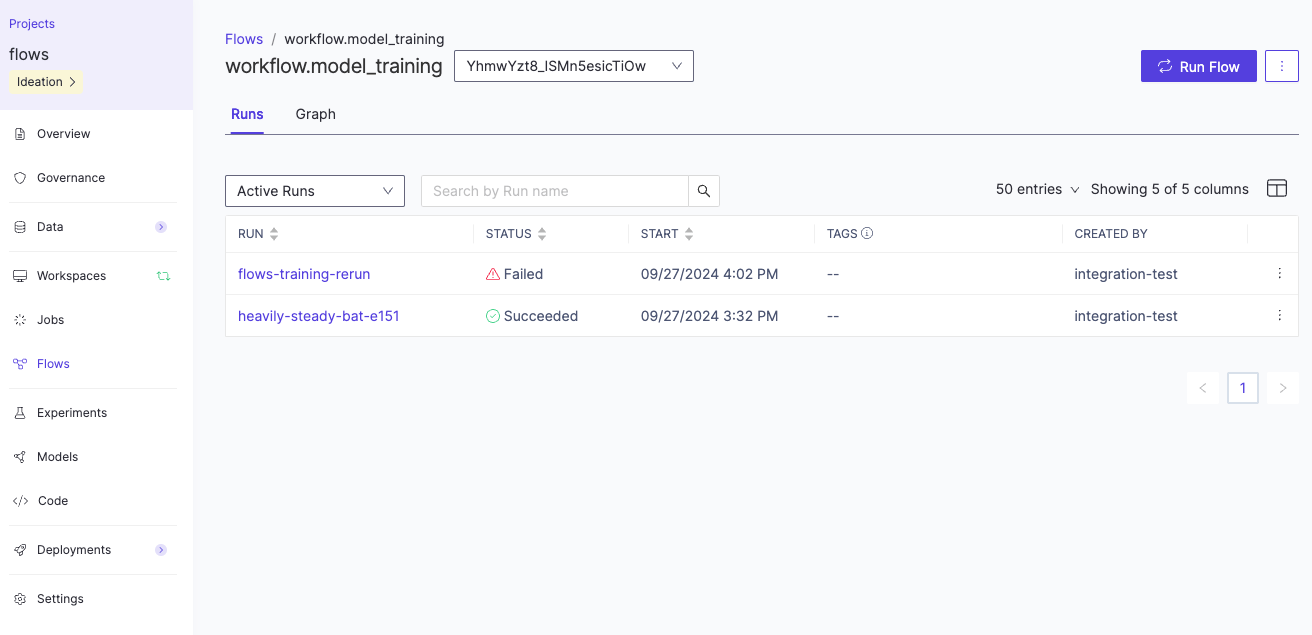
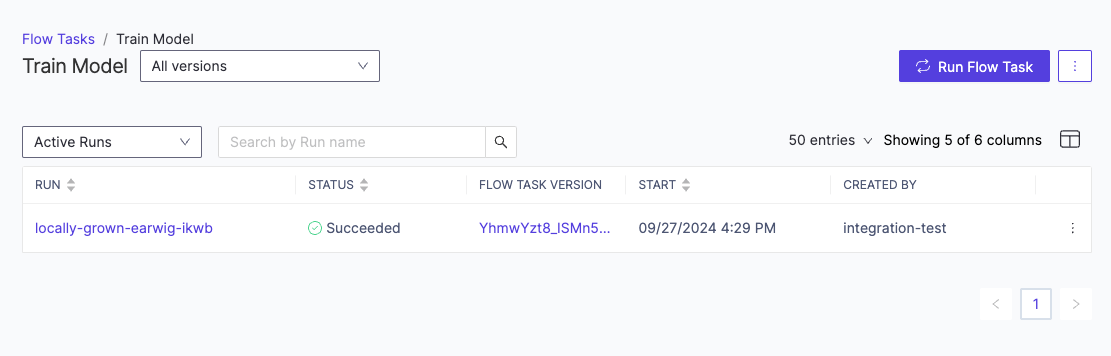
Clicking onto a flow navigates you to its details view. In this view, you can:- Run the flow.
- Visualize the flow structure by clicking on the Graph pivot.
- Keep track of and monitor the status of all the runs for that flow.
- Filter between runs of a specific version or view runs of all versions.
- Click any of the runs to navigate to a run details page.
- Rerun or archive a run by clicking on the overflow button (right side of a row).
- Filter between active/archived runs or search for runs by name.
- Change the number of entries and columns to display in the table.
- Archive the flow (overflow button on the top right corner).
Run details
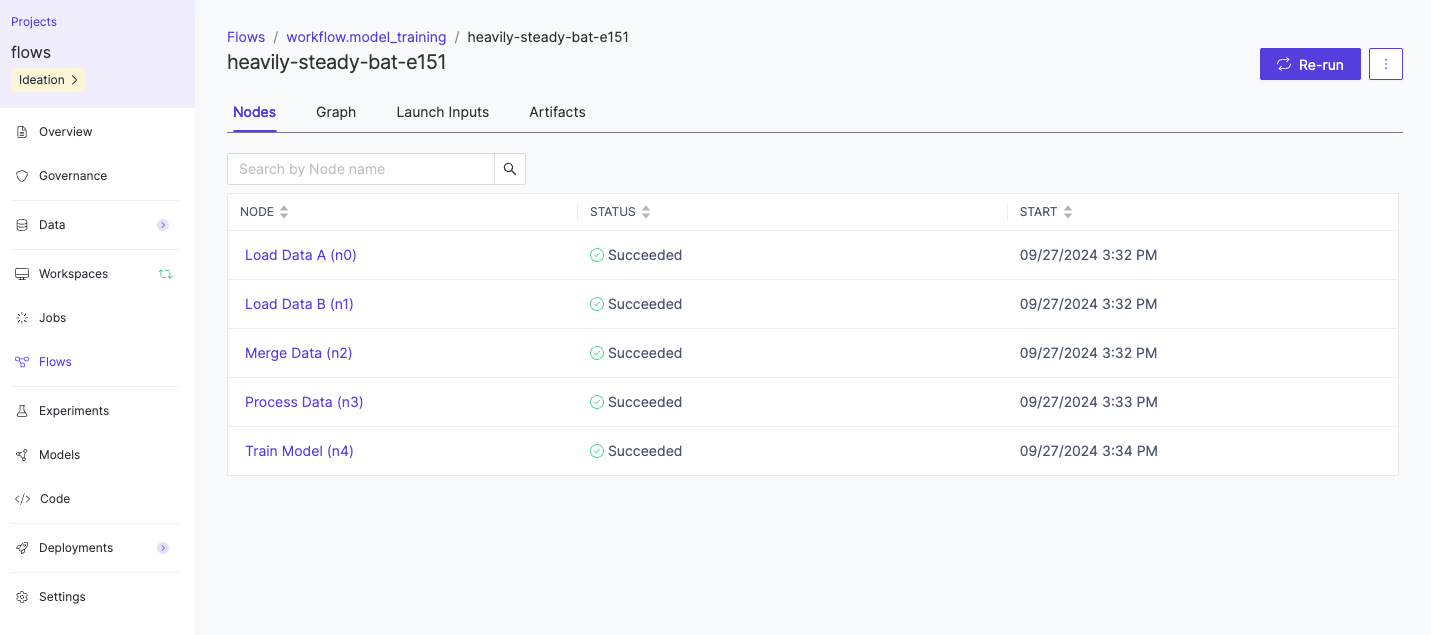
To see more details about a run, click the relevant run name to access the Run details page. In this view, you can:- View a list of all the nodes along with their execution status.
- Click into a node to view more details about the results.
- Toggle to a graph view of the run details by clicking on the Graph pivot.
- Rerun or archive the run by clicking on the overflow button (top right).
Node details
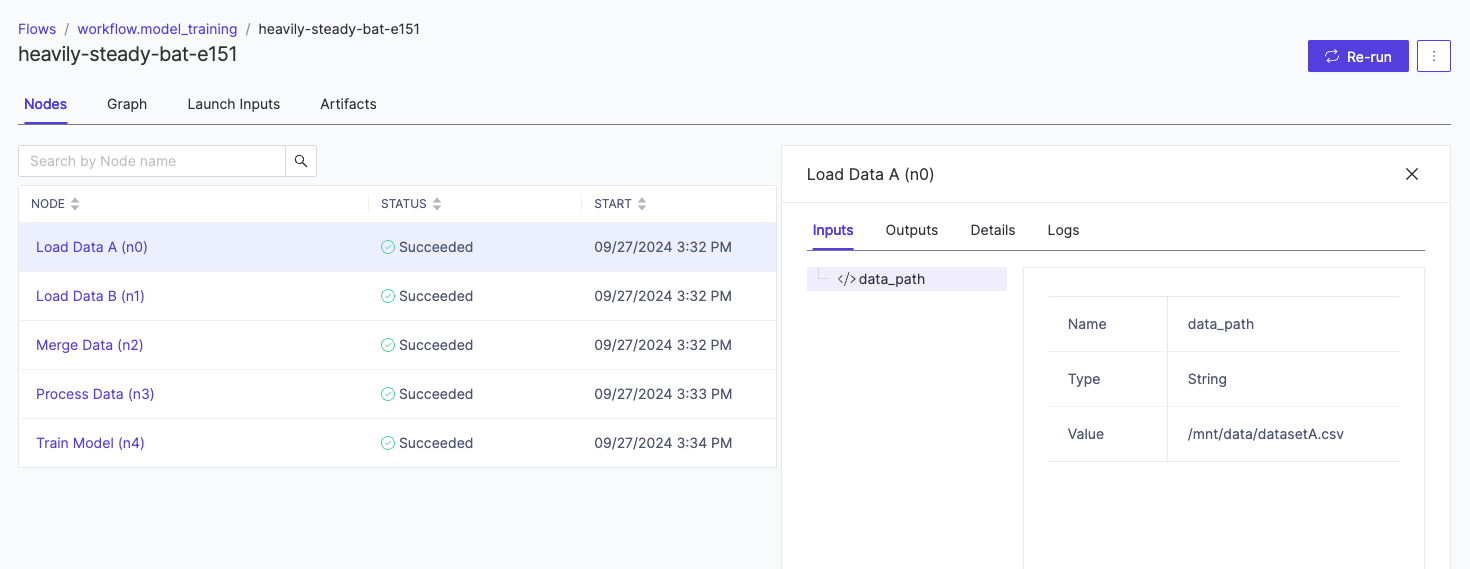
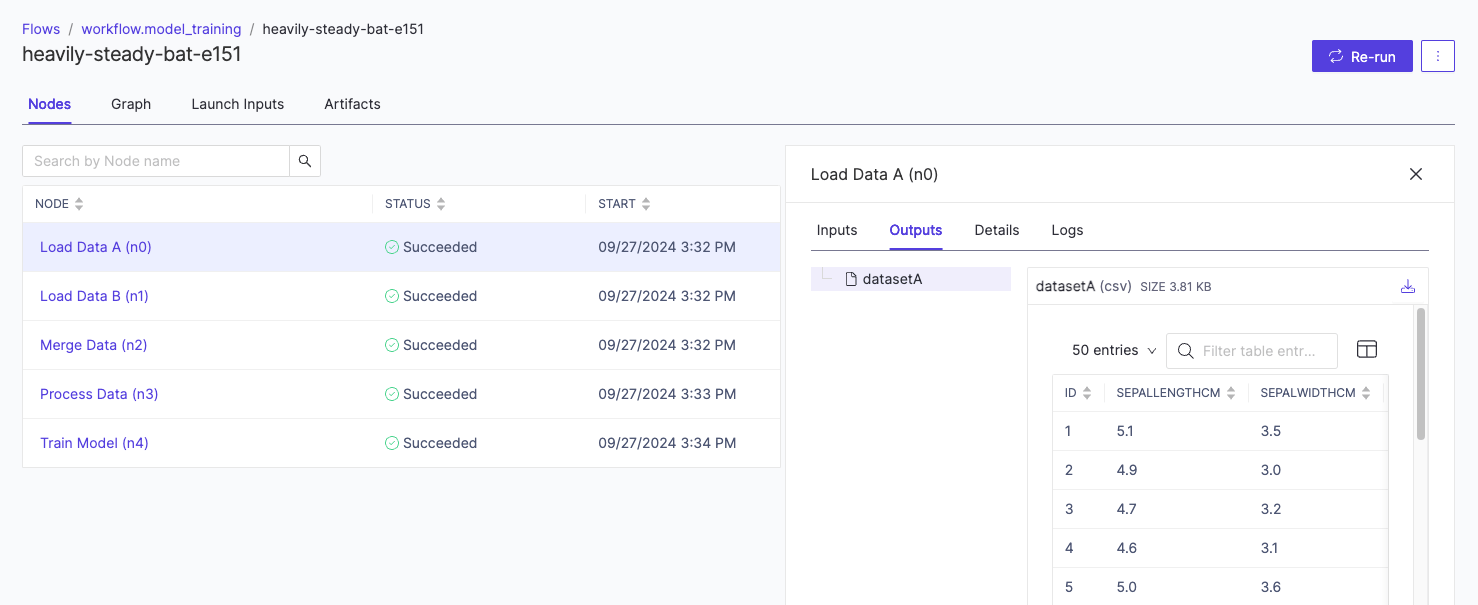
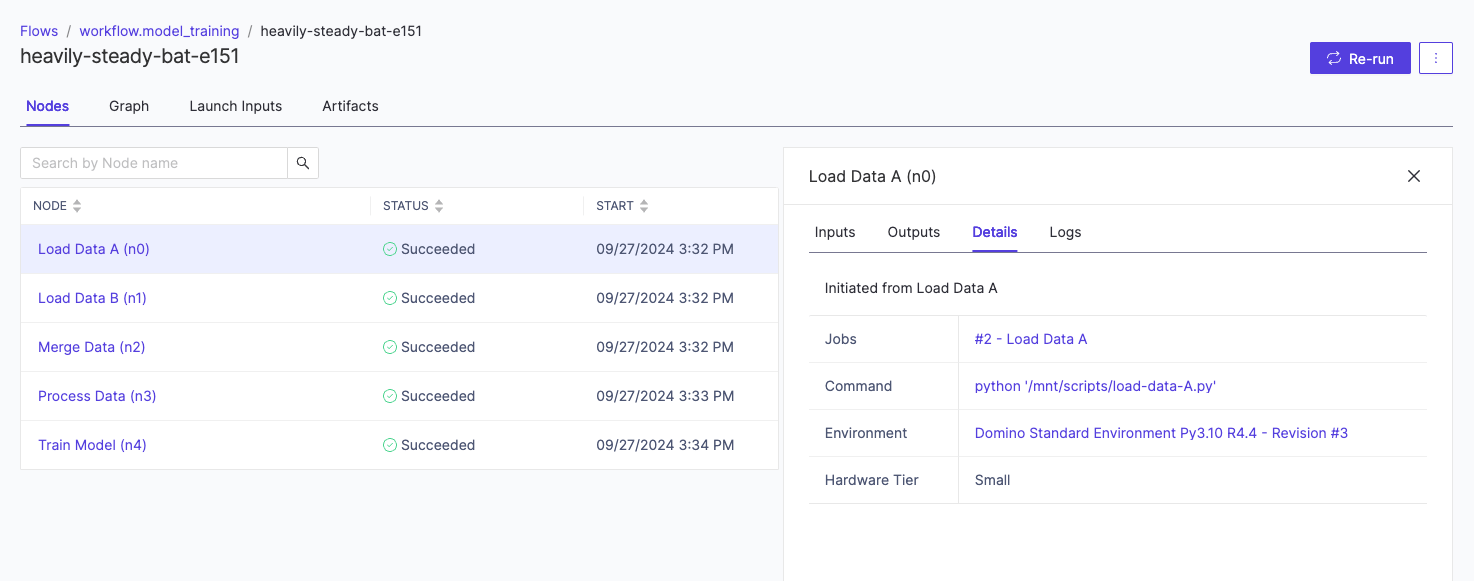
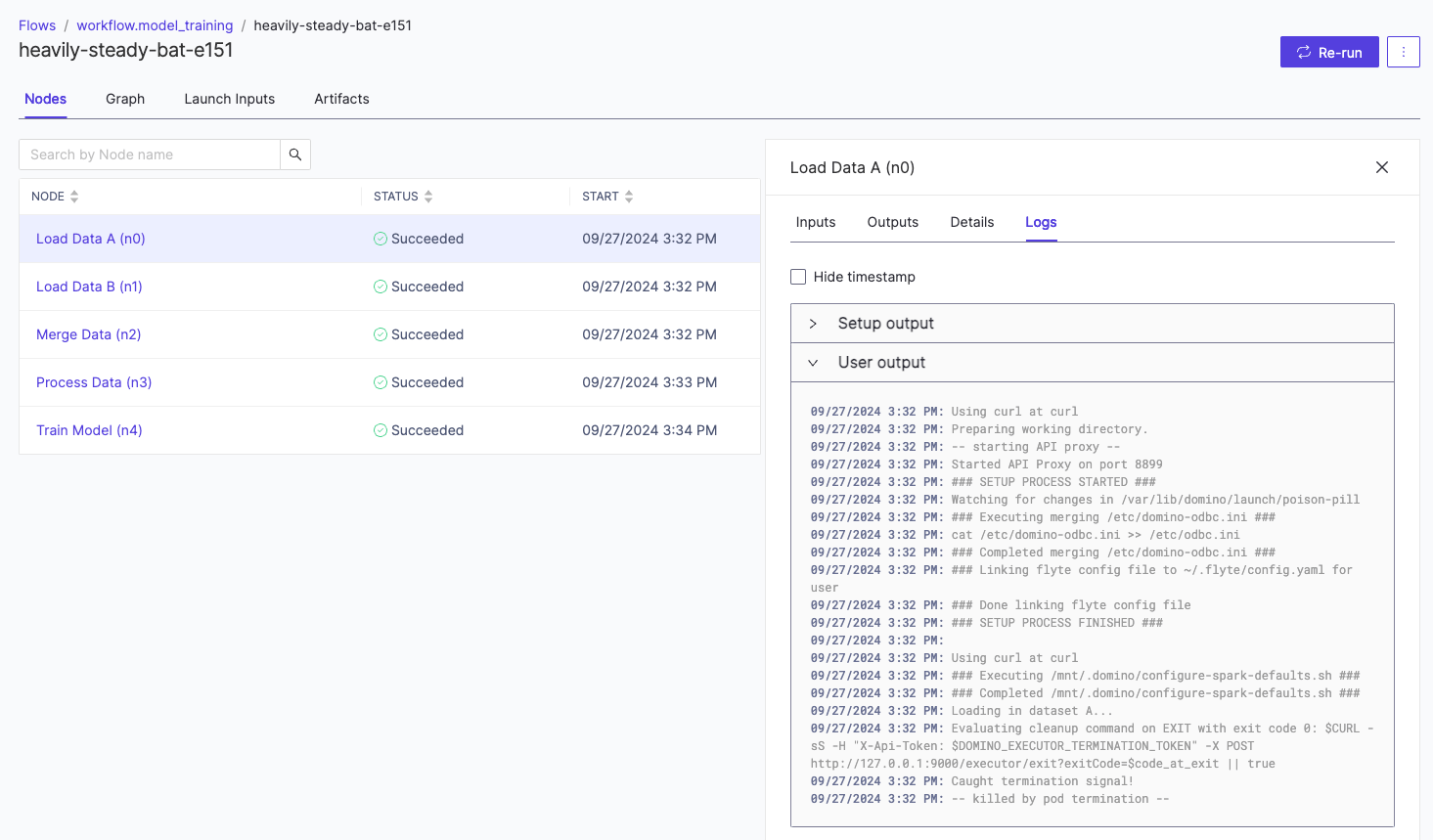
To see more details about a node, click the relevant node name, either via the Nodes or Graph pivot, to access the Node details panel. In this view, you can:-
Visualize all the versioned inputs that went into the node.
-
Visualize all the versioned outputs that came out of the node.
-
Access execution details about the node, including a link to the corresponding Domino Job.
-
Access execution logs.
To enable file rendering, you must explicitly specify the file type when you define the input or output. See defining flows for more details.
Lineage details
Once you register a Flow Artifact to a Dataset, you can view its lineage through the Details pane. You can trace the lineage path throughout the Dataset by clicking the links at the bottom.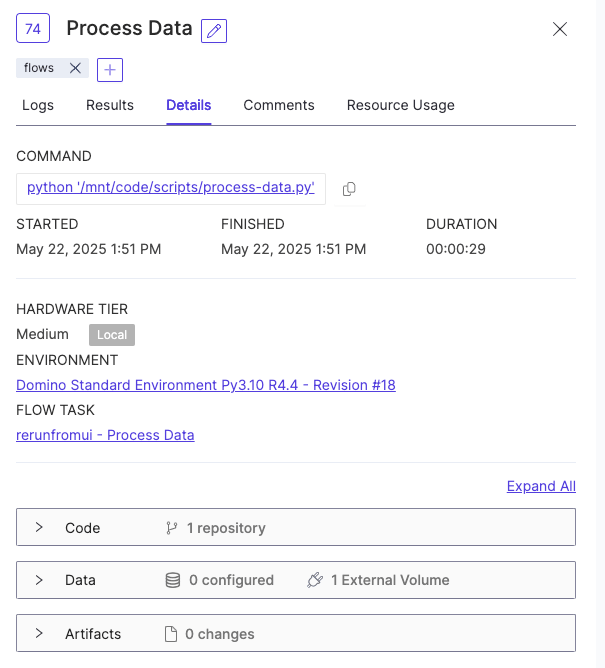
Graph view
Click into the Graph pivot to access a graph view of the execution. This helps validate that the execution flow and dependencies are defined correctly, in addition to narrowing the root cause of errors.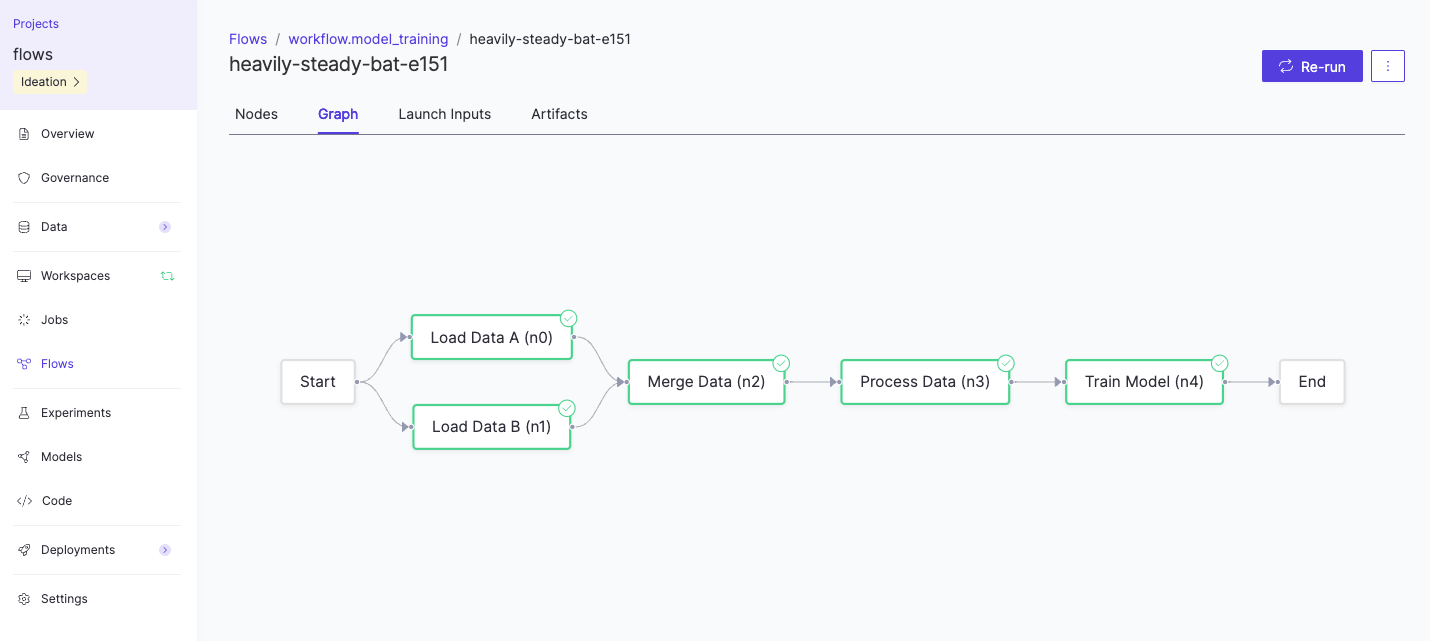
Launch inputs view
Click into the Launch Inputs pivot to view the list of the flow run’s launch parameters. Clicking into any individual launch input displays the value that was set for that run.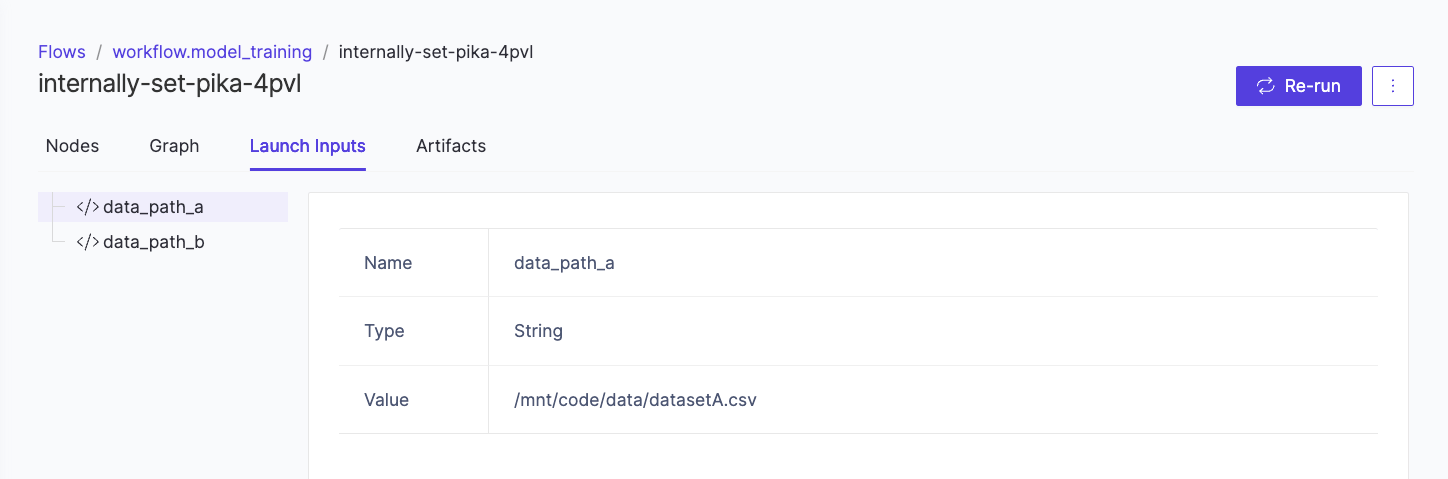
Flyte UI
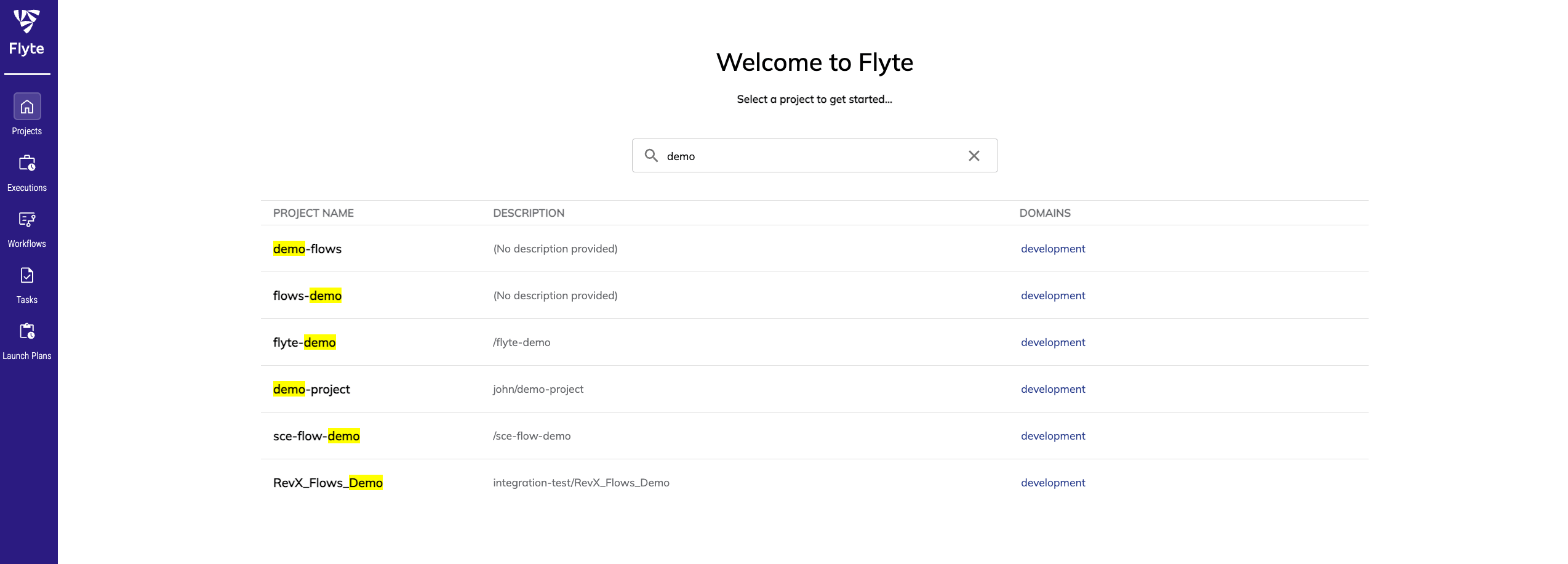
The Flyte UI can be accessed directly athttps://{DOMINO-URL}/flows/console/select-project. Within the Flyte UI, you can search for a specific Project or directly click into any of the other pages on the left. There are also several entry points from the Domino UI that take you directly to specific pages in the Flyte experience.
There is a 1:1 mapping between Projects in Flyte and Domino.
Not all native Flyte capabilities are fully supported, so there may be some actions in the Flyte UI that don’t currently work. Additional capabilities are planned for future releases.
Timeline view
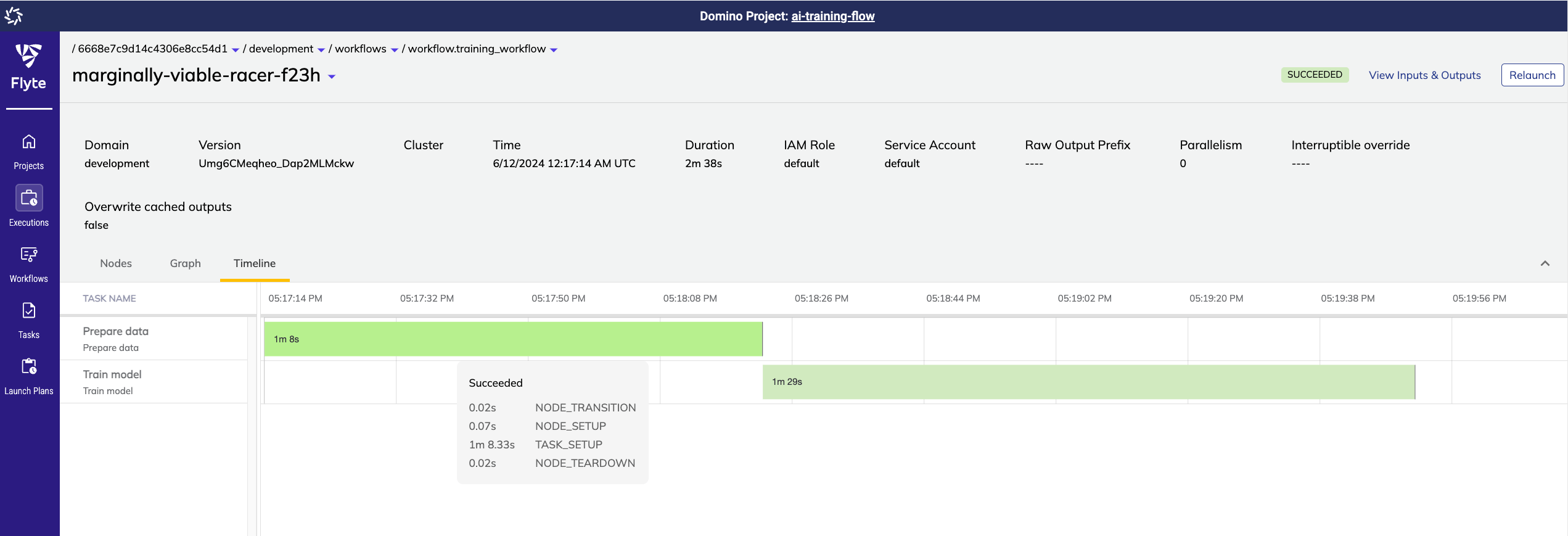
Click into any execution in the Flyte UI to access a timeline view of the flow. This helps identify execution bottlenecks and to know what the critical execution path is.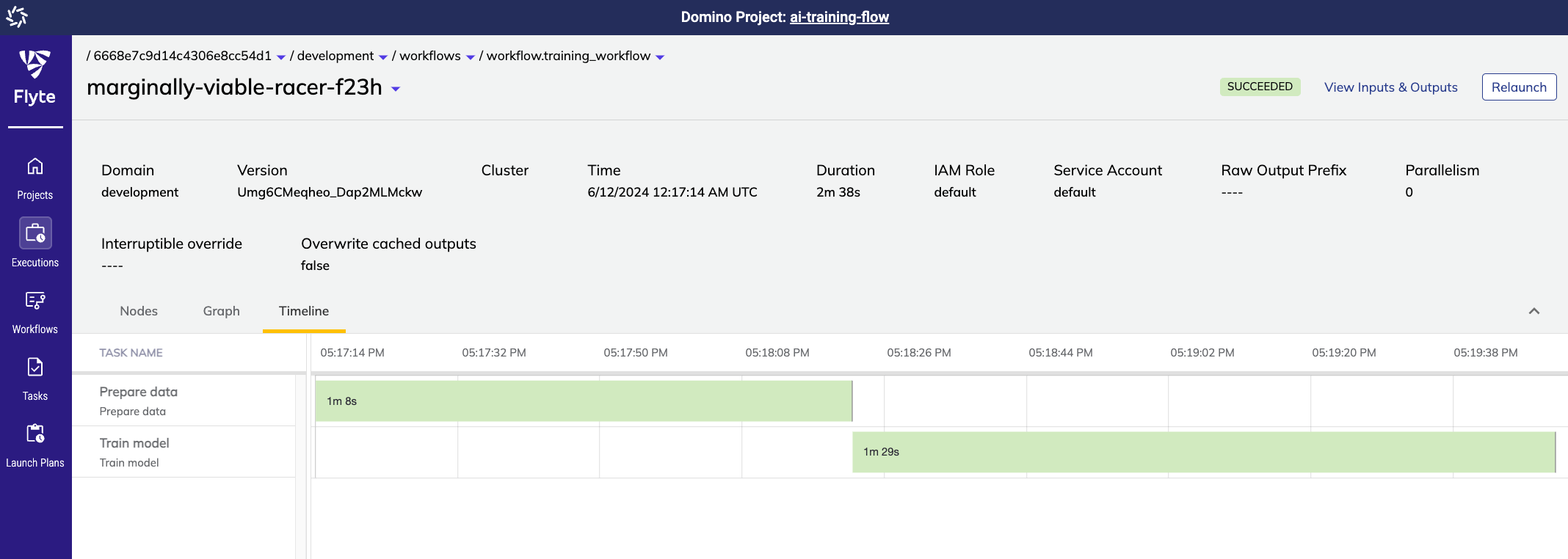
Flyte output Blob URIs
The Domino UI renders output files for each task and allows you to download them to your local machine. If you need to access the Flyte blob directly, you can find the URI for each blob in the Flyte UI.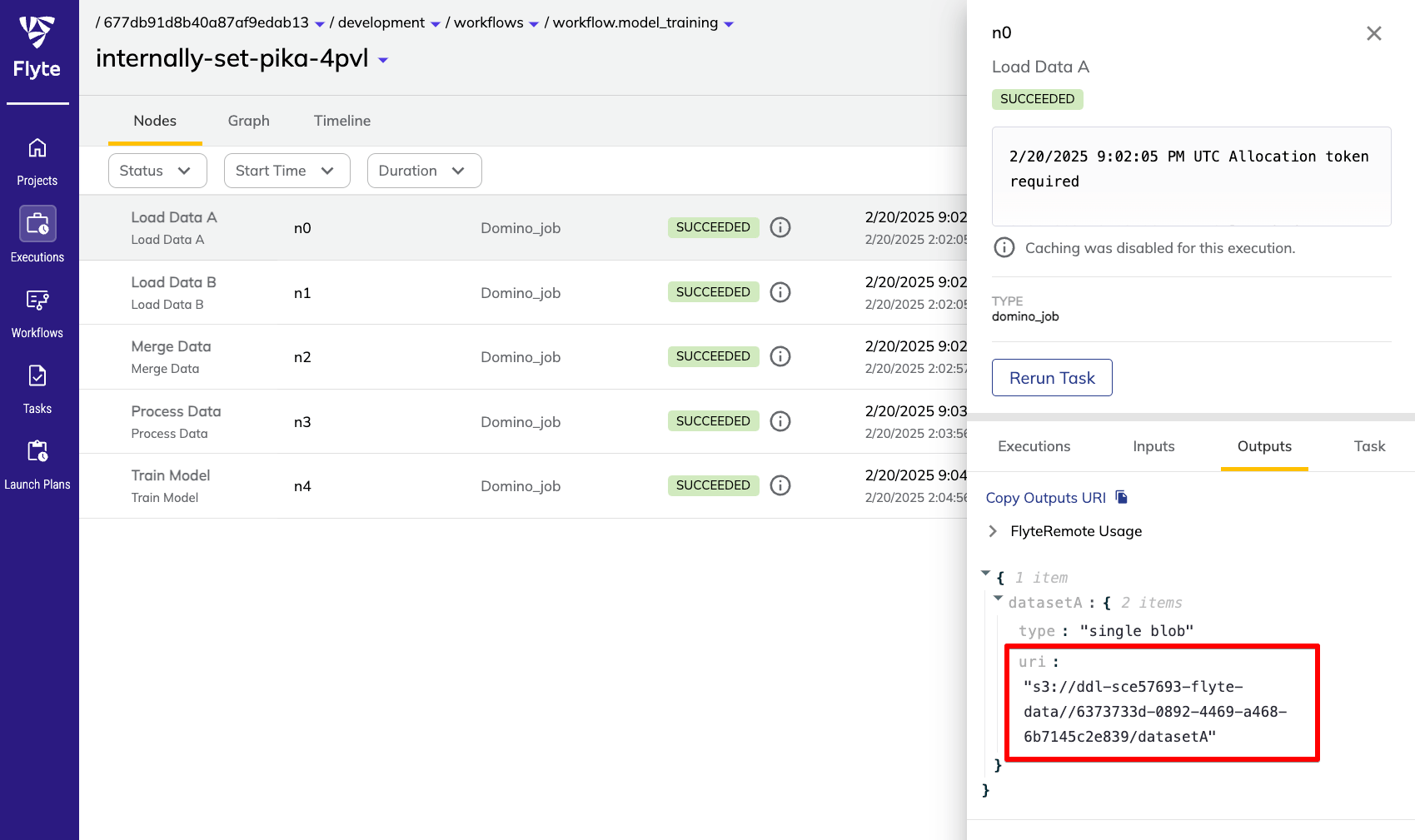
Next steps
- Examine Flow Artifacts.
- Maximize the reproducibility of Flows.